Agency Connect: create classes and issue cards for HSI, Red Cross and AHA
Agency Connect does the typing on your certifying body's website for you. It fills HSI, American Red Cross and American Heart Association forms from your CPR Enroll class, its instructor and its roster. You click the buttons that spend money or submit, and each student's card or certificate number comes back into CPR Enroll.
Agency Connect never clicks a paid or final button. Create, Submit, Pay, Confirm and Finish are always your click.
Part 1: Set up (once)
You will find Agency Connect under Operate in the left menu. It has two tabs: Runs and Vouchers & Codes.
1. Switch on your certifying body
Go to Settings › Integrations & Connections and switch on HSI, Red Cross or AHA in the certification bodies section. For the details of each body, see Setting Up Agency Connect for HSI and American Red Cross.
2. Install and pair the extension
Agency Connect works through a Chrome extension, in the browser where you are signed in to your certifying body. On Settings › Integrations & Connections › Agency Connect, install the CPR Enroll Agency Connect extension, click Pair a new device to get a one-time code, and enter the code in the extension's popup.
Everyone pairs their own computer, laptops included. A run uses your own sign-in at the certifying body, so pairing is per person and per computer.
Agency Connect never stores or types your HSI, Red Cross or AHA password. When a site signs you out during a run, the run pauses and asks you to sign in, then carries on.
3. Map your courses
Agency Connect needs to know which HSI, Red Cross or AHA course matches each of your courses. Go to Courses, edit the course, and open Credentials › Agency Connect. Choose the matching course for each certification the course issues. A course that issues two certifications can map each one to its own product.
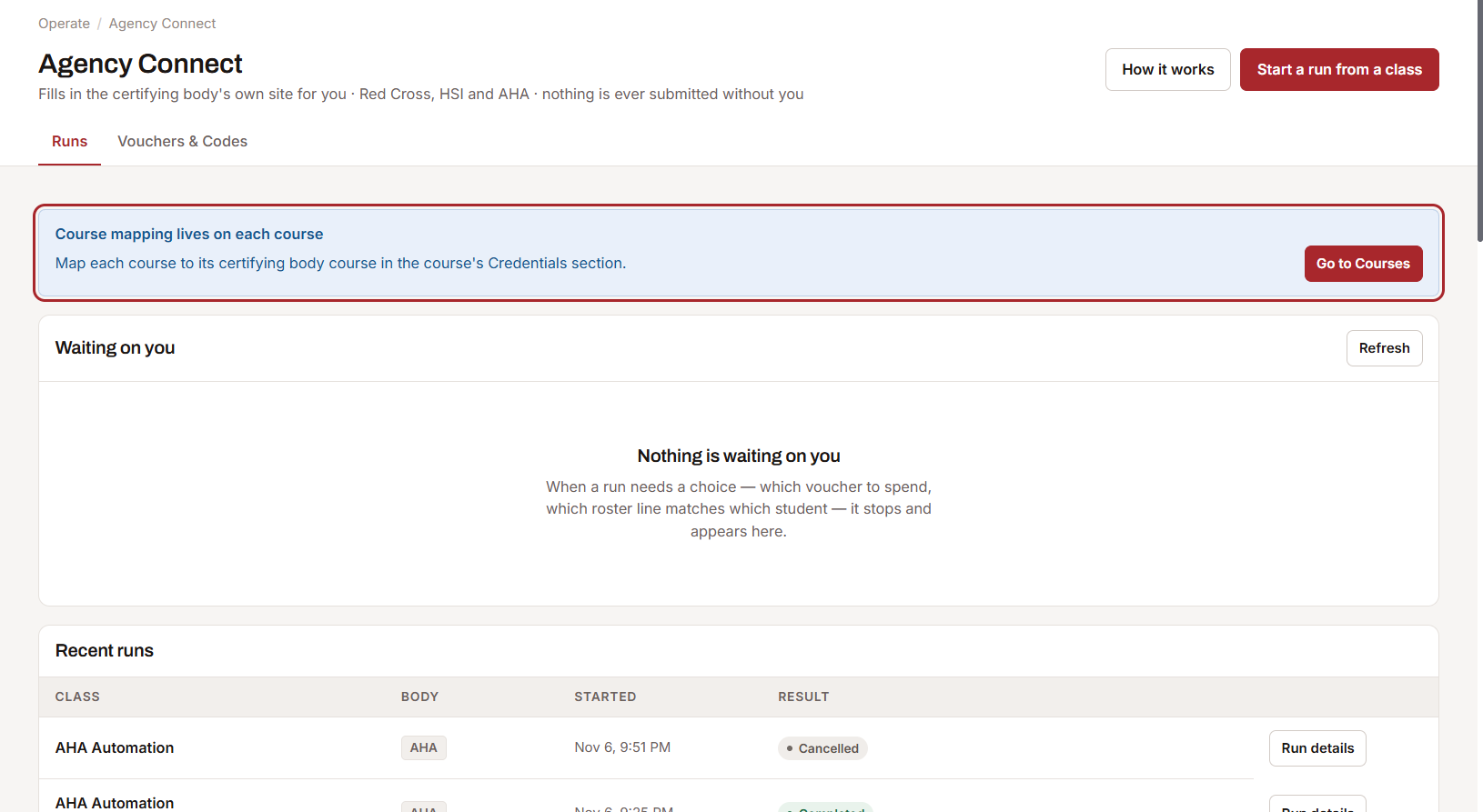
Course mapping used to be a tab on the Agency Connect page. It now lives on each course. The Agency Connect page shows a reminder with a Go to Courses button.
4. AHA only: instructor ID and training site
For AHA, each instructor needs their AHA Instructor ID and their Training Center and Training Site alignments on their profile. On the class roster, choose the Training Center and Training Site the eCards are issued under.
Part 2: Start a run from the class
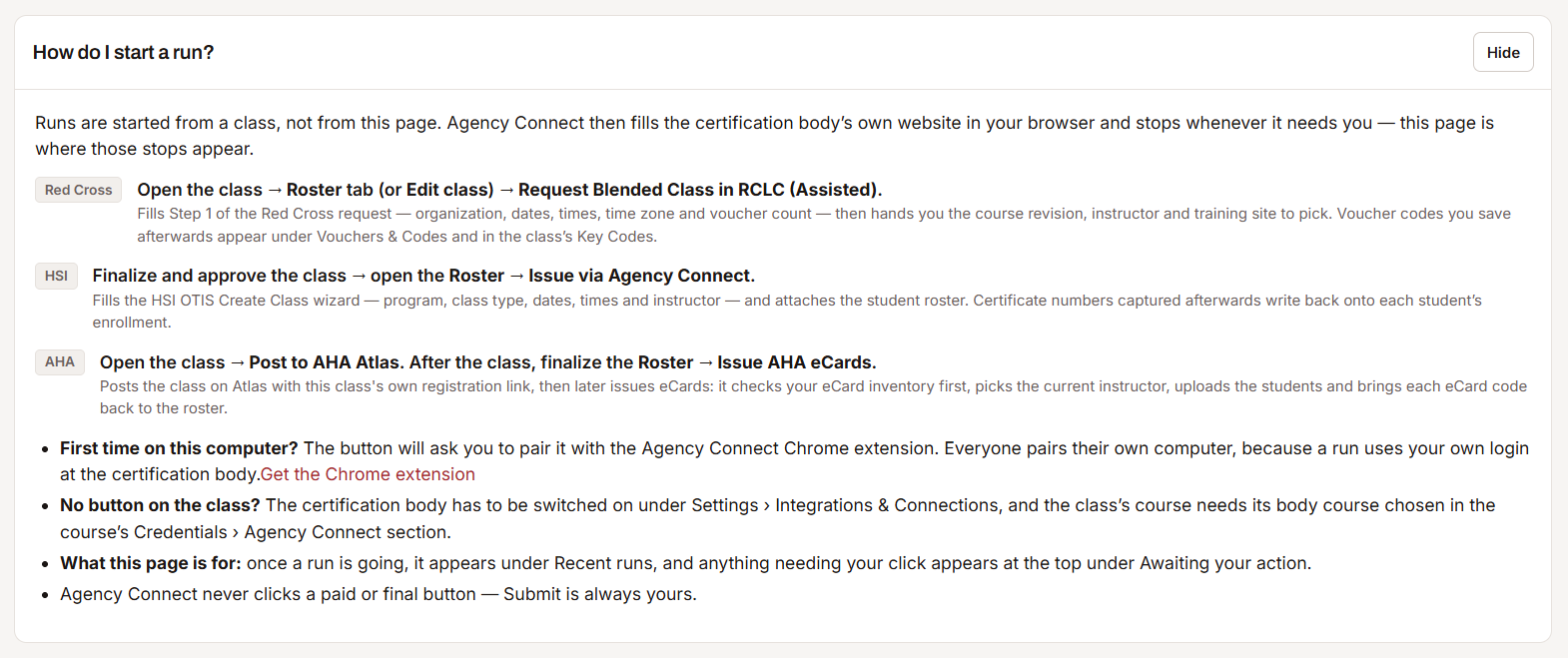
Runs always start from a class, never from the Agency Connect page. Open the class and click the body's button, then Start. The certifying body's site opens in your browser and fills in. When the run needs you, it stops and tells you exactly what to check and which button to click.
The Agency Connect page is where those stops appear. Waiting on you lists every run that needs your click, and Recent runs lists the runs in progress and finished. Click How it works on that page for a reminder of where each body's button is.
HSI: create the class and issue digital cards
Finalize and approve the class, open the Roster and click Issue via Agency Connect.
- Agency Connect creates the class in HSI OTIS with the program, class type, dates, times, location and instructor.
- It checks the program has enough credits, and stops to tell you if it does not.
- It imports the students from the roster and confirms each one is listed in OTIS.
- You spend the credits and issue the cards in OTIS.
- Agency Connect reads each student's digital card number and saves the card file to the class documents.
- Check the numbers on the run page and click Save certificate numbers.
Red Cross: certificates for a class you taught
Open the class and click Issue Red Cross Certificates (Assisted).
- Agency Connect opens Course Record Entry in Red Cross Learning Center and fills the organization, course, session dates, times, time zone and number of participants.
- It types each participant from the roster: name, email and phone.
- You set each student's result, then pay and submit in Red Cross.
- Agency Connect opens the class's Student Certification Report and reads each student's certificate code from its QR Code column.
- Check the codes on the run page and click Save certificate numbers.
Red Cross: vouchers for a blended class
Open the class, go to the Roster tab (or Edit class) and click Request Blended Class in RCLC (Assisted).
- Agency Connect fills Step 1 of Request Blended Class (organization, course, session dates, times, time zone, number of participants and vouchers) and Step 2 (the participants).
- You check the course revision, instructor and training site, then click Next and Submit. Submit adds the vouchers to your Red Cross order.
- Agency Connect opens the class's Vouchers tab by itself and reads the signup link of every unused voucher. Vouchers a learner has already claimed are skipped.
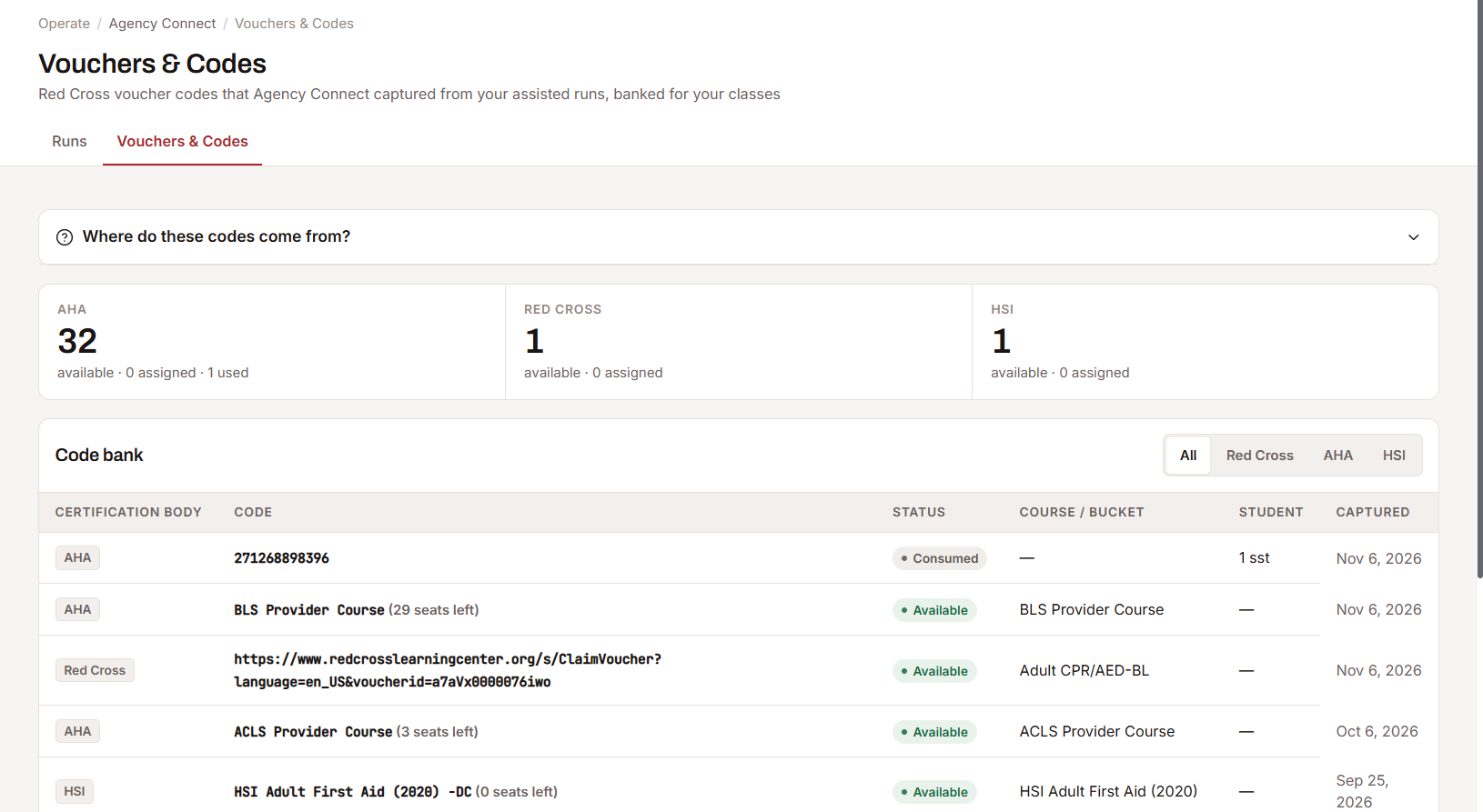
- Check the links on the run page and click Save voucher codes.
Saved vouchers appear under Agency Connect › Vouchers & Codes and in the class's Key Codes, ready to send to a student with Send code.
AHA: post the class to Atlas
Open the class and click Post to AHA Atlas (Assisted).
- Agency Connect opens Create a Class in AHA Atlas.
- It fills the course, class format, language, proof of completion, location, seats, date, time and cutoff days.
- It picks the instructor by AHA Instructor ID, then fills the price, enrollment model, your class registration link and the contact details.
- You check the form and click Create in Atlas.
- The class is marked as posted to AHA in CPR Enroll. If Agency Connect cannot tell that Atlas created it, the run asks you to confirm.
AHA: issue eCards
After the class, finalize the Roster and click Issue AHA eCards (Assisted).
- Agency Connect opens AHA eCards, picks the Training Center and Training Site from the roster and reads how many eCards you have for the course. If there are not enough, it stops and tells you.
- It selects the course and instructor and enters each student with the course date.
- You check the students and click Continue, then Finish. This uses your eCard inventory.
- Agency Connect reads every issued eCard code from the confirmation page and matches it to the student.
- Check the codes on the run page and click Save certificate numbers.

Part 3: See what was issued
Open the class and click Review Roster. Above the roster, Issued cards lists each student with their email and their card or certificate number. For HSI and Red Cross, click Download card to get the student's card. AHA emails eCards straight to students, so the grid shows the code and Emailed by AHA.
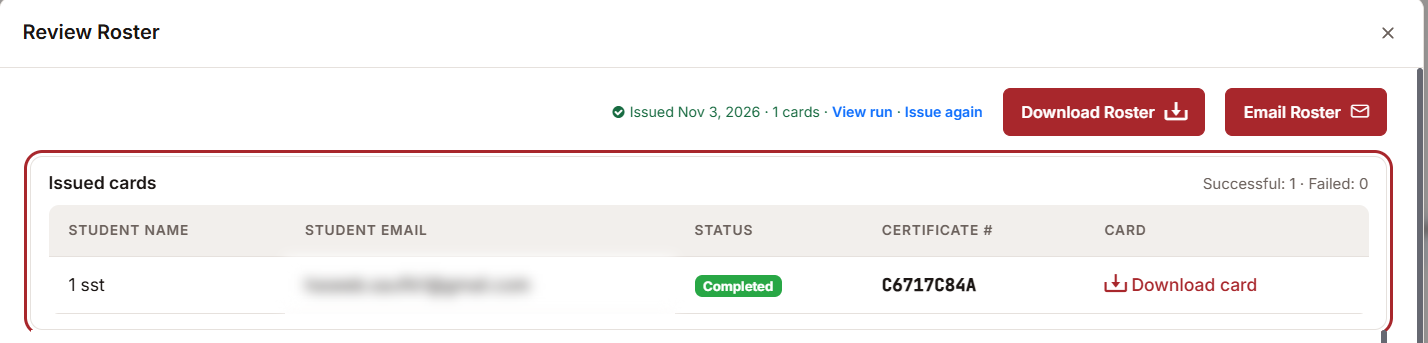
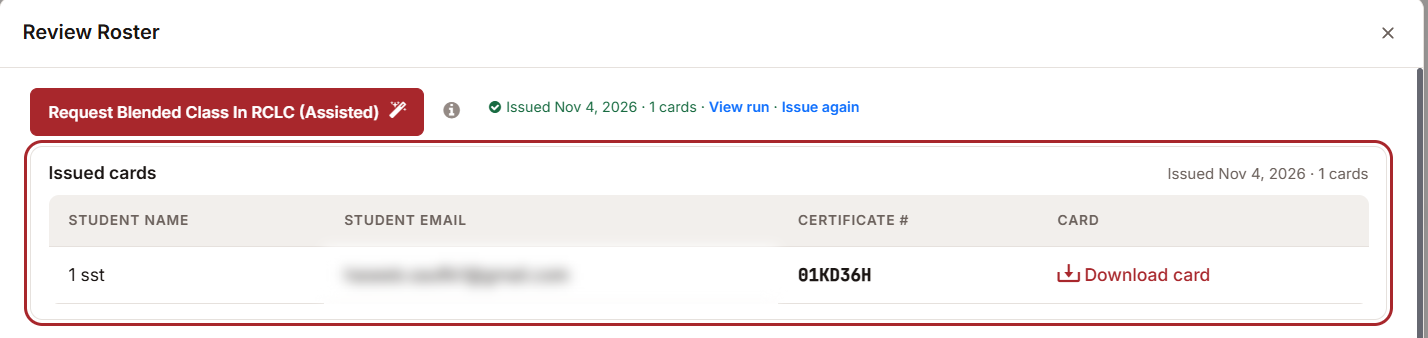
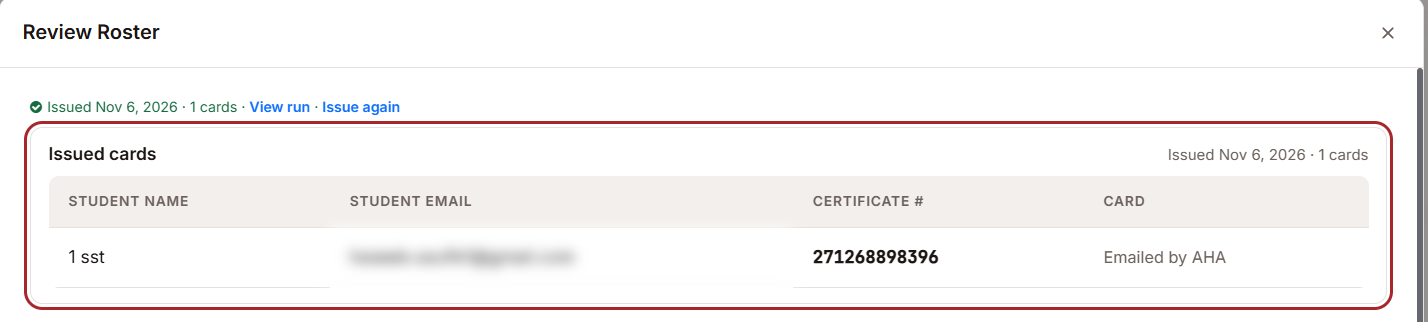
Cards are stored privately. Each Download card link is made fresh when you open the roster and stops working after a while, so open the roster again whenever you need a card.
The numbers are also saved on each student's enrollment, so they appear wherever you already see certificate numbers.
No button on the class?
Two things must both be true before a class shows its Agency Connect button:
- The certifying body is switched on under Settings › Integrations & Connections.
- The class's course is mapped under Courses › Edit course › Credentials › Agency Connect.
Some buttons also wait for the class: Issue via Agency Connect and Issue AHA eCards (Assisted) appear once the roster is finalized.
Best practices
- Keep the Agency Connect page open in a tab while a run is going. That is where it tells you it needs you.
- Stay signed in to the certifying body's site, in the same Chrome as the extension.
- Stay with the run. It stops at every step that spends money or submits, and waits for you.
- One run at a time. Finish or cancel the current run before you start the next one.
- AHA locations: Atlas only offers locations saved in your Atlas account. If the class's location is not there, pick the right one in Atlas before you click Create.
- Something went wrong? Open the run and read what it is waiting for. Use Mark as complete if you finished the work yourself, or Cancel run to start again.
Frequently asked questions
Where do I start a run?
From the class: its Roster tab, or Edit class for Red Cross vouchers. Not from the Agency Connect page.
Will it submit or pay for anything on my behalf?
No. Agency Connect never clicks a paid or final button.
Do my colleagues need to pair too?
Yes. Each run uses that person's own sign-in at the certifying body, so everyone pairs their own computer.
Where do the card and certificate numbers end up?
On each student's enrollment and in the Issued cards grid on the class roster.
Where do Red Cross voucher codes end up?
Under Agency Connect › Vouchers & Codes and in the class's Key Codes.
Where did Course Mapping go?
It moved from the Agency Connect page to each course: Courses › Edit course › Credentials › Agency Connect.
Was this article helpful?
Related articles
- What Is Agency Connect and How Do Assisted Runs Work?Agency Connect posts your classes and issues certificates on certification-body websites, using a Chrome extension that fills the forms for you. You stay in control — Agency Connect never clicks a paid or final button. Submit is always yours. Before You Begin - Agency Connect sits under Operate in tAgency Connect
- Setting Up Agency Connect for HSI and American Red CrossAgency Connect has to be switched on and configured per certification body before any class will offer an assisted run. This article covers that setup. Before You Begin - Configuration lives at Settings > Integrations & Connections, in the Certification Bodies section. - Have your certification-bodyAgency Connect
- Course Mapping and Managing Vouchers & CodesAgency Connect can only run on your behalf once it knows two things: which program in the certification body’s portal each of your courses corresponds to, and where the voucher codes it collects should be banked. This article covers both — Course Mapping and Vouchers & Codes. Before You Begin - AgenAgency Connect