Custom Object Templates: Pre-Built CRM Setup in One Click
Custom Object Templates let you create industry-specific CRM structures without building everything from scratch. Each template includes ready-to-use Custom Objects, fields grouped into folders, and associations—so you can organize data around real-world processes faster. Templates are available from the Template Library and can be previewed before you apply them.
TABLE OF CONTENTS
- What are Custom Object Templates?
- Key Benefits of Custom Object Templates
- Template Library Visibility Controls
- How to Set Up Custom Object Templates
- Manage Template Visibility (Agency Admins)
- Frequently Asked Questions
What are Custom Object Templates?
Custom Object Templates are pre-built configurations that help you quickly create Custom Objects for common industries and use cases. Instead of manually deciding which objects, fields, folders, and associations to create, you can start with a ready-made structure and adjust it to fit your needs.
Custom Objects are used to track business data that does not fit neatly into standard CRM records like Contacts, Companies, or Opportunities. Templates make that setup faster by giving you a practical starting point based on common workflows.
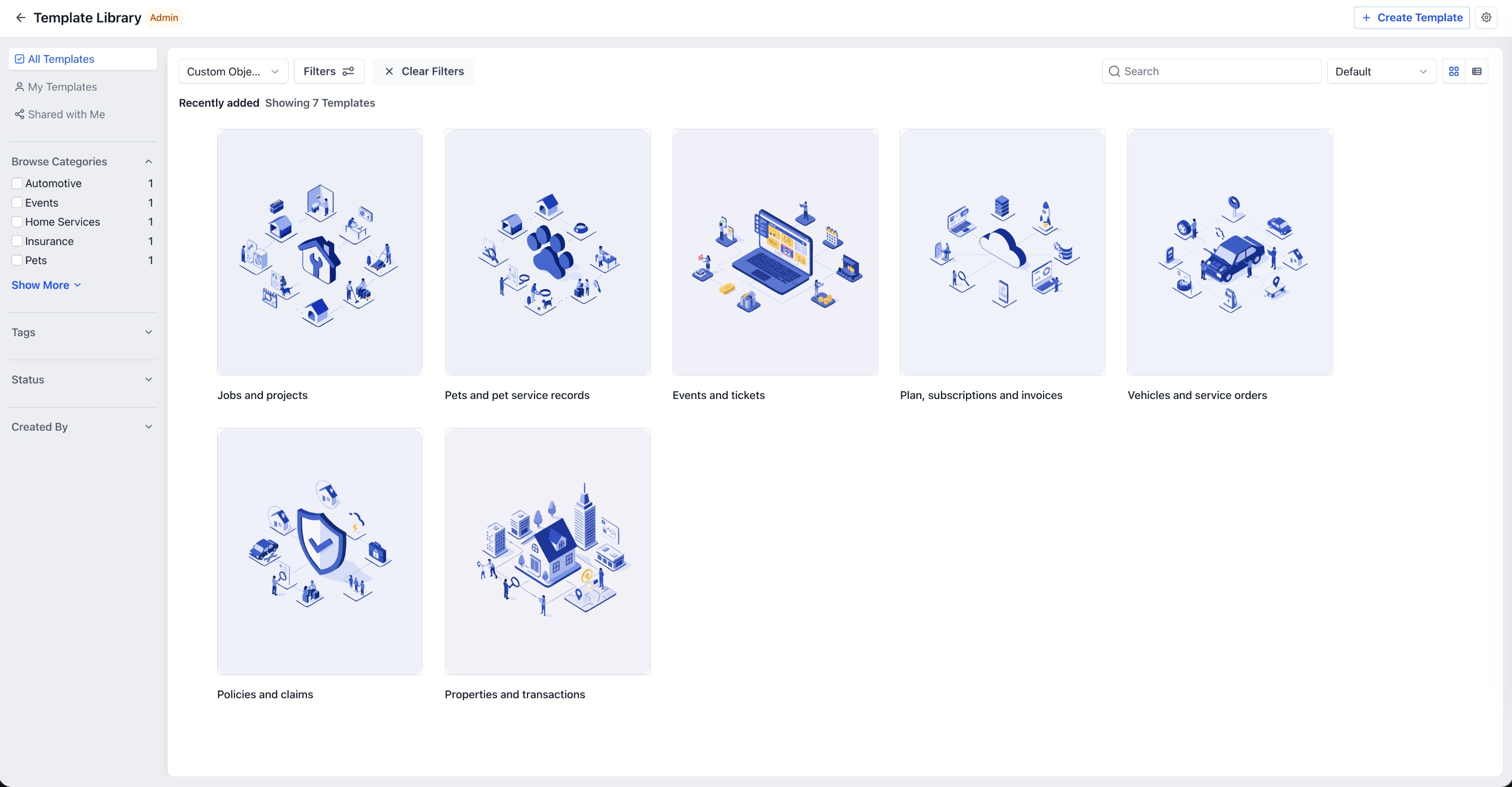
Custom Object Templates are available in the Template Library alongside other template modules. You can browse supported industries, preview template details, and apply a template when creating Custom Objects.
Key Benefits of Custom Object Templates
Custom Object Templates help teams launch structured CRM setups faster while still allowing flexibility for your processes.
- Faster Setup: Create Custom Objects, fields, folders, and associations in one flow instead of building each part manually.
- Industry-Specific Starting Points: Choose from templates designed for common industries such as Real Estate, Insurance, Automotive, SaaS, Events, Pets, and Home Services.
- Easier Data Organization: Use predefined fields and folders to keep related information grouped clearly.
- Built-In Relationship Mapping: Templates can include associations so records can be connected across Companies, Opportunities, and Custom Objects.
- Preview Before Applying: Review the template’s objects, fields, associations, description, tags, and prerequisites before using it.
Template Library Visibility Controls
If your Template Library has visibility controls enabled, administrators can use those settings to manage which template modules or categories are visible to users. These controls can help keep the Template Library focused.
Note: Hiding Template Library access typically restricts browsing or importing new templates. Assets already created from templates usually remain available for editing.How to Set Up Custom Object Templates
Applying a Custom Object Template creates a ready-made object structure you can use as a starting point for your CRM setup. Reviewing the template before applying it helps confirm the objects, fields, and associations match your process.
To use a Custom Object Template:
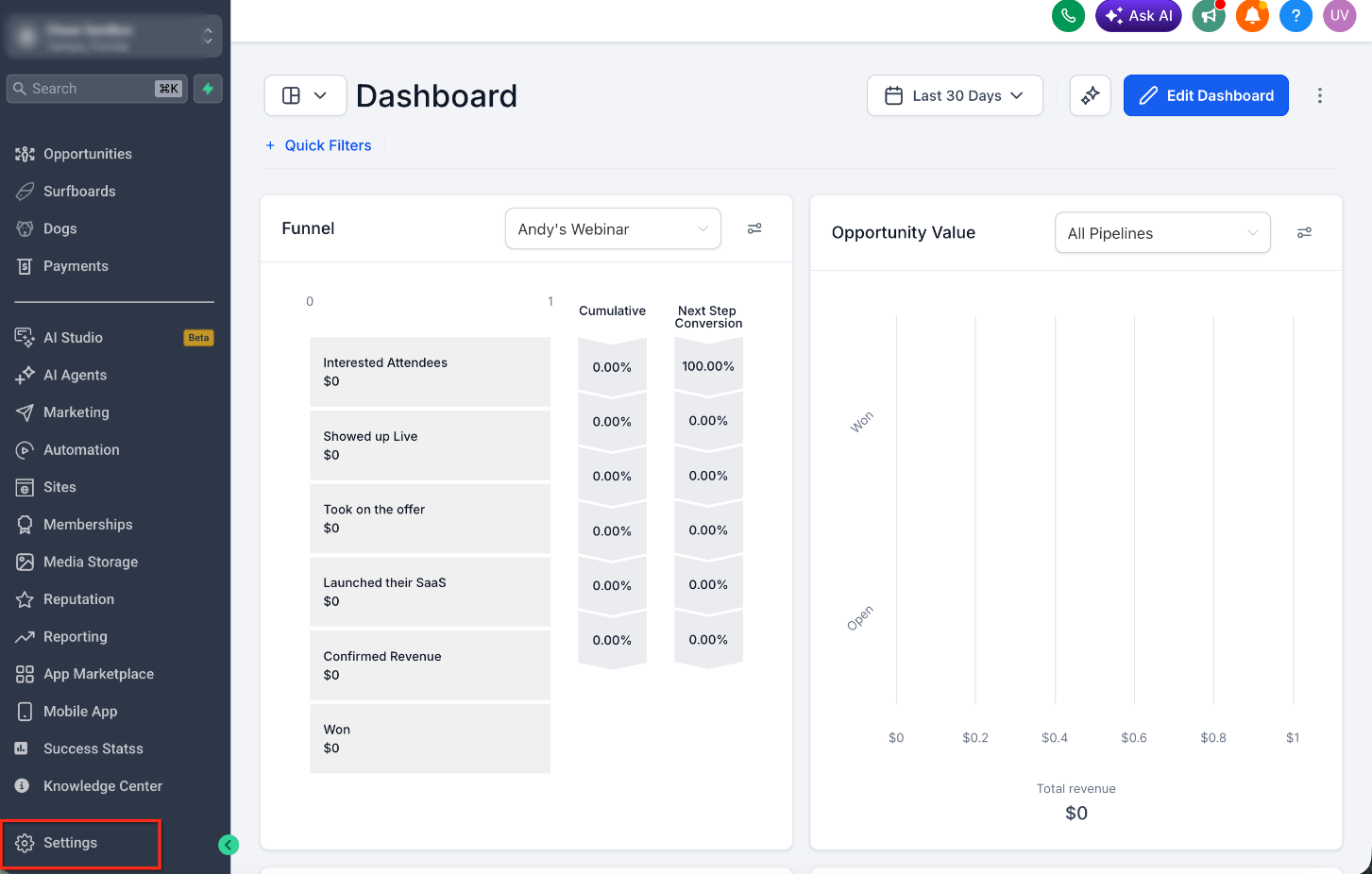
1. Go to Settings.
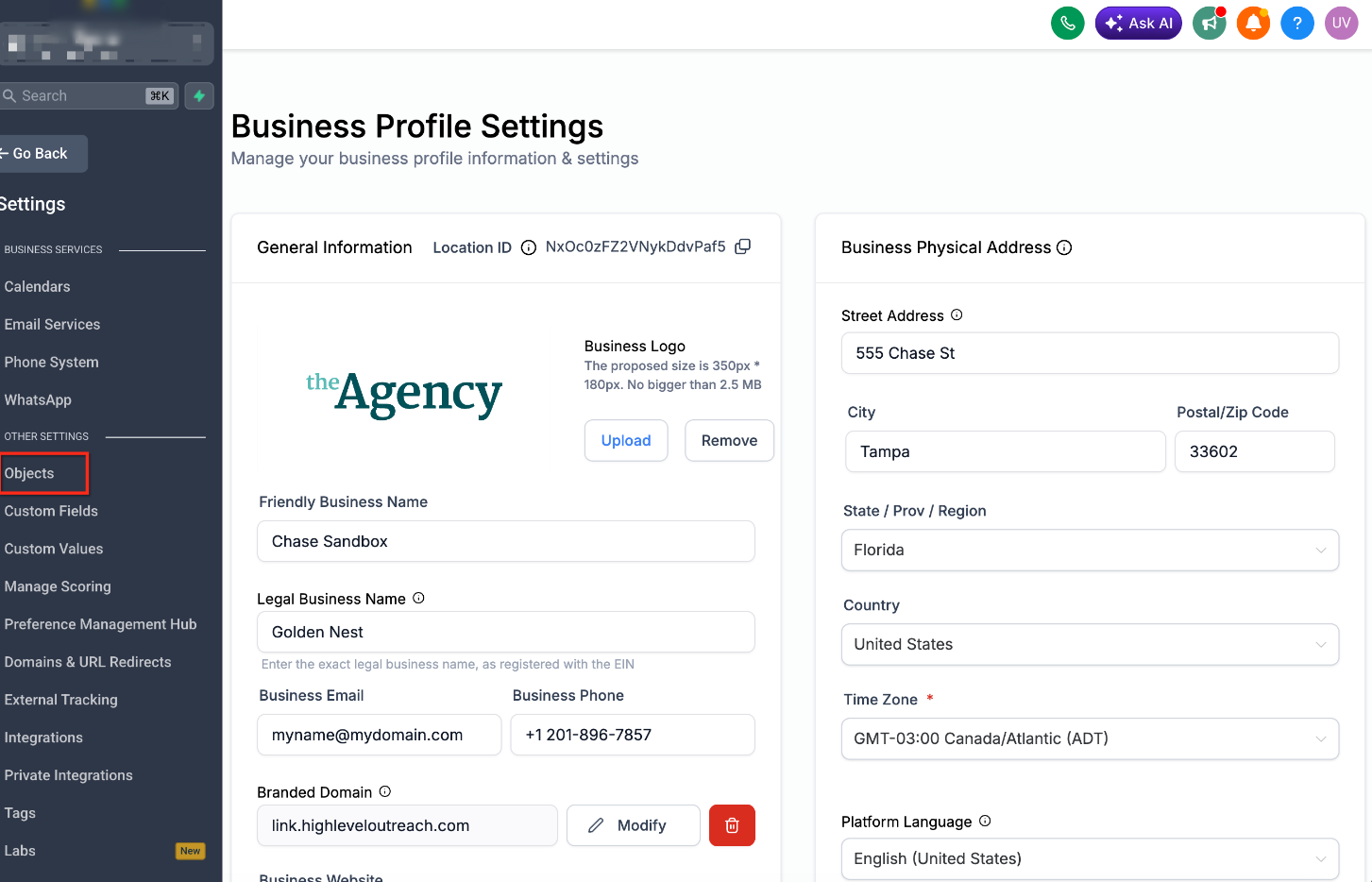
2. Select Objects in the left pane.
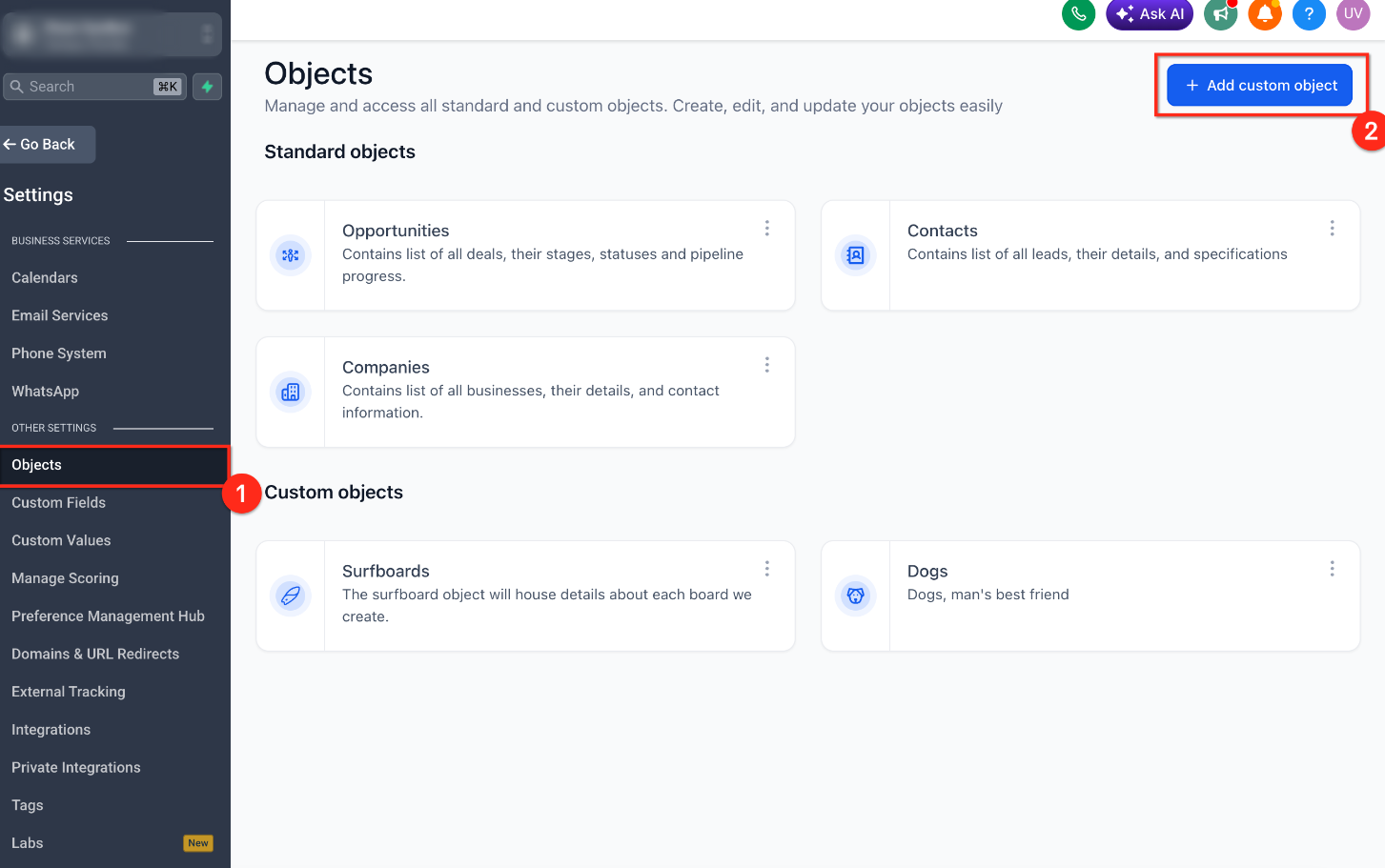
3. Click Add Custom Object.
4. Choose Use a template to create objects using templates.
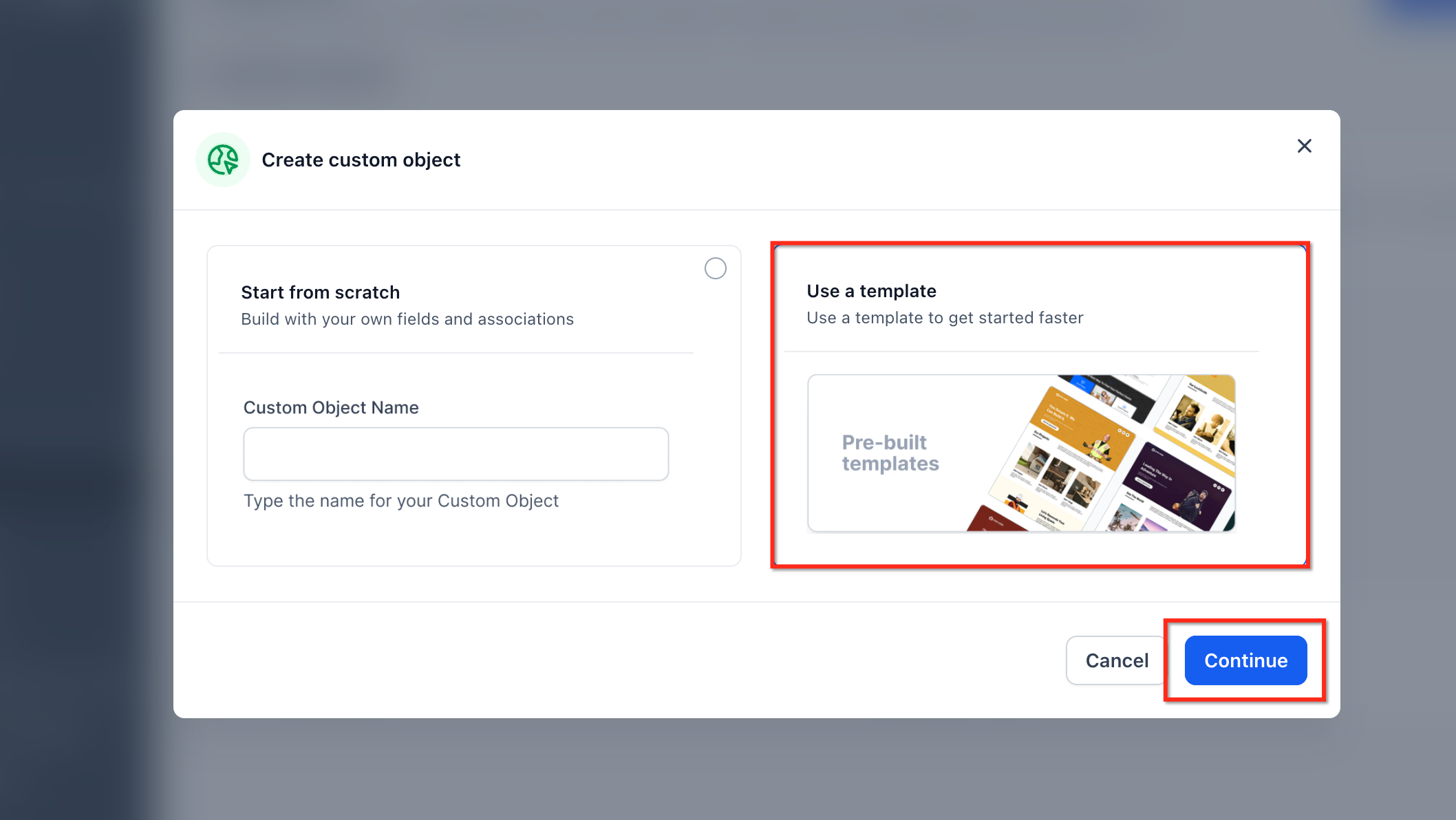
5. Browse the available Custom Object Templates.
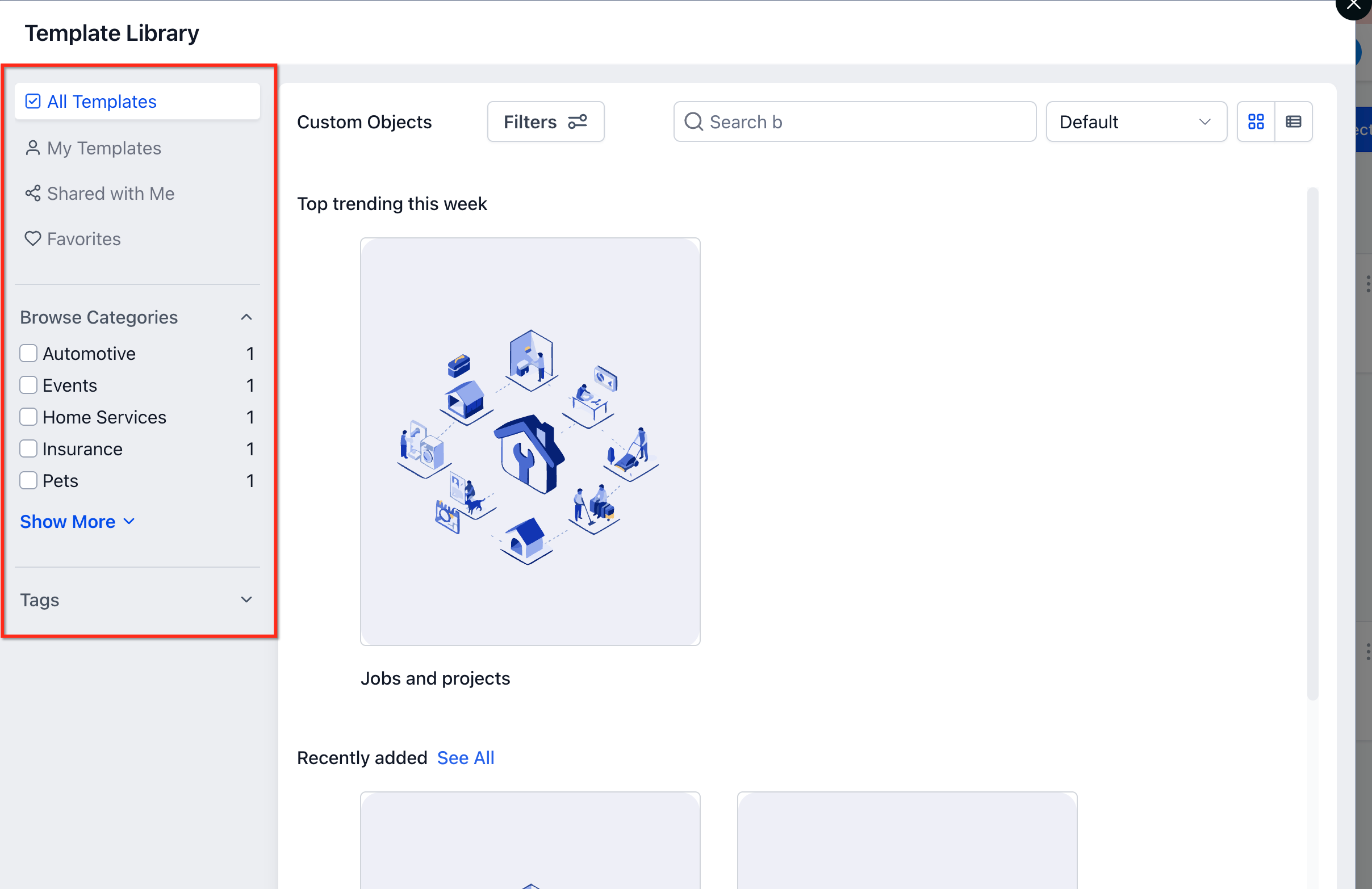
6. Select the template that matches your industry or use case.
7. Review the template preview, including objects, fields, associations, description, tags, and
prerequisites.
8. Click Import Objects to apply the template.
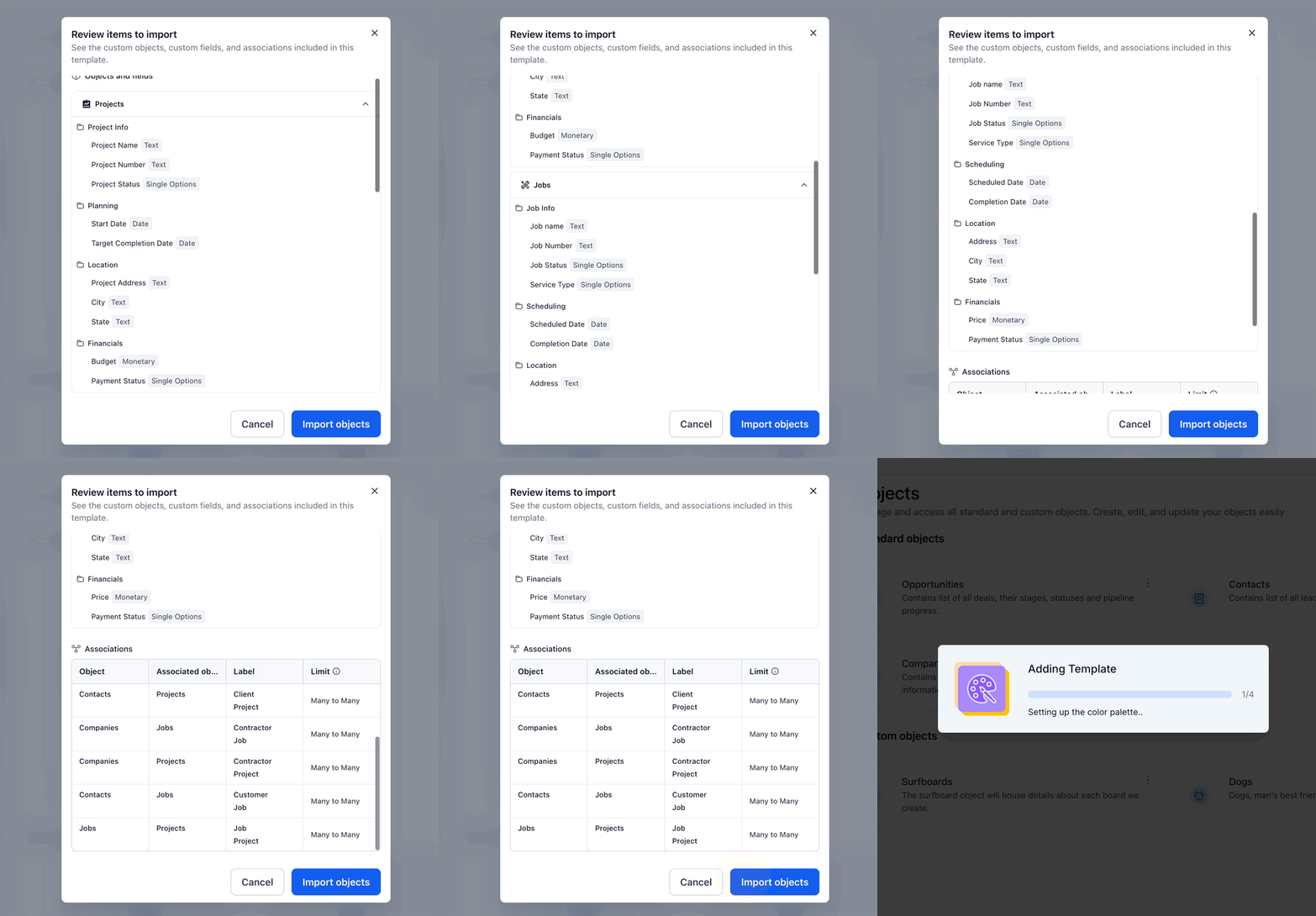
9. Review the created Custom Objects and make any needed adjustments.
After the template is applied, review the created objects, fields, and associations to ensure they match your workflow.
Manage Template Visibility (Agency Admins)
Custom Object templates use the same visibility controls as other Template Library modules:
- From the Agency Dashboard, click Template Library in the left navigation.
- Click the Settings (gear) icon in the top-right.
- To control visibility per sub-account:
- Go to the Customize for Sub-Account Settings tab.
- Search for the sub-account → click Edit.
- Choose to hide the Template Library fully, show it, or hide it only for specific modules (including Custom Objects).
- Go to the Customize for Sub-Account Settings tab.
- To control which categories are globally visible:
- Go to the Categories tab and toggle visibility on individual categories (e.g., Real Estate, Insurance).
- Go to the Categories tab and toggle visibility on individual categories (e.g., Real Estate, Insurance).
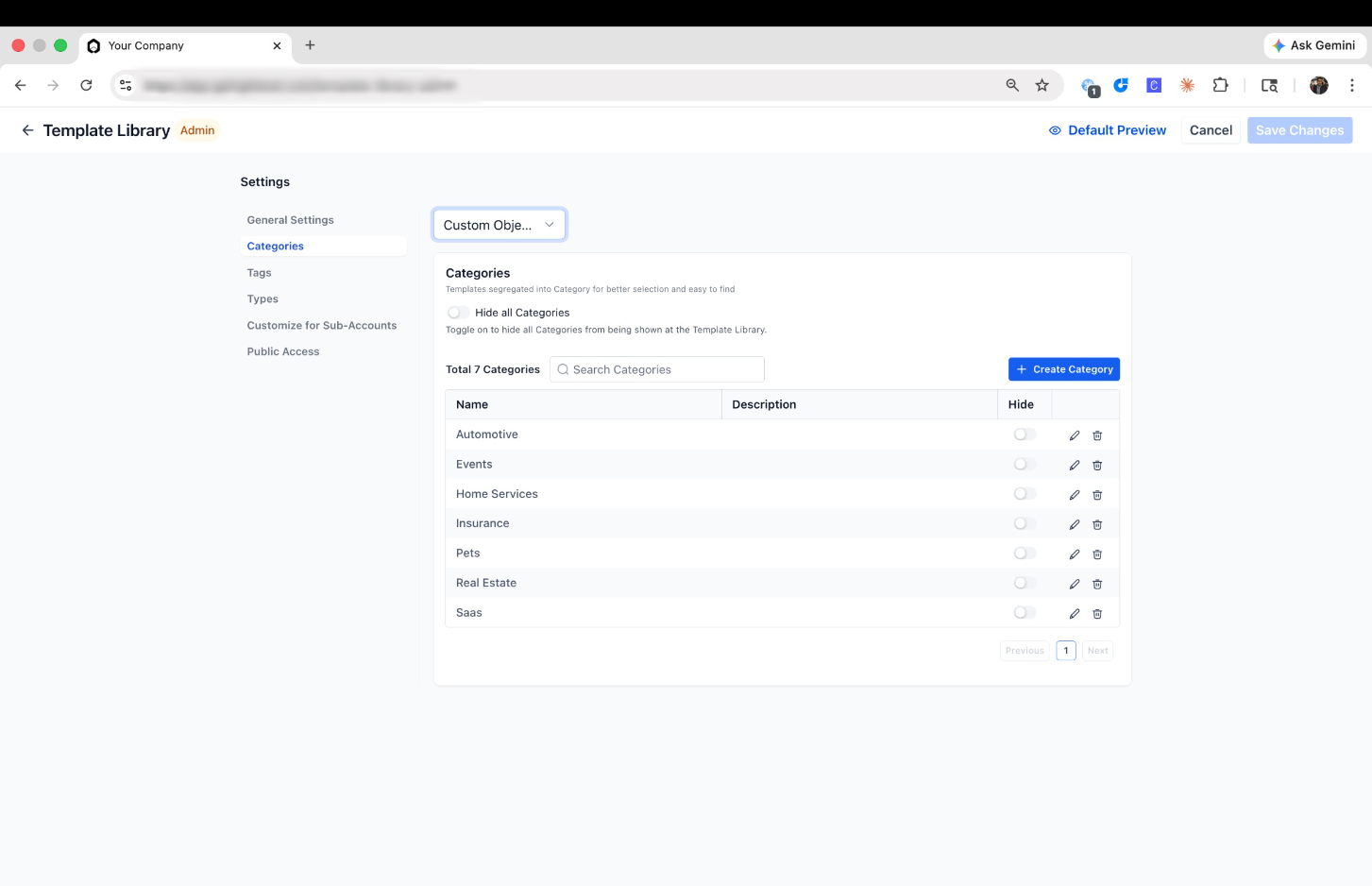
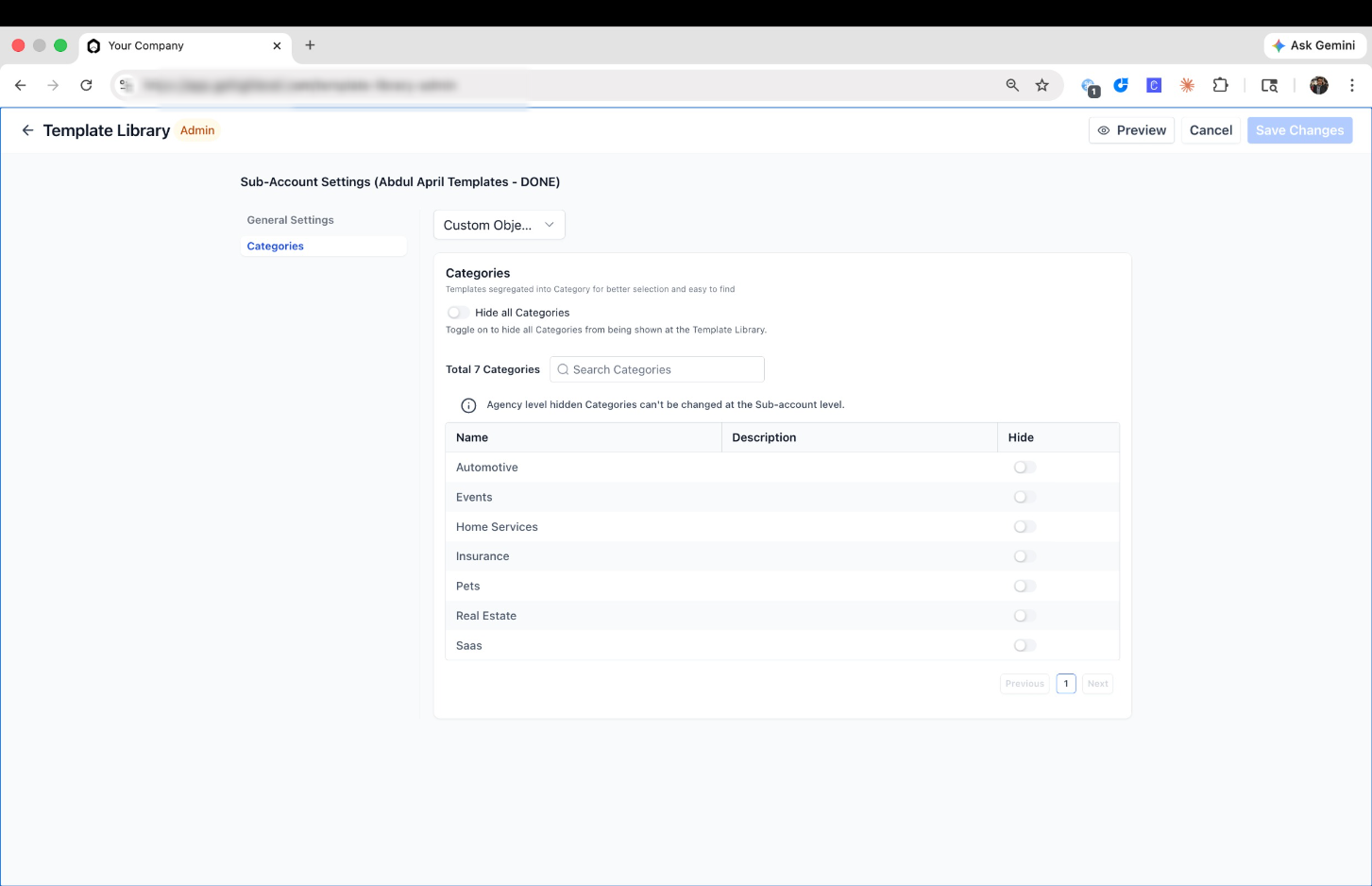
Changes apply instantly. Agency users/admins always see the Template Library regardless of these settings — restrictions only affect sub-account users.
Frequently Asked Questions
Q: Do Custom Object Templates create records automatically?
A: No. Custom Object Templates are designed to create the CRM structure (Custom Objects, fields, folders, and associations). They do not create customer records or sample records.
Q: Can I edit a template after applying it?
A: You can edit the Custom Objects that were created by the template. After importing, review the created objects, fields, and associations and adjust them as needed.
Q: Will applying a Custom Object Template overwrite my existing Custom Objects?
A: Templates are designed to add a new structure. Review the template preview before importing and verify your setup after importing.
Q: What happens if a template is hidden after it has already been used?
A: Assets created from templates generally remain available for editing even if browsing or importing new templates is later restricted.
Q: Do Custom Object Templates include associations?
A: Yes. Templates can include associations to help connect related records such as Companies, Opportunities, and Custom Objects.
Q: Are workflows or sample data included with Custom Object Templates?
A: Not at this time. Templates currently focus on object structure (objects, fields, folders, and associations).
Q: Can users create and save their own Custom Object Templates?
A: Not at this time.
Q: Which industries are currently supported?
A: Current templates include Real Estate, Insurance, Automotive, SaaS, Events, Pets, and Home Services.
Was this article helpful?
Related articles
- List of Merge FieldsMerge fields let you personalize messages and documents by inserting saved details automatically, such as a contact’s name, an assigned user’s email, appointment times, or invoice totals. When a message sends or a document generates, each merge field is replaced with the matching value for that specMerge Fields & Custom Variables
- Overview of Merge Fields & Custom VariablesThis article explains merge fields and custom variables. You’ll learn about different types of fields, such as custom fields, custom values, custom objects, and custom links (trigger links and payment links), and how to use them to personalize communication and automate workflows. TABLE OF CONTENTS Merge Fields & Custom Variables
- How to Use Custom FieldsCustom fields help you collect and organize information that goes beyond standard contact details like name, email, and phone number. They allow you to customize records, forms, workflows, and pipelines to match your business process and improve how you manage leads and opportunities. TABLE OF CONTEMerge Fields & Custom Variables
- Creating and Managing Custom Fields for Better Data OrganizationCustom fields let you capture information that is not included in standard record fields. Use them to store business-specific data, organize information into folders, and make that data available throughout supported records, forms, workflows, filters, and other tools. TABLE OF CONTENTS - What Are CMerge Fields & Custom Variables