Getting Started with the Communication Hub
The Communication Hub is the single place to manage every email and SMS message CPR Enroll sends on your behalf.
Before You Begin
- The Hub is at Settings > Communication Hub.
- Existing notification settings and customized templates were migrated automatically when the Hub launched. Nothing needed rebuilding.
- Be clear on the difference between what your organization sends and what you personally receive — they are two different screens.
Where to Find It
Settings > Communication Hub. The header shows a live count, for example “54 emails · 11 customized · 1 turned off.”

The Three Views
Switch between them with the buttons in the top right:
| View | Contents |
|---|---|
| Every automated email, grouped by audience. | |
| SMS | Every automated text message, plus SMS sender settings. |
| Recipients | A matrix of internal notifications and which roles receive them. |
Audience Tabs
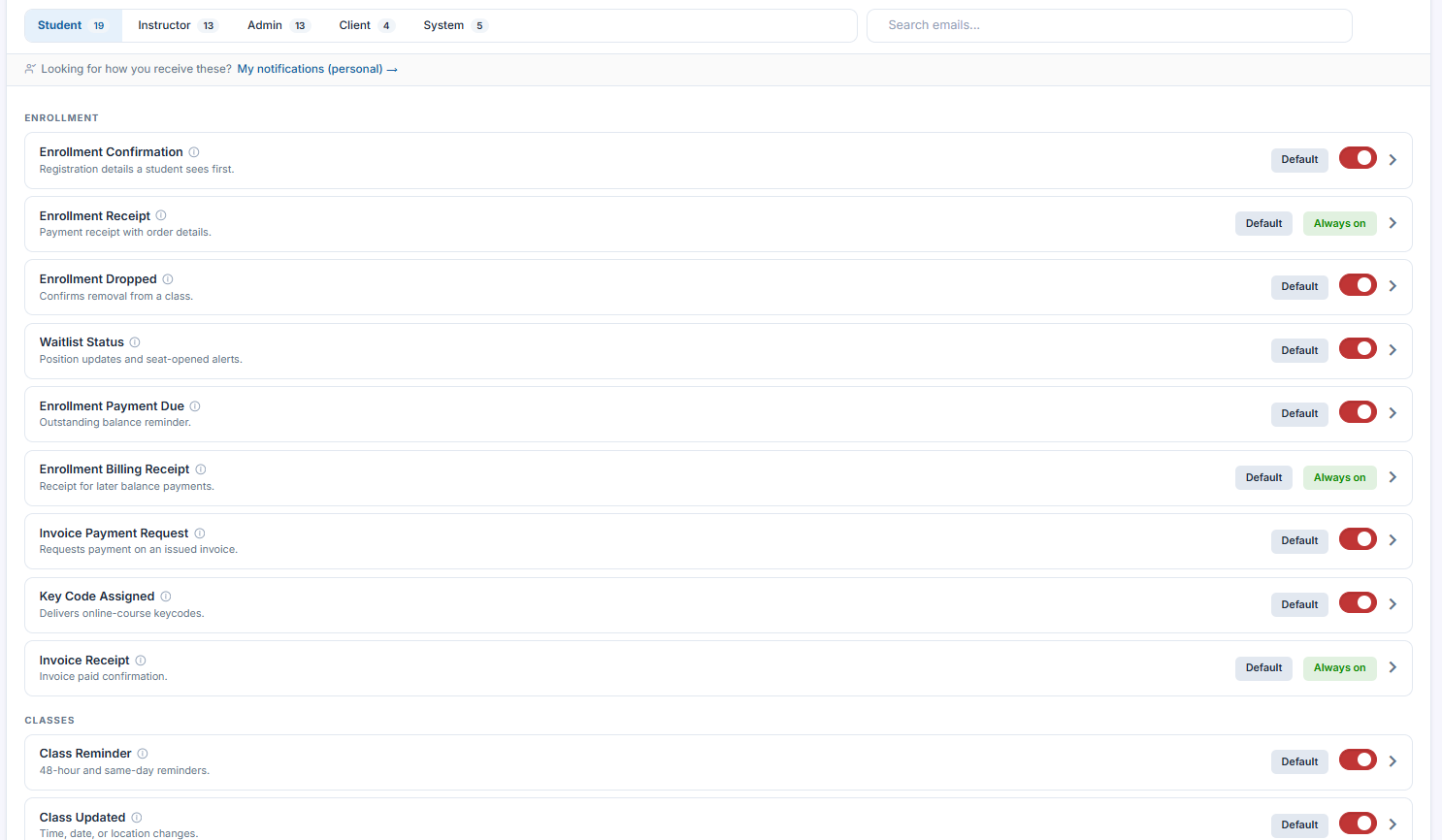
Within the Email view, messages are grouped by who receives them: Student, Instructor, Admin, Client and System, each with a count. Use Search emails… to jump straight to a message by name.
Messages are then grouped by topic — Enrollment, Classes, Reschedule, and so on.
Reading a Row
Each row shows the message name, a one-line description of when it fires, a template badge (Default or Custom), and either a toggle or an Always on chip.
✔ Always on cannot be switched off. It marks transactional messages — receipts, security emails and similar. Everything else can be disabled with the toggle.
Personal vs. Organizational Settings
The link at the top — “Looking for how you receive these? My notifications (personal) →” — separates the two concepts:
| Screen | Controls |
|---|---|
| Settings > Communication Hub | What your organization sends. |
| My Settings > Notifications | What you personally receive. |
Best Practices
- Use the header count as a health check. A rising “turned off” number is worth investigating — someone may have disabled something students rely on.
- Search by message name rather than browsing the audience tabs once you know what you are looking for.
- Before disabling any message, check whether it is the only notice a student gets for that event.
- Send anyone asking “why am I getting these emails?” to My Settings > Notifications, not the Hub. The Hub will not fix a personal inbox complaint.
Frequently Asked Questions
| Question | Answer |
|---|---|
| Where is the Communication Hub? | Settings > Communication Hub. |
| Did my old customized templates survive the migration? | Yes. Existing settings and customized templates were migrated automatically. |
| Why can I not switch off some messages? | They are marked Always on — transactional messages such as receipts and security emails. |
| What is the difference between the Hub and My Notifications? | The Hub controls what your organization sends. My Settings > Notifications controls what you personally receive. |
| How do I find one specific email quickly? | Use Search emails… within the Email view. |
✔ You know your way around. Next, read Editing, Previewing, and Testing Email Templates to change what those messages actually say.
Was this article helpful?
Related articles
- Editing, Previewing, and Testing Email TemplatesEvery automated email can be previewed, edited, tested and reverted. This article covers the editing workflow and the one rule that surprises people most. Before You Begin - Work in Settings > Communication Hub > Email. - You cannot damage a stock template. Editing one always creates a copy first. -Communication Hub
- SMS Settings, Quiet Hours, and Opt-In ComplianceSMS has stricter rules than email. This article covers the sender settings, quiet hours, and the consent model that keeps your texting auditable. Before You Begin - SMS settings live at Settings > Communication Hub > SMS. - Automated SMS goes only to students who opted in at registration. There is nCommunication Hub
- Choosing Who Receives Internal NotificationsThe Recipients view decides which of your own people get notified when something happens. Before You Begin - The view is at Settings > Communication Hub > Recipients. - Roles set eligibility here; individuals fine-tune their own delivery in My Settings > Notifications. - Decide whether you want to fCommunication Hub