Instructor pay and payouts: from pay rule to paid
CPR Enroll works out what each instructor is owed for the classes they teach, lets the instructor confirm their time on a timesheet or invoice, lets the office review it, and groups everything that is owed into payout runs. You pay the way you pay today (payroll, bank transfer or check) and record in CPR Enroll that it was paid.
CPR Enroll calculates and instructs. It never holds or moves money, and it never stores bank details, W-9s or tax forms. Those live with your payroll or payout provider.
How it fits together
- Instructor pay (Payments › Instructor pay) says what a class pays.
- Instructor Hub settings (Payments › Payment settings › Instructor Hub) switch earnings on, set your pay period, and decide whether instructors confirm their time.
- Each instructor's profile (People › Instructors › the instructor › Earnings & Payouts) carries their employment type and any special rate.
- Finalizing a roster either prices the class straight away, or opens a Timesheet or Invoice for each instructor to confirm.
- Office review (at the top of Payments › Payout runs) is where you approve or return each timesheet or invoice. Approval is what creates the money owed.
- Payout runs group what is owed for a period. You build a run, dispatch it, pay the instructors your usual way, and confirm it paid.
Before you start
- An Earnings start date is set (step 1). With no date, nothing is ever priced for anyone, and nothing warns you.
- A pay rule is saved on Payments › Instructor pay (step 2). With no rule, no class is priced.
- Every instructor you pay through CPR Enroll has an Employment type on their profile (step 3). Without it, no timesheet or invoice opens for them and payout runs skip them.
- If you pay hourly, each course has a Standard duration (step 4).
- The right people have the right permissions (see the end of this article).
Step 1: Switch earnings on
Go to Payments › Payment settings › Instructor Hub.
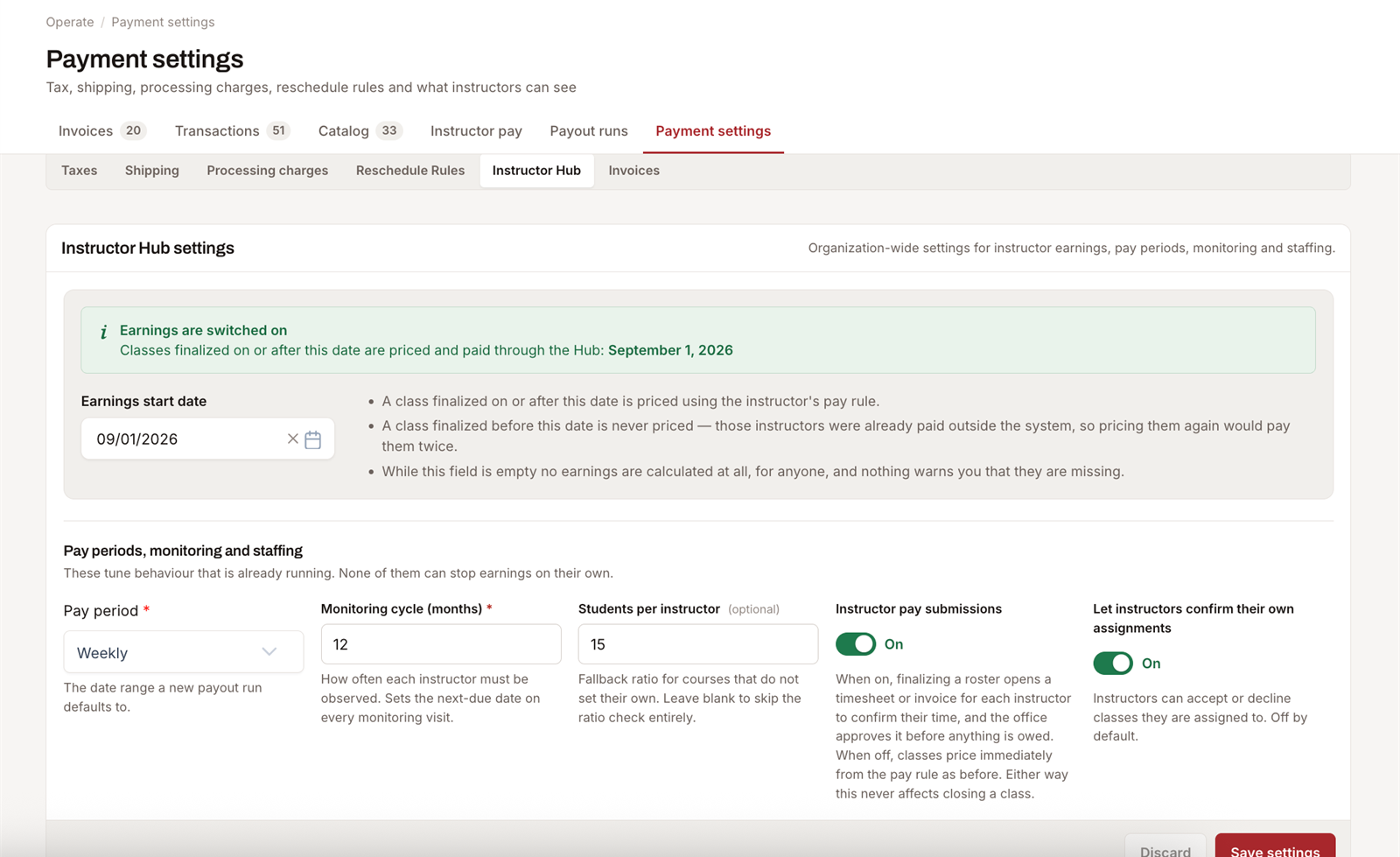
- Earnings start date. A class finalized on or after this date is priced using the instructor's pay rule. A class finalized before it is never priced, because those instructors were already paid outside the system. While the field is empty, no earnings are calculated at all.
- Pay period. Weekly, Every two weeks, Twice a month or Monthly. This only sets the date range a new payout run starts with. You can change the dates on every run.
- Instructor pay submissions. On: finalizing a roster opens a Timesheet or Invoice for each instructor to confirm their time, and the office approves it before anything is owed. Off: the class is priced immediately from the pay rule when the roster is finalized, with nothing to confirm. Either way this never affects closing a class.
- Students per instructor, Monitoring cycle and Let instructors confirm their own assignments are other Instructor Hub settings. They do not affect pay.
Click Save settings. The green banner at the top confirms "Earnings are switched on" and shows the date.
Which pay submissions setting should I use? Turn it on if your instructors claim travel time, setup, admin time, equipment fees or expenses, or if you want them to sign off their hours before you pay. Leave it off if a class always pays a fixed amount and you do not need a form.
Choosing the start date. Pick the first day you want to pay through CPR Enroll. Do not back-date it to cover classes you already paid outside the system, or the first payout run would pay them a second time.
Step 2: Set what a class pays
Go to Payments › Instructor pay. It is one page with one Save button at the bottom. If you see the banner "No organization pay rule is set", this page is the fix.
Class pay
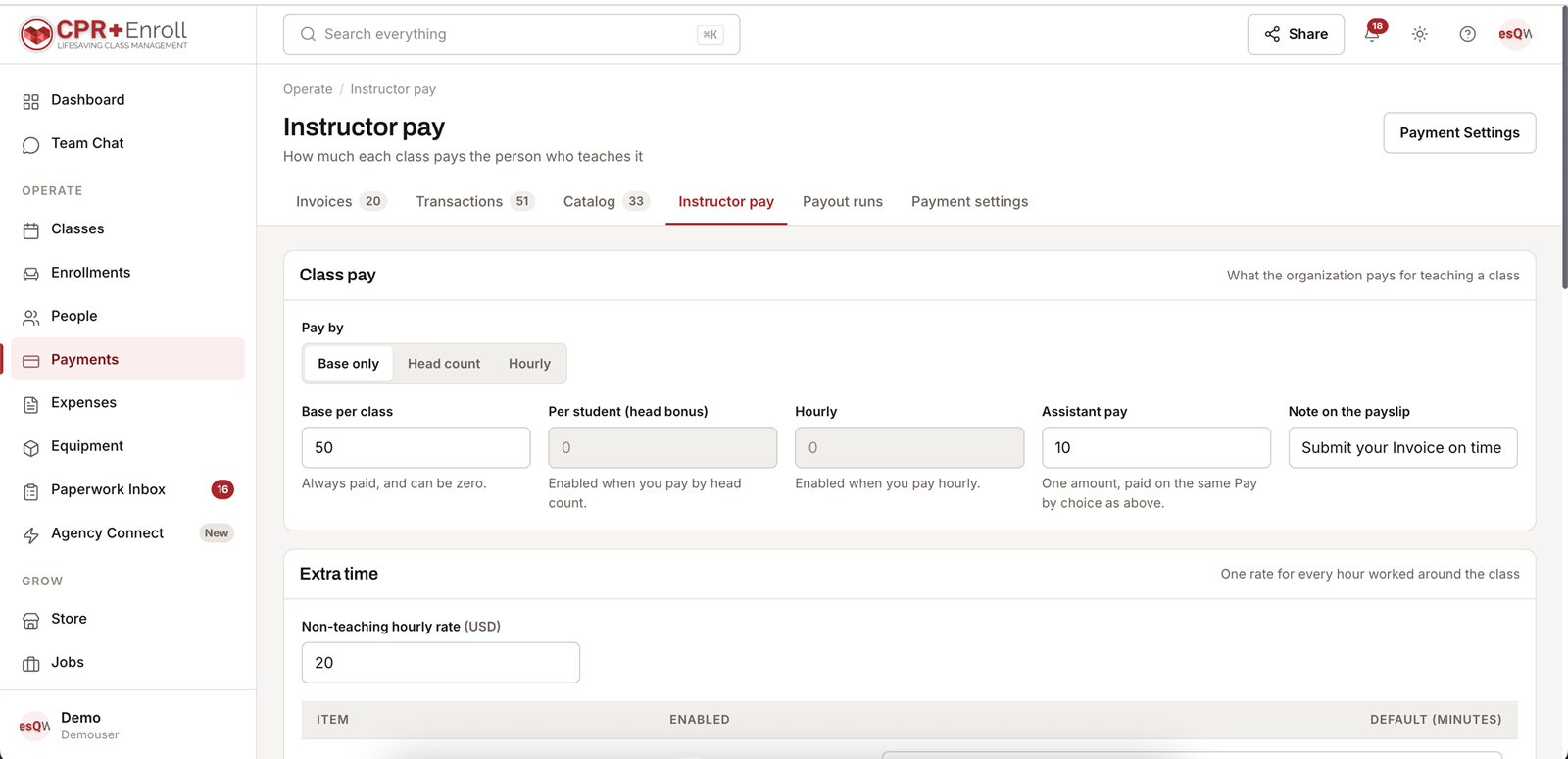
Choose Pay by:
- Base only: a flat amount for the class.
- Head count: the base, plus Per student multiplied by the number of students who attended.
- Hourly: the base, plus Hourly multiplied by the class length (step 4 says where the length comes from).
Base per class is always paid under every choice, and it can be zero. An account that pays purely per student sets it to zero on purpose. Assistant pay is one amount, paid on the same basis as the lead: per class on Base only, per student on Head count, per hour on Hourly. Note on the payslip is a short note stored with the rule.
Worked examples:
- Base only, base $50, assistant $10. Any class pays the lead $50 and the assistant $10.
- Head count, base $0, per student $5, assistant $2. A class with 8 students attending pays the lead $40 and the assistant $16.
- Hourly, base $5, hourly $60, assistant $25. A course with a 3-hour standard duration pays the lead $185 and the assistant $75.
Head count counts students who attended. No-shows and cancelled enrollments are not counted.
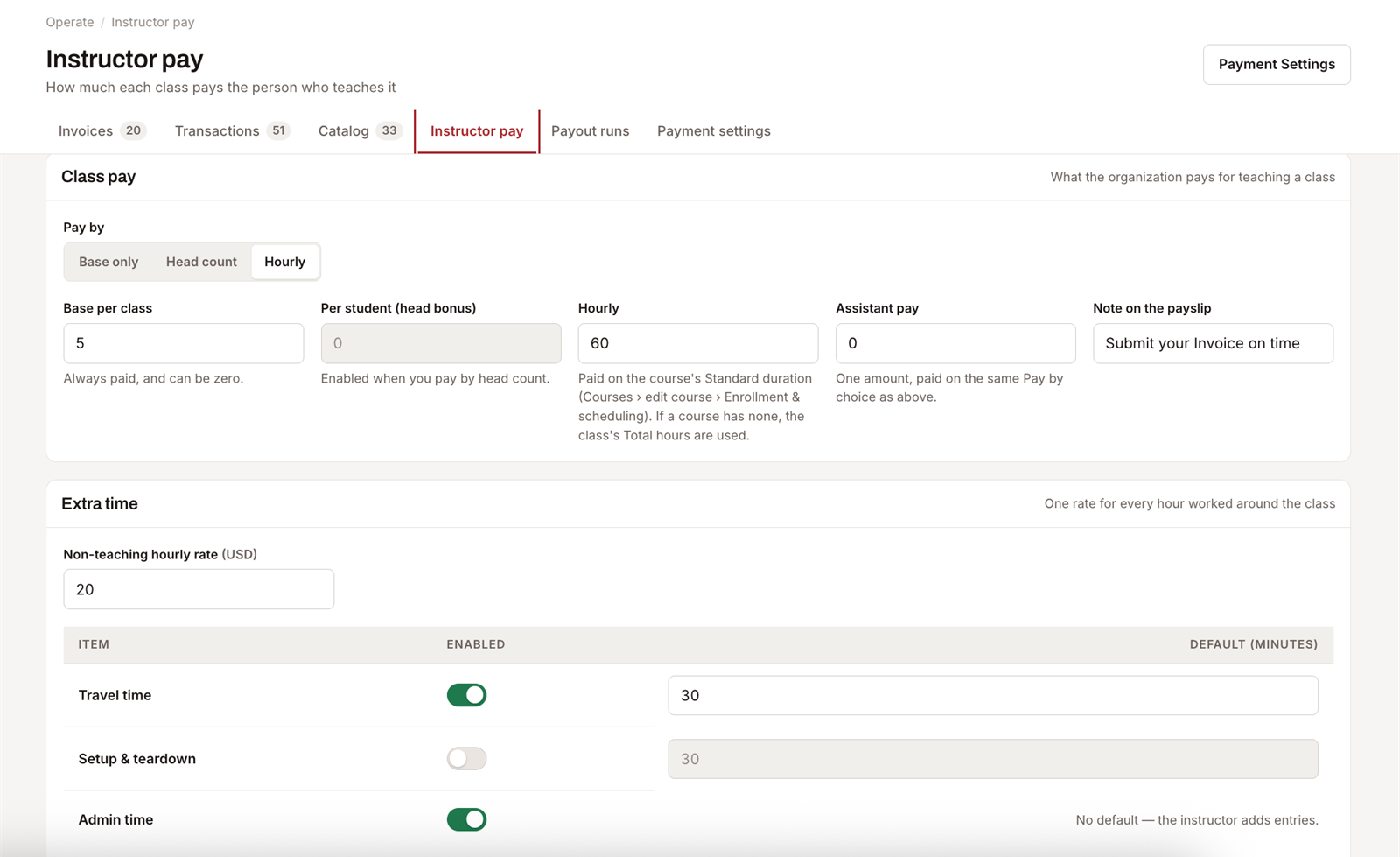
Extra time
One Non-teaching hourly rate pays every hour worked around the class: travel, setup and teardown, and admin time.
- Travel time: a default in minutes, pre-filled on the form. Only shown for classes at a physical venue where the instructor is on site. Virtual classes do not show it.
- Setup & teardown: a default in minutes, pre-filled on the form. Same venue rule as travel.
- Admin time: no default. The instructor adds dated entries (eCards, student follow-up, system updates). Paid to the minute.
Switch an item off and it is absent from the instructor's form, not grayed out or zeroed. Instructors can always change the pre-filled minutes on their own form.
Flat fees
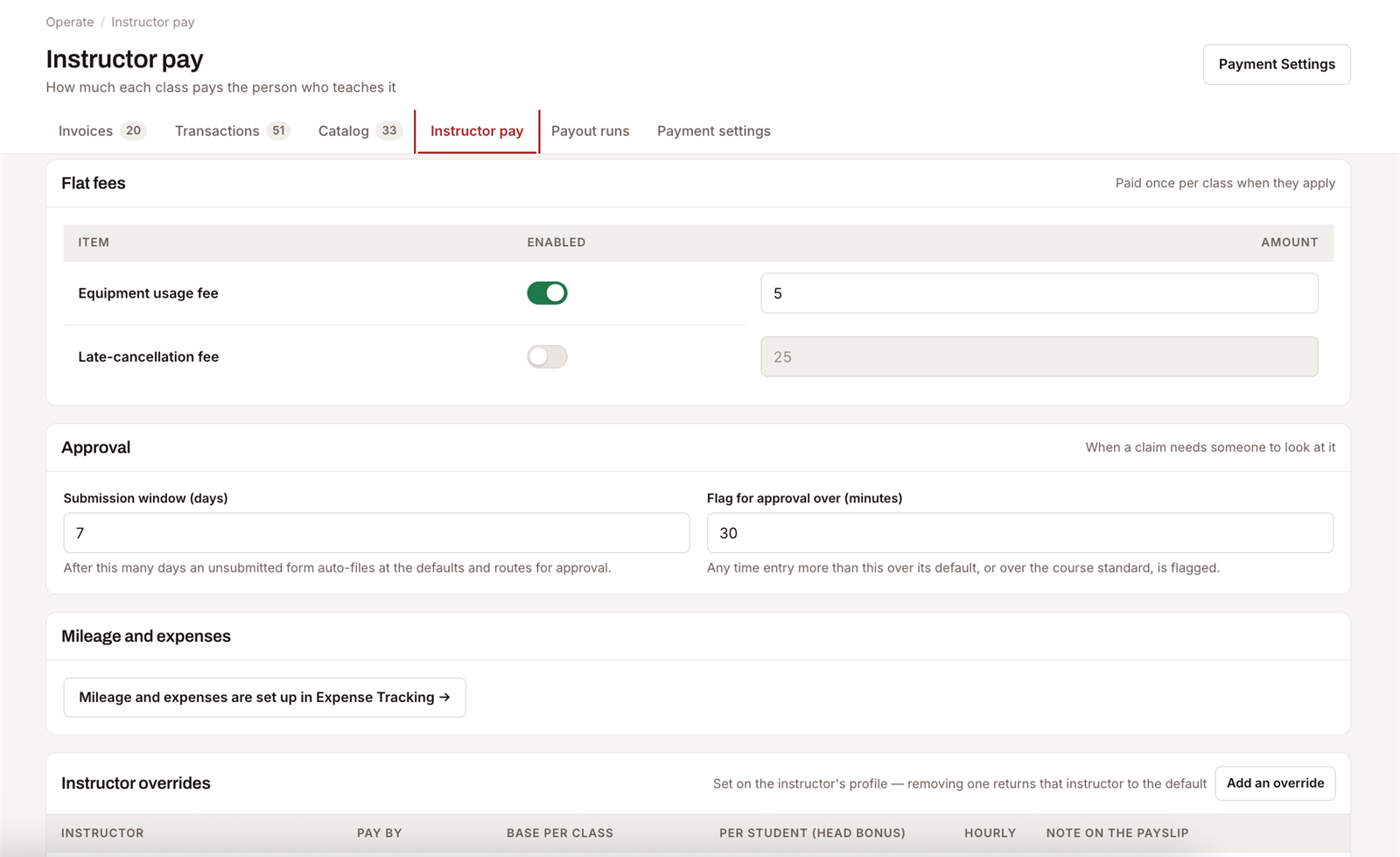
Paid once per class when the instructor claims them with a check box on the form.
- Equipment usage fee: the instructor checks "Used my own equipment".
- Late-cancellation fee: the instructor checks "Class was cancelled late".
Approval
- Submission window (days), 7 by default. After this many days an unsubmitted form auto-files at the defaults and goes to the office for approval.
- Flag for approval over (minutes), 30 by default. Any time entry more than this over its default (travel, setup and teardown) or over the course standard (hourly class pay) is flagged. The instructor must give a reason, and the office reviews it. A flag never stops the instructor from filing.
Mileage and expenses
Mileage rates, tolls, consumables, meals and lodging are set up in Expense Tracking (Expenses › Mileage rates and the expense settings). When they are on, the reimbursement rows appear on the instructor's form automatically.
Instructor overrides
An override gives one instructor a different rate from the organization default. Click Add an override, pick the instructor, and set the rate on their profile. The table lists every override with the date it was set. Removing one returns that instructor to the default.
When a change takes effect. A rule change applies to classes finalized from now on. A timesheet or invoice that is already open keeps the rule it was opened with, so the instructor never sees a number move after they have looked at it. To apply a new rule to an open form, un-finalize the class and finalize it again.
Step 3: Set up each instructor
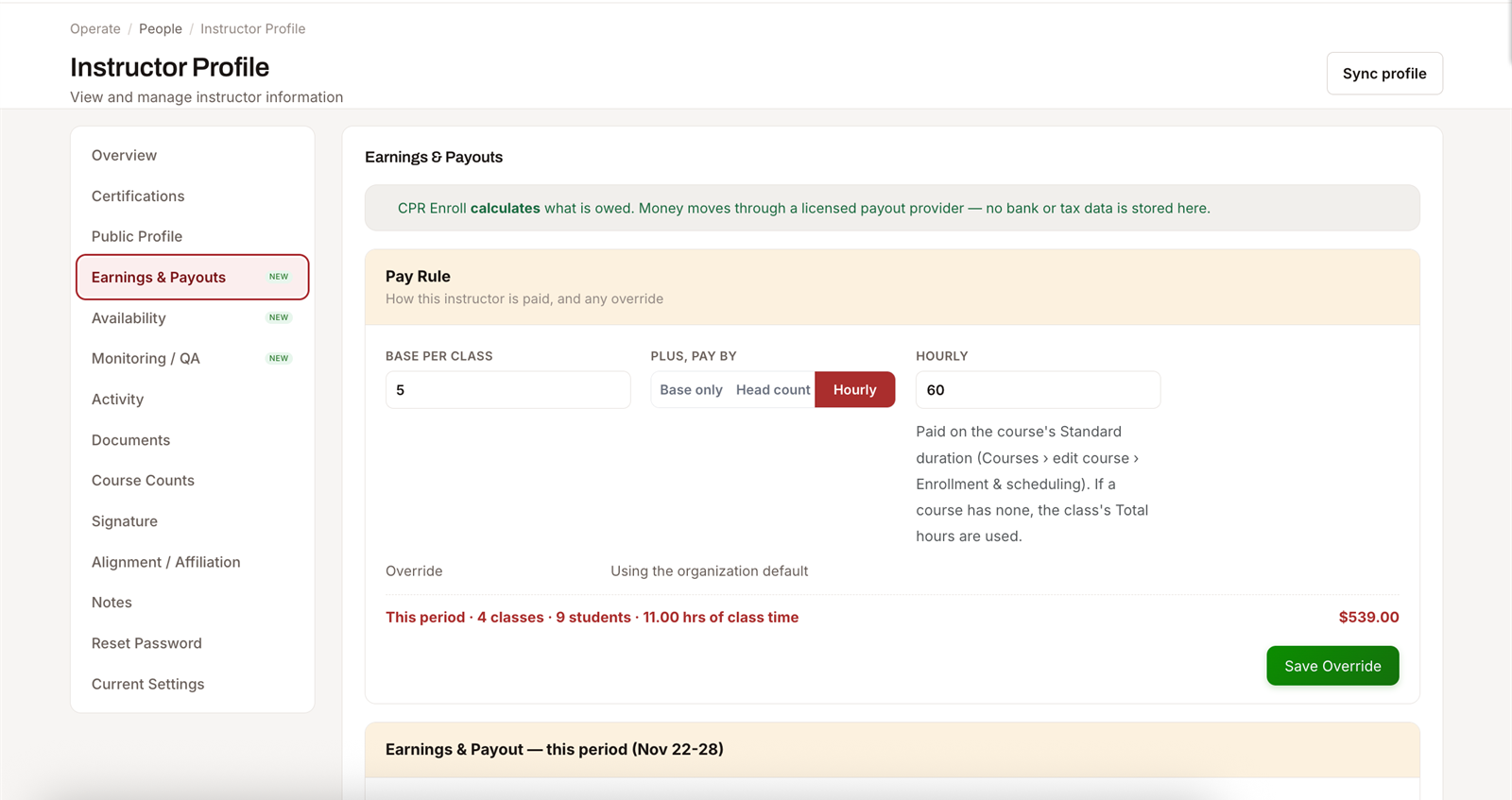
Go to People › Instructors, open the instructor, and choose the Earnings & Payouts tab.
Employment type (required)
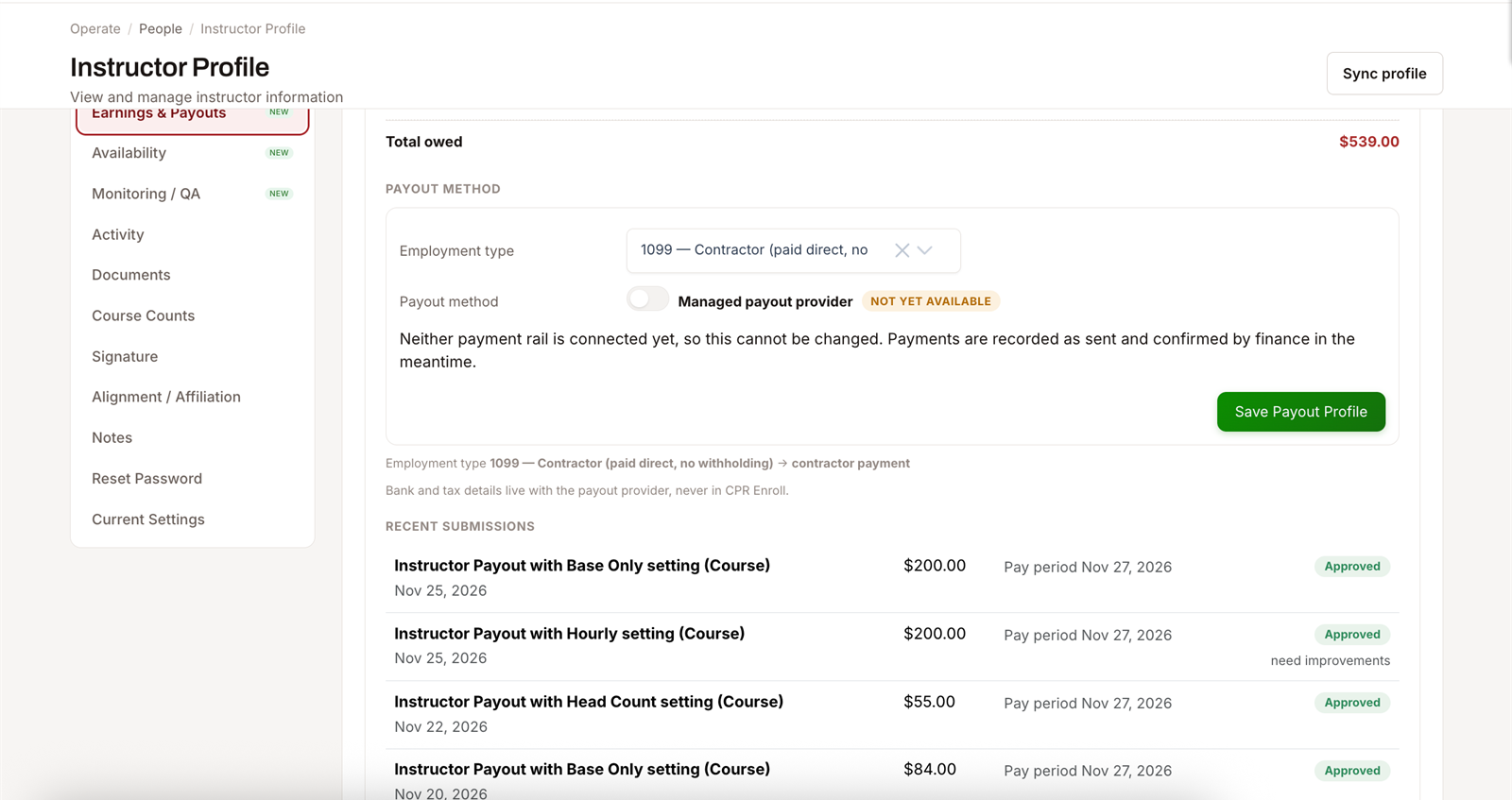
- W-2 (paid through payroll, taxes withheld): the instructor files a Timesheet, and payouts take the Payroll route.
- 1099 Contractor (paid direct, no withholding): the instructor files an Invoice, and payouts take the Contractor payment route.
Choose one and click Save payout profile. An instructor with no employment type gets no timesheet or invoice when a roster is finalized, and every payout run skips them. That is deliberate: an owner teaching their own classes, or salaried staff paid outside the system, simply leave it blank.
Payout method
The managed payout provider and connected providers are not yet available, so the switch is locked and the provider shows as Manual. Payments are recorded as sent and confirmed by finance, and you pay the instructor your usual way.
Pay rule override
The tab shows the rule this instructor is on: Base per class, Plus, pay by, and the rate. "Using the organization default" means no override. Change the figures and click Save override to give this instructor their own rate, or Remove override to put them back on the default.
This period
The tab also shows what the instructor has earned in the current pay period (classes, students, hours and class earnings), reimbursable expenses, the Total owed, their Recent submissions with status, and Recent payouts.
Step 4: If you pay hourly, give each course a length
Hourly class pay multiplies the hourly rate by the course's Standard duration. Set it under Configure › Courses › edit the course › Enrollment & scheduling › Standard duration (minutes).
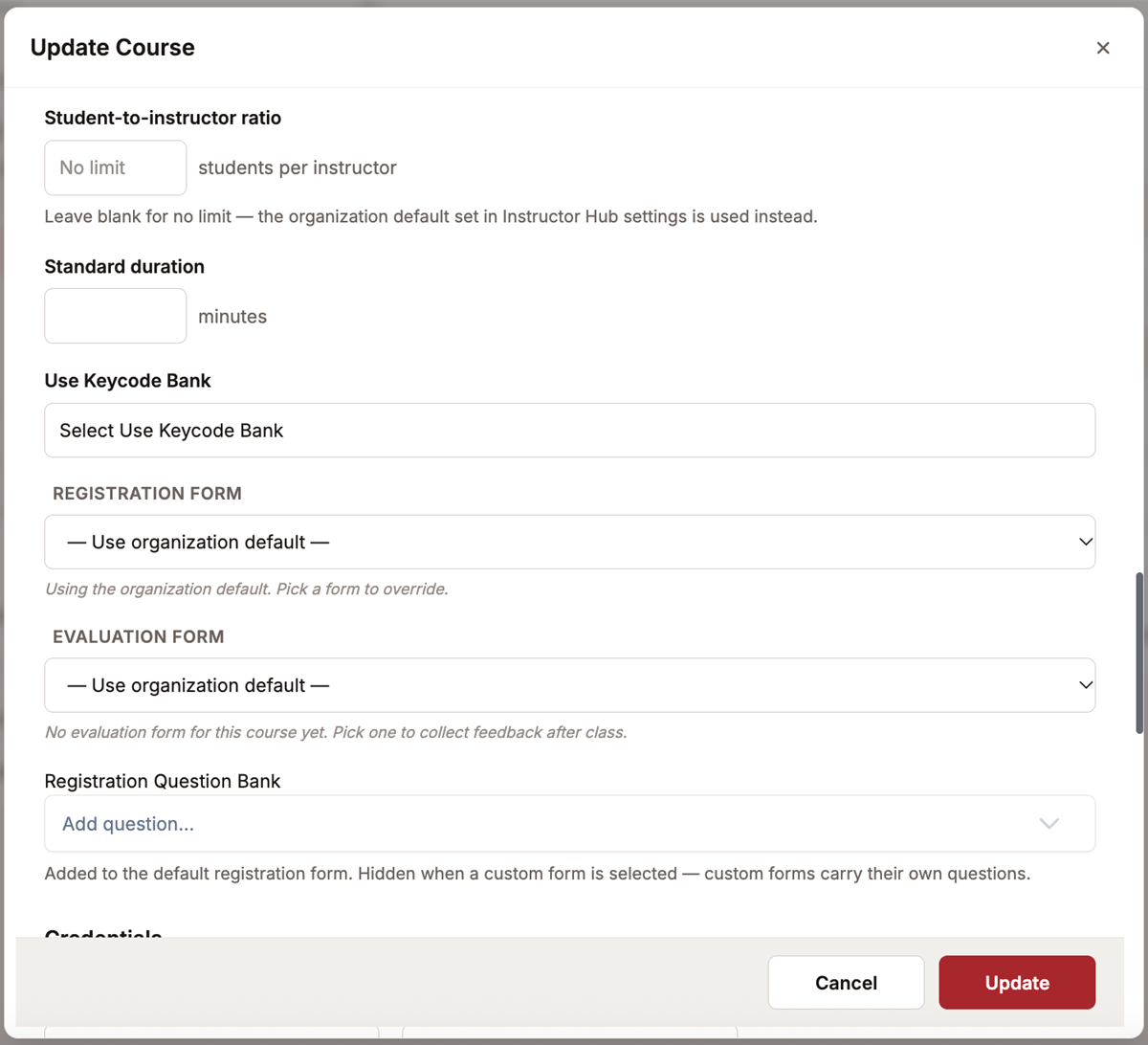
- If a course has no standard duration, the class's own Total hours are used.
- If neither is set, the class pays the base alone and the form says so: "No class hours on record, so only the base is paid."
- The standard duration is also the baseline for flagging: an instructor who claims more than the standard plus the approval threshold is asked for a reason.
Step 5: What happens when a roster is finalized
With Instructor pay submissions on
A Timesheet (W-2) or Invoice (1099) opens in Draft for the lead instructor and for each assistant, as long as they have an employment type and the pay rule pays them something. The form is pre-filled from your settings: class pay is worked out by the system, travel and setup & teardown are pre-filled at your defaults, and fees are unchecked.
The instructor reaches it from the class page. After the roster is finalized, a green Timesheet or Invoice button appears in the class action bar. If no form opened, a short note in its place says why, for example that their employment type is not set.
The submission window starts at finalize and closes after the number of days set under Approval.
With Instructor pay submissions off
The class is priced from the pay rule the moment the roster is finalized. The amount appears on the instructor's Earnings & Payouts tab and is picked up by the next payout run. There is nothing to confirm or approve.
Un-finalizing a class
Un-finalizing withdraws the pricing or the open form. Finalizing again opens a fresh form priced on the rule, course length, venue and head count as they stand at that moment. This is also how to correct a class before it has been paid.
Step 6: The instructor confirms their Timesheet or Invoice
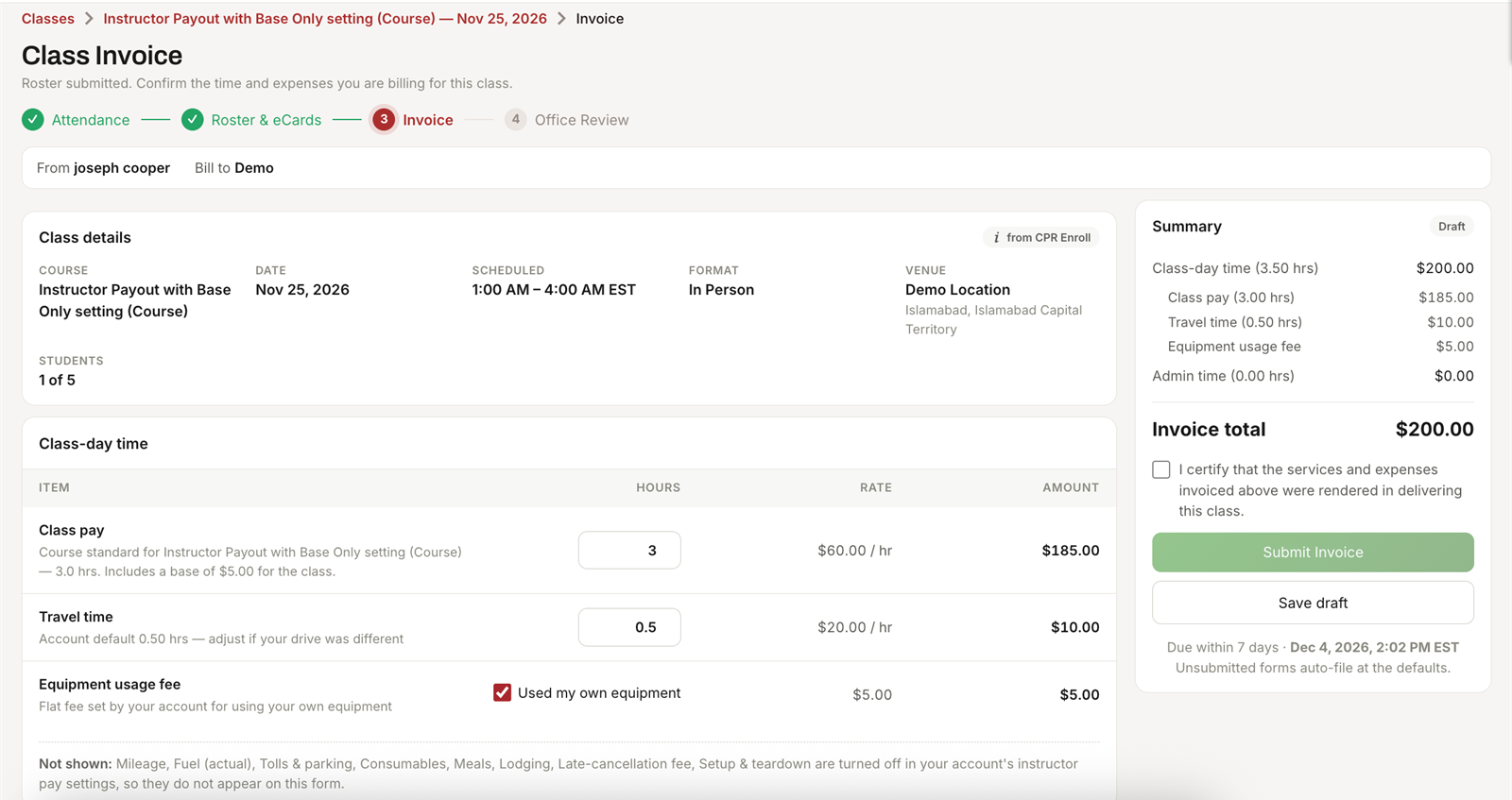
The form shows a stepper: Attendance, Roster & eCards, Timesheet (or Invoice), Office Review.
- Class details are locked and come from CPR Enroll: course, date, scheduled time, format, venue, students.
- Class-day time lists one row per item. Class pay is calculated by the system; on an hourly rule the hours are pre-filled from the course standard and the instructor can change them, while on Base only and Head count there is nothing to change. Travel time and Setup & teardown are pre-filled at your defaults, and the instructor adjusts them if the day was different. Equipment usage fee and Late-cancellation fee are claimed with a check box.
- A flag appears under any time entry that is more than the threshold over its default or over the course standard. The instructor types a Reason (required). The form cannot be submitted while a flagged line has no reason.
- Admin time: the instructor adds entries with a date, a task description and minutes. Each is paid to the minute at the non-teaching rate.
- Reimbursements (only when Expense Tracking has them switched on): round-trip mileage at the rate in force on the class date, tolls and parking, consumables, meals and lodging. Receipts are attached as JPG, PNG or PDF. Meals and lodging always need a receipt; tolls and consumables need one over $25.
- Notes to the office: free text for the reviewer, for example why the class ran long.
- The Summary shows class-day time, admin time, reimbursements and the total. The instructor checks the certification box and clicks Submit timesheet or Submit invoice, or Save draft to come back later.
The form shows its due date. If the instructor never submits, the form auto-files at the defaults when the window closes. An auto-filed form always needs office approval, because nobody certified it.
After submitting, the instructor can still add admin time entries to the class until the window closes. The office reviews everything together. If an entry arrives after the form has already been approved, it goes on a small supplemental submission that is reviewed on its own.
Items switched off under Instructor pay are simply absent from the form. A line at the bottom names them: "Not shown: Mileage, Setup & teardown are turned off in your account's instructor pay settings."
Step 7: Office review
Go to Payments › Payout runs. The top of the page shows "N timesheets/invoices waiting for review".
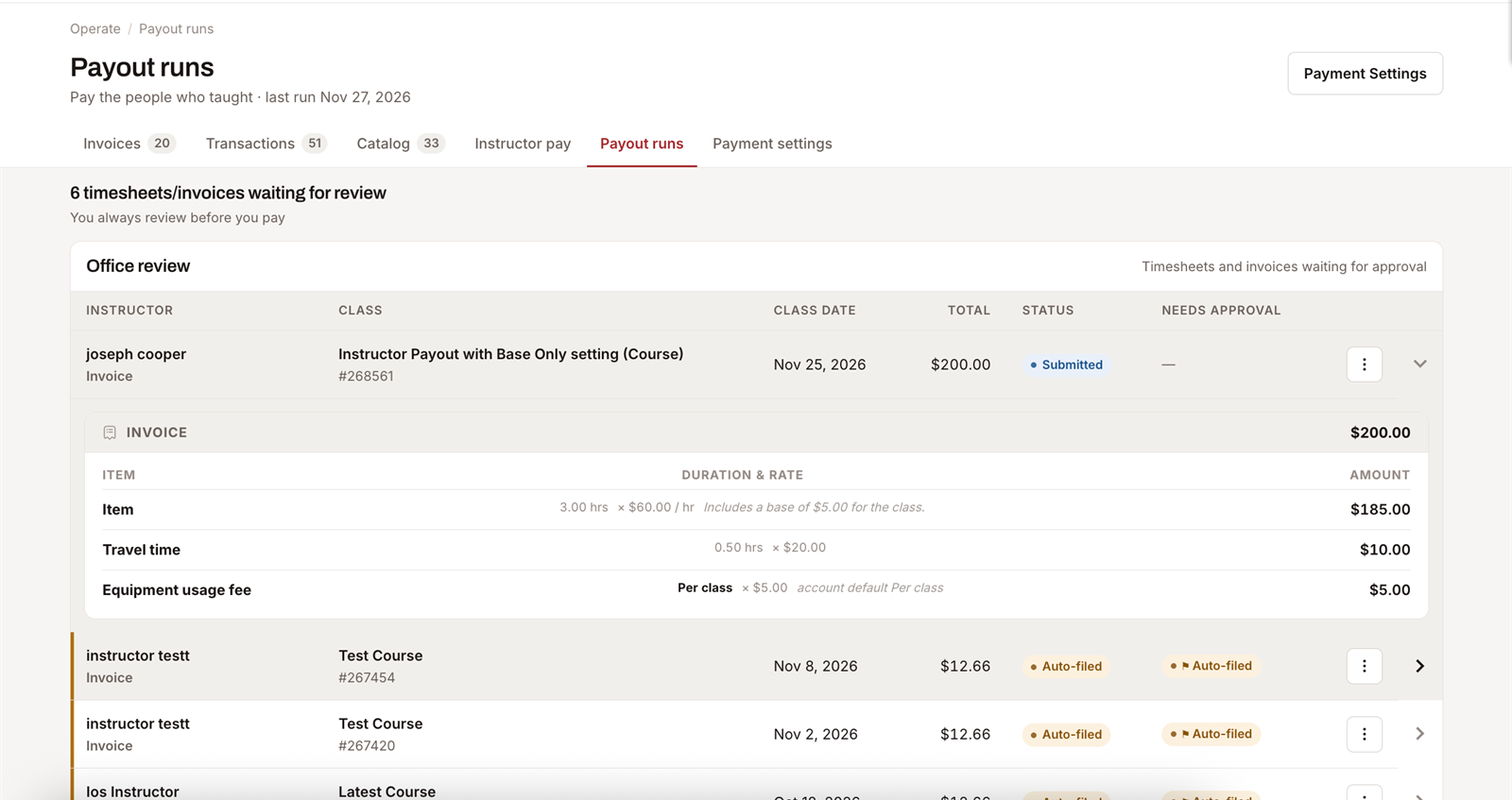
- Each row shows the instructor, whether it is a Timesheet or an Invoice, the class, the class date, the total, the status, and anything that needs attention: flagged lines with the instructor's reason, or an Auto-filed marker.
- Click a row to expand it. You see every line with its duration and rate, the account default where the instructor changed it, the reimbursement claims with their receipts, and the instructor's notes.
- Use the row menu to Approve or Return.
- Approve locks the form, stamps the rates, and writes the amount to the instructor's earnings. This is the moment the money becomes owed. The amount is dated to the day the roster was finalized, so it lands in that pay period even if you approve later.
- Return needs a note so the instructor knows what to fix. Only the flagged lines reopen. The instructor corrects them and submits again.
- An approved form cannot be changed. A late admin entry creates a supplemental submission that comes back to this queue.
Step 8: Build and pay a payout run
Further down the same page, What this means next payout shows the classes taught, the estimated pay and the instructors owed for the current period. Payout readiness tells you how many instructors can be paid, and how many are missing an employment classification.
Build a run
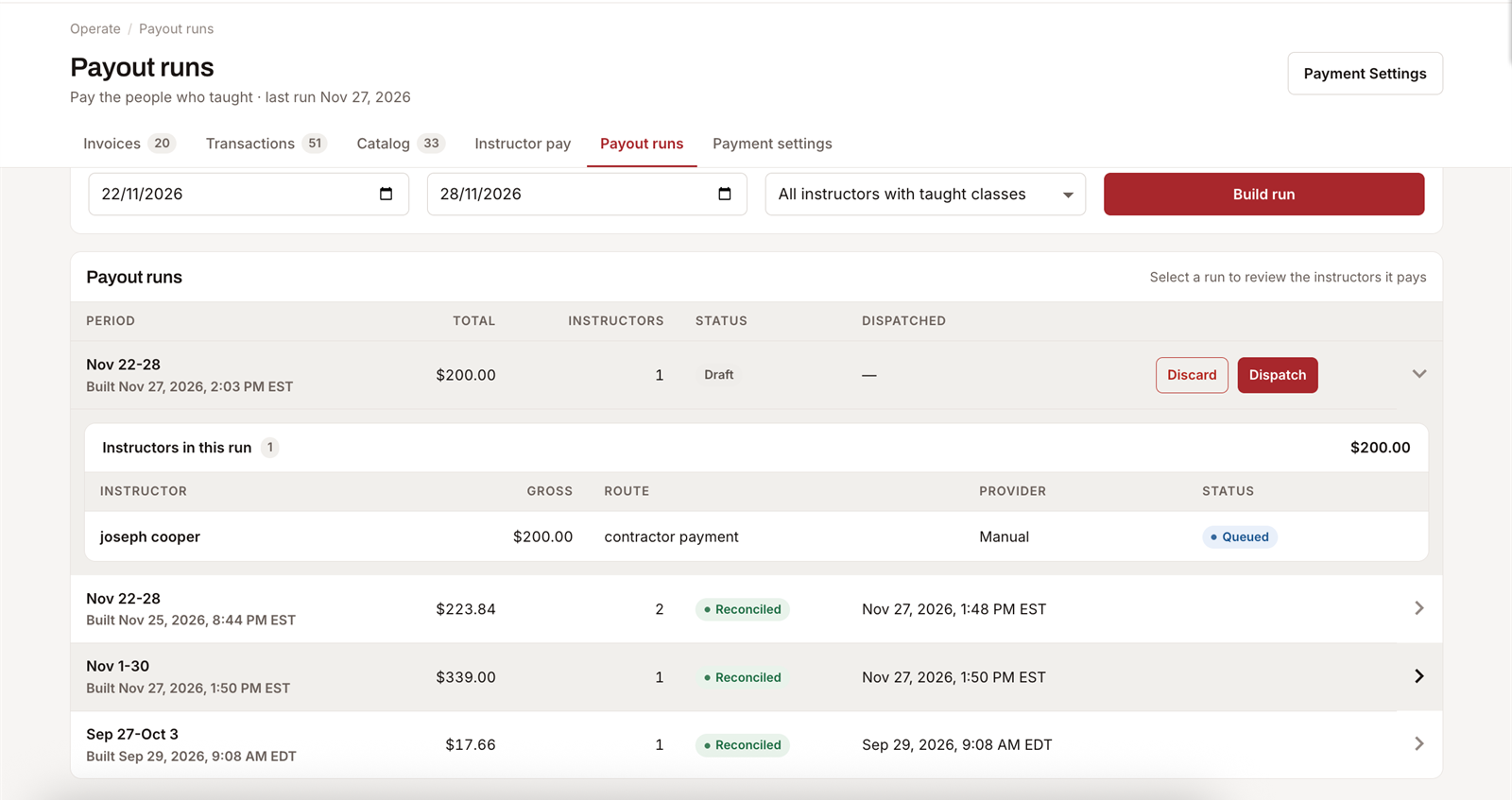
- Set the Period start and Period end. They start at your pay period.
- Choose who to Include: All instructors with taught classes, or Choose instructors to pick from the people who have submitted.
- Click Build run.
The run collects everything unpaid up to the period end, including older items approved after their own period's run, so nothing is left behind. It creates one line per instructor with the gross amount, the route (payroll or contractor payment), the provider and the status Queued. Instructors with no employment type are skipped, and the message tells you how many.
Only one run can be open at a time. Dispatch or discard the open run before building another.
Review, then dispatch
Expand the run to see Instructors in this run. If something is wrong, Discard releases every line back to the unpaid pool so you can fix it and build again.
Click Dispatch when the run is right. With the Manual provider, each line moves to Sent and the run shows Dispatched with the date and time. Now pay the instructors through your payroll, bank or check run.
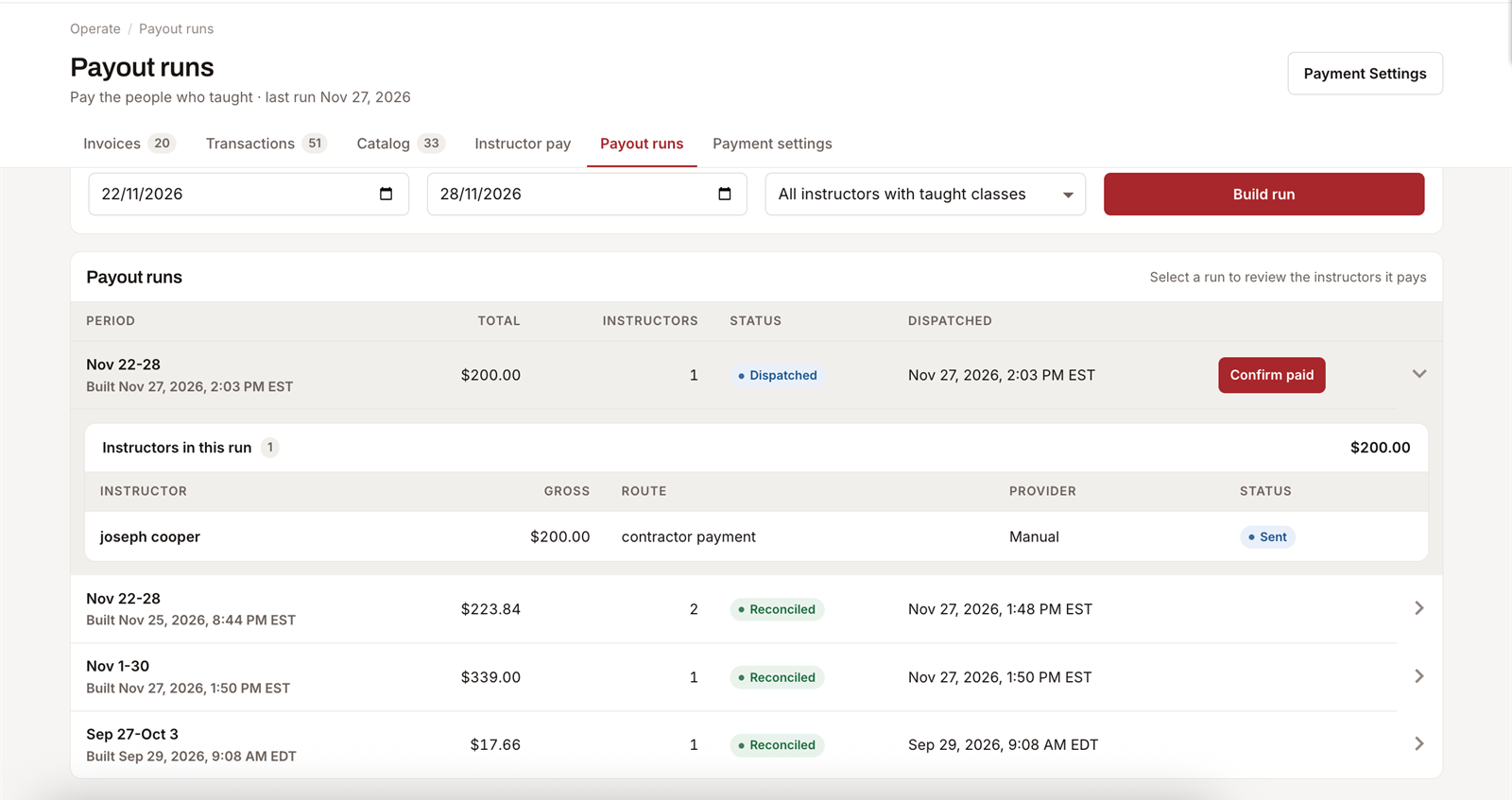
Confirm paid
Once the money has gone out, click Confirm paid. Every line moves to Paid, the run becomes Reconciled, the instructor's Total owed clears, and any reimbursed expenses are marked Paid.
If a provider ever rejects a payment, Retry failed sends only the failed lines again, and a run with rejected lines can be closed so that those instructors' earnings return to the pool for the next run.
Statuses at a glance
Timesheet or Invoice
- Draft: opened, not yet submitted. Auto-files when the window closes.
- Submitted: sent to the office. Waiting for review.
- Auto-filed: the window closed with the form unsubmitted. Filed at the defaults. Always needs approval.
- Returned: sent back with a note. The instructor fixes the flagged lines and resubmits.
- Approved: locked. The amount is now owed and will be picked up by the next run.
Payout run
- Draft: built. Can still be discarded.
- Dispatched: handed to the provider. Pay the instructors, then confirm.
- Reconciled: every line is paid. Closed.
Instructor line in a run
- Queued: in a draft run.
- Sent: dispatched. Waiting for you to confirm paid.
- Paid: done.
- Failed: rejected by the provider. Retry, or close the run.
Permissions
- Payments › Pay Rules › Edit Pay Rule: the Instructor pay page, Instructor Hub settings, the Earnings & Payouts tab, and Approve or Return in Office review. It never allows sending money.
- Payments › Payout Runs tab: see the runs.
- Payout Runs › Add: build and discard a run.
- Payout Runs › Dispatch Payout Run: dispatch, retry, confirm paid and close a run.
Owners, Admins and Partners have all of these.
Good to know
- Instructors find their form on the class page. The office checks Payout runs.
- Rates are frozen when a form opens. A change on Instructor pay never moves an open form or an approved one.
- Classes finalized before the Earnings start date are never priced. Nothing warns you while the date is empty.
- Travel, setup and teardown only appear on classes with a physical venue where the instructor is on site. Virtual classes do not show them.
- Head count pays for students who attended. No-shows and cancellations are excluded.
- Hourly pay is the scheduled length, not the time typed in. The instructor can claim more hours on an hourly rule, but anything over the standard by more than the threshold is flagged and needs a reason.
- Reimbursements are paid separately from pay. On a timesheet they are outside wages and not subject to withholding. On an invoice they are not included on the 1099-NEC.
- The form belongs to the instructor. Office staff review it on Payout runs rather than opening it from the class page.
- W-9s, bank verification and 1099 preparation live with your payout provider, not in CPR Enroll.
Was this article helpful?