Release notes - 30 October 2026
This release brings Smart Paperwork: class packets that fill themselves in from your class and student data, online class evaluations, and fillable versions of your own PDF forms. It also brings a new cprenroll.com, rental equipment in the Store, payment links for balances still owed, blackout dates, clearer plan information in the Portal, and support for organizations in the United Kingdom and Mexico.
New
Smart Paperwork: class packets
Every class whose course has a paperwork packet now has a Paperwork tab, so all of the class's paperwork is in one place. The tab takes you through four steps, with a colored status at each one: a readiness check, preparing the packet, closing out, and signing and locking it.
When you prepare the packet, its forms are filled in for you from the class, the enrolled students and your organization. If the class changes afterwards, for example a student is added, the tab tells you and you can prepare it again. After the class, close out the packet to add attendance and results from the enrollment records. Then sign it electronically: the signer's name is recorded, dates are shown in your organization's time zone, and the signed packet is locked. You can download it as a PDF, or export the roster as a CSV file for AHA Atlas, Red Cross or HSI Otis.
The existing Generate Class Paperwork action has moved to the same tab and works as before.
Where to find it: Classes › open a class › Paperwork
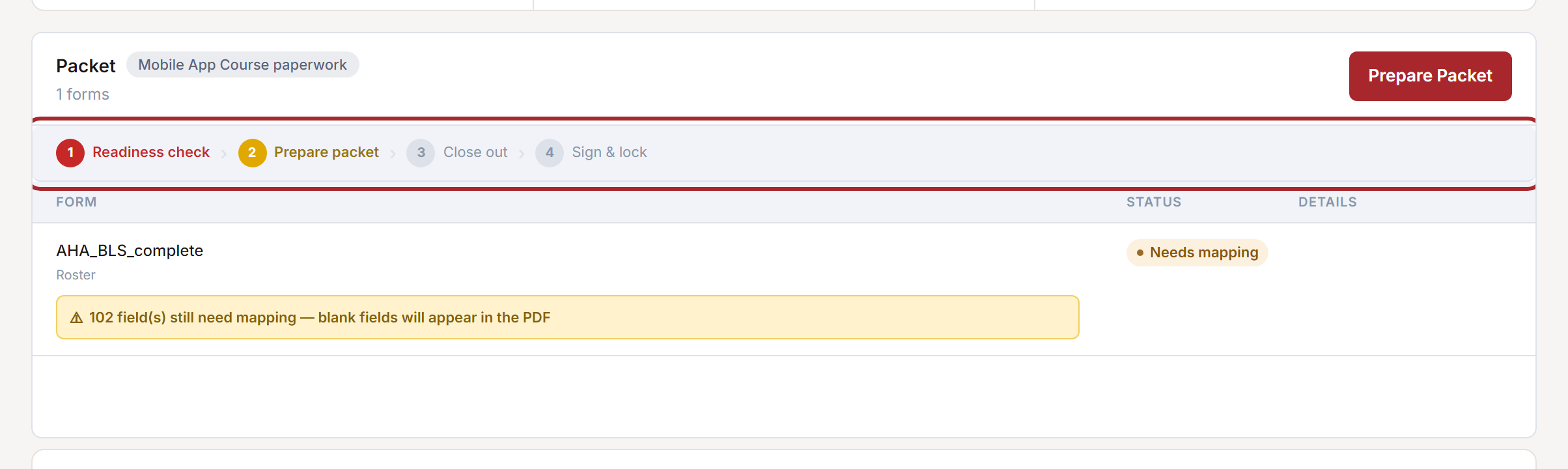
If the tab says no paperwork packet has been assigned, the class's course does not have a packet yet. Contact support and we will set one up for that course.
Fillable versions of your own PDF forms
Upload your own fillable PDF form and the fields are detected and matched to student, class and organization information for you. Review the suggested matches and approve them before the form is used. Fields that could not be matched are listed for you to check, never silently dropped. Then choose which courses use the form. You can attach a form to several courses at once, and approve several fields in one go. The form stays in your organization.
You can preview a form inside CPR Enroll without downloading it. You can also copy a ready-made template into your organization: its form type, field matches and approvals come with it.
Where to find it: Course Builder › Paperwork › New paperwork
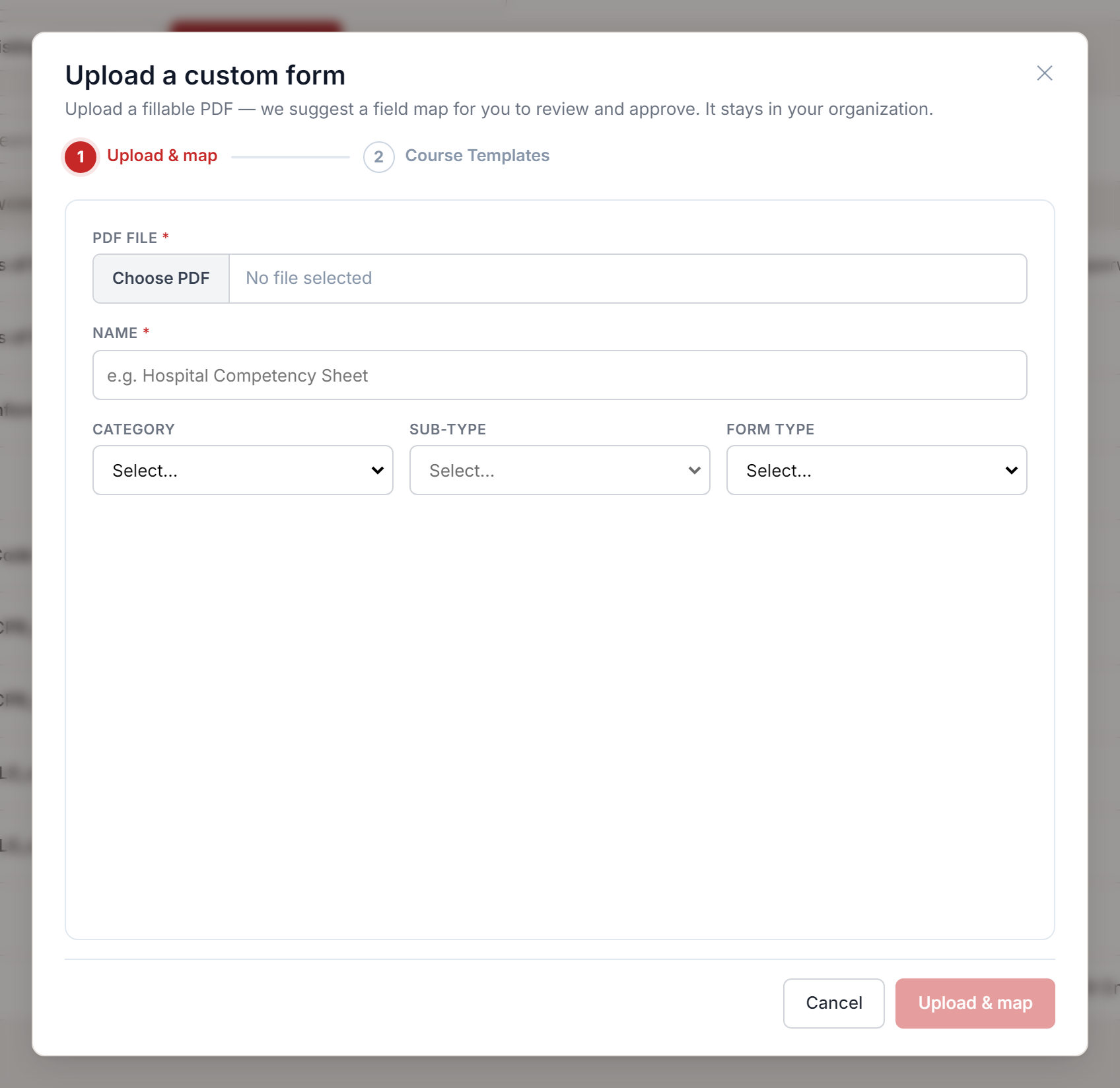
Smart Paperwork replaces the old drag-and-drop paperwork builder. Forms you made with it can still be viewed, and can be converted into fillable forms; the original is kept, so you can always switch back.
Online class evaluations
You can now collect class evaluations online. On the class Paperwork tab, generate a private evaluation link for each student and send it to them. Students fill the evaluation in on their phone or computer, their answers are saved when they submit, and you read them on the class.
Build your evaluation forms with the same drag-and-drop builder as registration forms, then choose which form each course uses.
Where to find it: Classes › open a class › Paperwork › Online evaluations. Forms: Enrollments › Enrollment Settings › Evaluation Forms. Per course: Course Builder › edit a course › Evaluation Form.

Rental equipment in the Store
Rental equipment has a new Make available in Store switch. Instructors can then check out available rental equipment from the Store and pay for it directly, without waiting for an invoice. Each checkout is recorded under the instructor who checked the item out.
Where to find it: Equipment › edit a rental item › Make available in Store
Payment link for the remaining balance
When a student still owes money on an enrollment, you can now copy a payment link from the enrollment and paste it into a text, chat or email. You can still email the payment request as before.
Where to find it: Enrollments › open an enrollment › Copy payment link
Blackout dates
You can now block out full days, or set hours, when a location is closed or a team member is away, without connecting Google Calendar. Students cannot book flexible or appointment slots during a blackout. Bookings already made for those dates are not changed.
Where to find it: Locations › Set Availability › Blackout Dates, and in a team member's availability settings.

Improved
A new cprenroll.com
Our website has a new look and a simpler sign-up, with address suggestions, phone country codes and a check that keeps automated sign-ups out. Pricing and trial lengths always match the plans. You can also book a demo, search the blog and reach us through a new contact form.
Your plan in the Portal
The Portal now shows clearly what your plan includes:
- Subscription & Billing shows how much of your plan you are using.
- A feature that is not in your plan shows a lock. Click it to see which plans include it.
- When you reach one of your plan's limits, a Plan limit reached message tells you how much you have used, with a View plans button, instead of a general error.
- If your plan has a monthly allowance of campaign emails or texts, the message composer shows how many you have left this month. Receipts, confirmations and password emails never count.
- Credits that come with your plan appear on the AI Credits page as Added by your plan.
- On a trial with no card on file, Subscription & Billing says so and offers an Add card button.
- When an add-on such as text messaging becomes part of your plan, any add-on you were paying for separately is cancelled automatically, so you are never billed twice.
- If your plan's price changes, you keep the price you already pay.
Organizations in the United Kingdom and Mexico
Organizations in the United Kingdom and Mexico now have plans in their own currency: British pounds or Mexican pesos. Add-on and AI credit prices are in that currency too. UK prices show "+ VAT" and Mexican prices show "+ IVA".
UK organizations get UK English wording, 24-hour times, +44 phone numbers, the UK time zone and centre registrations. Mexican organizations get the Portal, student emails and student pages in Spanish, with Mexican time zones.
CPR Enroll in your language
The Portal is now fully translated into Spanish: about 3,500 texts that were still in English have been translated. Student emails, the public student pages and certificate verification also use your organization's language. English (UK) is available too.
Agency Connect and AHA eCards
- You now match each certification to the course the certifying body issues in the course itself, under Credentials › Agency Connect. A combo class with several certifications issues all of them in one run.
- Once the roster is finalized, the class page shows an Issue AHA eCards button. Until then, it prompts you to finalize the roster.
- Before a run starts, CPR Enroll checks that the lead instructor is aligned with your training site, so a run does not fail halfway.
- A new permission, Issue cards through Agency Connect, lets you choose who can issue AHA eCards. Set it under Roles & Permissions.
- Flexible classes are posted to AHA Atlas one booked session at a time, and mobile classes are posted too.
More add-ons during and after a class
When add-ons are bought during or after a class, all of your organization's add-ons are now offered, not only rental equipment or the ones linked to the course.
Locations dropdown
Mobile Location, Student Location and Client Location now always appear in the Locations dropdown when you create or edit a class. If one cannot be chosen yet, a hint tells you why. For example, Mobile Location needs a flexible schedule type.
Class capacity
When a class reaches its maximum number of students, Quick Add and Add Student are switched off. A message explains that the class is full: "The maximum student capacity has been reached. Please increase the maximum student limit to add more students."
Mobile app
- Paperwork attached through Student Results › Attach Paperwork is now kept with the class's records. You can find it in the class's paperwork for audits.
- Class photos upload more smoothly, and you can delete a photo from the app.
- For on-site classes, the class list shows where the class is held, with the client's address.
Public Classes API
For organizations that show their classes on their own website through our API:
- Availability dates and time slots for flexible, kiosk, on-demand and unscheduled classes.
- Full class addresses (street, city, region and postal code) and clearer start dates and times.
- Date-range filters, and leaving out past and completed classes.
- Conditional requests, so an unchanged class feed is not downloaded again.
- A dedicated read-only key for the recent-enrollments feed. That feed now shows less of each student's name.
- More reliable course cover image addresses.
- Consistent parameter names.
- Clearer version and change information.
Was this article helpful?