Bulk Invoice Import Using CSV: Setup and Formatting Guide
Importing invoices using a CSV file allows you to quickly add multiple invoices in one go instead of creating them manually. This method helps maintain accuracy, saves time, and keeps your billing records organized. By using the correct format, you can upload invoices without errors.
TABLE OF CONTENTS
- What You Need Before Uploading
- Example CSV Format
- How to Import Invoices
- Common Mistakes to Avoid
- FAQs
- Need Help?
What You Need Before Uploading
Before uploading your file, make sure your CSV is properly formatted. The system depends on exact column names and valid data. Even small mistakes, like incorrect headers or missing values, can cause the import to fail.
Required Fields (Must Match Exactly)
Certain fields are mandatory and must be included exactly as listed. Each row must contain valid data for these fields.
Required fields include:
Invoice number
Invoice name
Customer name
Customer email
Issue date
Due date
Currency
Item name
Item rate
These fields define the core structure of your invoice and cannot be skipped.
Optional Fields (Optional but Helpful)
You can also include additional fields to enhance your invoices. These may include:
Payment terms
Item description
Quantity
Tax details
Discounts
Payment status
These fields are optional but useful for better tracking and reporting.
Example CSV Format
Below is a simple example of a properly formatted CSV:
*InvoiceNo,*InvoiceName,*CustomerName,*CustomerEmail,*IssueDate,*DueDate,*Currency,*ItemName,*ItemRate INV001,Web Design,John Doe,[email protected],03/01/2025,03/31/2025,USD,Homepage Design,300How to Import Invoices
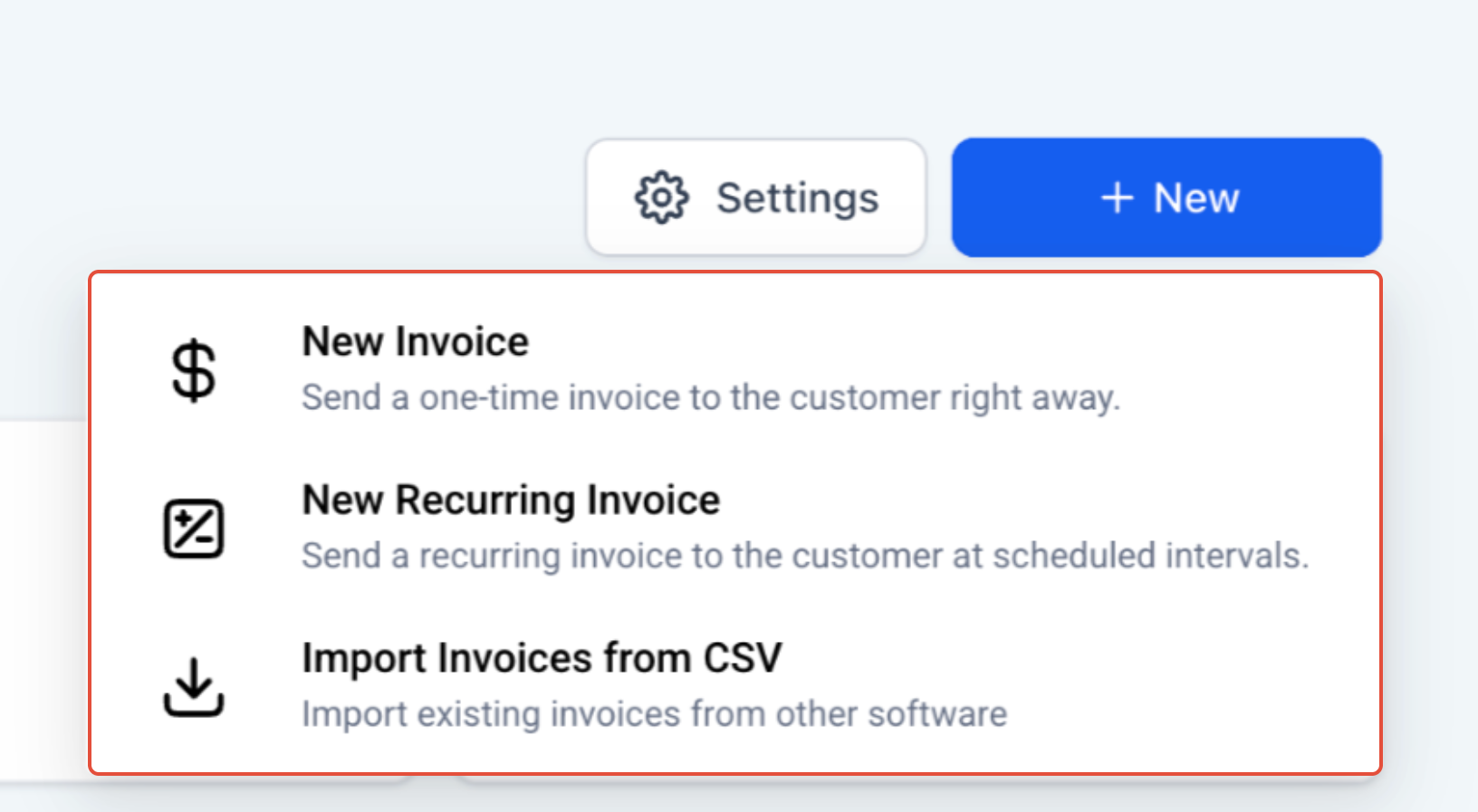
This image shows where to begin the invoice import process.
Go to the Invoices section, click New, and select Import Invoices from CSV.
Upload Your File
Upload your CSV file by clicking to select it or dragging and dropping it into the upload area.
Check & Map Fields
Review how your CSV columns match the system fields. Confirm everything is mapped correctly.
Fix Errors (If Any)
If errors appear, update your CSV file and upload it again until all issues are resolved.
Finish Import
Once everything is correct, complete the import. Your invoices will be created and available for use.
Common Mistakes to Avoid
Most errors come from simple issues like incorrect column names, missing required fields, invalid date formats, or duplicate invoice numbers. Double-check your file before uploading to avoid these problems.
FAQs
Q: Can I add multiple items to one invoice?
Yes, use the same invoice number across multiple rows to include multiple items.
Q: What happens if required data is missing?
The import will fail, and you will need to fix the file before trying again.
Q: Can I update existing invoices using CSV?
No, this process only creates new invoices.
Q: Do I need to include optional fields?
No, optional fields can be left blank.
Need Help?
If your import isn’t working, check your column names, required fields, and date formats. If you’re still stuck, reach out to support for assistance.
Was this article helpful?
Related articles
- What is listed on the Subscriptions page?In this article, we will cover the subscription tab and how it works Please head into Payments > Then click on Subscriptions Please Note: Only subscriptions created via funnel version 2 order forms are listed on the subscriptions page. The ability to cancel subscriptions/initiate refunds will beGetting Started w/ Payments
- Using Apple Pay and Google PayAccepting Apple Pay and Google Pay in your Order Form is a great way to improve the purchase experience for your customers. These payment methods offer convenience, security, and speed that traditional payment methods cannot match. Covered in this Article: How to use Apple Pay and Google Pay in theGetting Started w/ Payments
- Authorize.net integration for processing paymentsAuthorize.Net is considered a competitive payment processor due to its reliability, security, and wide range of features. It has operated for over 20 years, providing payment processing services to businesses of all sizes. Authorize.Net provides robust security measures to protect transactions, sensGetting Started w/ Payments
- Auto Payments in Recurring TemplatesIntroducing Auto Payments in Recurring Templates: A Streamlined Solution for Billing Managing customer payments can be a daunting task, especially when it comes to recurring invoices. But worry no more! With the auto payment feature in our recurring templates, you can ensure timely payments withoutGetting Started w/ Payments