How to import invoices from previous softwares using CSV into your CRM?
Overview
You can transfer invoices directly into your CRM by uploading a properly formatted CSV file. This guide covers:
- Required CSV headers and their purposes
- Optional columns you may include
- How to upload and map fields
- Troubleshooting and finishing the import
Required CSV Columns
The following columns (marked with *) are mandatory. Make sure they appear exactly as shown and have valid data in each row.
| Header | Description | Sample Data | Mandatory? |
|---|---|---|---|
*InvoiceNo | Unique identifier for the invoice | 1001 | Yes |
*InvoiceName | Title or reference name for the invoice | Web Design Invoice | Yes |
*CustomerName | Full name or company name of the customer | Jane Doe / Acme Corp | Yes |
*CustomerEmail | Email address of the customer | [email protected] | Yes |
*IssueDate | Date the invoice was created; format can vary (e.g. MM/DD/YYYY) | 03/01/2025 | Yes |
*DueDate | Date the invoice payment is due | 04/01/2025 | Yes |
*Currency | Currency code (e.g. USD, CAD) | USD | Yes |
*ItemName | The name of the invoice line item | Design Service | Yes |
*ItemRate | The cost per unit for the line item | 500 | Yes |
Optional CSV Columns
You can include these columns to capture additional invoice details. If you don’t have data for an optional field, leave it empty.
| Header | Description | Sample Data | Mandatory? |
|---|---|---|---|
Terms | Payment terms or notes | Net 30 | No |
ItemDescription | Extra details about the item/product | 5 hours of design work | No |
ItemQuantity | Quantity of each item | 2 | No |
Taxable (Y/N) | Indicates if the item is taxable (Y or N) | Y | No |
TaxName | Name of the tax associated with the item | Sales Tax | No |
TaxRate | Percentage rate of the tax | 10 | No |
DiscountType | Type of discount applied (Fixed or Percentage) | Percentage | No |
DiscountValue | The discount amount (either a fixed value or a % based on DiscountType) | 10 | No |
Status | Invoice payment status (Paid or Partially Paid) | Paid | No |
AmountPaid | Amount the customer has already paid | 200 | No |
Example CSV Snippet
Below is a minimal CSV snippet with both required and optional columns. (A real CSV would have more rows.)
| *InvoiceNo | *InvoiceName | *CustomerName | *CustomerEmail | *IssueDate | *DueDate | *Currency | *ItemName | *ItemRate | Terms | ItemDescription | ItemQuantity | Taxable | TaxName | TaxRate | DiscountType | DiscountValue | Status | AmountPaid |
|---|---|---|---|---|---|---|---|---|---|---|---|---|---|---|---|---|---|---|
| INV001 | Web Design | John Doe | [email protected] | 03/01/2025 | 03/31/2025 | USD | Homepage Design | 300 | Net 30 | Design of homepage | 1 | Y | Sales Tax | 10 | Paid | 300 | ||
| INV001 | Web Design | John Doe | [email protected] | 03/01/2025 | 03/31/2025 | USD | Contact Page Design | 200 | Net 30 | Design of contact page | 1 | Y | Sales Tax | 10 | Paid | 200 | ||
| INV002 | SEO Services | Acme Inc | [email protected] | 03/05/2025 | 04/05/2025 | USD | Keyword Research | 150 | Comprehensive keyword research | 1 | N | 150 | ||||||
| INV002 | SEO Services | Acme Inc | [email protected] | 03/05/2025 | 04/05/2025 | USD | On-page Optimization | 250 | Optimizing page elements | 1 | N | 250 | ||||||
| INV002 | SEO Services | Acme Inc | [email protected] | 03/05/2025 | 04/05/2025 | USD | Link Building | 200 | Building quality backlinks | 1 | N | 200 |
Tip: If you open your CSV in a spreadsheet editor like Excel or Google Sheets, ensure your top row has these column headers in exactly the same spelling and order (the order can vary, but the header names must match perfectly for the required fields).
Uploading Your CSV into the CRM
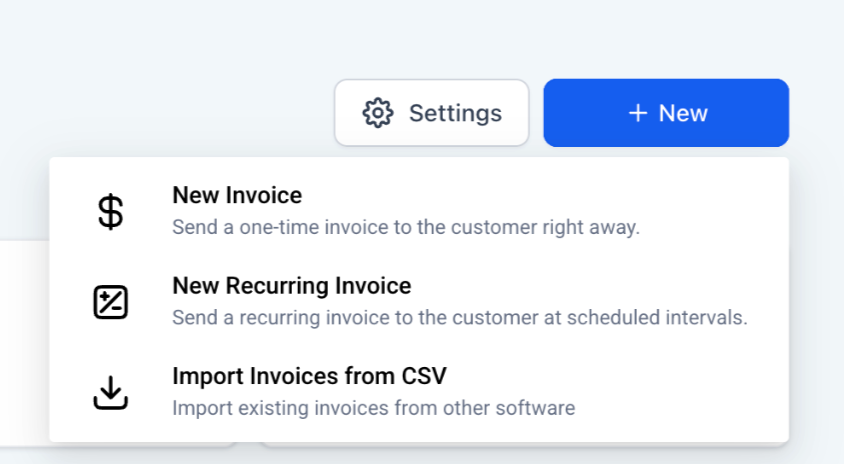
Click Import using CSV
- Go to the Invoices section of your CRM.
- Choose Import Invoices.
Upload Your File
- Click Upload CSV (or drag-and-drop your file) and follow any on-screen prompts.
Map Fields and Confirm Date Formats
- Map each CSV column to the corresponding CRM field if prompted. The system often auto‐detects these fields, but review them carefully.
- Confirm or adjust the date format (e.g.,
MM/DD/YYYYvs.DD/MM/YYYY).
Troubleshoot and Re‐Upload if Necessary
- If any required field is missing, or if the CRM sees invalid data (like a non‐date in your
*IssueDatefield), you’ll see an error screen. - Correct the issues by editing your CSV or adjusting your field mappings.
- Re‐upload the corrected file until the CRM shows no further errors.
Finalize Your Import
- Click Import or Finish once the system reports no errors.
- You’ll see a confirmation message and can then view your newly created invoices within the CRM.
Was this article helpful?
Related articles
- What is listed on the Subscriptions page?In this article, we will cover the subscription tab and how it works Please head into Payments > Then click on Subscriptions Please Note: Only subscriptions created via funnel version 2 order forms are listed on the subscriptions page. The ability to cancel subscriptions/initiate refunds will beGetting Started w/ Payments
- Using Apple Pay and Google PayAccepting Apple Pay and Google Pay in your Order Form is a great way to improve the purchase experience for your customers. These payment methods offer convenience, security, and speed that traditional payment methods cannot match. Covered in this Article: How to use Apple Pay and Google Pay in theGetting Started w/ Payments
- Authorize.net integration for processing paymentsAuthorize.Net is considered a competitive payment processor due to its reliability, security, and wide range of features. It has operated for over 20 years, providing payment processing services to businesses of all sizes. Authorize.Net provides robust security measures to protect transactions, sensGetting Started w/ Payments
- Auto Payments in Recurring TemplatesIntroducing Auto Payments in Recurring Templates: A Streamlined Solution for Billing Managing customer payments can be a daunting task, especially when it comes to recurring invoices. But worry no more! With the auto payment feature in our recurring templates, you can ensure timely payments withoutGetting Started w/ Payments