Connecting and Managing Organizations (Connections)
The Connections feature in CPR Enroll+ is a professional networking system for training organizations. It allows you to discover, connect with, and collaborate with other CPR and lifesaving training organizations on the platform. Think of it as a professional network specifically for training businesses — useful for referrals, co-training arrangements, and affiliate networks.
Accessing Connections
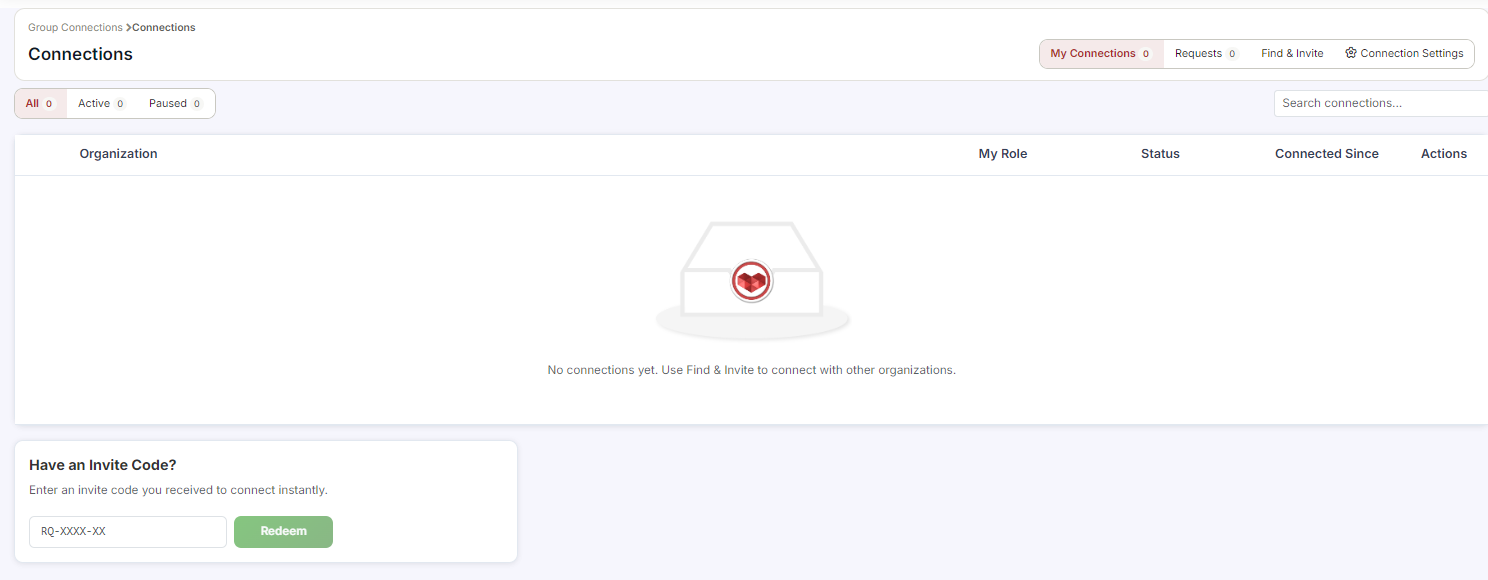
From the sidebar, go to Connections.
You will see four tabs: Available, Received, Sent, and Connected Groups.
Discovering and Connecting With Organizations
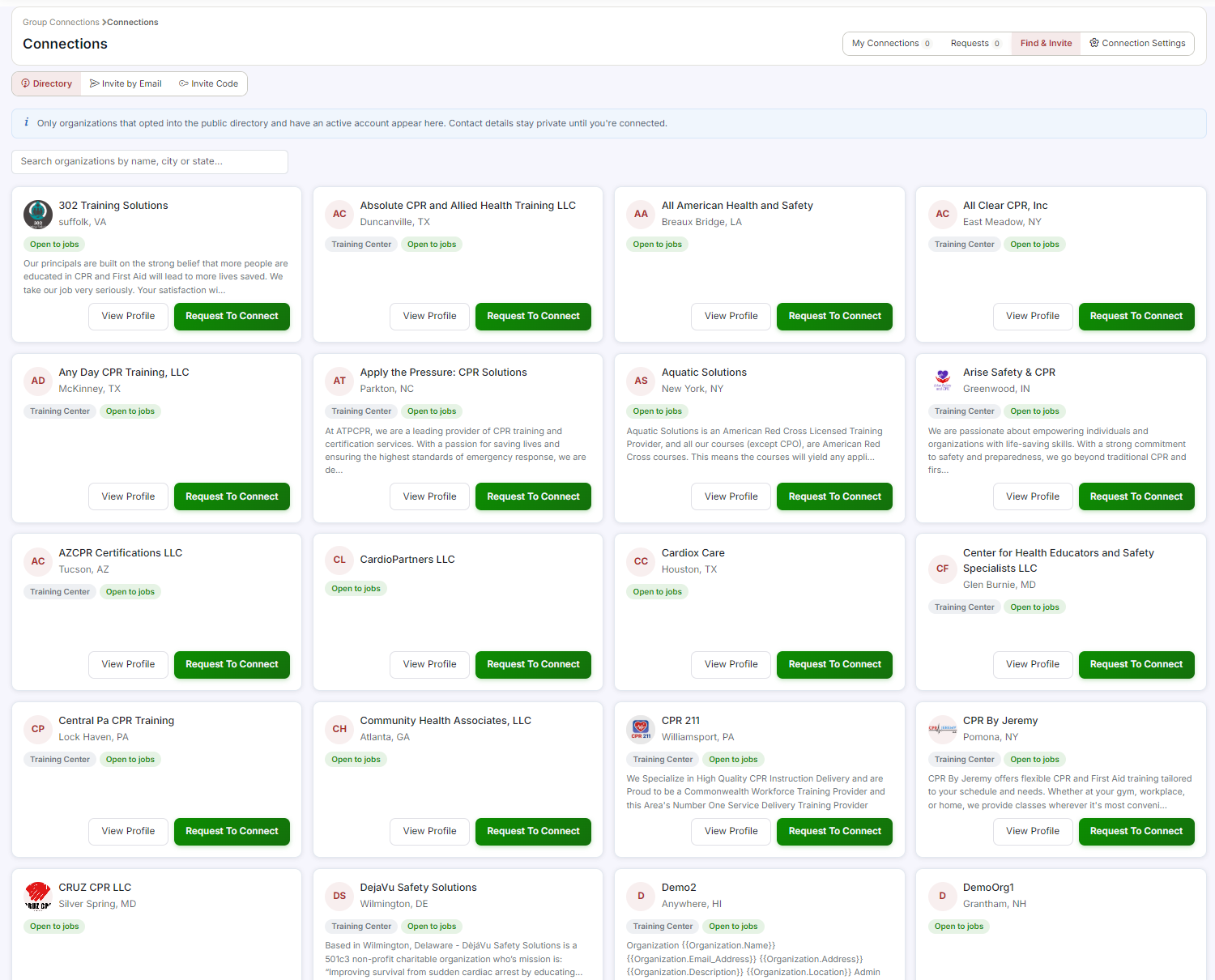
Click the Available tab to browse all discoverable training organizations on CPR Enroll+.
Browse the directory or use the search field to find a specific organization.
Click ⋮ > Send Request on the organization's row to send a connection request.
Your outgoing request appears on the Sent tab. The receiving organization sees your request on their Received tab.
Accepting or Declining Incoming Requests
Go to Connections > Requests tab.
Incoming connection requests from other organizations are listed here.
Click ⋮ on a request row and select Accept or Decline.
Accepted connections appear on both organizations' Connected Groups tab.
Managing Your Connected Groups
Click the Connected Groups tab to see all organizations you are connected with.
Each connected organization shows their name, address, phone, and parent organization.
Use the ⋮ menu on a connected group to manage the connection (e.g., disconnect if the partnership has ended).
ℹ Connections vs integrations Connections is an internal CPR Enroll+ networking feature between training organizations on the platform — it is not a third-party software integration. If you are looking to connect Stripe or ResQEngage, see the Integrations articles instead. |
Was this article helpful?
Related articles
- How to Set Course Images and Cover ImagesEvery course in CPR Enroll+ has two distinct image slots: a Course Image that appears in listings and search results, and a Cover Image that spans the top of the public class registration page. This article walks you through setting or updating both. ℹ Before you begin: you need Administrator accesGetting Started
- What is a Connected Group?A Connected Group in CPR Enroll+ is another training organization that you have established a formal connection with through the platform's Connections network. Connected Groups allow training organizations to collaborate, share resources, and coordinate training delivery across locations or affiliaGetting Started
- Connecting Instructor AccountsUnlock numerous benefits by connecting your CPR Enroll instructor account to others. This connection facilitates instructor purchases from your store and simplifies the submission of class paperwork, similar to how training sites submit rosters to training centers. CPR Enroll lets you connect your Getting Started
- Organizing Records with FoldersFolders give you an internal filing system for the records that pile up as your catalog grows. The page states the boundary up front: this is your own way to organize records, and folders are for internal tracking only — they are never shown to students. Before You Begin - Find it at Course Builder Getting Started