Organizing Records with Folders
Folders give you an internal filing system for the records that pile up as your catalog grows. The page states the boundary up front: this is your own way to organize records, and folders are for internal tracking only — they are never shown to students.
Before You Begin
- Find it at Course Builder → List Manager → Folders.
- Adding, editing, archiving, restoring and deleting folders are separate permissions. Folder management is available to Admins by default.
- Eight record types can be filed: Courses, Locations, Add-ons, Key Codes, Paperwork, Certificates, Checklists and Quizzes.
✔ Students never see folders. Organize for your own team’s convenience — there is no customer-facing consequence to how you file things.
Step 1: Create a Folder
- Click + New folder.
- Name it and pick a color from the preset or custom palette.
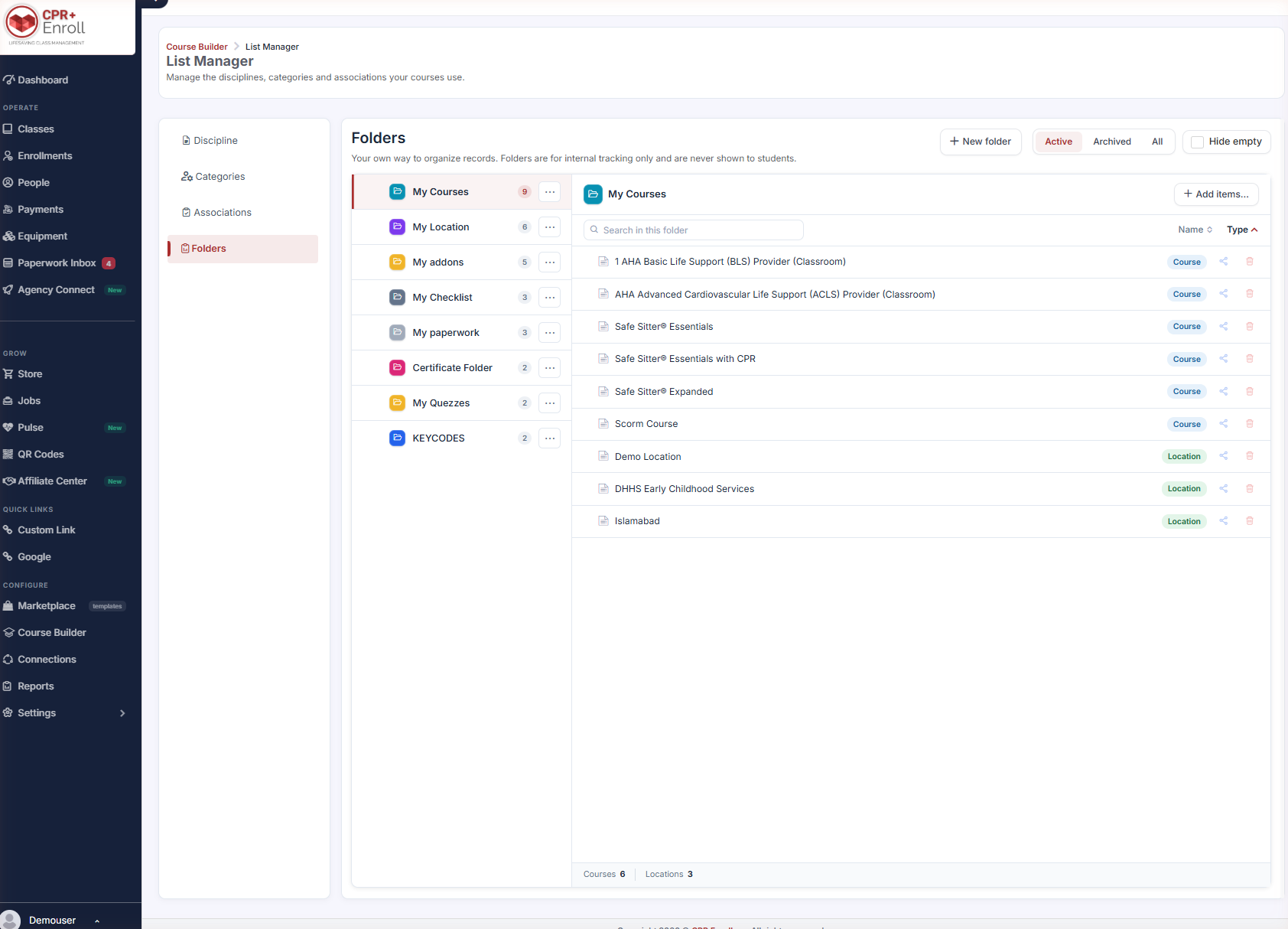
Folders can be nested to any depth. Use a folder’s action menu (⋯) → Add subfolder.
Step 2: File Records
- Click a folder in the left panel. Its contents appear on the right.
- Click + Add items… and select records. You can add several at once.
- To move records between folders, drag and drop or use the menu actions.
✔ Removing a record from a folder does not delete the record. Filing is a view over your data, not a container that holds it.
Step 3: Read the Two-Panel Layout
The left panel lists folders with a color tile and a count. The right panel shows contents with:
- Search in this folder
- Sort by Name or Type, ascending or descending
- A type chip on every row (Course, Location, and so on)
- A share icon and a remove icon per row
- A summary footer, e.g. Courses 6 | Locations 3
Step 4: Filter the Folder List
- Use Active / Archived / All at the top.
- Tick Hide empty to collapse folders with nothing in them.
Step 5: Use the Folder Actions
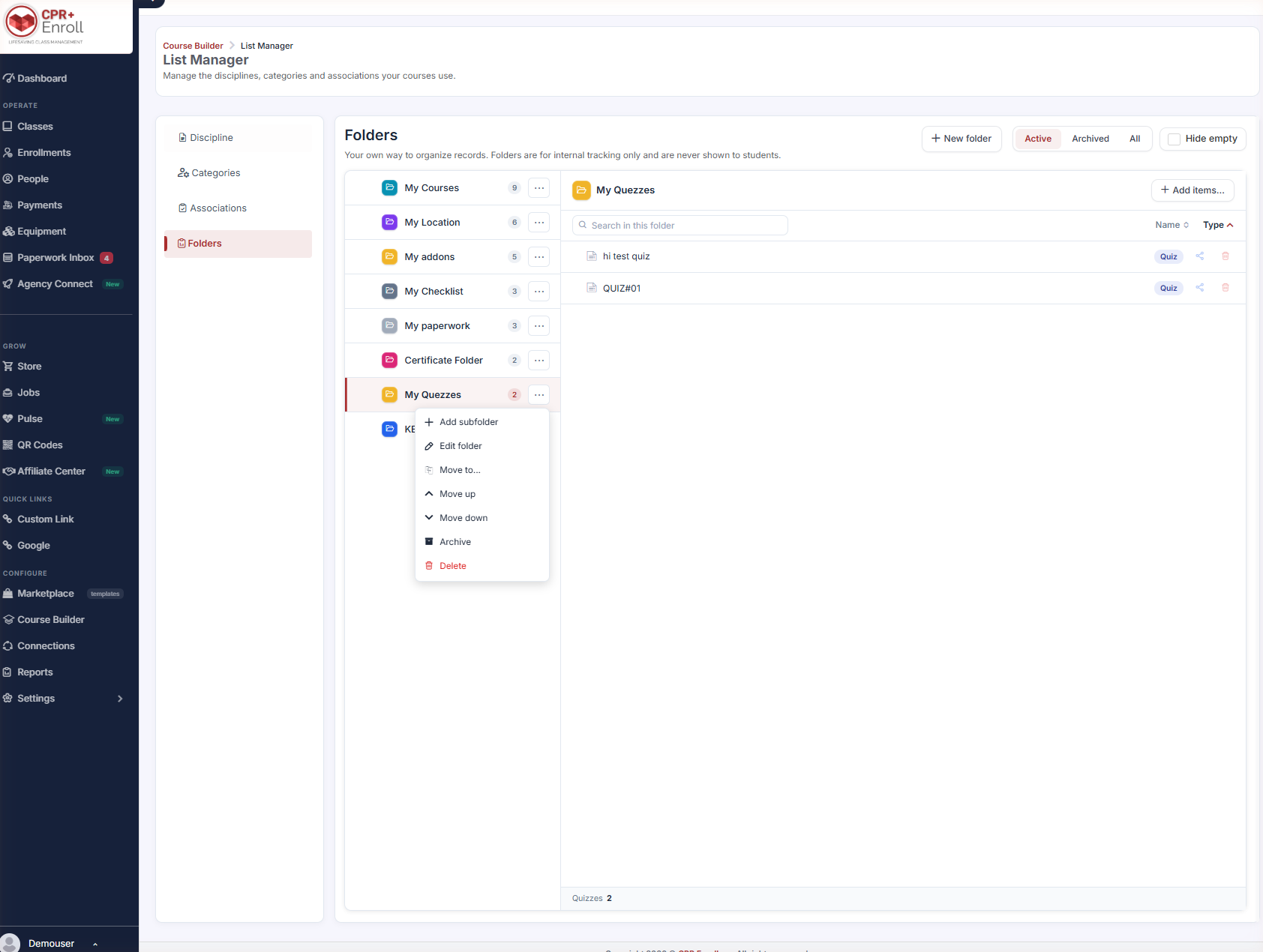
The action menu (⋯) offers Add subfolder, Edit folder, Move to…, Move up, Move down, Archive and Delete.
Step 6: Know Archive From Delete
| Action | What happens |
|---|---|
| Archive | Puts a folder and its subfolders aside without deleting their contents. Archived folders can be restored intact. |
| Delete | Removes the folder but keeps the records — contents move up to the parent level. |
Confirmation messages explain the impact before you commit. Archived records are automatically excluded from folders and from filing options.
Step 7: Use Folders Elsewhere
- The Courses grid has a Folder column and a Folder filter, so you can show only one folder’s courses — or only unfiled courses.
- You can assign a folder directly when creating or editing a course, a quiz, or a document in the Credentials builder.
Best Practices
- File at creation time. Assigning a folder while creating a course is one click; retro-filing 200 courses is an afternoon.
- Use color meaningfully — by association, by client, by season — and keep the scheme written down somewhere.
- Filter the Courses grid to unfiled occasionally. It is the fastest way to spot drift.
- Archive rather than delete when a program ends. Archived folders restore intact; deleted ones scatter their contents to the parent.
- Turn on Hide empty once you have more folders than fit on a screen.
Frequently Asked Questions
| Question | Answer |
|---|---|
| Do students see my folders? | No. Folders are for internal tracking only and are never shown to students. |
| What can I put in a folder? | Courses, Locations, Add-ons, Key Codes, Paperwork, Certificates, Checklists and Quizzes. |
| Can folders be nested? | Yes, to any depth — use Add subfolder on a folder’s action menu. |
| If I remove a record from a folder, is it deleted? | No. Removing a record from a folder does not delete the record. |
| What is the difference between Archive and Delete? | Archive sets the folder and its subfolders aside and can be restored intact. Delete removes the folder but moves its contents up to the parent. |
| Can I find unfiled courses? | Yes — the Courses grid has a Folder filter. |
| Who can manage folders? | Admins by default. Add, edit, archive, restore and delete are separate permissions. |
✔ You’re all set. File as you create, archive rather than delete, and the Courses grid stays navigable however large your catalog gets.
Was this article helpful?
Related articles
- How to Set Course Images and Cover ImagesEvery course in CPR Enroll+ has two distinct image slots: a Course Image that appears in listings and search results, and a Cover Image that spans the top of the public class registration page. This article walks you through setting or updating both. ℹ Before you begin: you need Administrator accesGetting Started
- What is a Connected Group?A Connected Group in CPR Enroll+ is another training organization that you have established a formal connection with through the platform's Connections network. Connected Groups allow training organizations to collaborate, share resources, and coordinate training delivery across locations or affiliaGetting Started
- Connecting and Managing Organizations (Connections)The Connections feature in CPR Enroll+ is a professional networking system for training organizations. It allows you to discover, connect with, and collaborate with other CPR and lifesaving training organizations on the platform. Think of it as a professional network specifically for training busineGetting Started
- Connecting Instructor AccountsUnlock numerous benefits by connecting your CPR Enroll instructor account to others. This connection facilitates instructor purchases from your store and simplifies the submission of class paperwork, similar to how training sites submit rosters to training centers. CPR Enroll lets you connect your Getting Started