Domain Transfer In and Eligibility Check
Domain Transfer In lets you move an eligible domain from an external registrar into the platform so you can manage DNS, billing, and domain settings from one place. Before the transfer can begin, the domain must pass an eligibility check based on registrar support, TLD support, transfer timing, domain status, and maximum registration-term rules.
TABLE OF CONTENTS
Overview: What is Domain Transfer In?
The Domain Transfer In feature allows users to transfer their domain name from an external registrar (such as GoDaddy, Namecheap, etc.) to our platform. Once transferred, users can manage their domain's DNS, billing, and security directly within the platform.
Bringing domains in offers convenience and helps users centralize all aspects of domain management in one place. It also contributes to improved customer retention and engagement.
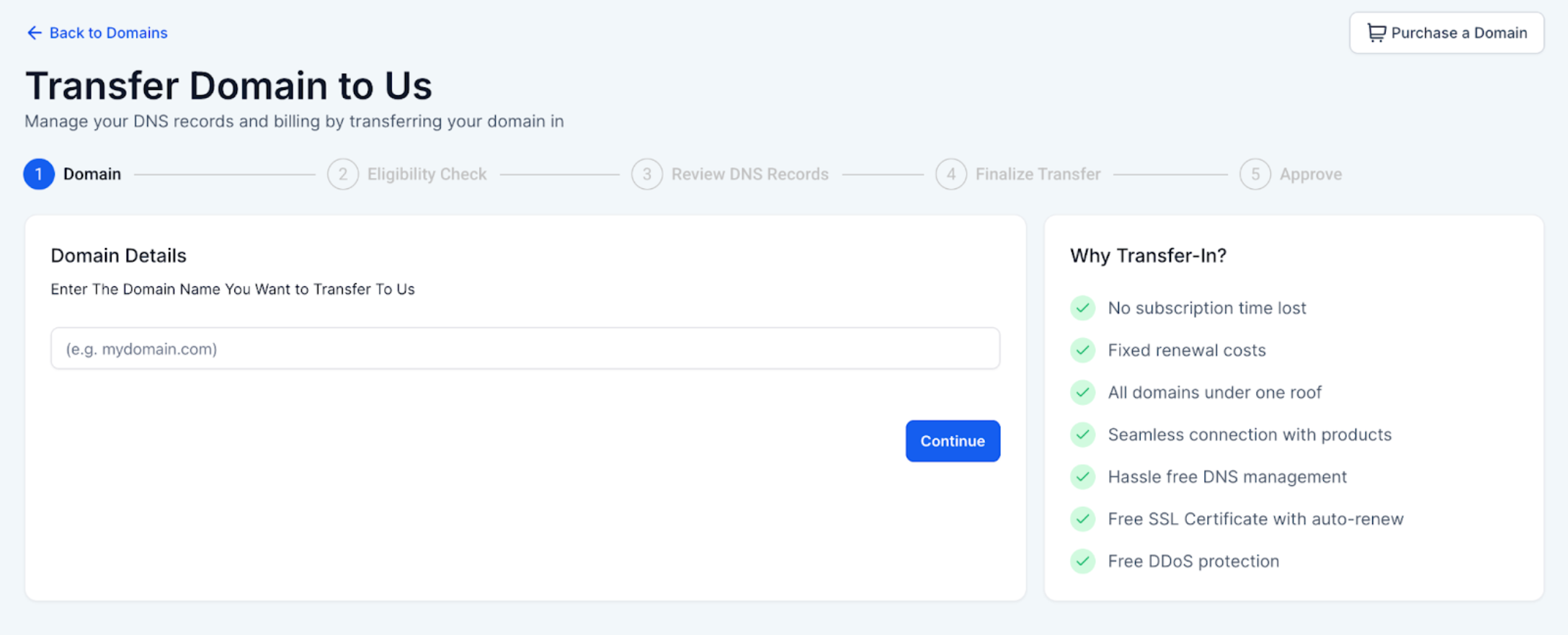
Domain Transfer Process Overview
The domain transfer process includes the following steps:
Enter Domain - Input the domain you want to transfer.
Eligibility Check - Confirm the domain qualifies for transfer.
Review DNS Records - Upload or scan DNS settings for continuity.
Finalize Transfer - Validate and authorize the transfer.
Approve - Accept the transfer at the current registrar to complete the process.
Eligibility Check
During the Eligibility Check, We verify whether your domain qualifies to be transferred into the platform. The system evaluates both registrar-level rules and technical readiness. If the domain is eligible for transfer you can continue with the transfer process. When a domain is eligible for transfer you can see the
Domain Name
Current Domain Registrar
Current expiration and new expiration (extended by 1 year)
Applicable fee for the extension of expiry date.
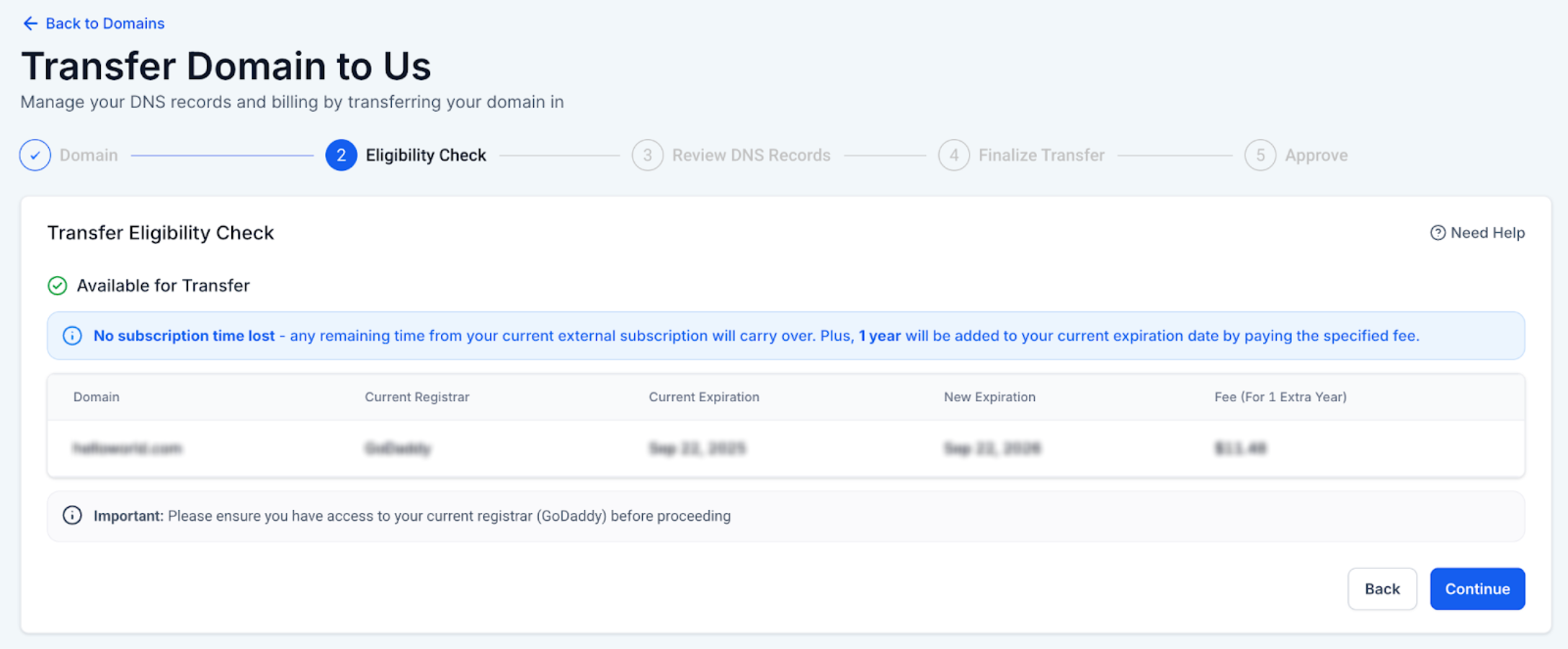
A domain is not eligible for transfer when:
Its current registrar is not supported.
It has been previously purchased internally.
It’s TLD is not supported.
It has been purchased or transferred in last 60 days
It has an EPP status that does not allow for transfers (eg, pendingDelete, redemptionPeriod, serverHold etc)
The transfer would result in the term of the domain exceeding the maximum allowed term
Other reason
In these cases, the Continue button will be disabled, and a relevant error message will explain why the domain cannot be transferred at this time.
Need Help?
If a domain is not eligible for transfer or the transfer cannot continue, first review the eligibility result and the domain’s current registrar status.
Verify that:
- The domain is currently registered with a supported external registrar.
- The domain was not previously purchased through the platform.
- The domain’s TLD is supported for transfer.
- The domain was not purchased or transferred within the last 60 days.
- The domain does not have a transfer-blocking EPP status, such as pendingDelete, redemptionPeriod, or serverHold.
- The transfer would not extend the domain beyond the maximum allowed registration term.
- The domain name entered for transfer is correct.
- The current registrar information shown during the eligibility check is accurate.
- The domain expiration details are correct.
- The applicable transfer or renewal fee is understood before continuing.
- The Continue button is enabled after the domain passes eligibility.
- Any error message shown during the eligibility check has been reviewed before retrying.
If the domain is eligible but the transfer does not progress, confirm that the DNS records have been reviewed, the transfer has been authorized, and any required approval at the current registrar has been completed.
If the issue continues, collect the domain name, current registrar, eligibility result, displayed error message, current domain status, and screenshots of the transfer screen before contacting support.
Was this article helpful?
Related articles
- Domain Transfer-out to CloudflareTransferring a domain to another Cloudflare account requires preparing the domain in the destination account, confirming DNS records, disabling proxying during setup, and providing the destination Cloudflare Account ID so the transfer can be initiated. After the transfer request is accepted, the domDomain Connect / Transfer
- Connecting Your Domain - A GuideConnecting your domain ensures that your branded presence is consistent across websites, funnels, emails, and client-facing tools. This guide breaks down the process and explains how each product integrates with a connected domain. TABLE OF CONTENTS - Step-by-Step Domain Connection Process- 1. AutoDomain Connect / Transfer
- Troubleshooting Guide: Connecting Your DomainThis guide will help you resolve common errors when connecting your domain to your platform. Follow the steps below to troubleshoot issues related to DNS records and domain conflicts. TABLE OF CONTENTS - 1. Record Conflicts: Multiple A Records- What is an A Record? - When This Happens - Solution - Domain Connect / Transfer
- Domain Transfer In - Review DNS RecordsReviewing DNS records before completing a domain transfer helps protect the services already connected to your domain, including websites, email, and verification records. You can retrieve DNS records by uploading a zone file or using an automatic scan, then compare the results with your current DNSDomain Connect / Transfer