Domain Transfer-out to Cloudflare
Transferring a domain to another Cloudflare account requires preparing the domain in the destination account, confirming DNS records, disabling proxying during setup, and providing the destination Cloudflare Account ID so the transfer can be initiated. After the transfer request is accepted, the domain may take time to become fully active, and a temporary Invalid Nameservers status can appear while Cloudflare finishes processing the change.
TABLE OF CONTENTS
Pre-requisite
A Cloudflare account where domains has to be transferred should exist and you should have access to it.
Prepare to Transfer
Step 1: Add the Domain as a Website to the New Account and Select a Plan
Login to your Cloudflare account where you want to transfer your domain.
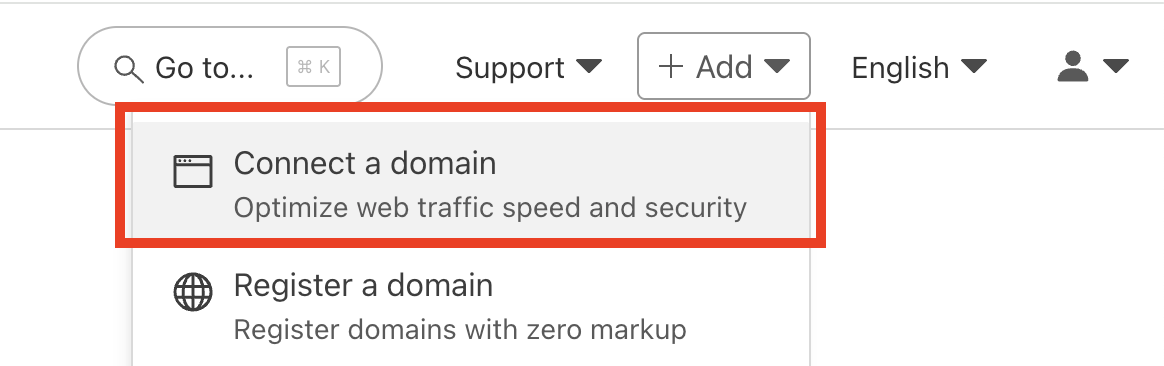
Click 'Connect a domain' after clicking '+ Add'.
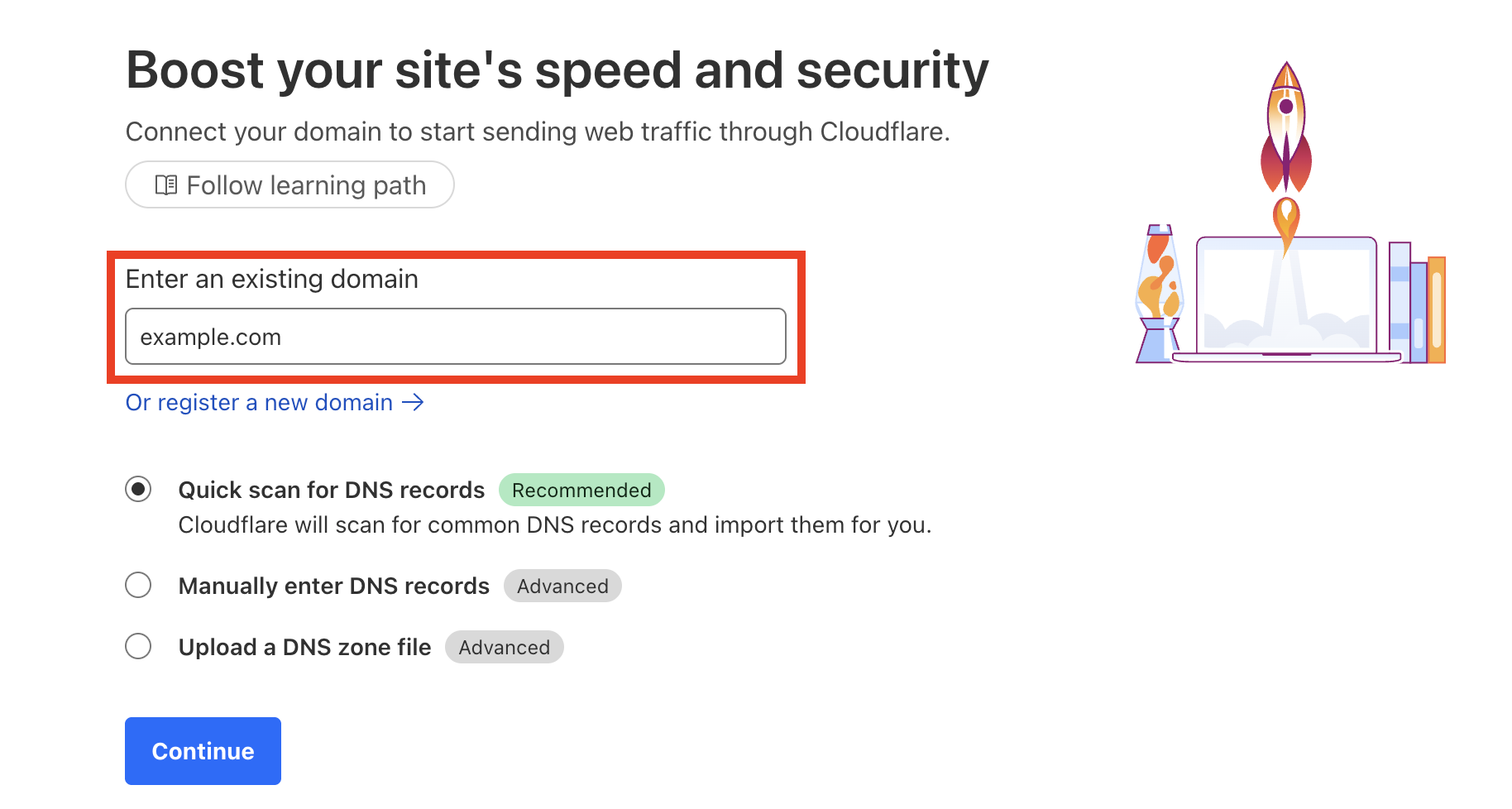
Enter the domain name to be transferred and click 'Continue'.
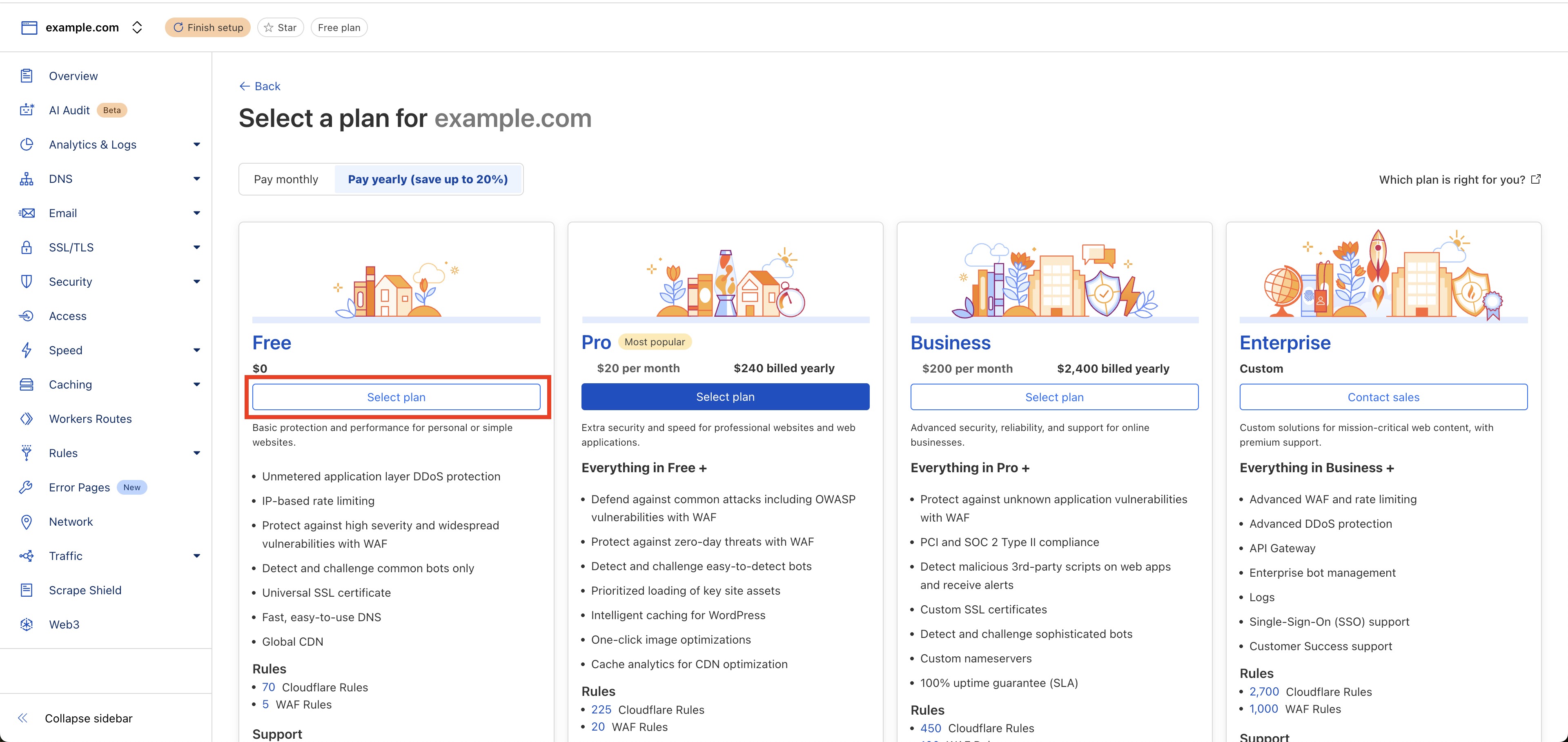
Select the 'Free' plan or a 'Paid' plan.
Cross-check your scanned DNS records with your current DNS records. You can find your current DNS records here:
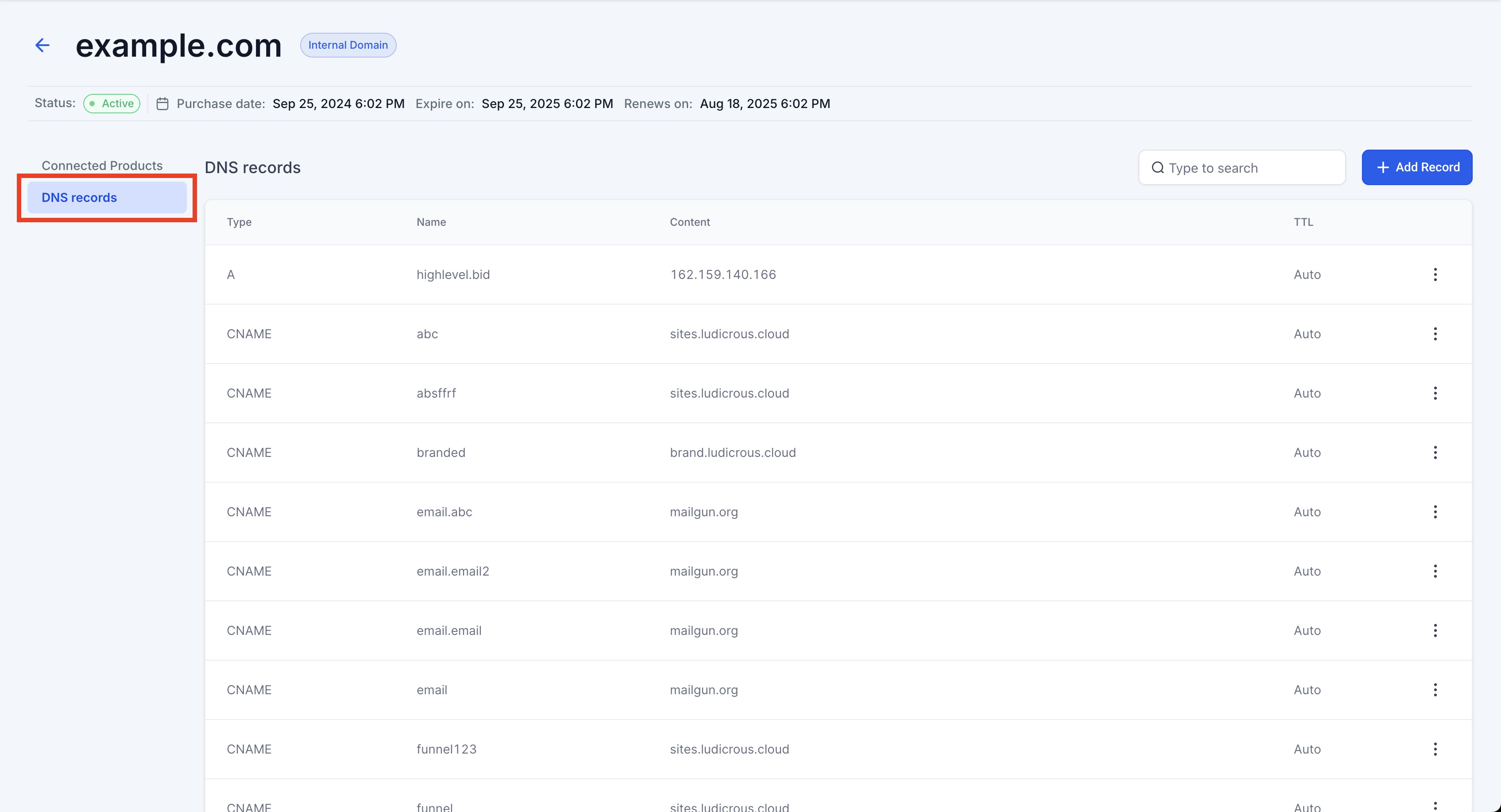
If the scanned records match with the existing records, then hit 'Continue to Activation'.If not, manually add/remove the scanned records to match existing records.
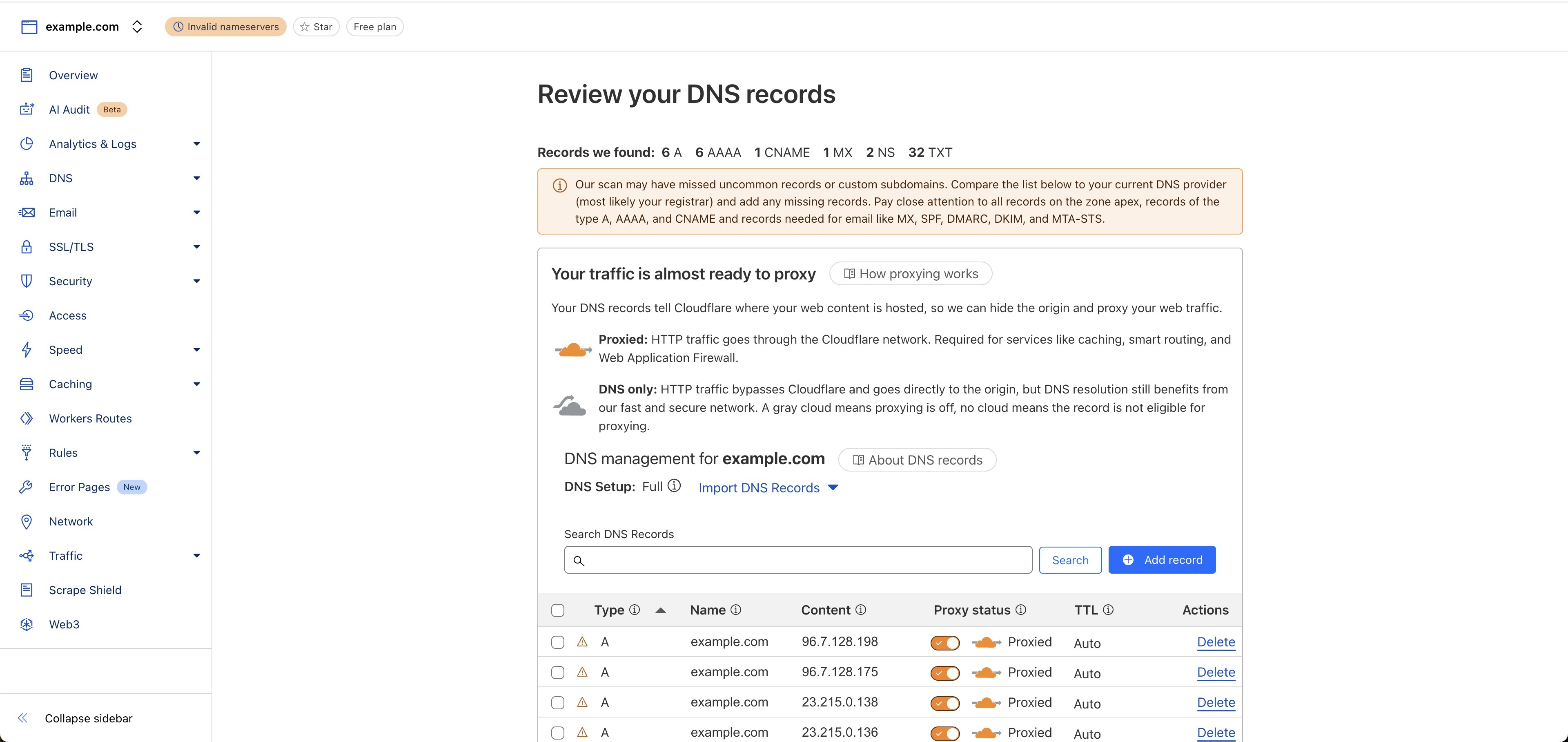
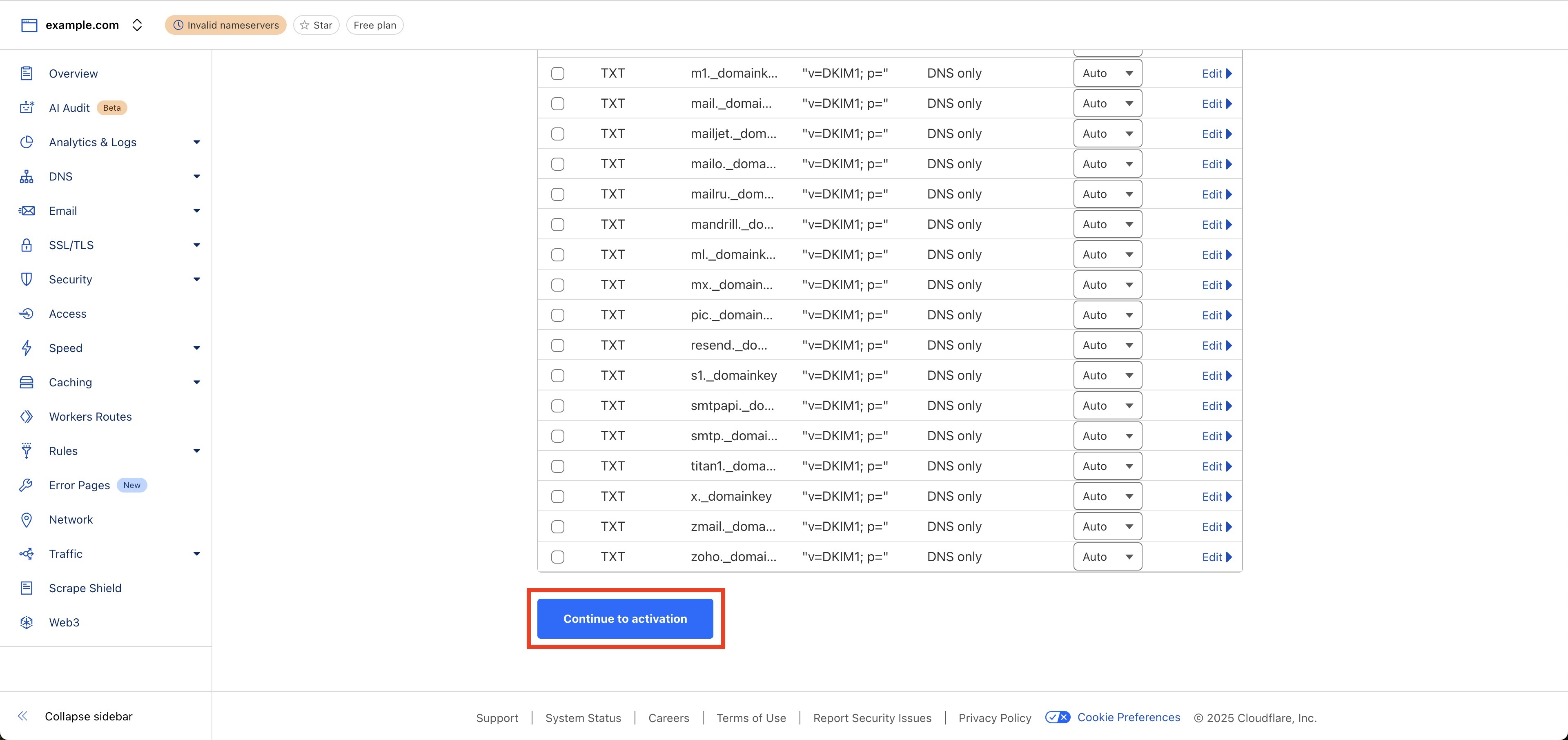
⚠️ Please ensure proxy is turned OFF for all records before clicking 'Continue to Activation'.
- There isn't a need a change nameservers at this step.
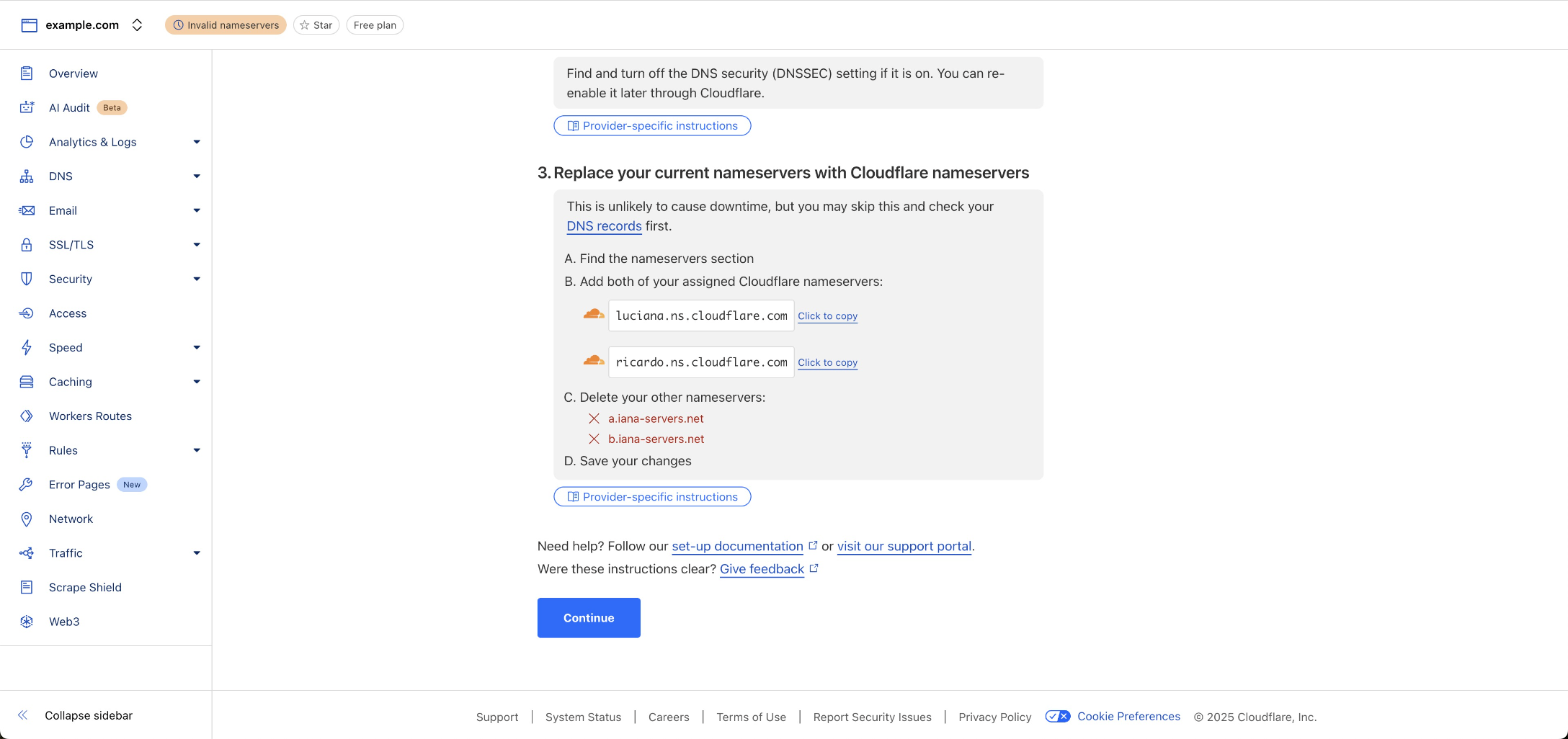
Step 2: Obtain the Account ID and Share with Us
Once you have completed all above process, obtain the account ID of your Cloudflare account and share it with us.
To obtain the account ID, follow this process:
Extract the alphanumeric value from the URL.
Example: In this case, this is the account ID:0d2031c4bcda5980204101c44294740c
Transfer
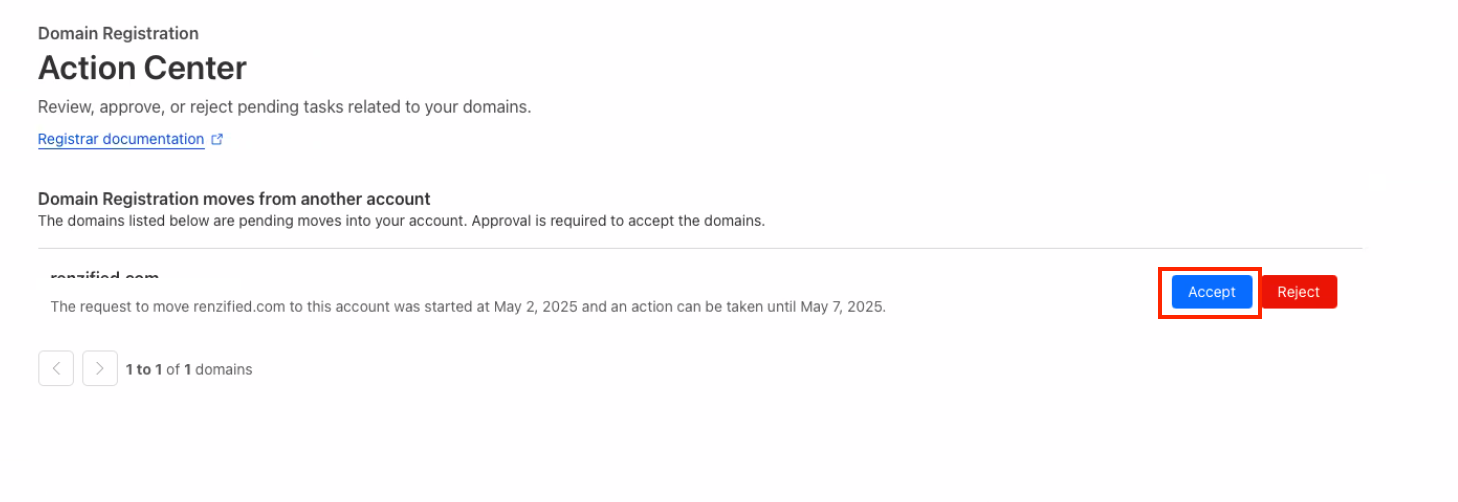
Once all 2 steps above are completed, we will initiate the transfer process from our end. You can expect the transfer to get completed within 24 hours after we initiate it. Then you need to approve the transfer by following these steps:
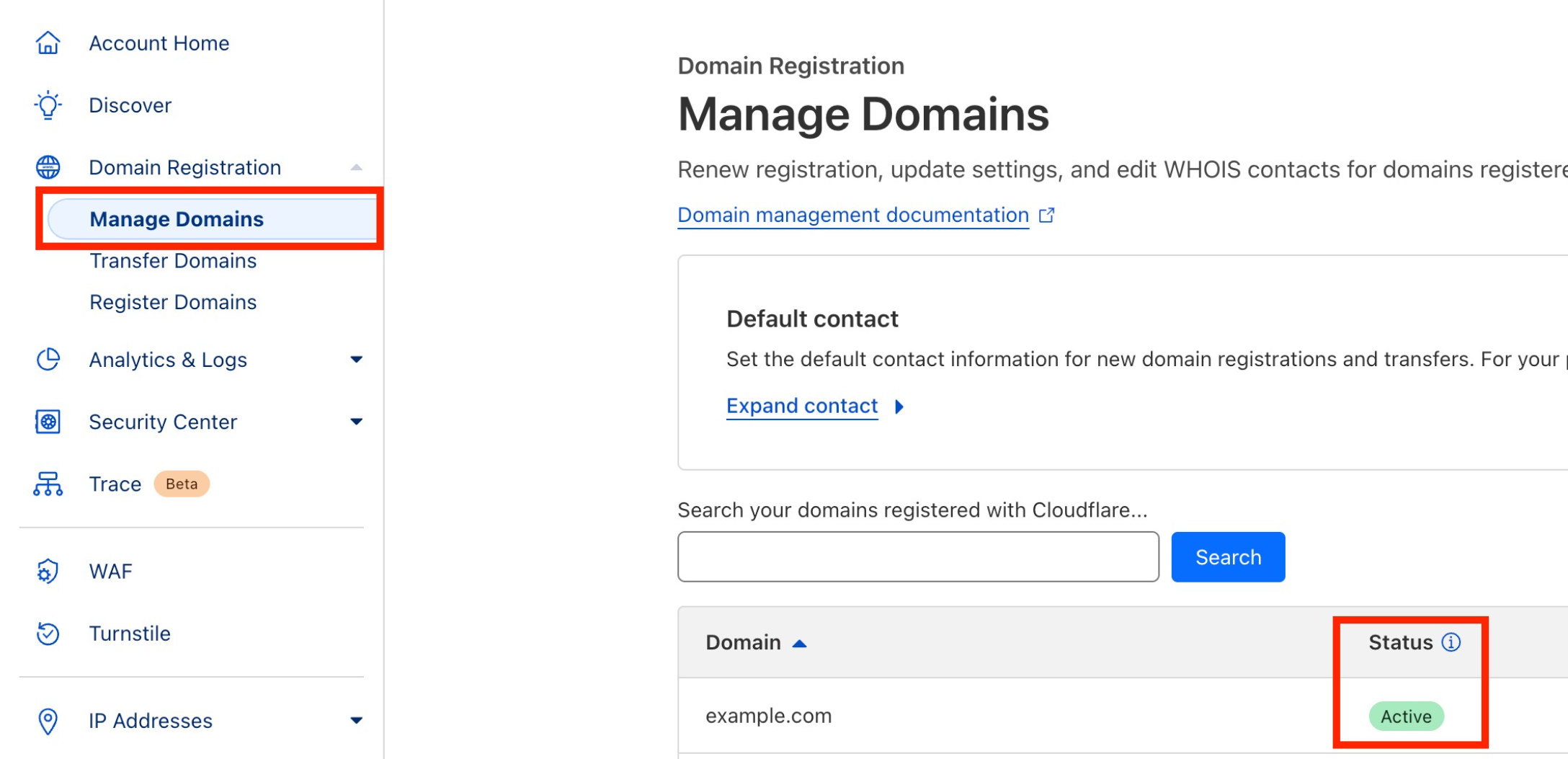
- Go to 'Manage Domains' under 'Domain Registration' in the left navigation menu and click on 'Manage' button for the given domain.
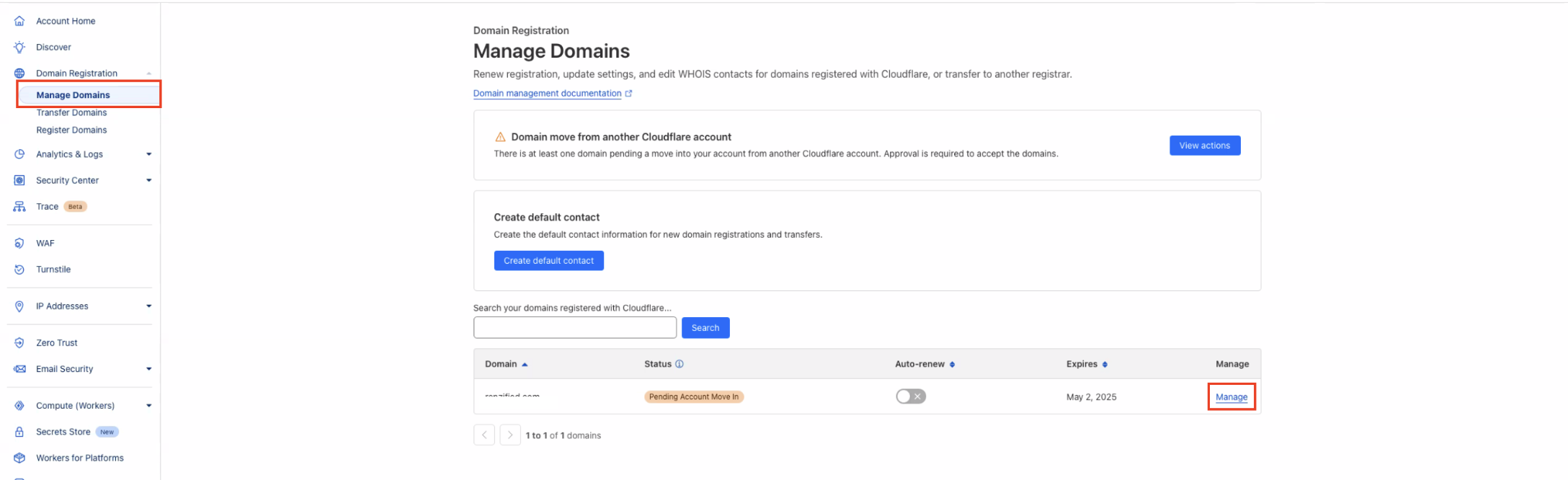
- Accept the transfer request.
- You can expect the transfer to get completed within 24 hours after you accept it. Once transfer is successful, status will turn to 'Active' for that domain under 'Manage Domains'. If you find 'Invalid Nameserver' status in 'Account Home' for that domain, please wait for a few hours and then check again.
⚠️ Note: “Invalid Nameservers” Status
After the transfer has been accepted, the domain may temporarily show “Invalid Nameservers” in the Account Home section Don’t worry - this is expected behavior.
This warning typically resolves itself automatically within 24 hours post-transfer. No action is needed from your side.
Need Help?
If the domain transfer is not completing or the domain is showing an unexpected status, first review the destination Cloudflare account, DNS records, and transfer approval.
Verify that:
- You have access to the correct destination Cloudflare account.
- The domain was added to the destination account before the transfer was requested.
- The correct Cloudflare plan was selected.
- The scanned DNS records match the current DNS records.
- Missing or incorrect DNS records were updated before continuing.
- Proxying was turned off for the DNS records before selecting Continue to Activation.
- The nameservers were not changed prematurely during the preparation step.
- The correct destination Cloudflare Account ID was provided.
- The transfer request appears under Domain Registration → Manage Domains.
- The transfer request was accepted for the correct domain.
- Enough time has passed for the transfer to complete after approval.
- A temporary Invalid Nameservers status is not being treated as an immediate failure, since it may resolve after the transfer finishes processing.
If the domain remains in an Invalid Nameservers state beyond the expected processing window, compare the active nameservers and DNS configuration in the destination Cloudflare account before making additional changes.
If the issue continues, collect the domain name, destination Cloudflare Account ID, current transfer status, approximate transfer approval time, DNS record details, and screenshots of the Cloudflare domain and nameserver status before contacting support.
Was this article helpful?
Related articles
- Connecting Your Domain - A GuideConnecting your domain ensures that your branded presence is consistent across websites, funnels, emails, and client-facing tools. This guide breaks down the process and explains how each product integrates with a connected domain. TABLE OF CONTENTS - Step-by-Step Domain Connection Process- 1. AutoDomain Connect / Transfer
- Troubleshooting Guide: Connecting Your DomainThis guide will help you resolve common errors when connecting your domain to your platform. Follow the steps below to troubleshoot issues related to DNS records and domain conflicts. TABLE OF CONTENTS - 1. Record Conflicts: Multiple A Records- What is an A Record? - When This Happens - Solution - Domain Connect / Transfer
- Domain Transfer In and Eligibility CheckDomain Transfer In lets you move an eligible domain from an external registrar into the platform so you can manage DNS, billing, and domain settings from one place. Before the transfer can begin, the domain must pass an eligibility check based on registrar support, TLD support, transfer timing, domaDomain Connect / Transfer
- Domain Transfer In - Review DNS RecordsReviewing DNS records before completing a domain transfer helps protect the services already connected to your domain, including websites, email, and verification records. You can retrieve DNS records by uploading a zone file or using an automatic scan, then compare the results with your current DNSDomain Connect / Transfer