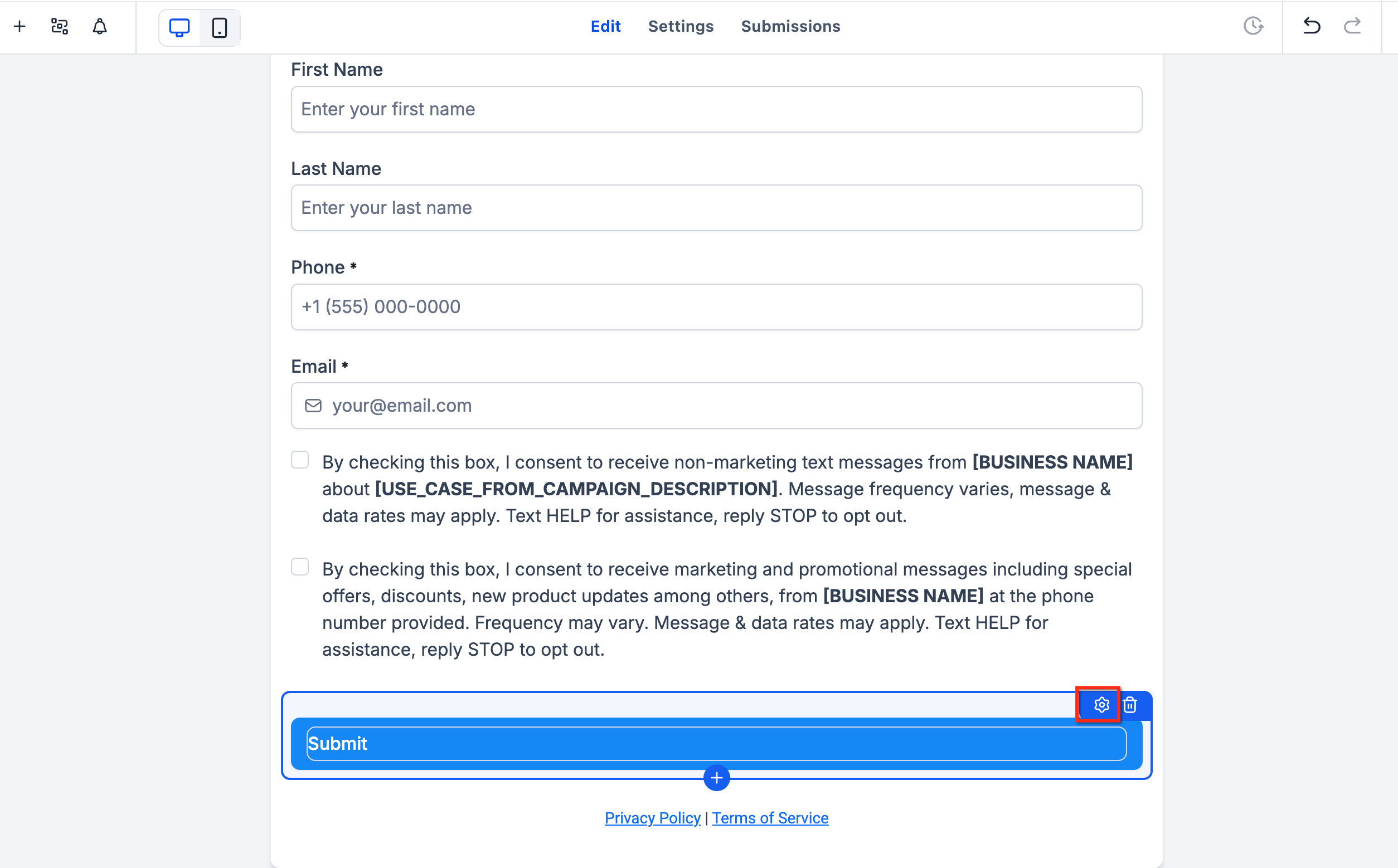
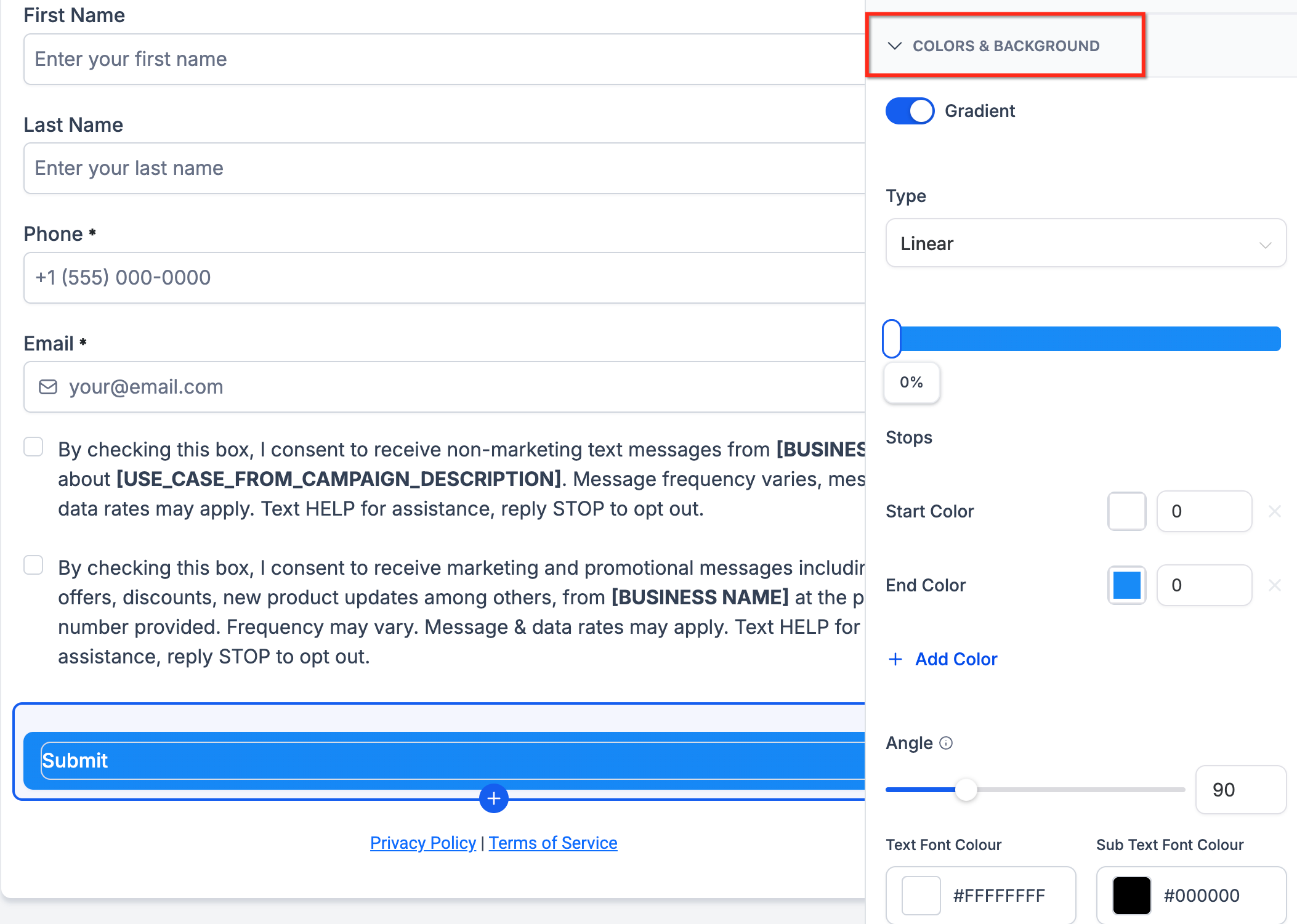
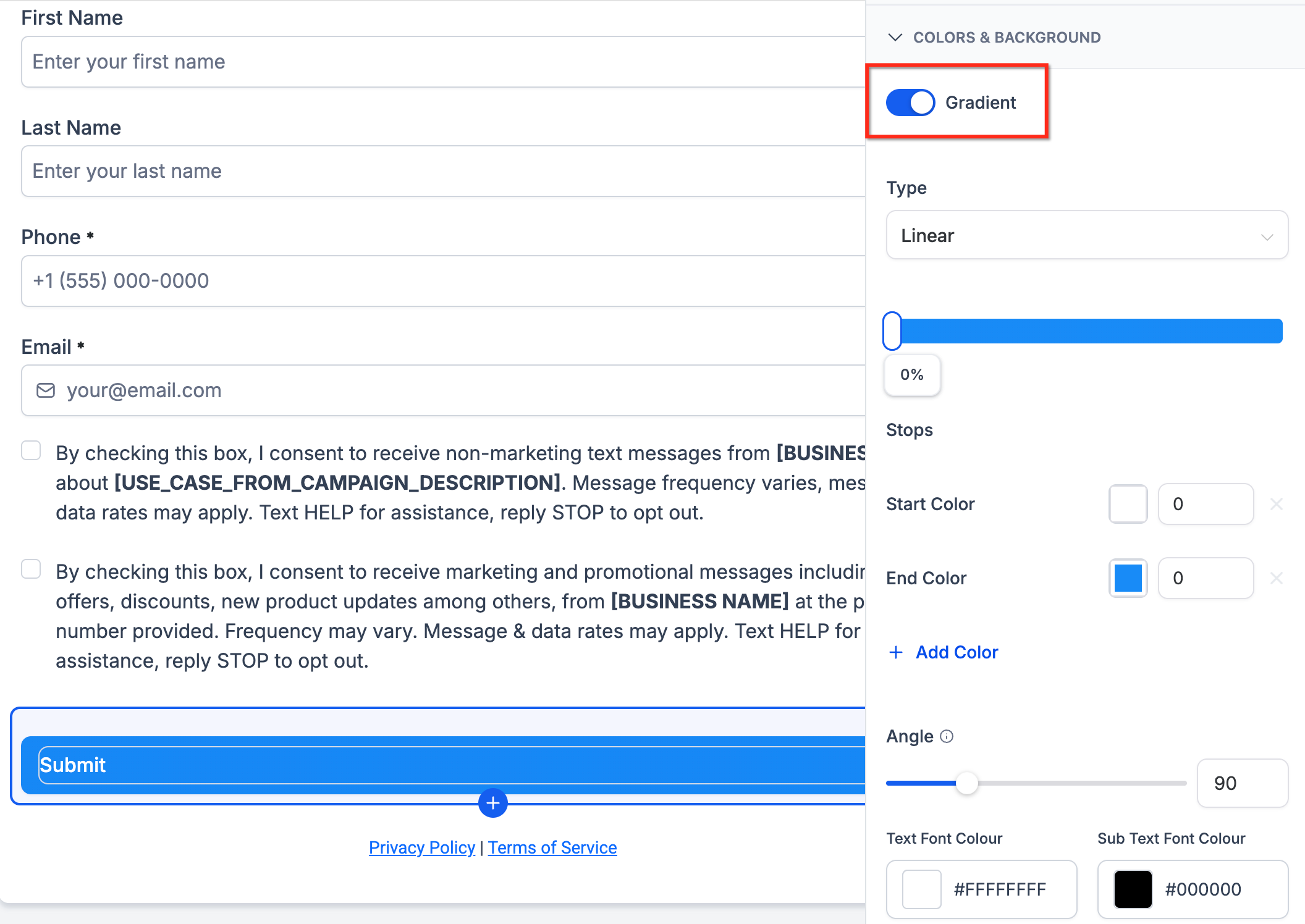
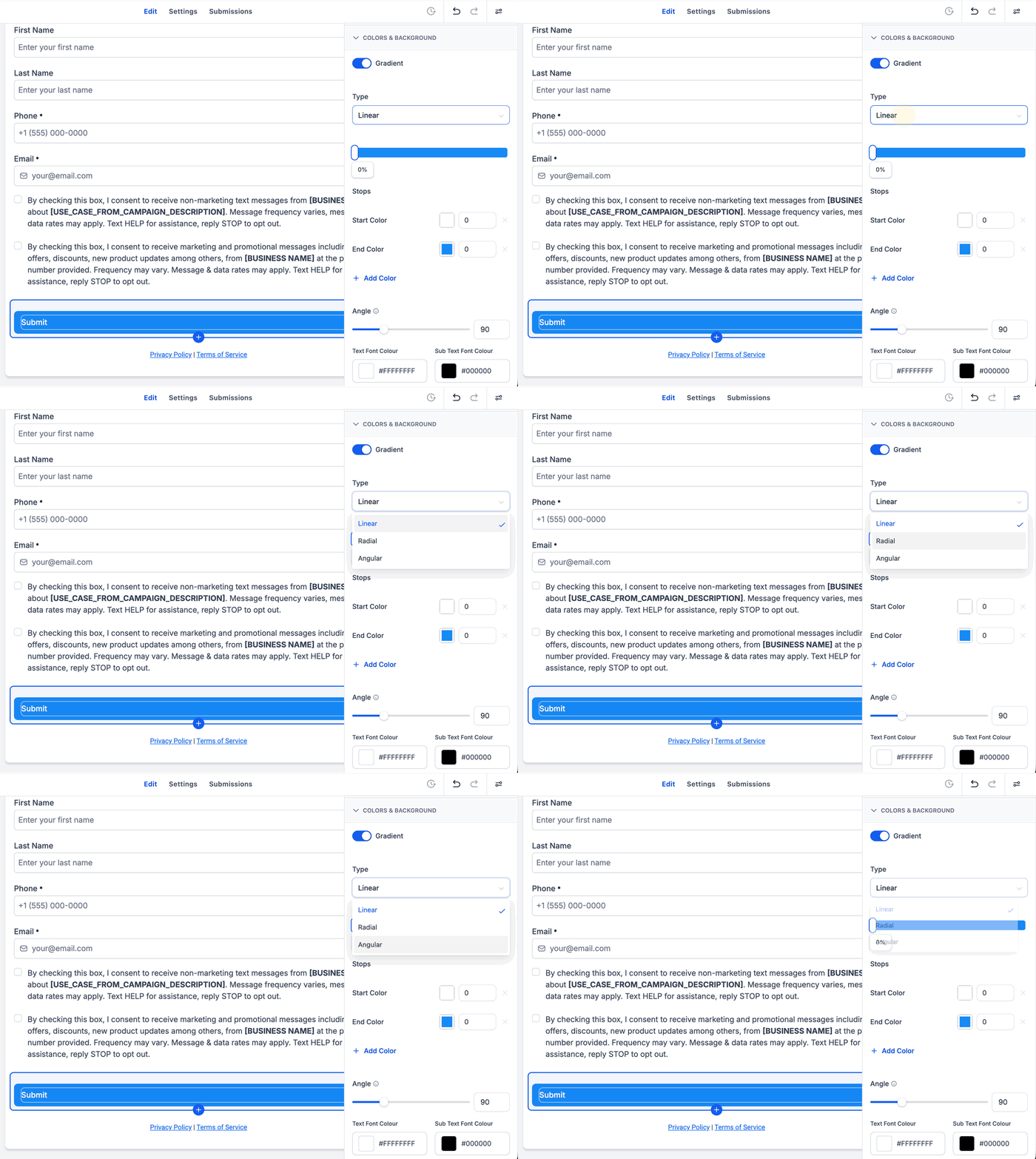
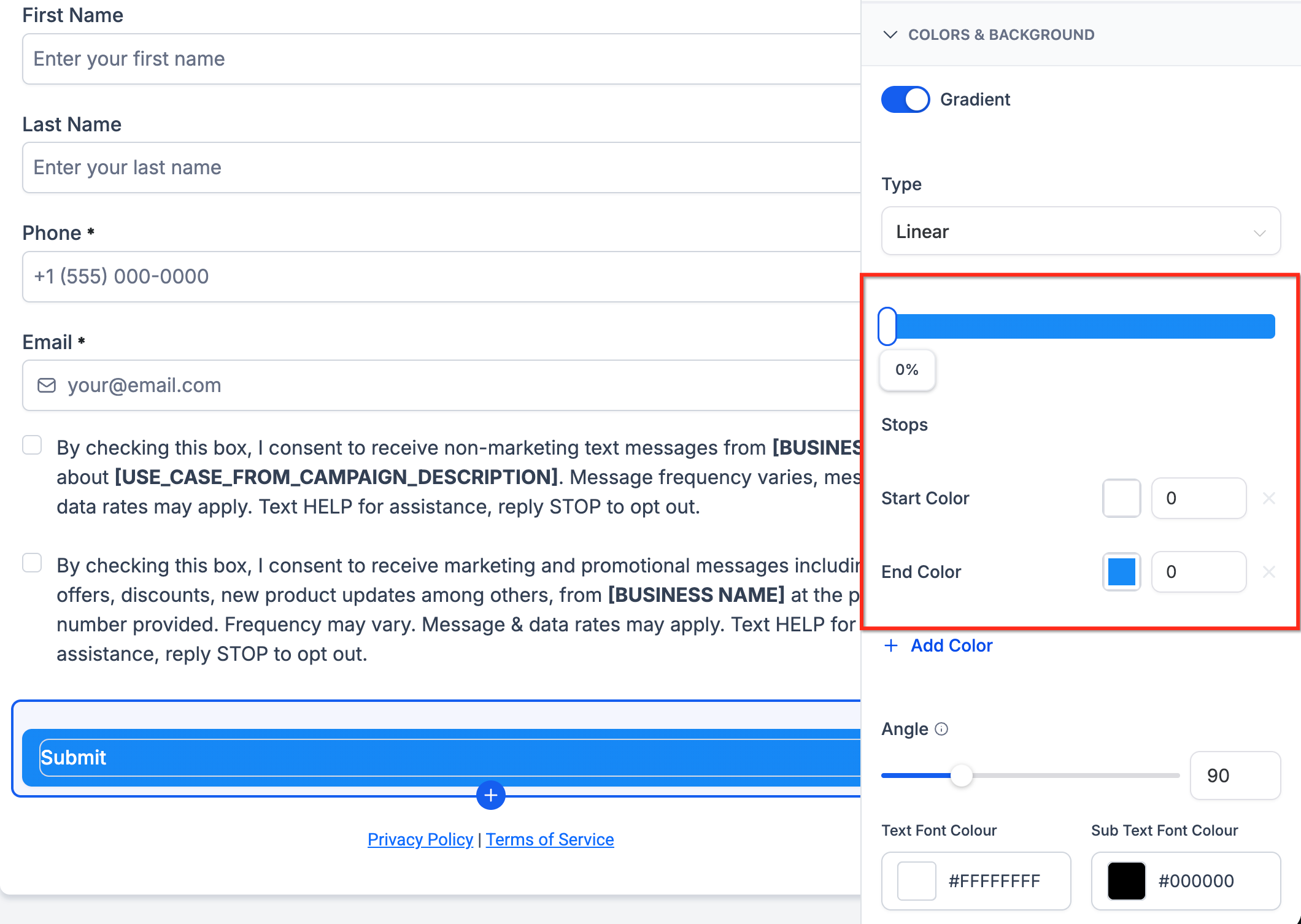
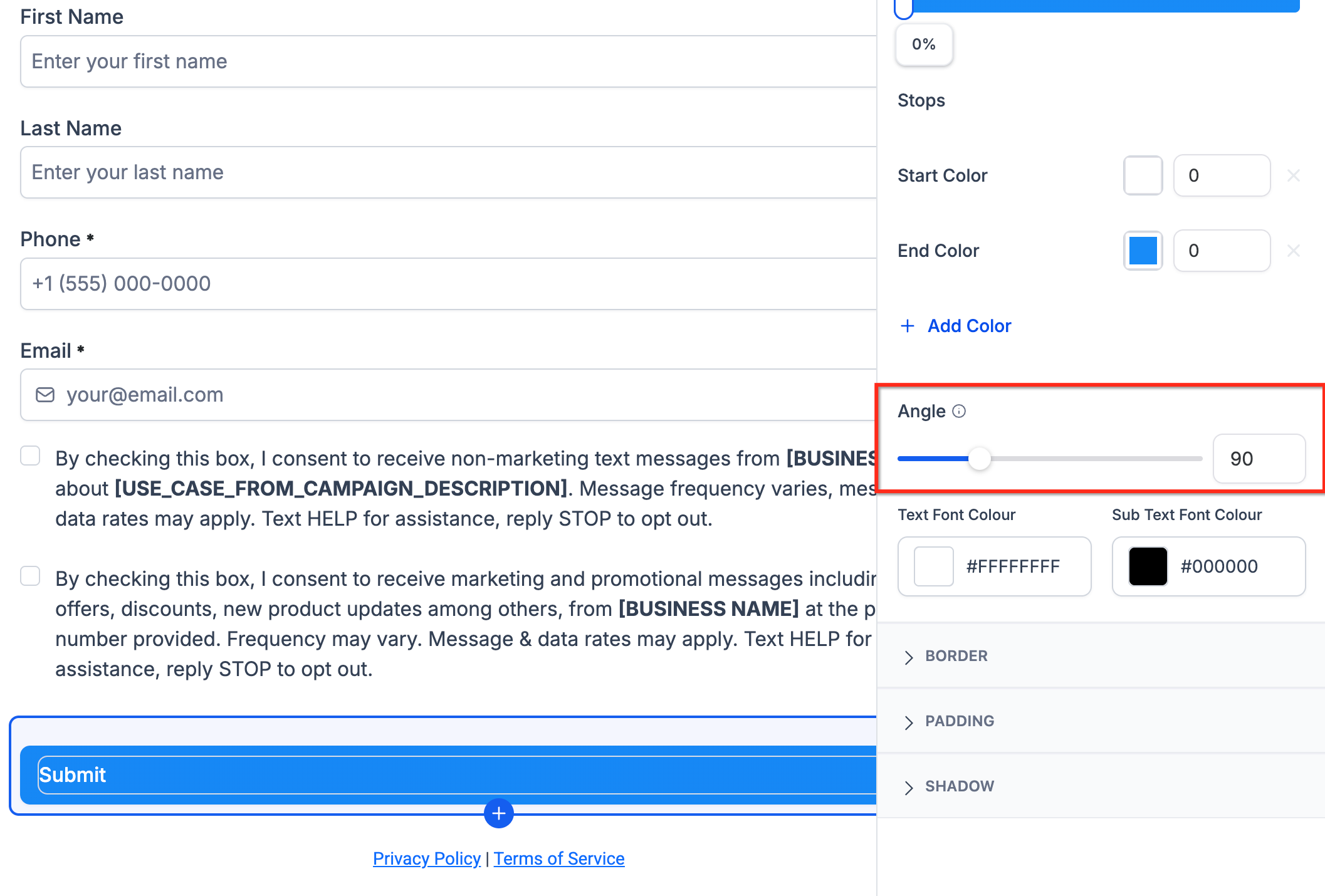
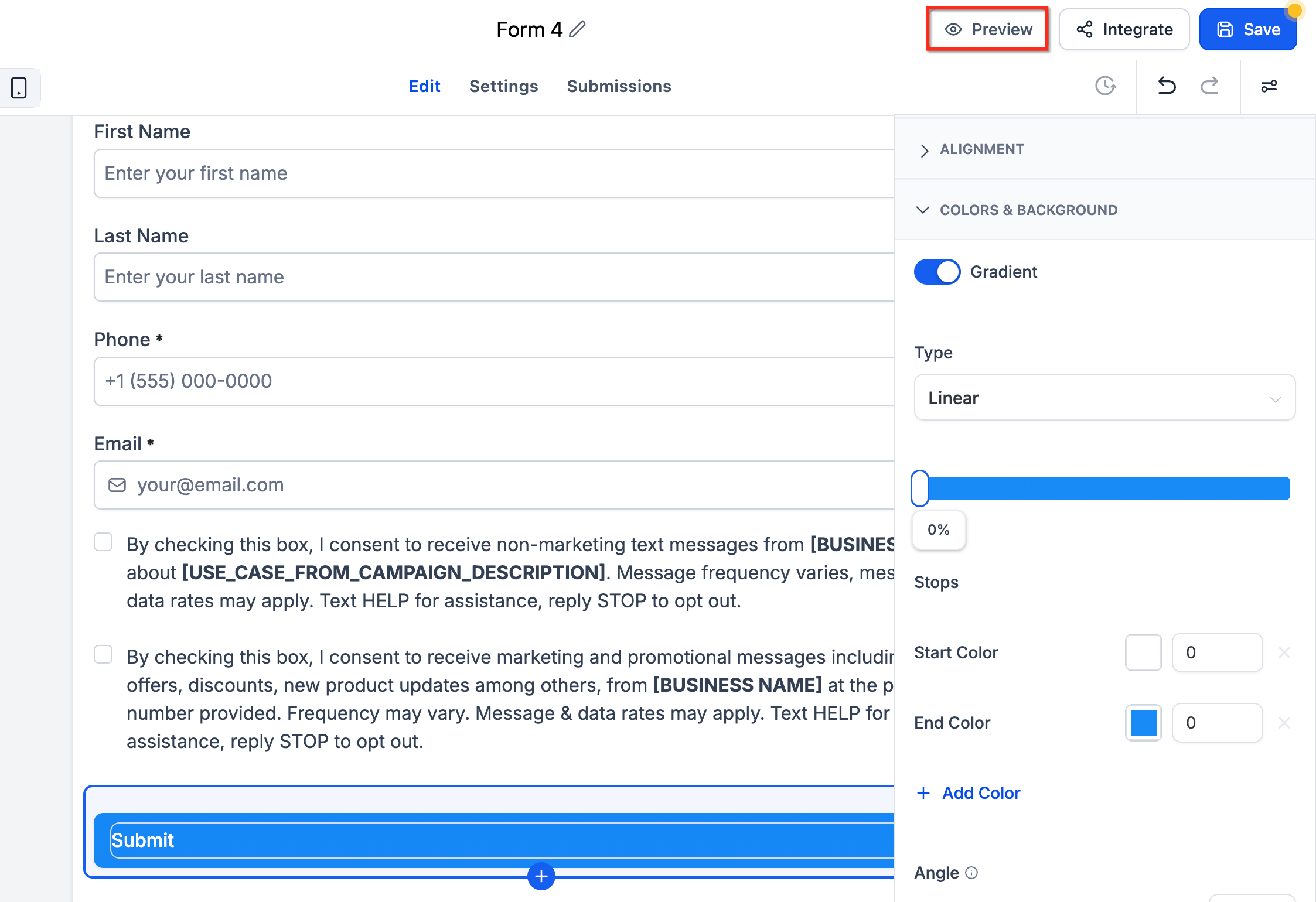
How to Add Gradient Backgrounds to Buttons in Forms, Surveys, and Quizzes
Was this article helpful?
Related articles
- How to Add Custom CSS to Forms, Surveys, and Quizzes!You can easily change how your forms, surveys, and quizzes look using Custom CSS. Follow these simple steps. 1. Where to Add Custom CSS Option 1: Inside the Form, Survey, or Quiz (recommended) - Go to Sites → Form Builder (or Survey Builder / Quiz Builder). - Open your form. - Click on the Styles Forms
- How to make my form submissions secure from spammers?TABLE OF CONTENTS - How to secure your forms?- 1. Use CAPTCHA to Prevent Spam - 2. Validate Email and Phone Numbers - 3. Restrict SMS Permissions Based on Geography - Key Takeaways How to secure your forms? Our forms product includes built-in protections against fake submissions, leveraging multipForms
- Building FormsForms capture information from visitors — class registrations, inquiries, or waiver acknowledgments — and create or update a contact in your CRM automatically. Create a form - Go to Sites → Forms and click + Build Form (or Add Form). - Drag fields onto the form: standard fields (name, email, phone) Forms
- Understanding the Primary Color in Forms, Surveys and QuizzesBring your forms, surveys, and quizzes to life! Primary-color interactions let every hover, click, and selection pulse with your brand color. TABLE OF CONTENTS - What are Enhanced Form Interactions with Primary Color Effects?- Key Benefits of Primary Color Effects - Primary Color Accents in ElementsForms