How to make my form submissions secure from spammers?
TABLE OF CONTENTS
How to secure your forms?
Our forms product includes built-in protections against fake submissions, leveraging multiple security signals like IP addresses, geographic data, and other advanced parameters. Additionally, we use Cloudflare's DDoS protection to safeguard your forms and submissions.
However, for enhanced security, consider implementing the following best practices while designing your forms.
1. Use CAPTCHA to Prevent Spam
Adding a CAPTCHA is one of the most effective ways to block scammers and spammers from submitting large volumes of fake entries. This helps prevent:
- The creation of fake contacts that can clutter your CRM.
- Excessive automated form submissions that overload your infrastructure.
- Increased costs from automated SMS, email, or other communication updates triggered by fake entries.
To add captcha to you form navigate to forms > custom fields > captcha.
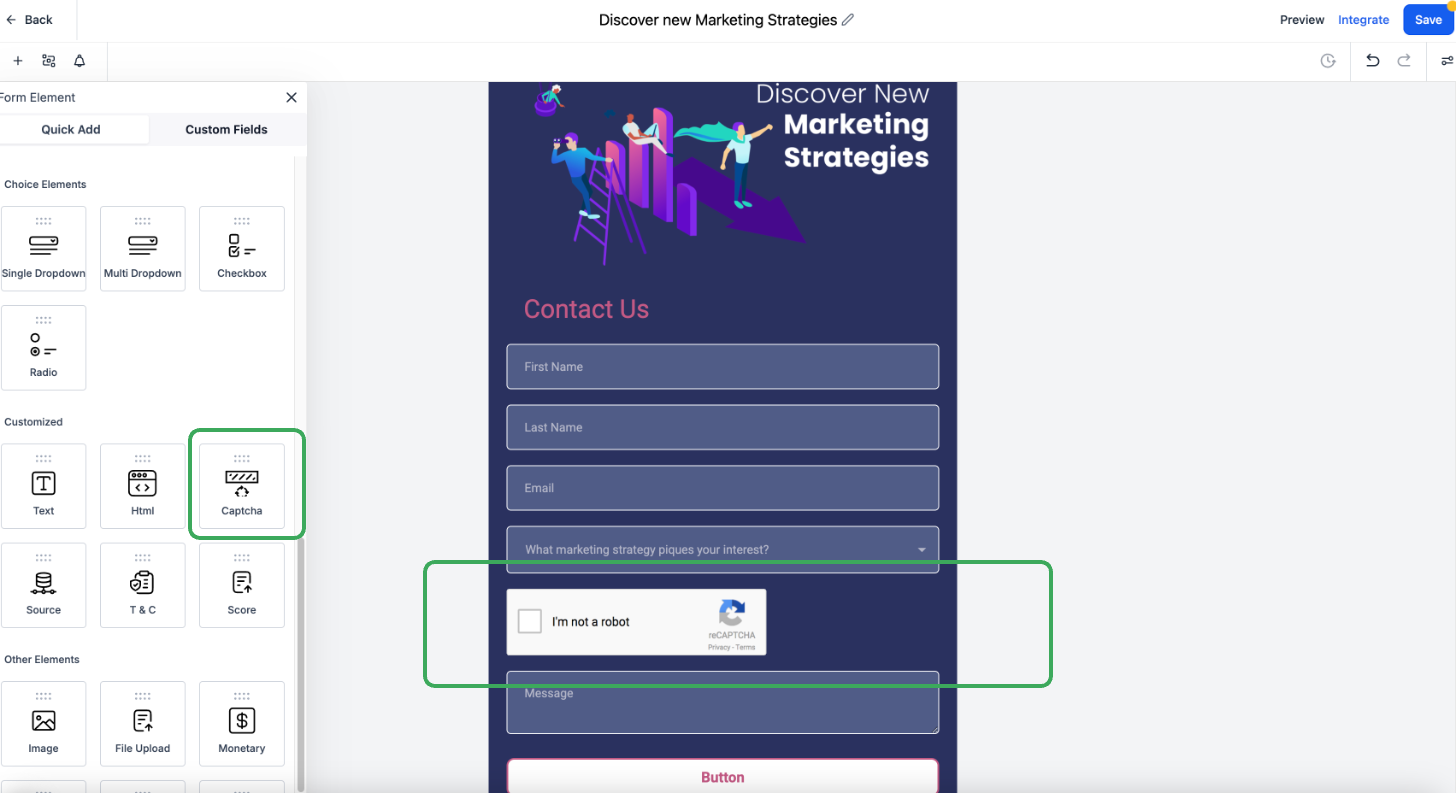
This is especially useful when you have automations setup to send SMS, email or other form of communication updates. Else you may experience increased costs due to fake contacts being created in your CRM by bad actors.
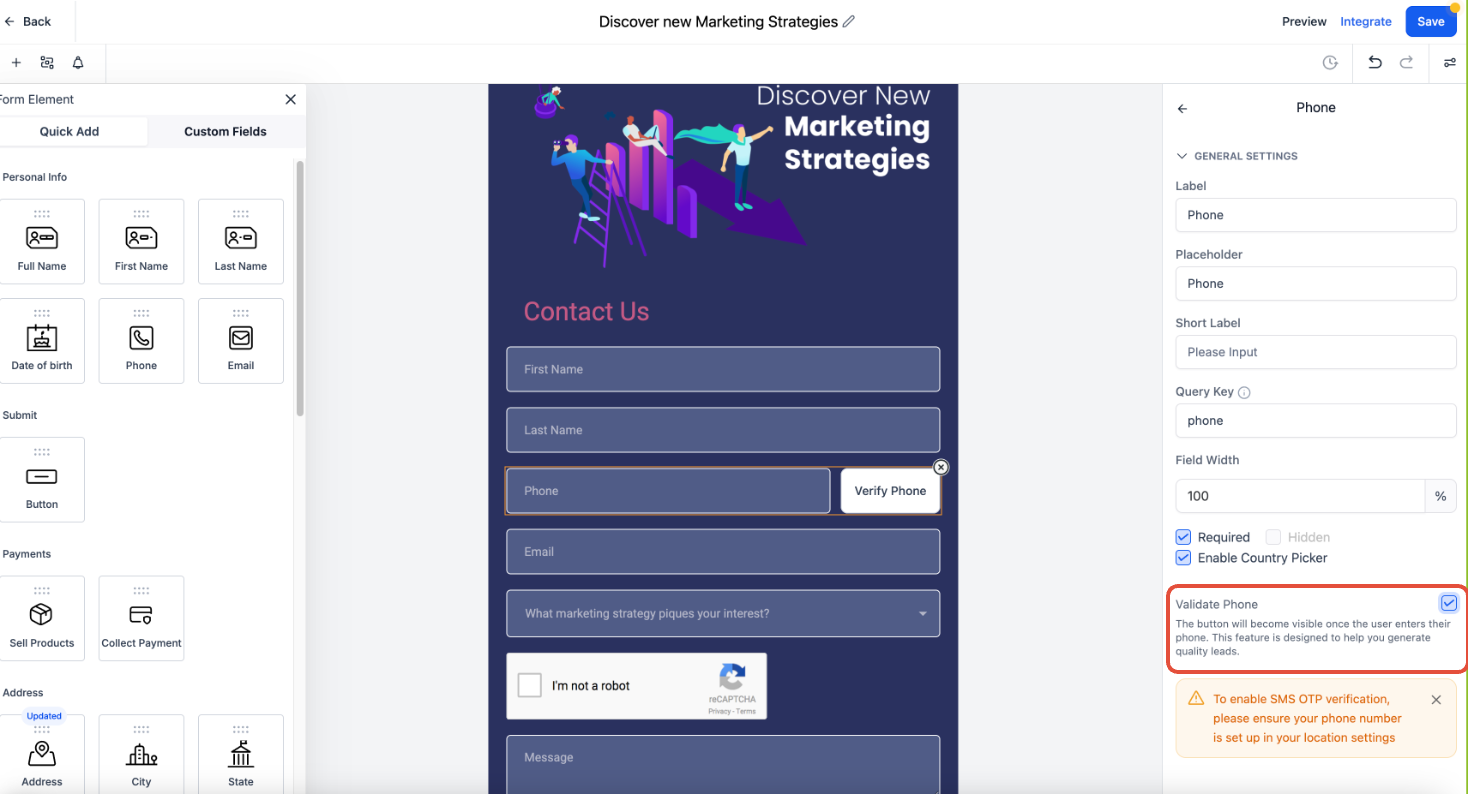
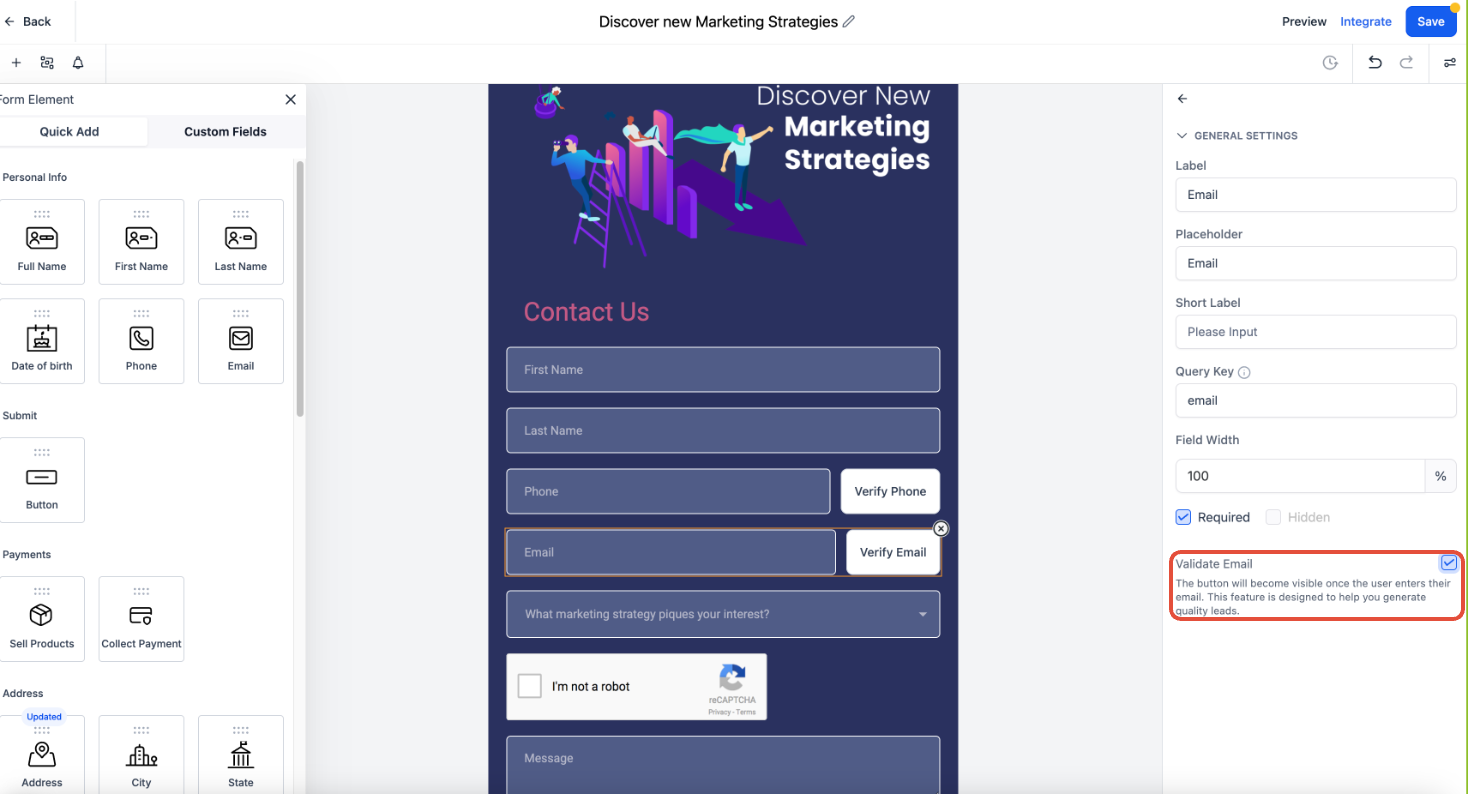
2. Validate Email and Phone Numbers
Ensure only legitimate users submit forms by enabling email and phone number validation. This helps:
- Block temporary, invalid, or fake contact details.
- Prevent fraudulent entries from affecting your marketing and sales data.
- Reduce unnecessary outreach costs.
3. Restrict SMS Permissions Based on Geography
If your form triggers SMS communications, configure SMS geo-permissions to prevent messages from being sent to high-risk regions.
Managing Geo-Permissions in Phone services - The Phone system manages SMS permissions at the sub-account level. By default, most countries are enabled except for high-risk regions. If you need to modify geo-permissions, contact Support with your Location ID and the list of countries to enable or disable texting and calling.
Certain high risk countries are mentioned below that we keep turned off by default
- Somalia (+252)
- North Korea (+850)
- Cuba (+53)
- Syria (+963)
- Iran (+98)
- Sudan (+249)
- Liberia (+231)
- Zimbabwe (+263)
- Afghanistan (+93)
- Yemen (+967)
Best Practice - For optimal security it is a good idea to ONLY ENABLE SMS permission for regions where your actual customers are located. Be cautious when activating SMS in high-risk areas to prevent fraudulent activities.
Key Takeaways
Enhancing form security protects your business from spam, fake contacts, and unnecessary costs. While built-in protections help, adding CAPTCHA, email/phone validation, and geo-restricted SMS permissions further strengthens security. Implement these best practices to ensure only genuine submissions reach your system.
Was this article helpful?
Related articles
- How to Add Custom CSS to Forms, Surveys, and Quizzes!You can easily change how your forms, surveys, and quizzes look using Custom CSS. Follow these simple steps. 1. Where to Add Custom CSS Option 1: Inside the Form, Survey, or Quiz (recommended) - Go to Sites → Form Builder (or Survey Builder / Quiz Builder). - Open your form. - Click on the Styles Forms
- Building FormsForms capture information from visitors — class registrations, inquiries, or waiver acknowledgments — and create or update a contact in your CRM automatically. Create a form - Go to Sites → Forms and click + Build Form (or Add Form). - Drag fields onto the form: standard fields (name, email, phone) Forms
- Understanding the Primary Color in Forms, Surveys and QuizzesBring your forms, surveys, and quizzes to life! Primary-color interactions let every hover, click, and selection pulse with your brand color. TABLE OF CONTENTS - What are Enhanced Form Interactions with Primary Color Effects?- Key Benefits of Primary Color Effects - Primary Color Accents in ElementsForms
- How to Add Gradient Backgrounds to Buttons in Forms, Surveys, and QuizzesGradient button backgrounds let you create modern, branded calls-to-action in Forms, Surveys, and Quizzes. Instead of relying only on a single solid color, you can apply gradient styles directly from the button settings. This gives you more design flexibility without needing custom CSS for standard Forms