How to Create Google Ads Conversion Actions in Ad Manager
Ad Manager allows you to create, manage, and edit Google Ads offline conversion actions - directly from within the platform. This ensures that your offline sales, leads, and actions are properly tracked in Google Ads for better optimisation and reporting.
In this article, we’ll cover how to use the Google Ads Conversion Action Flow inside Ad Manager.
TABLE OF CONTENTS
- Where to find the Conversion Actions section
- View existing Google Ads conversions
- Create a new conversion action
- Edit or delete a conversion action
- Key Notes & Best Practices
Where to find the Conversion Actions section
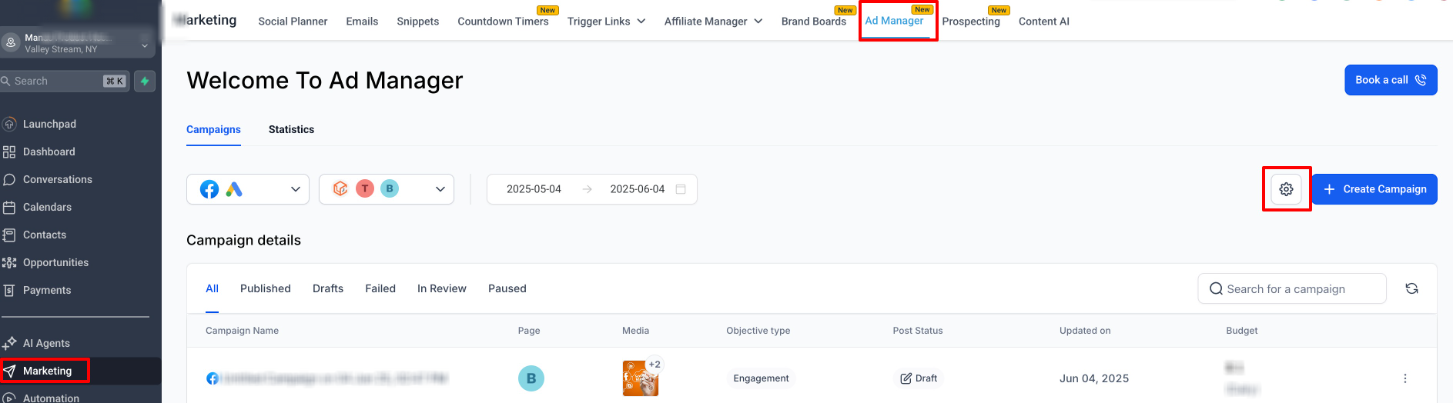
Navigate to Marketing → Ad Manager
Click on Settings (gear icon)
Select Google Ads under Platform Settings
Click on the Conversions tab
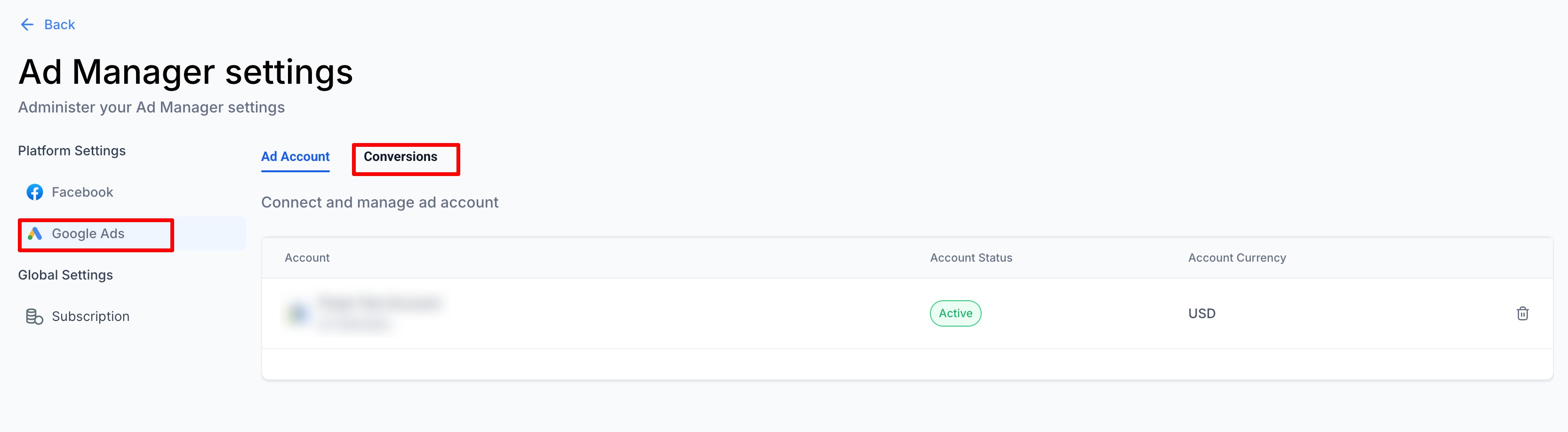
This will open the Conversion Actions table view.
View existing Google Ads conversions
In the Conversions tab, you will see: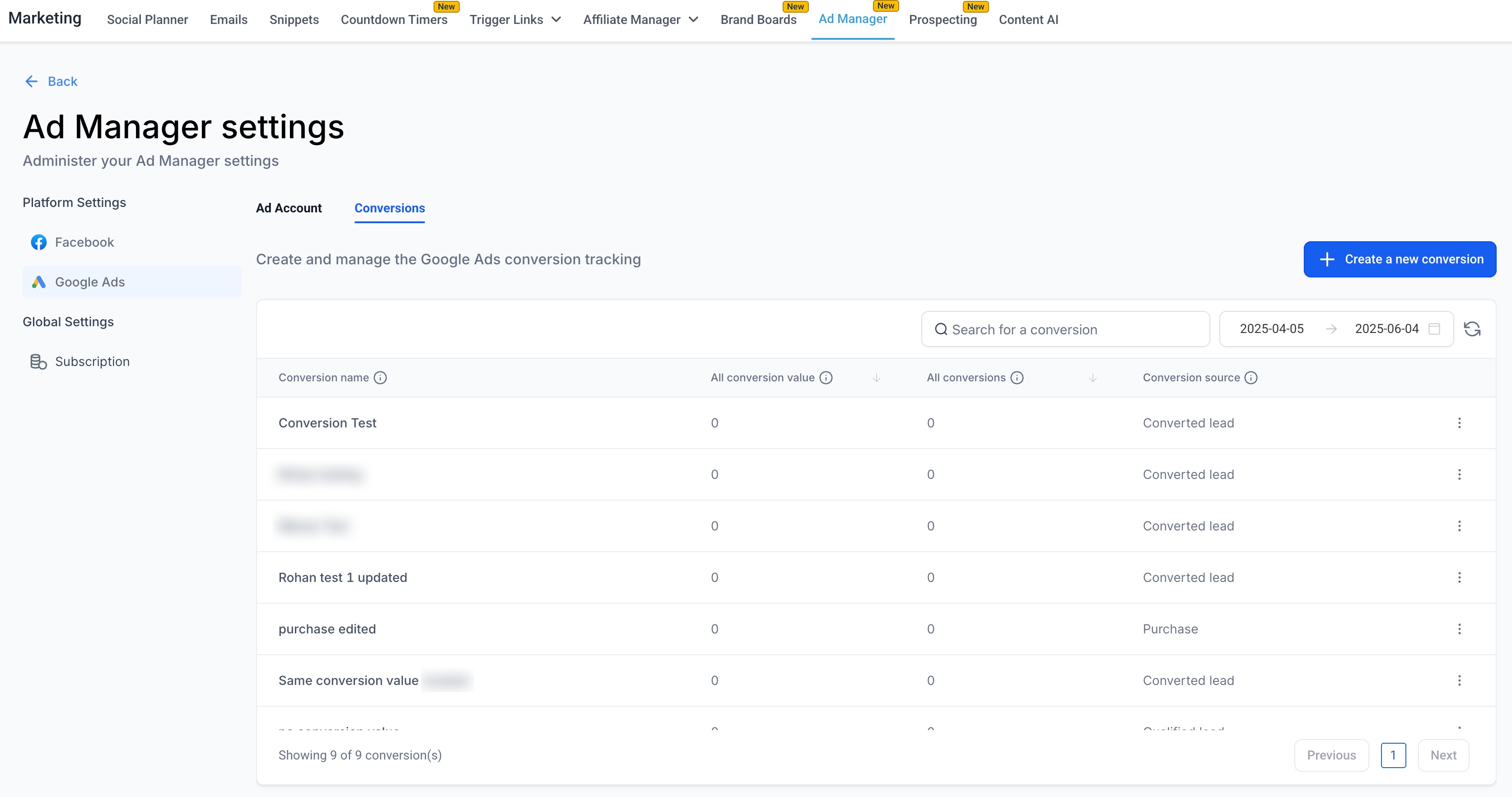
A list of all existing conversion actions from your connected Google Ads account
Any new conversions you create via Ad Manager
The table includes columns:
Conversion Name
All Conversion Value
All Conversions
Conversion Source
You can use:
Search to filter conversions by name
Date Range filter to view conversions created or updated within a specific time frame
Create a new conversion action
To create a new conversion action:
Click “+ Create a new conversion”
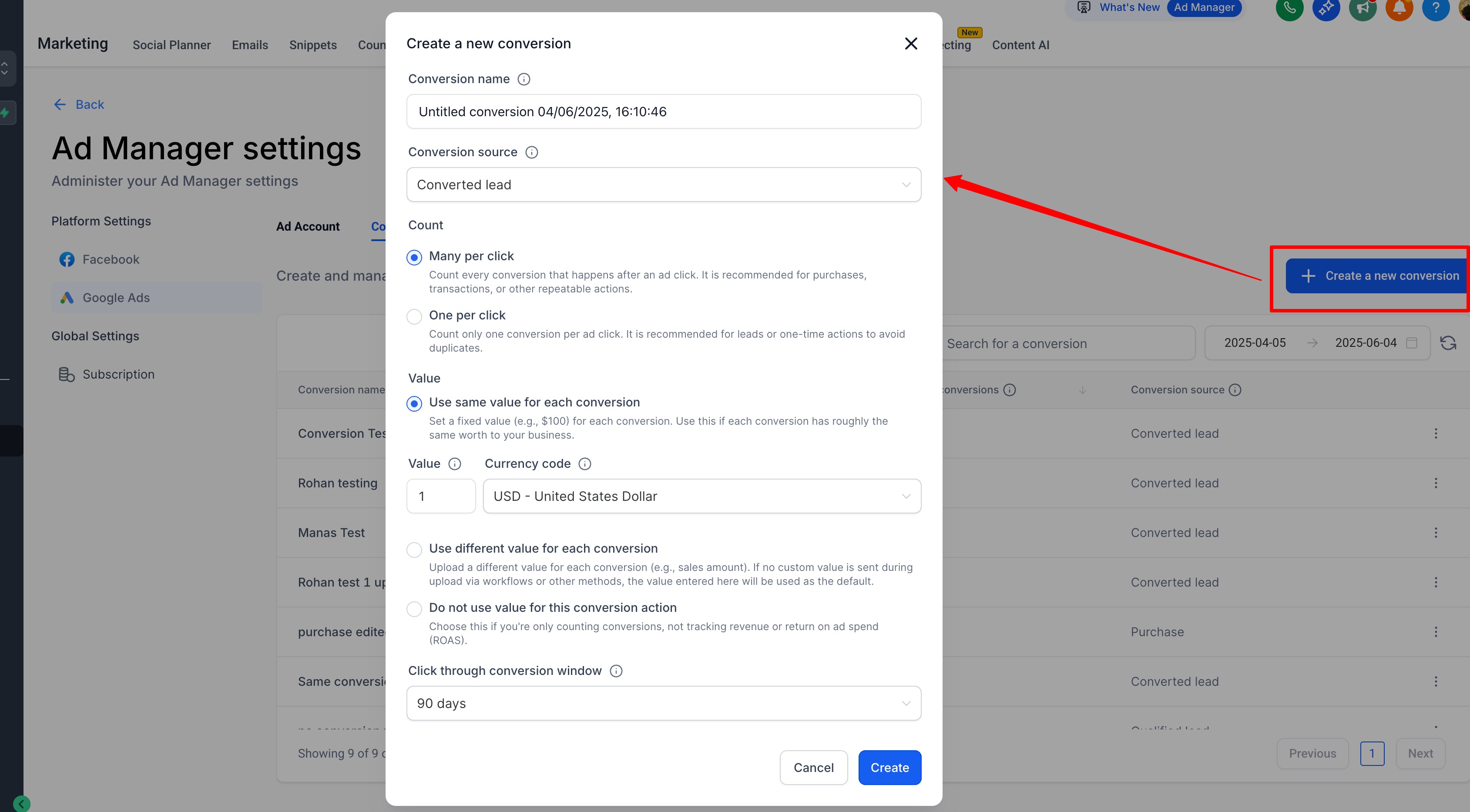
Fill out the form in the Create Conversion modal:
| Field | Description |
|---|---|
| Conversion Name | A unique name to identify this conversion |
| Conversion Source | Choose the type of offline action (Converted Lead, Purchase, Signup, Add to Cart, etc.) |
| Count | Many per click (recommended for purchases) / One per click (recommended for leads) |
| Value | Use same value per conversion / Use different value per conversion / Don’t use value |
| Currency | Select your currency |
| Click-through conversion window | Choose attribution window (1 to 90 days) |
| Attribution model | Data-driven (preset for offline conversions) |
Click Create.
We will create the conversion action in Google Ads via API - no manual setup needed in Google Ads UI
Edit or delete a conversion action
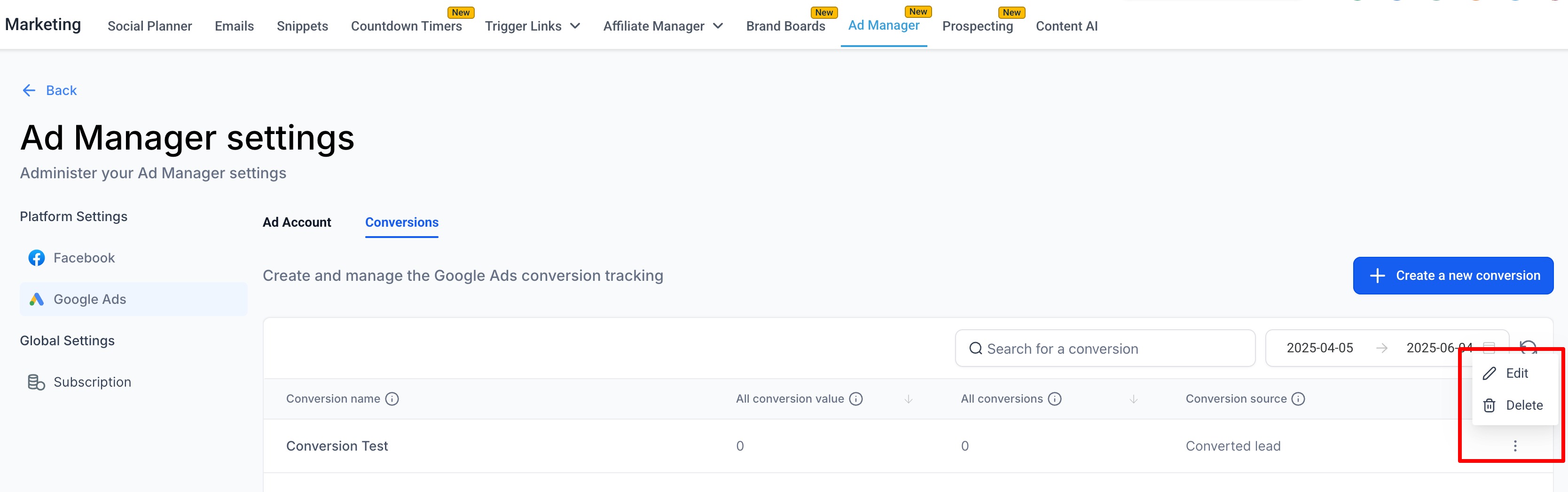
You can edit or delete any conversion action created in the app:
Click the 3-dot menu next to the conversion
Choose Edit or Delete
Edit Modal:
In the edit modal, you can update:
Count settings
Value & currency
Click-through window
Conversion source
Note:
Attribution model is fixed to Data-driven for offline conversions (per Google Ads guidelines).
Key Notes & Best Practices
- This flow is for Offline Conversion Actions - tracking events like leads, sales, and calls that occur outside your website/app.
- All conversions created here are automatically available in your Google Ads account and can be used in campaign reporting.
- Existing Google Ads conversions are automatically imported into this view.
- Our tracking will upload conversion events to match these conversion actions (via workflows - separate from this setup).
- Future enhancements will add Google Tag Manager (GTM) integration for website conversion actions.
Was this article helpful?
Related articles
- Create a new Google Search Ad CampaignAd Manager allows you to run the ad campaigns on Google. Your Google Ads campaign is entirely in your control: design your ad content, choose your daily budget and set a specific target audience with geography and languages. TABLE OF CONTENTS - Step 1 | Create Campaign - Step 2 | Ad Content- Add Ad Manager
- Guidelines for using custom questions in Google lead formsWhen creating a lead form using Ad Manager for Google Ads, you may want to ask custom questions to better qualify your leads. However, Google enforces strict guidelines for what kinds of questions are allowed. This article explains what types of custom questions are approved, and how to avoid issuesAd Manager
- How to connect Instagram account with Facebook page?Below is the step-by-step guide to Connect Your Instagram Account to a Facebook Page. To run ads on Instagram via Ad Manager, you must connect your Instagram Business Account to your Facebook Page. Once the Instagram account is connected to Facebook page, it will automatically be selected whenever tAd Manager
- How to create a Facebook form in Ad ManagerIn this article we will discuss in detail about the steps to be taken to create a new Facebook lead form, used for the Lead Generation objective of Meta ads. TABLE OF CONTENTS - How to create new Facebook Form? - How to use custom fields in Ad Manager? - How to review, map and duplicate existing FaAd Manager