How to Create Reusable Invoice Line Items
If you issue invoices regularly for the same services — class seat pricing, instructor fees, equipment charges — creating reusable line items in CPR Enroll+ saves significant time. Instead of typing the same descriptions and rates on every invoice, you select them from a dropdown.
This article explains how to create and manage reusable items, and how to use them on an invoice.
Before You Begin
- List out the services you bill for most often — course types, instructor fees, group session flat fees, equipment rental, and recurring add-on charges.
- Decide on a clear naming convention for your items (e.g., "BLS Provider — Per Seat") so they're easy to find in the dropdown later.
Step-by-Step Instructions
Step 1: Create a Reusable Line Item
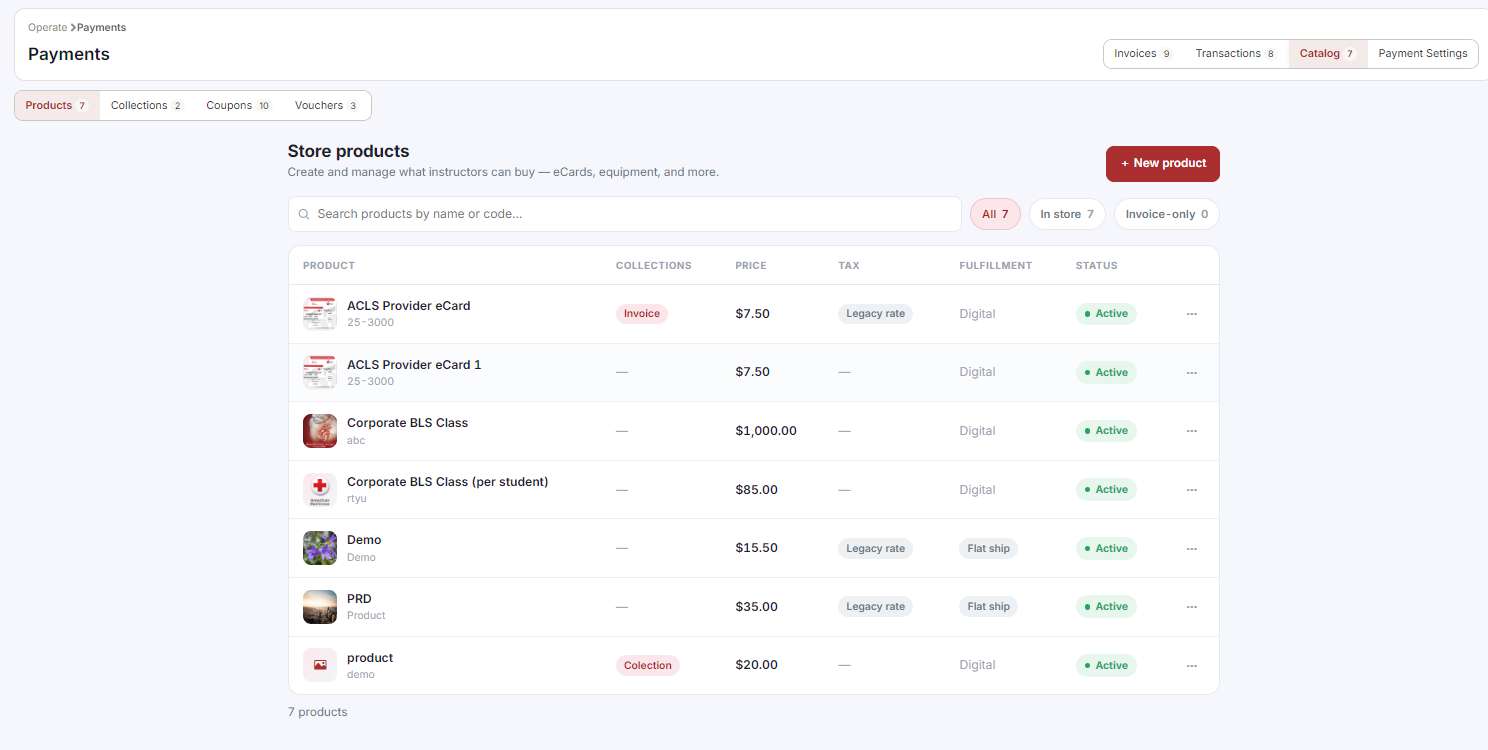
- From the sidebar, go to Payments > Catalog and select Items from the dropdown.
- Click + Create.
- Enter the Item Name (e.g., "BLS Provider — Per Seat").
- Enter the Default Rate (e.g., 60.00 for $60.00).
- Click Save.
Step 2: Use a Reusable Item on an Invoice
- When creating or editing an invoice (Payments > Invoices > + Create), scroll to the Items section.
- Click the Items dropdown — your saved items appear in the list.
- Select an item. The name and default rate auto-fill into the line item.
- Adjust the Quantity or Rate for this specific invoice if needed — the saved default is not changed.
- Add additional items or custom line items as needed.
✔ Suggested items to pre-build: Create items for your most common billing scenarios: each course type you offer, your instructor hourly rate, a group session flat fee, equipment rental, and any recurring add-on charges. This covers most invoices you will ever create.
Best Practices
- Set up your most common items first — course types and instructor fees usually cover the majority of invoices.
- Use consistent, descriptive naming so items are easy to find in the dropdown as your list grows.
- Remember that adjusting the quantity or rate on a specific invoice does not change the saved default for future invoices.
- Review your item list periodically and retire or update items whose pricing has changed.
Frequently Asked Questions
| Question | Answer |
|---|---|
| Does changing the rate on one invoice affect the saved default rate? | No. Adjusting the Quantity or Rate for a specific invoice does not change the saved default for that item. |
| Can I still add a one-off line item that isn't a saved reusable item? | Yes. You can add additional items or custom line items alongside reusable items on the same invoice. |
| Where do I manage my saved reusable items? | Go to Payments > Catalog > Items to create, edit, or review your reusable line items. |
✔ You're all set. Your reusable line items are ready to use, so future invoices are faster to create and more consistent.
Was this article helpful?
Related articles
- Setup & Connecting Your Stripe AccountCPR Enroll uses Stripe as its payment processing partner. Every student payment made during class registration, store purchases, or invoice payments flows through your connected Stripe account, so connecting Stripe is one of the first things to complete when setting up your account. This article walGetting Started
- How to Add Billing Information?Your billing information in CPR Enroll+ covers two distinct things: the payment method on file for your CPR Enroll+ subscription (how you pay CPR Enroll+ for the platform), and the payment setup for accepting student payments (handled via Stripe). This article covers your subscription billing. BeforGetting Started
- How do I Add or Update my Credit Card Details?You may need to update your credit card details if your card expires, is replaced, or if you want to use a different payment method for your CPR Enroll+ subscription. This article explains how to update the card on file for your platform subscription. Before You Begin - Have your new card number, exGetting Started
- How to Manage Taxes in CPR Enroll+?If your training classes or store products are subject to sales tax in your jurisdiction, CPR Enroll+ lets you create tax rates that can be applied to courses, add-ons, and store products. Once configured, the tax amount is automatically calculated and added to the student's total at checkout. This Getting Started