How to Manage Taxes in CPR Enroll+?
If your training classes or store products are subject to sales tax in your jurisdiction, CPR Enroll+ lets you create tax rates that can be applied to courses, add-ons, and store products. Once configured, the tax amount is automatically calculated and added to the student's total at checkout.
This article walks you through creating a tax rate and applying it to courses, add-ons, and store products.
⚠ Tax law disclaimer: CPR Enroll+ provides tax rate configuration tools but does not provide tax advice. The applicability of sales tax to educational courses and training services varies significantly by state and country. Consult a qualified tax professional to determine your obligations before configuring tax rates.
Before You Begin
- Confirm with a qualified tax professional whether your courses, add-ons, or store products are subject to sales tax in your jurisdiction.
- Gather the tax names and percentage rates you need to configure (e.g., state tax, county tax, GST).
Step-by-Step Instructions
Step 1: Create a Tax Rate
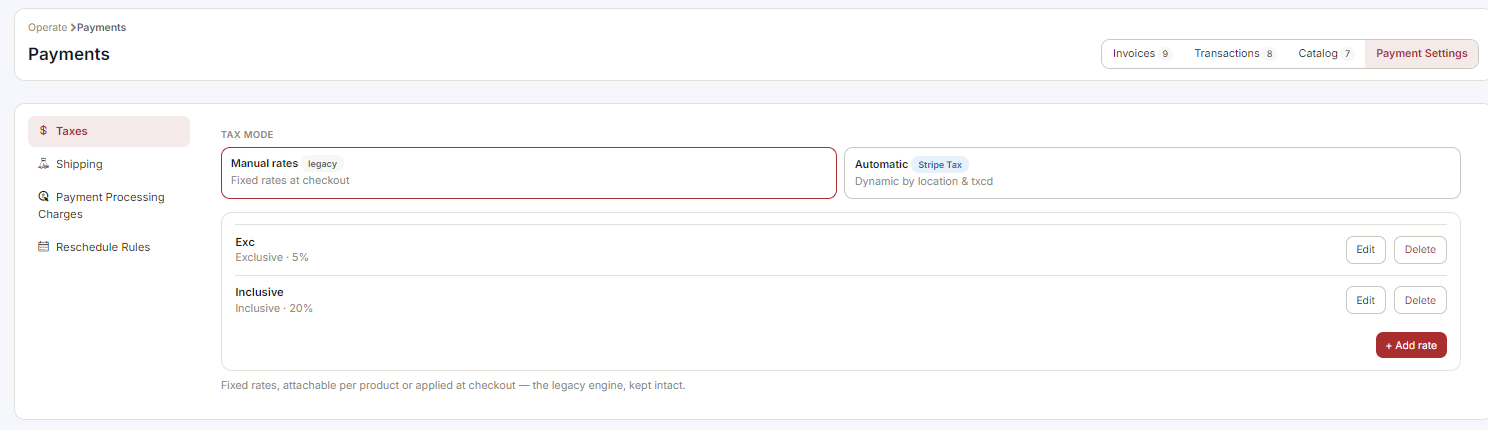
- From the sidebar, go to Payments > Payment Settings > Tax Rates.
- Click + Create to add a new tax rate.
- Enter a Tax Name (e.g., "Florida State Sales Tax" or "GST").
- Enter the Percentage rate (e.g., 7 for 7%).
- Click Save.
Step 2: Apply a Tax Rate to a Course
- Go to Course Builder > Courses.
- Click ⋮ > Edit on the course you want to tax.
- In the course edit form, find the Taxes field.
- Select the tax rate(s) you created from the dropdown.
- Click Save. The tax will now be added to student totals when they register for this course.
Step 3: Apply a Tax Rate to Add-Ons and Store Products
The same process applies to add-ons and store products. When creating or editing an add-on (Course Builder > Add-Ons) or a store product (Payments > Catalog > Store Products), find the Taxes field and select the applicable tax rate.
✔ Multiple tax rates: You can create multiple tax rates (e.g., state tax and county tax) and apply more than one to a product. CPR Enroll+ will add them together at checkout.
Best Practices
- Consult a qualified tax professional before configuring rates, since sales tax applicability to educational services varies by state and country.
- Name tax rates clearly (e.g., "Florida State Sales Tax") so you can quickly tell them apart when applying them to products.
- Apply combined rates (state + county, for example) as separate tax entries rather than one blended percentage, so each can be tracked and updated independently.
- Review tax rates applied to courses, add-ons, and store products periodically in case rates change.
Frequently Asked Questions
| Question | Answer |
|---|---|
| Does CPR Enroll+ tell me whether I need to charge tax? | No. CPR Enroll+ provides the configuration tools, but you should consult a qualified tax professional to determine your obligations. |
| Can I apply more than one tax rate to a single product? | Yes. You can create multiple tax rates and apply more than one to a product; CPR Enroll+ adds them together at checkout. |
| Does the same tax setup process work for add-ons and store products? | Yes. The same Taxes field and process apply when creating or editing add-ons and store products. |
✔ You're all set. Your tax rates are now configured and will be automatically calculated and added to student totals at checkout.
Was this article helpful?
Related articles
- Setup & Connecting Your Stripe AccountCPR Enroll uses Stripe as its payment processing partner. Every student payment made during class registration, store purchases, or invoice payments flows through your connected Stripe account, so connecting Stripe is one of the first things to complete when setting up your account. This article walGetting Started
- How to Add Billing Information?Your billing information in CPR Enroll+ covers two distinct things: the payment method on file for your CPR Enroll+ subscription (how you pay CPR Enroll+ for the platform), and the payment setup for accepting student payments (handled via Stripe). This article covers your subscription billing. BeforGetting Started
- How do I Add or Update my Credit Card Details?You may need to update your credit card details if your card expires, is replaced, or if you want to use a different payment method for your CPR Enroll+ subscription. This article explains how to update the card on file for your platform subscription. Before You Begin - Have your new card number, exGetting Started
- How to Adjust Shipping Rates?If you sell physical products through the CPR Enroll+ Store or as Add-ons — such as textbooks, pocket masks, or AED training units — you can configure shipping rates that are added to the student's total at checkout. Shipping rates are configured on a per-product basis when creating or editing a phyGetting Started