How to use Woocommerce Integration in E-commerce stores?
Store owners can now seamlessly import and sync their WooCommerce store data. This new feature allows store owners to easily migrate and manage their WooCommerce store by importing contacts, orders, and transactions into sub-account. Additionally, WooCommerce store owners can leverage marketing tools, including triggers like Order Submitted Trigger and Payment Received Trigger for better automation.
How to use:
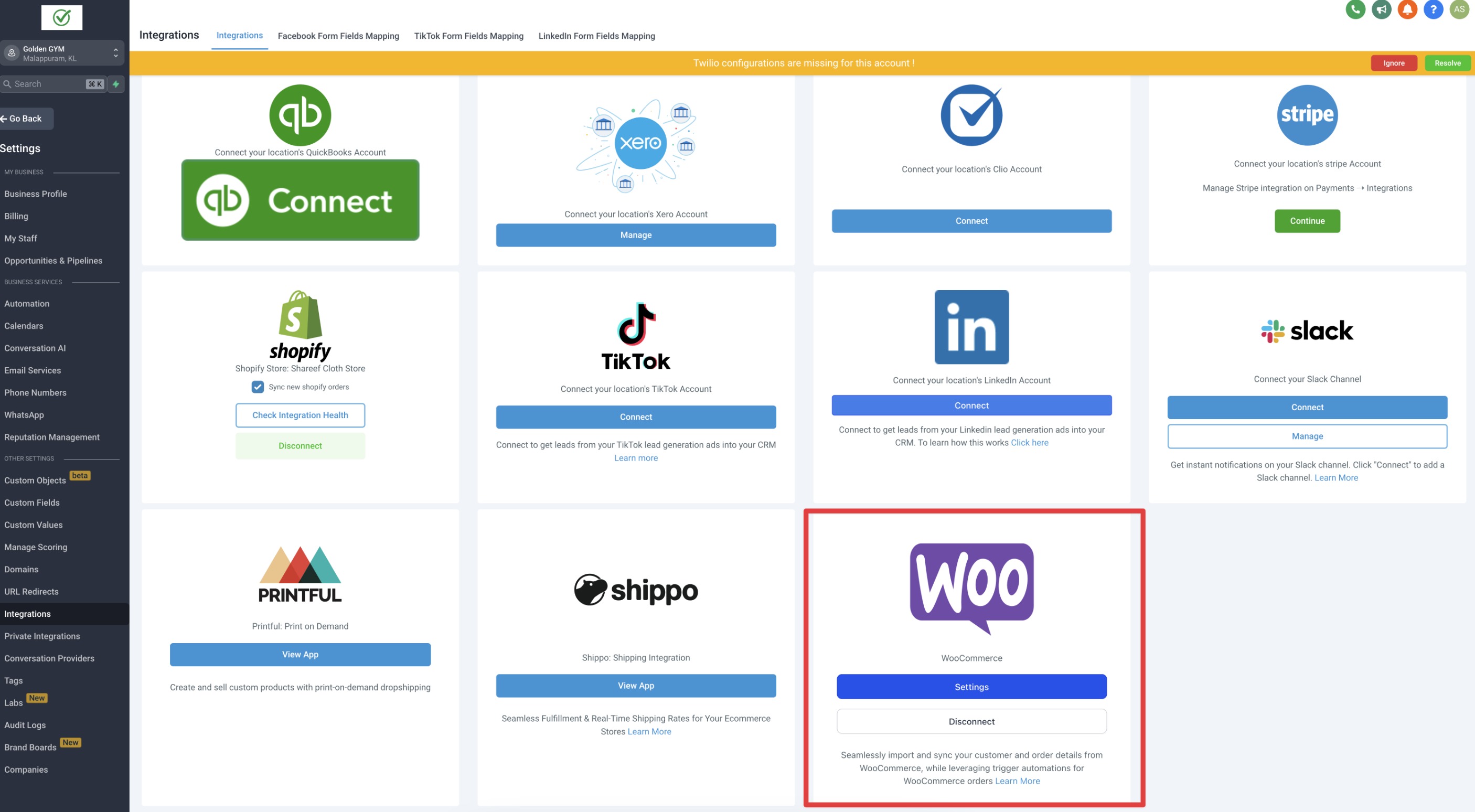
- Access the Integration Settings:Woocommerce integration can be found within a sub-account at:Settings > Integration > Woocommerce.
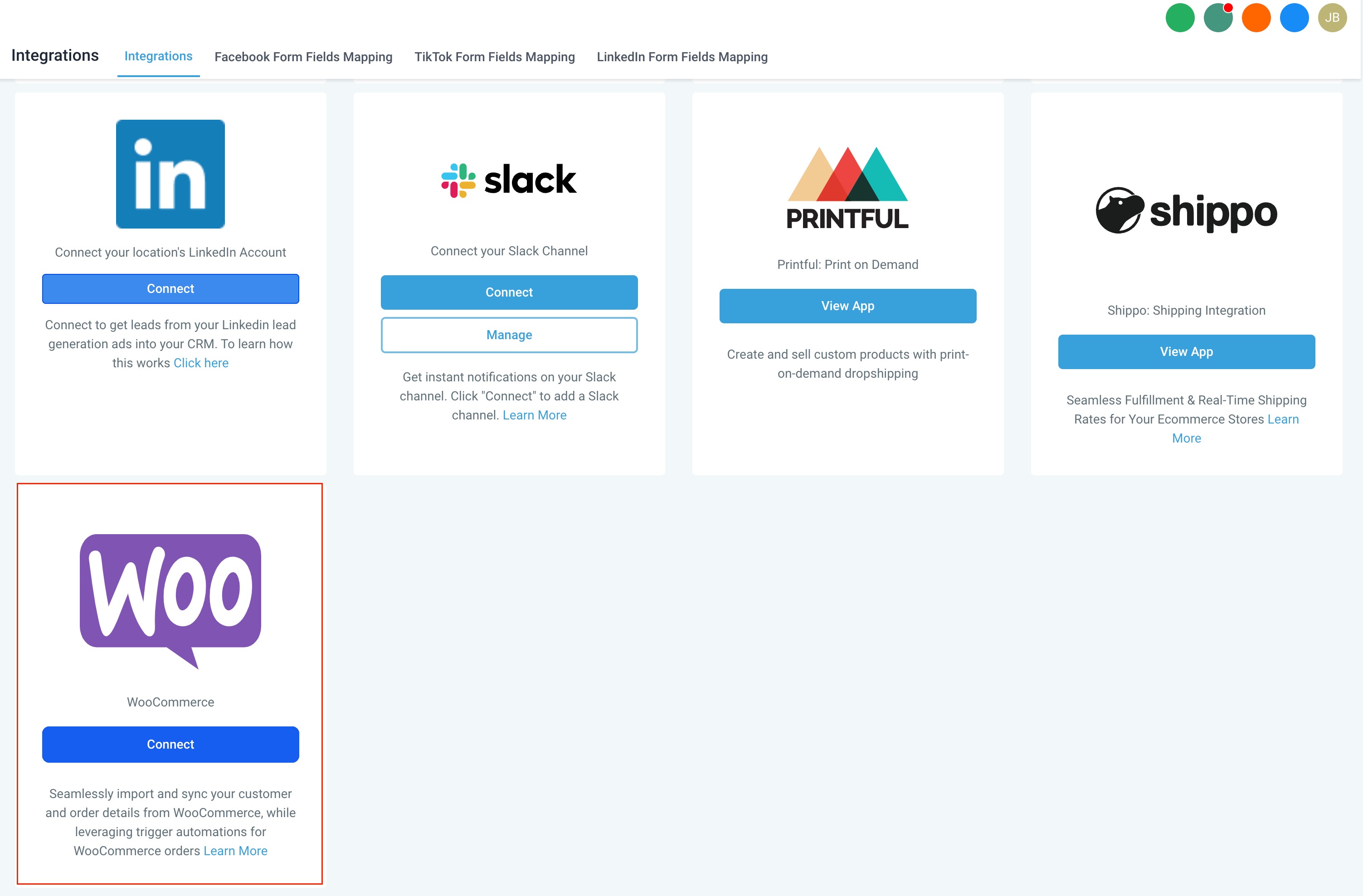
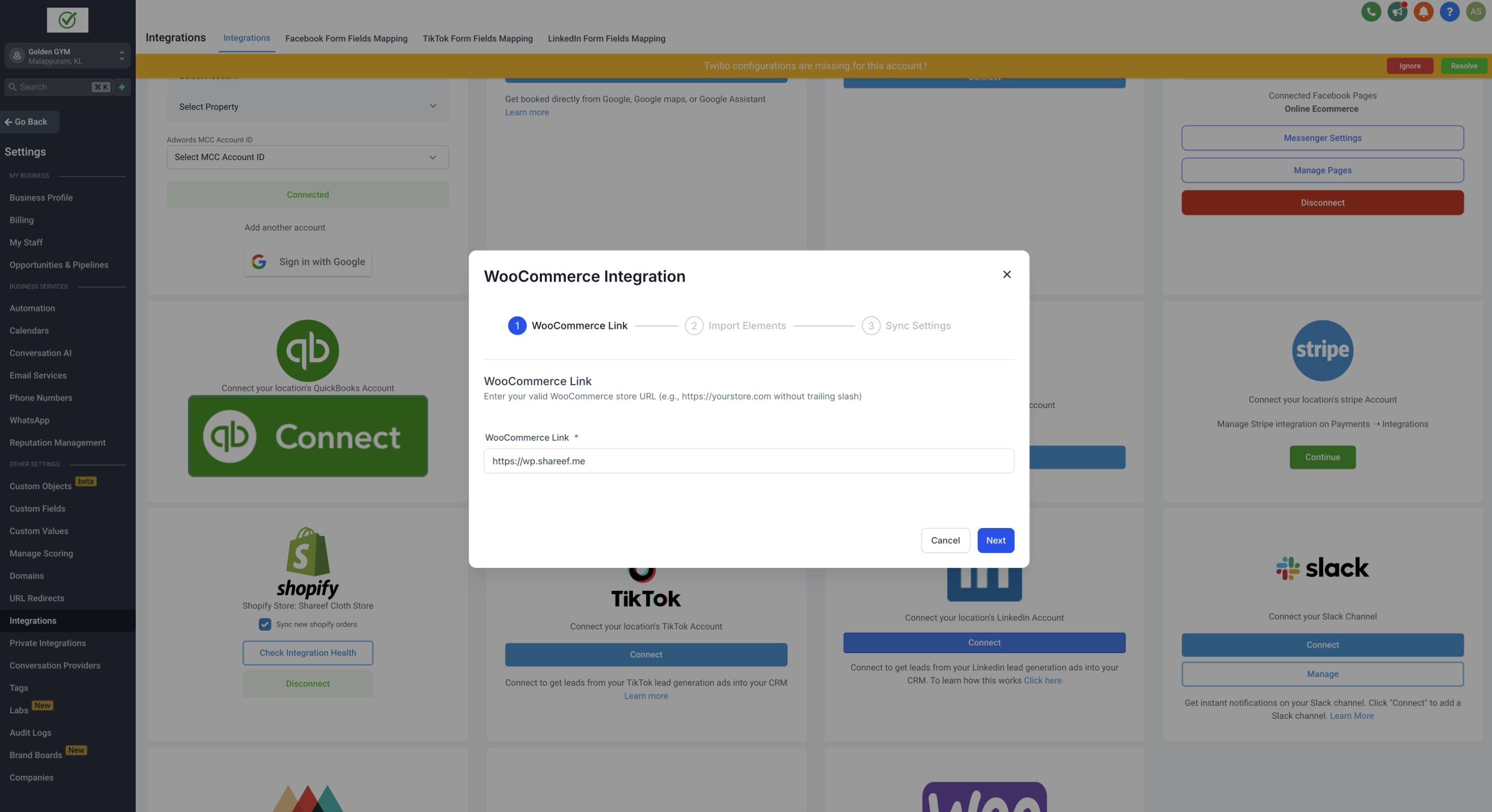
- Connect the WooCommerce Store:Users can click on “connect” button to begin the setup. A modal will appear where users must enter a valid WooCommerce store URL (e.g.,https://yourstore.comwithout a trailing slash) as the first step.
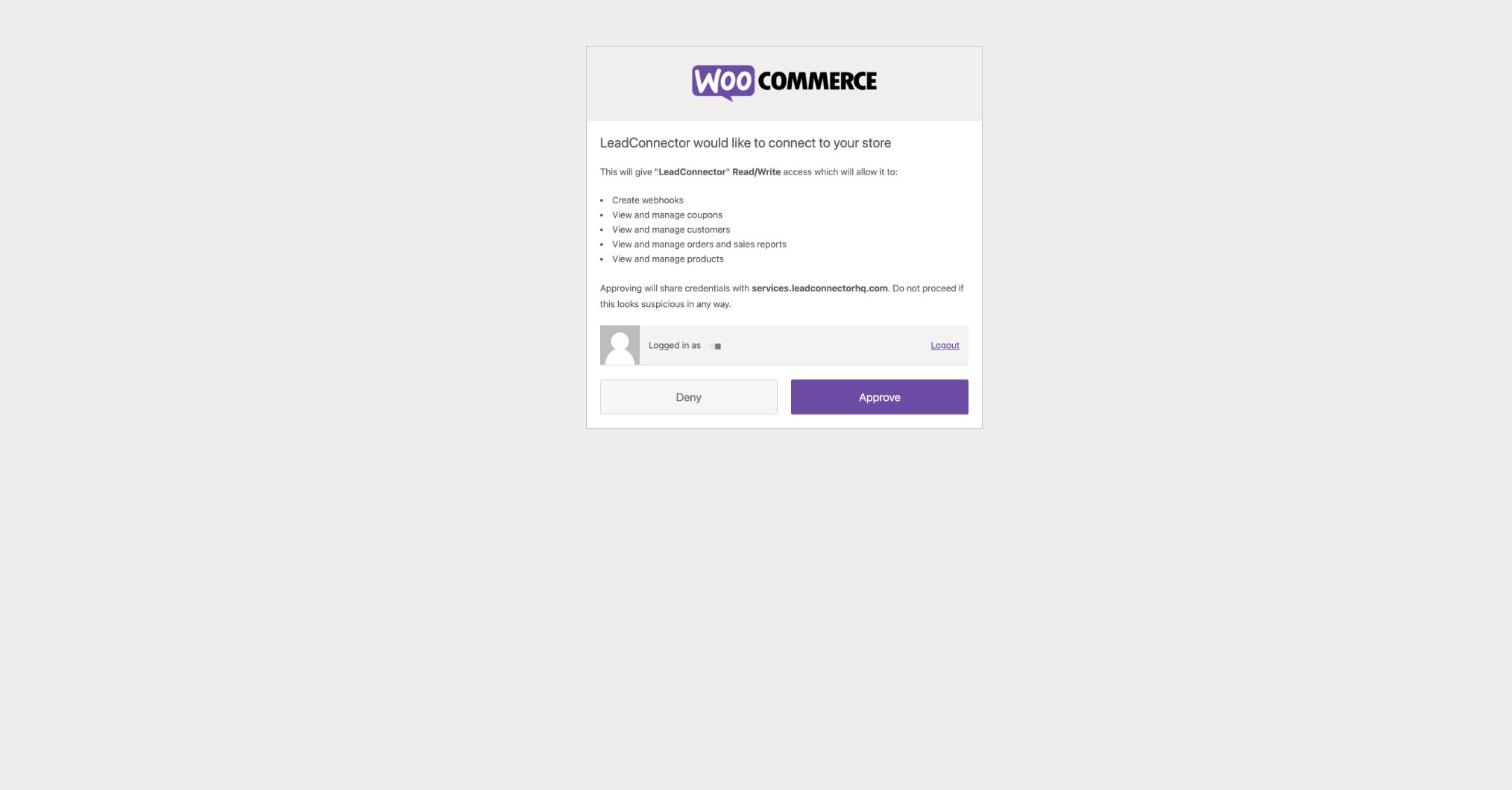
- Select Data to Import:In the second step, users will be directed to the Import Elements screen, where they can select which data to import from their WooCommerce store. The available options for import are: Contacts, Orders, Transactions.
Reimporting Data: If users wish to reimport data, they can disconnect and reconnect the integration, allowing them to reimport any data they may have missed during the initial import.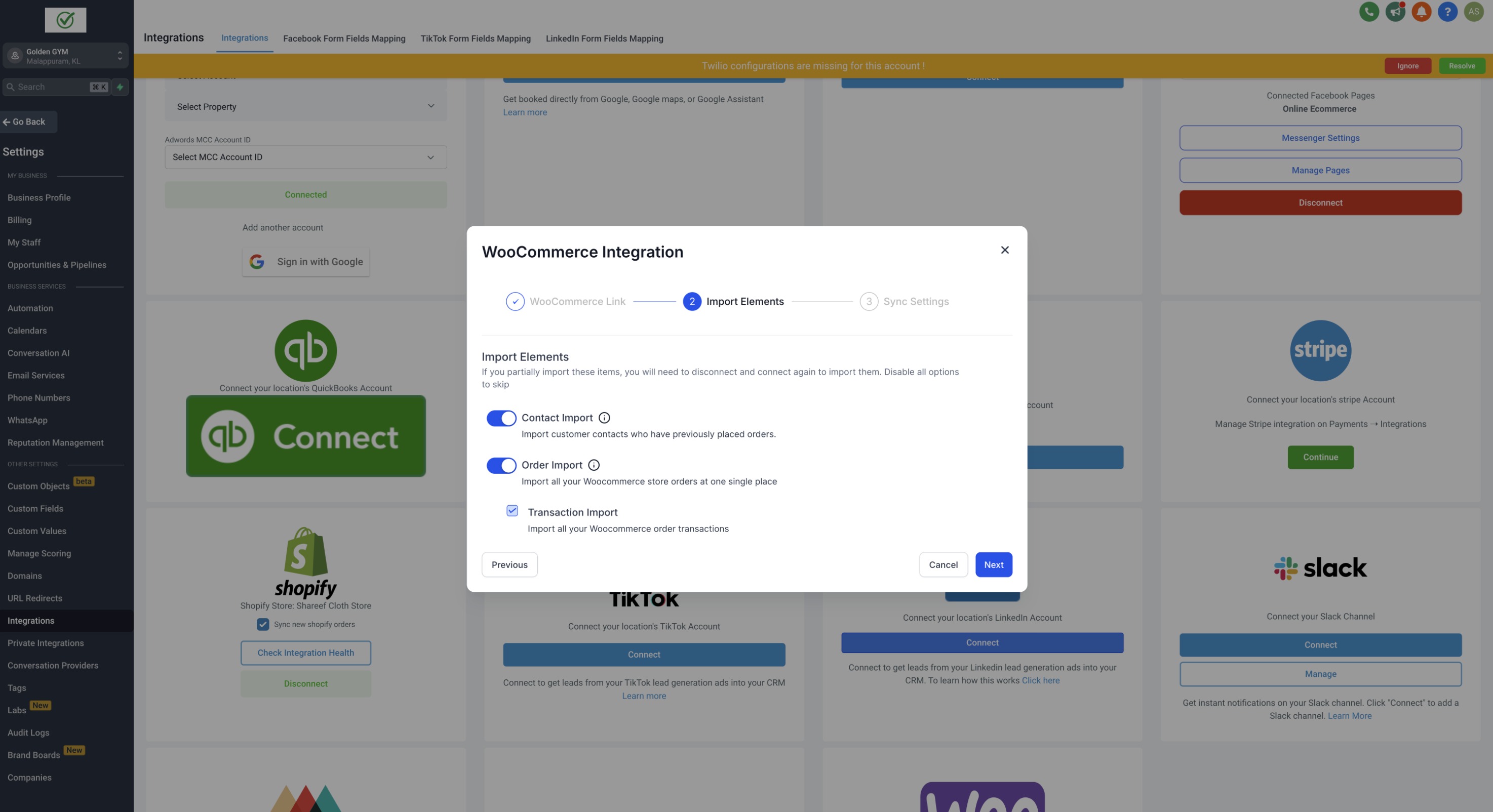
- Configure Syncing Settings:The third and final step takes users to the Sync Settings screen, where users can choose which data to continuously sync from WooCommerce to sub-account in future. The options for syncing include: Contacts, Orders, Transactions, Order submitted trigger, Payment received trigger.
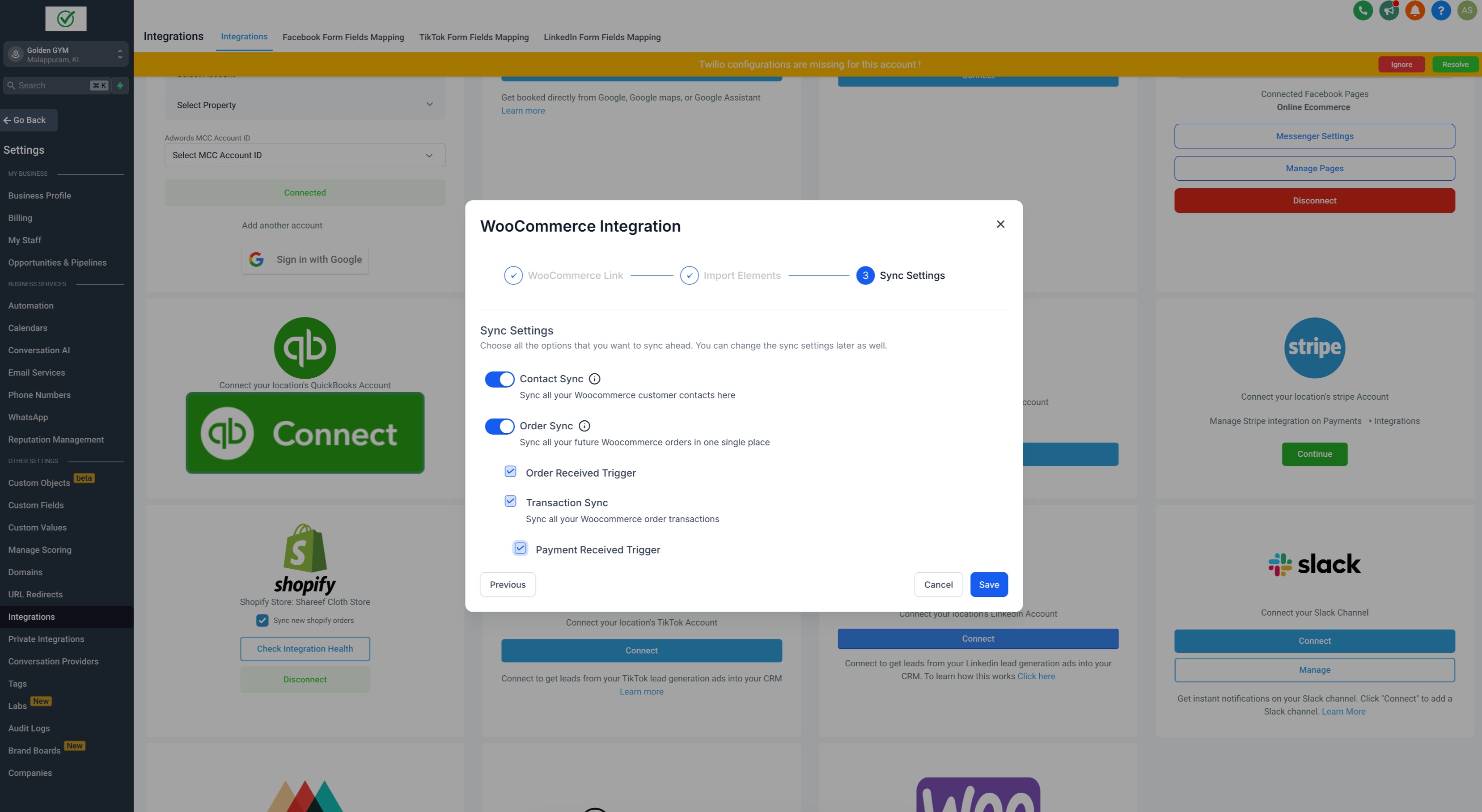
- Completing the Setup:After selecting the desired elements to import and sync, click Save. The import and sync process may take some time to complete.
- Manage Settings: Once the WooCommerce integration is successfully connected, users can enable or disable the elements they want to sync for future orders from the WooCommerce store.
Notes:
- Woocommerce Integration Criteria:Sub-accounts within the same agency can connect to the same domain. However, an agency can only be linked to one WooCommerce account. If the WooCommerce account is already connected to another agency, the current agency will not be allowed to connect.
- Customer Type Import:Customers with role “customers” & “subscribers” will be imported.
- Contact Creation with Disabled Customer Sync:Even if Contact sync is disabled and the Order sync is enabled, contacts will be created related to the order.
- Guest Checkout Handling:Guest checkout customers will be created as contacts, but no updates or future syncs will occur for these guest accounts.
- WooCommerce Status Mappings:The following mappings will apply for syncing order statuses from WooCommerce to Sub-account:
- Completed or Refunded in WooCommerce → Completed in Sub-account
- Cancelled or Failed in WooCommerce → Cancelled in Sub-account
- All other statuses in WooCommerce → Pending in Sub-account
Was this article helpful?
Related articles
- How to use Shippo Integration for automatic fulfilments & live rates?TABLE OF CONTENTS - Step 1: Generate Live token in Shippo - Step 2: Setting up Package template & Shipping options in Shippo- 2.1. Setting up Package Template in Shippo: - 2.2. Setting up Shipping origin in Shippo: - 2.3. Setting up Shipping Options in Shippo: - Step 3: Setup Shipping Origin in E-Commerce
- How to Use the Shopify Integration with Your AccountEcommerce • Shopify • Integrations How to Use the Shopify Integration with Your Account Connect your Shopify store using the current OAuth installation flow to import supported historical store data and keep selected ecommerce activity synchronized going forward. The integration can bring in productE-Commerce
- How to setup Facebook and Instagram Shops?TABLE OF CONTENTS - About the Integration - How to setup a Facebook or Instagram Shop?- Step 1: Create a Business Portfolio - Step 2. Create a Facebook Shop - Step 3. Create a Instagram Shop - How to connect Facebook/ Instagram Shop to your Online store?- Step 1: Enable feature via Labs - Step 2: E-Commerce
- How to Bulk Import ProductsManaging a large inventory can be a time-consuming task, but we makes it easy to import multiple products at once using a simple CSV file. Whether you’re transferring products from Shopify or adding items from another source, this guide will walk you through the process of bulk importing products toE-Commerce