Shipstation Setup Checklist
TABLE OF CONTENTS
- Add a ‘Ship From’ Location
- Enable ‘Package’ for All Active Carriers
- Match Platform and ShipStation Account Currencies
Follow these steps to ensure your ShipStation account is properly configured for integration.
1. Add a ‘Ship From’ Location
Log in to your ShipStation account.
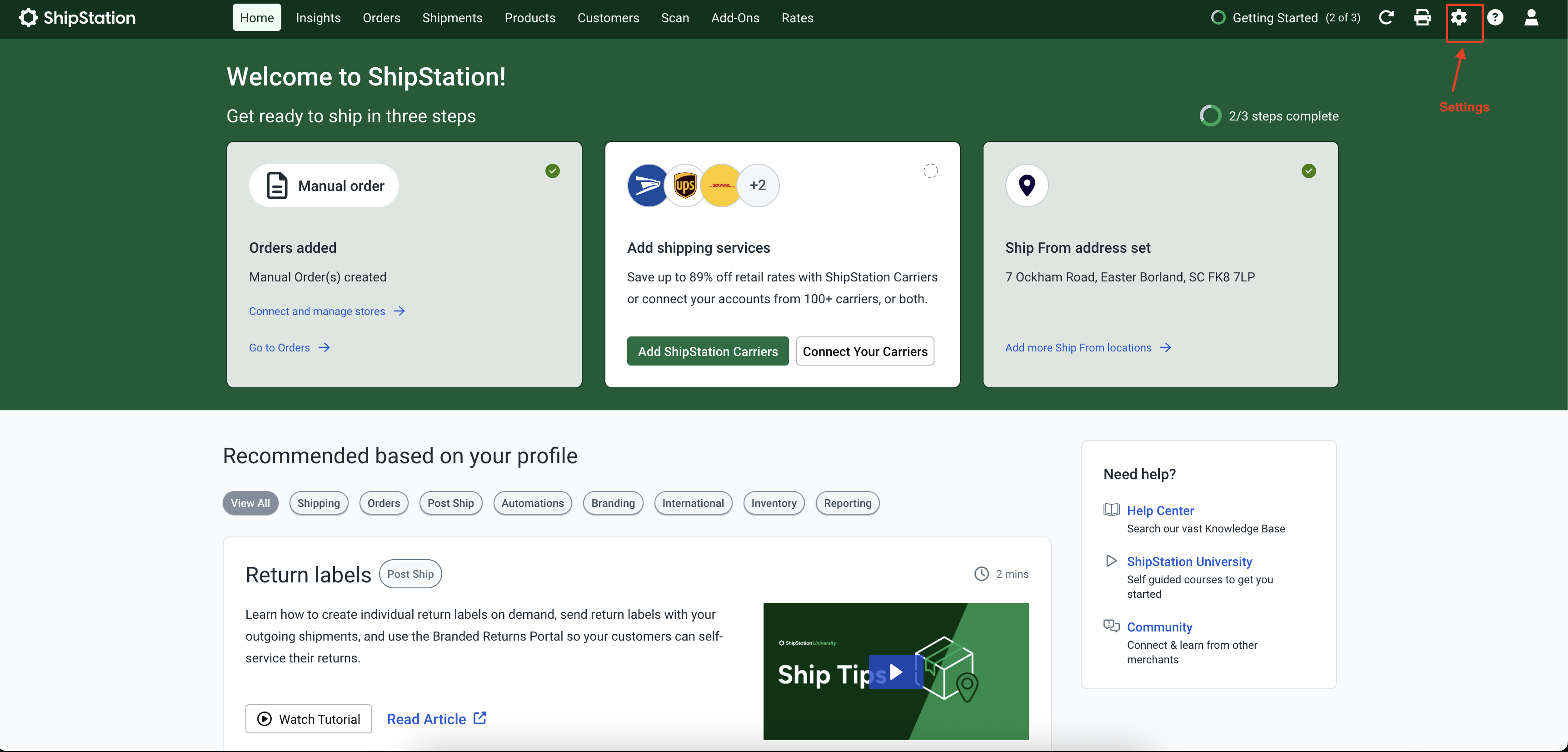
Go to Settings (gear icon) > Shipping > Ship From Locations.
Click Add a Ship From Location.
Fill out the required details and save.
Make sure at least one location is listed as active.
2. Enable ‘Package’ for All Active Carriers
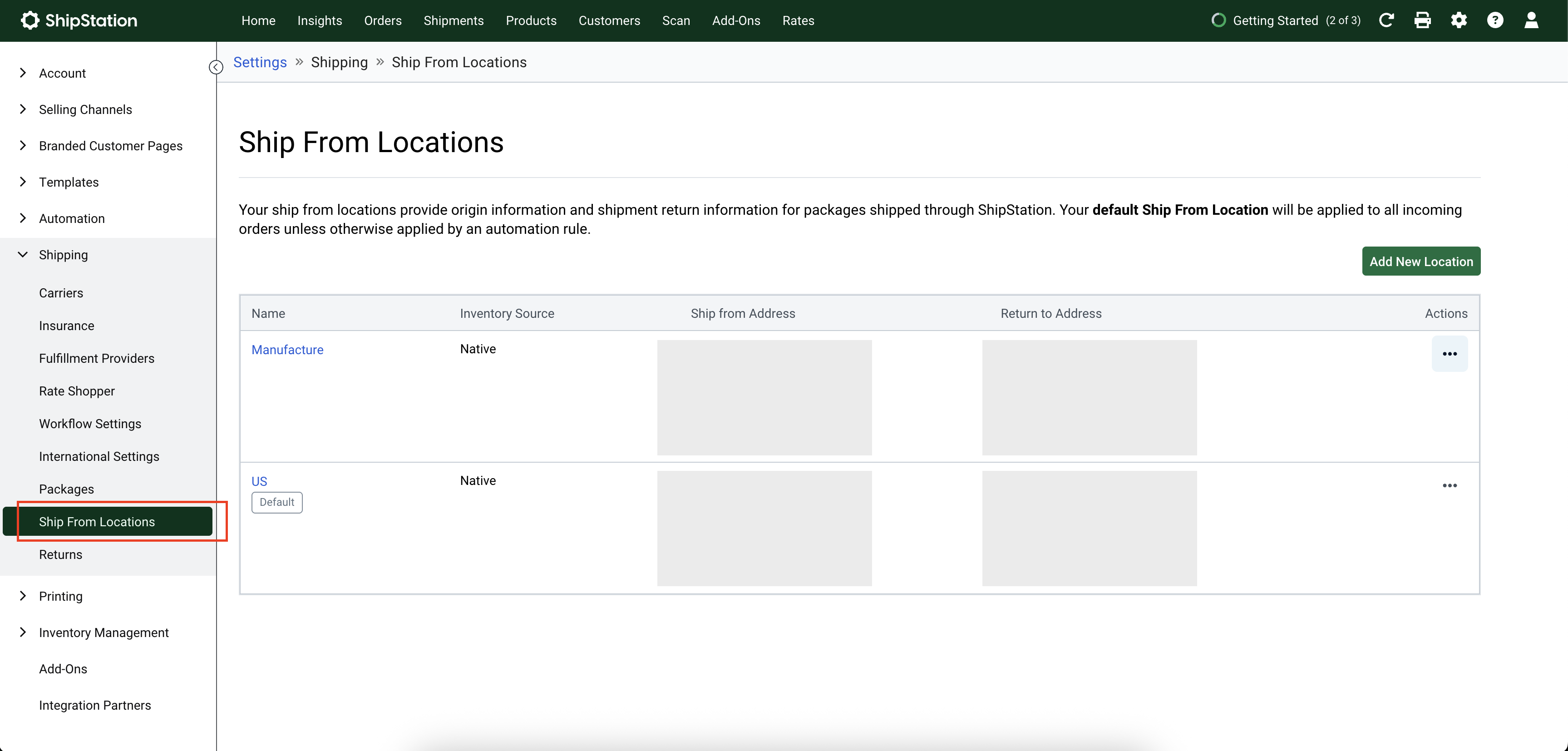
In Settings, go to Shipping > Packages.
Review the list of packages and ensure the ‘Package’ option is enabled for all active carriers you plan to use.
Save changes.
3. Match Platform and ShipStation Account Currencies
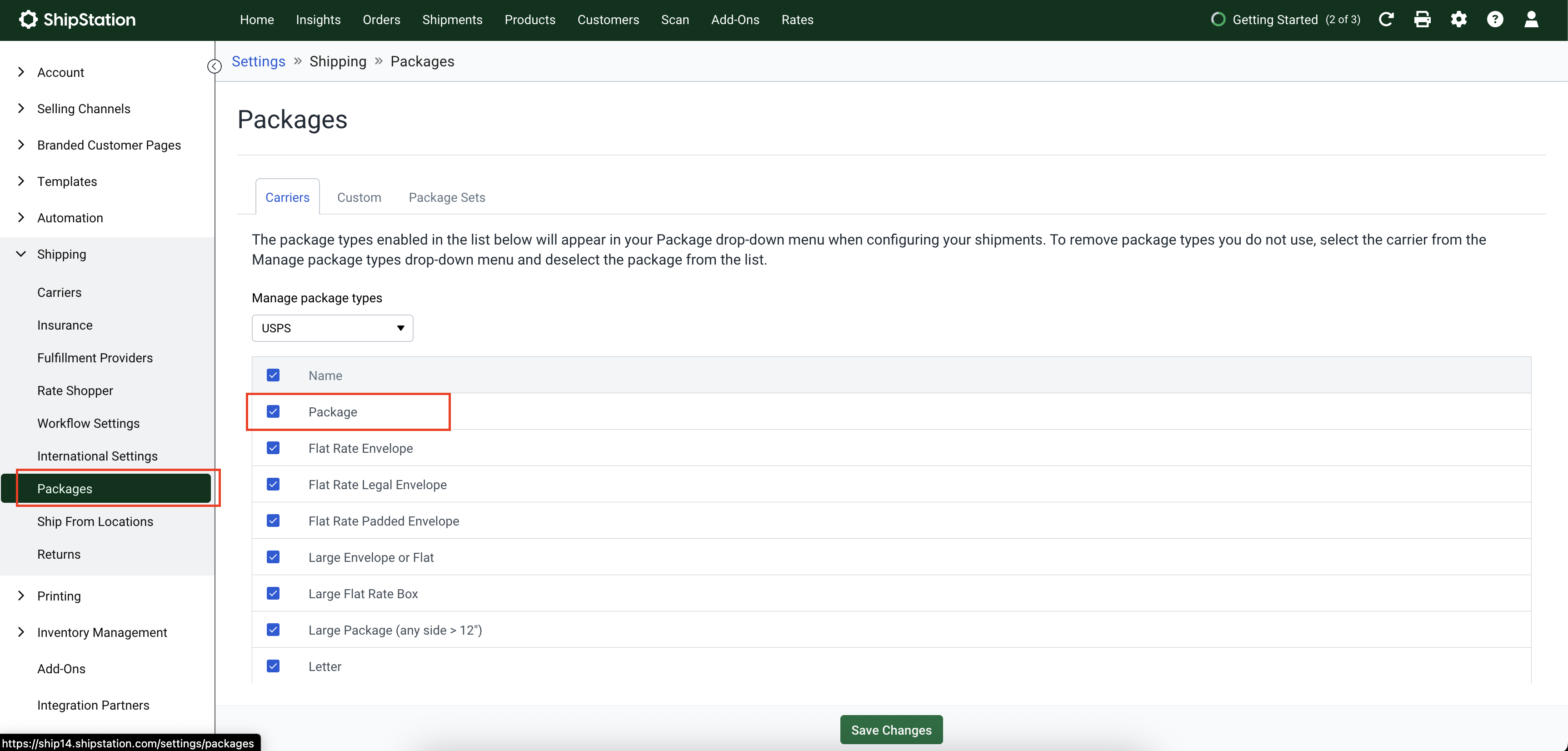
Go to Settings > Account > Your Account.
Check your Account Currency.
Confirm that this currency matches your platform’s currency settings (the platform you’re integrating with ShipStation).
Update as needed to avoid mismatches during checkout and shipping calculations.
3.1. Configuring in the platform:
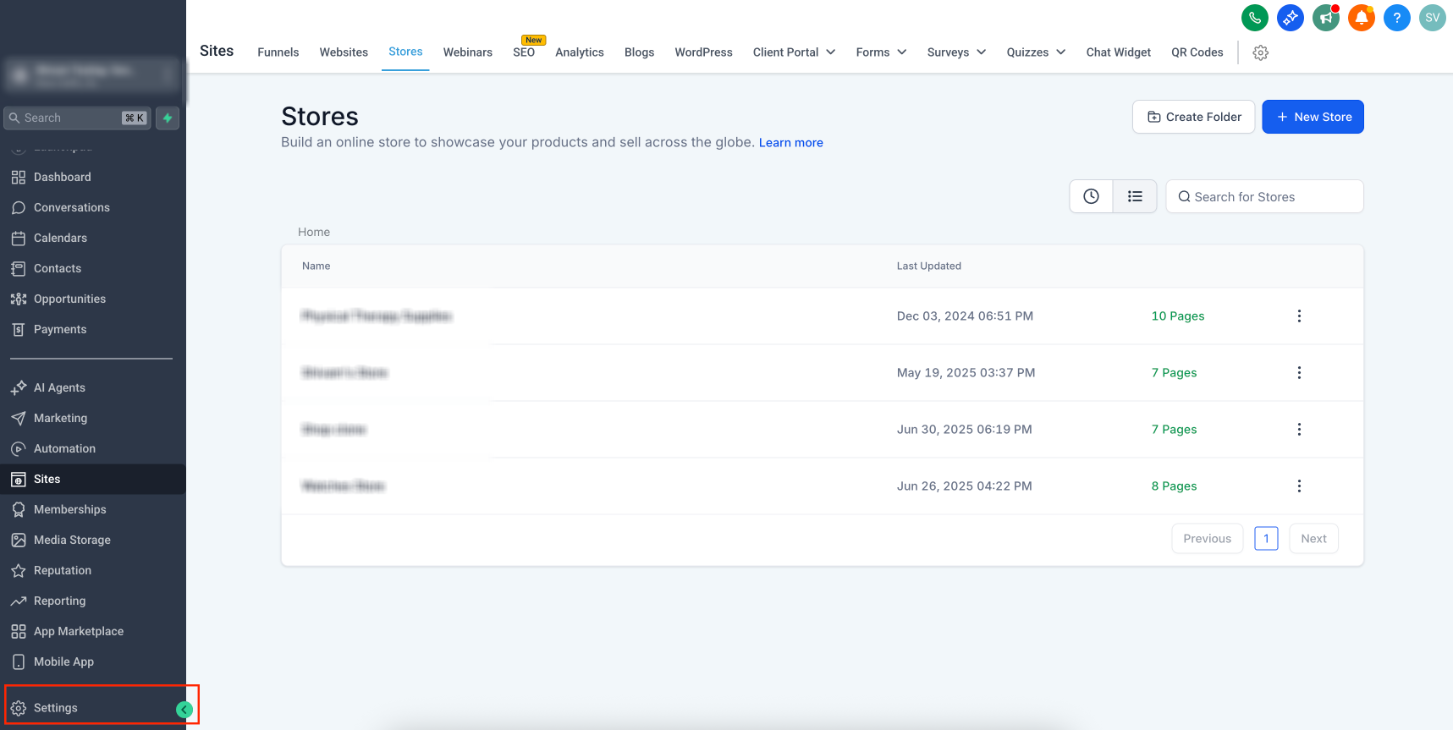
Go to Settings > Business Profile > Business Physical Address > Select Country
** Based on the selected country - currency will be accordingly set
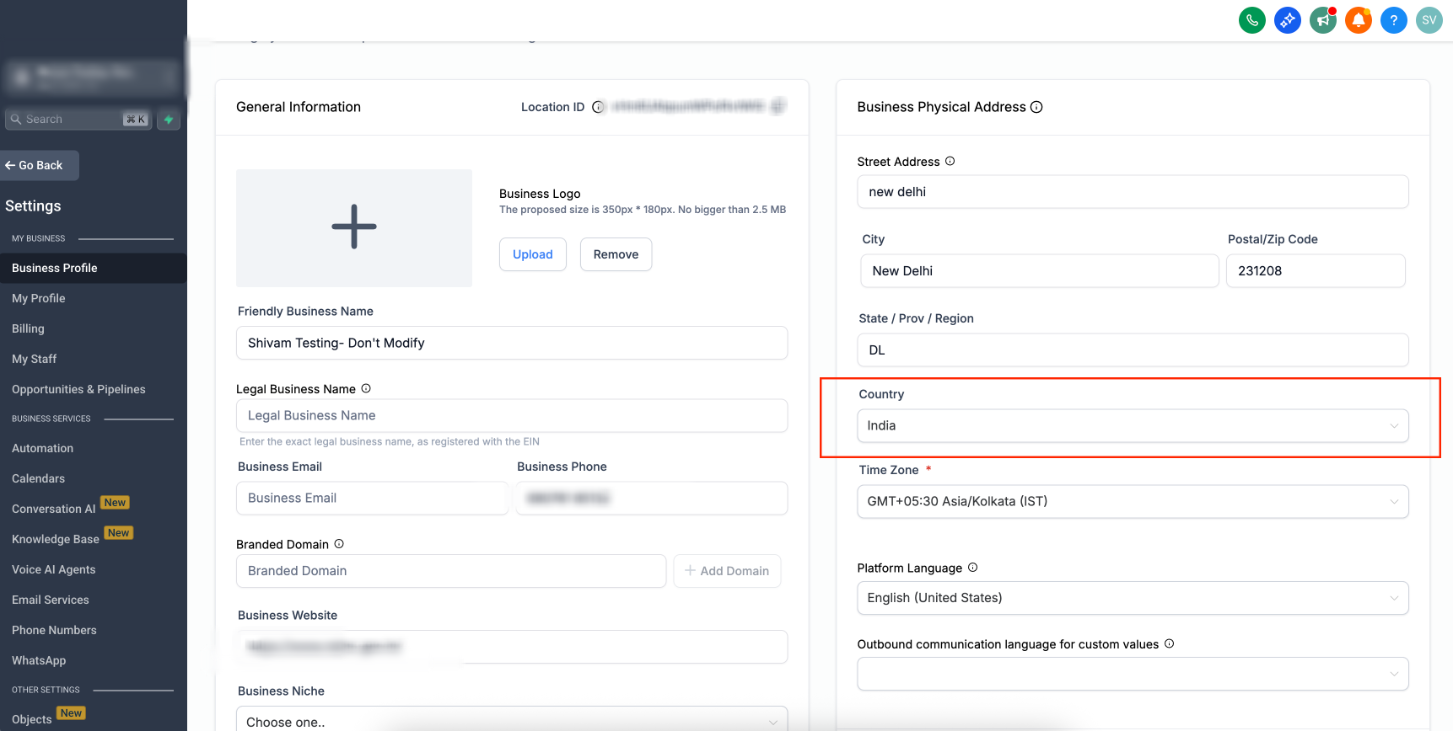
3.2. Configuring in the Shipstation:
Account currency is set based on the Home country location. Check supporting articles:
- https://help.shipstation.com/hc/en-us/articles/360045434792-How-does-currency-work-in-ShipStation#UUID-3ff60925-4929-7a36-0118-3cc78fa60d79_UUID-07d0d250-e31e-5115-1a5a-3dd6a59eb762
- https://www.chargebee.com/docs/billing/2.0/integrations/shipstation#sync-prerequisites-for-new-orders
Was this article helpful?
Related articles
- How to use Shippo Integration for automatic fulfilments & live rates?TABLE OF CONTENTS - Step 1: Generate Live token in Shippo - Step 2: Setting up Package template & Shipping options in Shippo- 2.1. Setting up Package Template in Shippo: - 2.2. Setting up Shipping origin in Shippo: - 2.3. Setting up Shipping Options in Shippo: - Step 3: Setup Shipping Origin in E-Commerce
- How to Use the Shopify Integration with Your AccountEcommerce • Shopify • Integrations How to Use the Shopify Integration with Your Account Connect your Shopify store using the current OAuth installation flow to import supported historical store data and keep selected ecommerce activity synchronized going forward. The integration can bring in productE-Commerce
- How to use Woocommerce Integration in E-commerce stores?Store owners can now seamlessly import and sync their WooCommerce store data. This new feature allows store owners to easily migrate and manage their WooCommerce store by importing contacts, orders, and transactions into sub-account. Additionally, WooCommerce store owners can leverage marketing toolE-Commerce
- How to setup Facebook and Instagram Shops?TABLE OF CONTENTS - About the Integration - How to setup a Facebook or Instagram Shop?- Step 1: Create a Business Portfolio - Step 2. Create a Facebook Shop - Step 3. Create a Instagram Shop - How to connect Facebook/ Instagram Shop to your Online store?- Step 1: Enable feature via Labs - Step 2: E-Commerce