Instructor Store Coupons (Promo Codes)
Coupons — previously called promo codes — are the discount codes students and instructors type at checkout. CPR Enroll+ runs one coupon system across the whole platform — the same code works on invoices, class registrations and store purchases — so a code you create for instructors buying store products behaves exactly like one you create for a class promotion.
This article covers creating a coupon and using it for instructor store discounts. For the full picture, including voucher batches, see How to Set Up and Use Coupons (Promo Codes).
Step 1: Open the Coupons List
- From the sidebar, go to Operate > Payments.
- Click the Catalog tab in the top right, then the Coupons tab below it. Products, Collections and Vouchers sit alongside it.
- Use the search box to find a code by its text or description, and the All / Active / Scheduled / Expired filters to narrow the list.
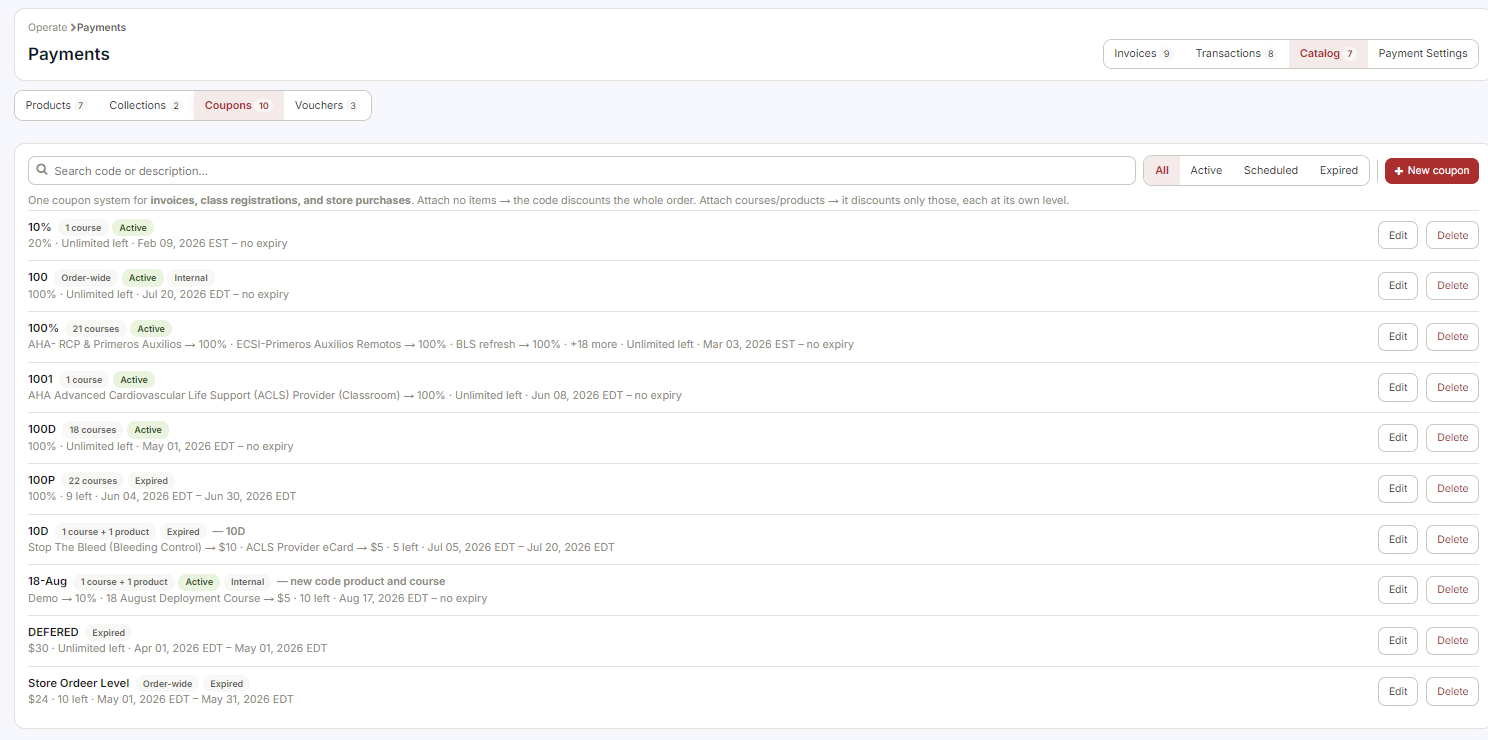
Each row shows the code, what it is attached to (order-wide, or a count of courses and products), its state, the discount, how many uses are left and the date range. Edit and Delete sit at the end of the row.
Step 2: Create a Coupon
Click + New coupon.
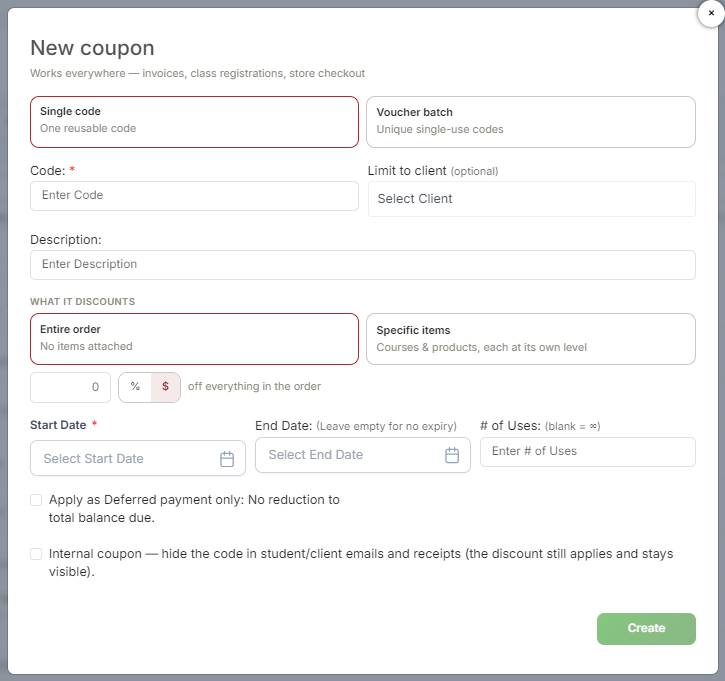
- Choose Single code — one reusable code — or Voucher batch, which generates unique single-use codes. For an instructor store discount, Single code is almost always what you want.
- Code (required) — the text typed at checkout, for example INSTRUCTOR10. Keep it short and easy to type.
- Limit to client (optional) — restrict the code to one client organization.
- Description — an internal note for your own reference.
- Under What it discounts, choose Entire order to discount the whole order, or Specific items to attach individual courses and products, each at its own discount level.
- Enter the discount amount and click % or $ to switch between a percentage and a flat dollar amount.
- Set the Start Date (required). Leave End Date empty for no expiry, and # of Uses blank for unlimited uses.
- Click Create.
Two Options Worth Knowing
- Apply as Deferred payment only — the code defers payment rather than reducing it. The total balance due does not change.
- Internal coupon — hides the code itself in student and client emails and receipts. The discount still applies and still shows on the document; only the code text is hidden. Use this for staff and partner rates you do not want circulating.
Using Coupons With Instructors
Instructor coupons are useful for:
- giving instructors a discount on store products they buy for their own classes;
- rewarding long-standing or high-volume instructors with reduced-price training materials;
- creating an instructor-only code for bulk material purchases — pair this with Internal coupon so the code stays out of student-facing receipts.
Step 3: Track Usage
- Go to Reports and open the Promo Code Report.
- Use the date range picker to filter usage by period.
- The report shows redemptions and the total discount applied, so you can see what a promotion actually cost you.
Best Practices
- Use a naming scheme you can read at a glance in the list — the grid shows the code, not the description.
- Set a # of Uses limit on anything you share outside your organization. Unlimited codes get forwarded.
- Attach Specific items when a discount is only meant for store products. An entire-order coupon will happily discount a class registration too.
- Give every promotion an End Date. Expired codes are easy to find in the Expired filter; live ones you forgot about are not.
- Check the Promo Code Report after each campaign before you run the same offer again.
Was this article helpful?
Related articles
- Introduction to the StoreThe Store is a built-in catalog where instructors and students browse and buy training materials, equipment and digital products at any time — separately from class registration. You build the catalog, they buy from it, and you fulfill the orders that come out the other end. The Three Store Tabs OpeInstructor Store
- Managing Store Orders & FulfillmentWhen someone buys a product from your Store, CPR Enroll+ creates an order and starts it through a four-stage fulfillment pipeline. The Fulfillment tab is where you watch those orders, move them along, and reconcile what was paid. Step 1: Open the Orders List - From the sidebar, go to Store. - AcrossInstructor Store
- The Redesigned Store: Build, Buy, and FulfillmentThe Store is organized around what each role actually does rather than around the catalog. Users only see the sections that apply to them — whoever manages the catalog works in Build, instructors work in Buy, and whoever ships and processes works in Fulfillment. Before You Begin - Store is in the leInstructor Store