The Redesigned Store: Build, Buy, and Fulfillment
The Store is organized around what each role actually does rather than around the catalog. Users only see the sections that apply to them — whoever manages the catalog works in Build, instructors work in Buy, and whoever ships and processes works in Fulfillment.
Before You Begin
- Store is in the left navigation, under Grow. Three tabs sit across the top: Build, Buy and Fulfillment.
- Which tabs you see depends on your role. If a tab described here is missing, that is by design.
- If you sell to connected organizations, read the last section before you set pricing.

Step 1: Build — Manage the Catalog
The Build tab has three sub-tabs: Products, Collections and Pricing.
Products
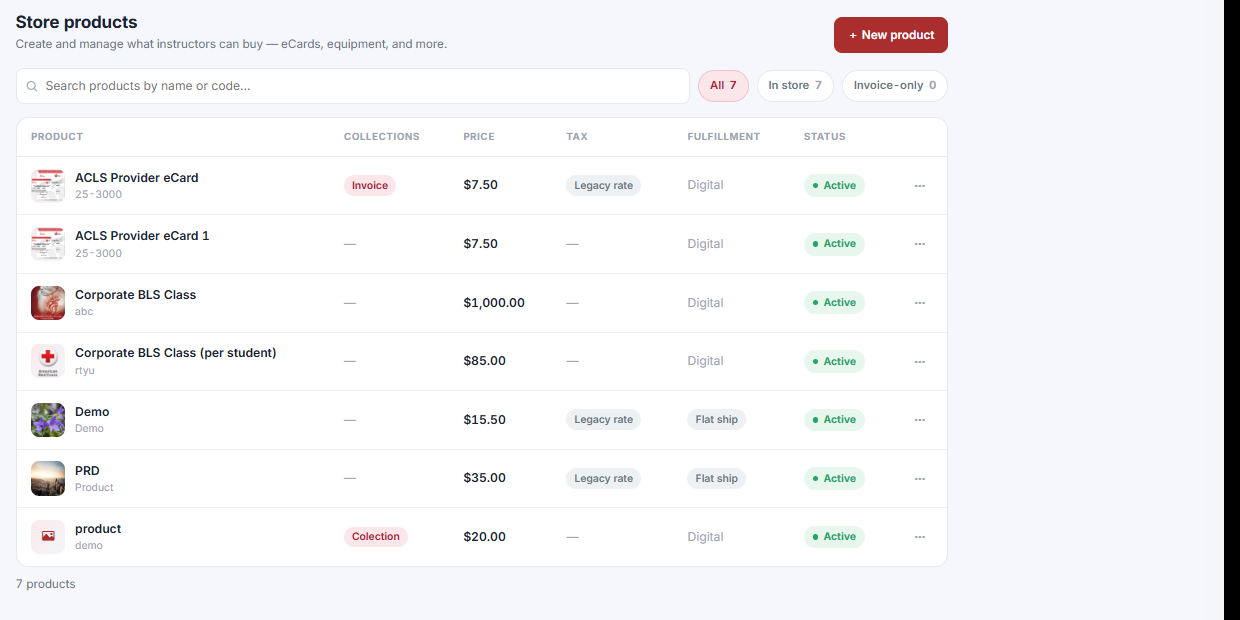
The Products grid is where you create and manage what instructors can buy — eCards, equipment, and more. Columns are Product, Collections, Price, Tax, Fulfillment and Status.
- Filter with All, In store and Invoice-only, or search by name or code.
- Click + New product to add one.
- Tax shows Legacy rate or a dash, matching your tax mode.
- Fulfillment shows Digital or Flat ship.
Collections
Collections group products for filtering on the storefront. You can create, reorder, rename or delete a collection without affecting the products in it — a collection is a lens, not a container.
Pricing
Pricing holds Instructor pricing: special-price profiles that apply automatically when attached instructors log in, across your organization and connected organizations.
- Click + New Profile.
- Set fixed prices, or a percentage or dollar discount.
- Attach the instructors the profile applies to.
✔ Profiles apply themselves. There is no code for the instructor to remember and nothing to apply at checkout — the right price simply appears when they log in.
Step 2: Buy — The Instructor Experience
The Buy tab is where instructors browse and purchase products.
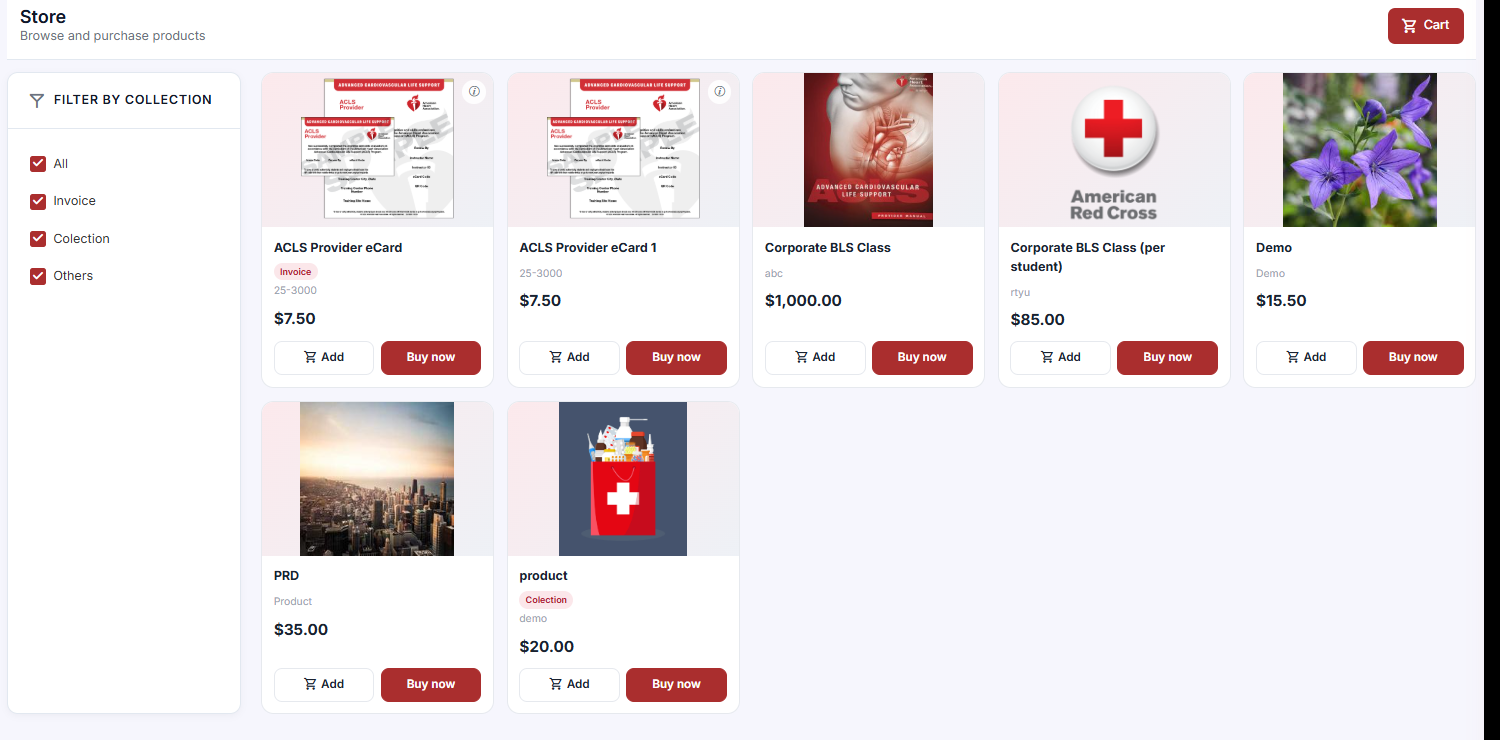
- Products appear as cards with Add (to cart) and Buy now buttons.
- The Filter by collection panel on the left narrows the list.
- The Cart button sits in the top right.
- Checkout supports quantity adjustments, coupons, order notes and clear totals.
Step 3: Fulfillment — Ship and Process
The Fulfillment tab has two sub-tabs: Orders and Payments.
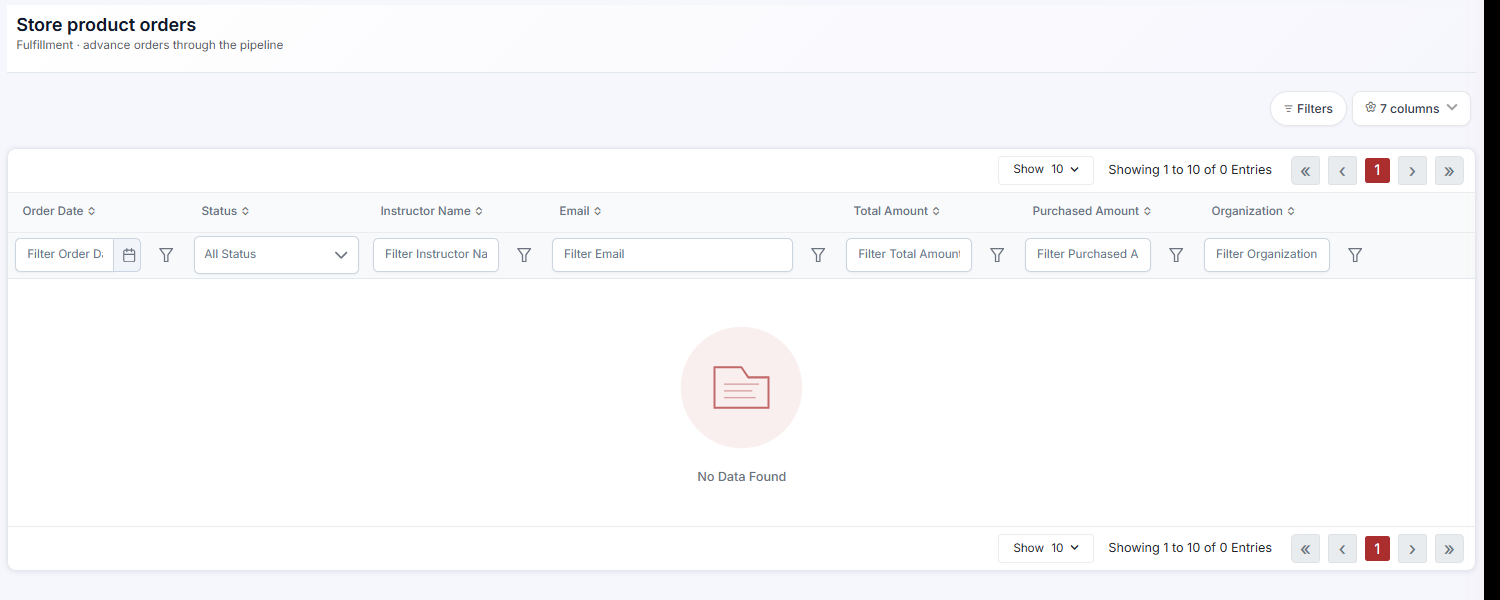
Store product orders advances orders through the pipeline. It is a filterable grid with columns for Order Date, Status, Instructor Name, Email, Total Amount, Purchased Amount and Organization. Use Filters and the columns control to shape the view.
- Fulfillment stages are customizable — match them to how you actually ship.
- Cancellations and refunds can be issued at any stage.
- For AHA eCard products, you can issue eCards straight to an instructor’s inventory from the order.
Step 4: Sell to Connected Organizations
Connected organizations can purchase from each other’s stores. Each keeps its own catalog and pricing.
✔ This is purchasing access only, never admin access. A connected organization can buy from your store. It cannot see or change your catalog, your pricing profiles or your orders.
Best Practices
- Build collections before you build a large catalog — retro-fitting them across fifty products is tedious.
- Use Invoice-only for products that should never appear on the storefront rather than deleting and recreating them.
- Set instructor pricing profiles by group (staff, contractors, partner orgs) rather than person by person.
- Customize the fulfillment stages to match your real process. Generic stages get ignored, and ignored stages stop reflecting reality.
- Issue AHA eCards from the order itself so the order record and the instructor’s inventory stay in step.
Frequently Asked Questions
| Question | Answer |
|---|---|
| Why can’t I see all three tabs? | The Store shows only the sections that apply to your role. |
| Will deleting a collection delete its products? | No. Collections can be created, reordered, renamed or deleted without affecting the products in them. |
| Do instructors need a code for their special pricing? | No. Profiles apply automatically when attached instructors log in. |
| What does the Fulfillment column on a product mean? | How the product is delivered — Digital or Flat ship. |
| Can I refund after an order has shipped? | Yes. Cancellations and refunds can be issued at any stage. |
| Can I issue AHA eCards from an order? | Yes — straight to the instructor’s inventory. |
| Can a connected organization edit my store? | No. Connected organizations get purchasing access only, never admin access. |
✔ You’re all set. Catalog in Build, instructors in Buy, shipping in Fulfillment — each role sees only its own half of the store.
Was this article helpful?
Related articles
- Introduction to the StoreThe Store is a built-in catalog where instructors and students browse and buy training materials, equipment and digital products at any time — separately from class registration. You build the catalog, they buy from it, and you fulfill the orders that come out the other end. The Three Store Tabs OpeInstructor Store
- Instructor Store Coupons (Promo Codes)Coupons — previously called promo codes — are the discount codes students and instructors type at checkout. CPR Enroll+ runs one coupon system across the whole platform — the same code works on invoices, class registrations and store purchases — so a code you create for instructors buying store prodInstructor Store
- Managing Store Orders & FulfillmentWhen someone buys a product from your Store, CPR Enroll+ creates an order and starts it through a four-stage fulfillment pipeline. The Fulfillment tab is where you watch those orders, move them along, and reconcile what was paid. Step 1: Open the Orders List - From the sidebar, go to Store. - AcrossInstructor Store