SSH Access and SSH Keys Management on Your WordPress Hosting
SSH (Secure Shell) provides a secure way to connect to your server and manage your WordPress installation using command-line tools like WP-CLI. This guide will walk you through how to enable SSH access, create and add SSH keys, and connect to your site securely.
What is SSH and Why Use It?
SSH allows advanced users to:
Run WP-CLI commands for:
Plugin and theme management
Import/export data, clear caches, and update configurations
Manage files directly via the terminal.
⚠️ SSH is recommended for users familiar with the command line. Always proceed with caution when executing commands.

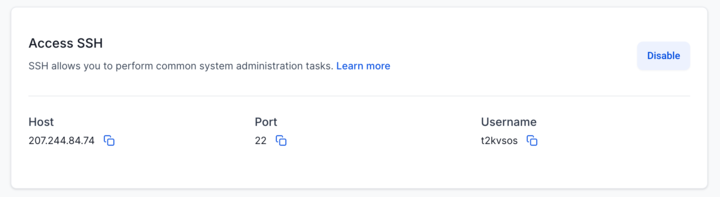
Step 1: Create Your SSH Key
SSH access on our platform only supports key-based authentication — no passwords are used for extra security.
On macOS
If you use Mac, the first thing you need to do is to open a terminal. Once your terminal is open, you can copy and paste the following command:
ssh-keygen -trsaHit enter for all the options, you don't need to create a password. It should look like this(on Mac terminal is usually white instead of black, but should be the same):
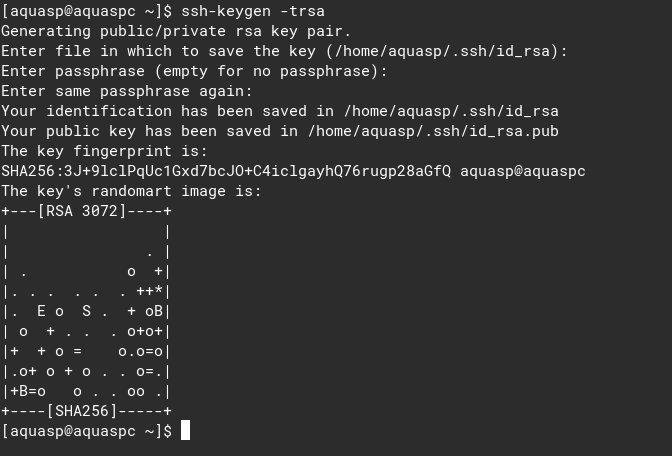
Once your key is created, you can copy it to your clipboard:
pbcopy < ~/.ssh/id_rsa.pubOn Linux:
Open the Terminal.
Generate your SSH key:
Press Enter to accept all defaults.
Copy your public key to your clipboard:
On Ubuntu:
sudo apt install xclipOn Arch Linux:
sudo pacman -S xclipOn Fedora/CentOS:
sudo yum -y install xclipOn Windows:
Open PowerShell.
Generate your SSH key:
Press Enter through all prompts.
Copy the public key:
Step 2: Add Your SSH Key to the Hosting Dashboard
Log in to your hosting dashboard.
Go to the Advanced Setting -> Server Settings tab of your site
Enable SSH Access (toggle on if not already).
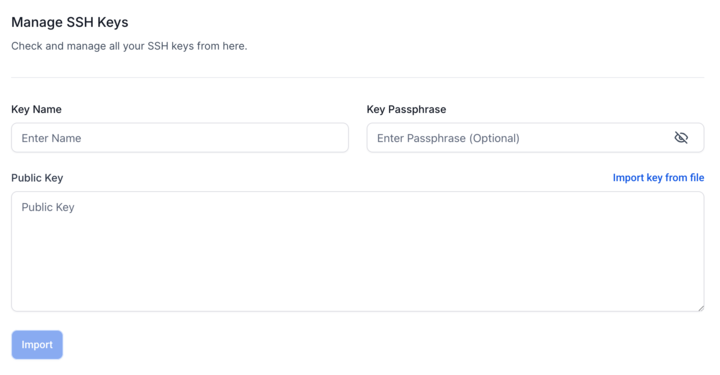
Scroll to SSH Keys Manager.
Click Import New Key.
Paste your public key.
Add a name (e.g., “John’s MacBook”).
Leave the passphrase field blank unless you used one.
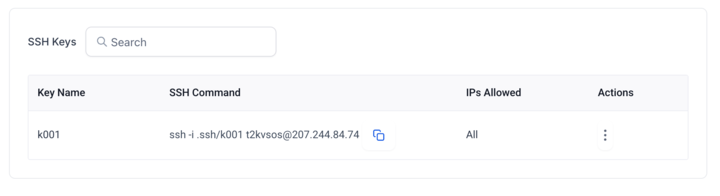
Click Import, then the system will Authorize the imported key.
Step 3: Connect to Your Server via SSH
Return to the Server settings tab to get your connection details:
Host/IP Address
Username
Open your terminal and run:
Replace
yourusernameandyourhostipwith your actual values.The first time, you may see a warning prompt. Type
yesand hit Enter.Once connected, switch to your site’s directory:
Common Commands via WP-CLI (once connected)
List installed plugins:
Clear WordPress cache:
Purge CDN cache:
Managing SSH Keys
Delete Key: Remove unused keys at any time from the SSH Keys Manager.
Import Additional Keys: Repeat the process for other devices or team members.
Tip: Regularly rotate your keys for improved security.
Troubleshooting Tips
Can’t connect? Double-check your key is authorized and the username/IP are correct.
Issues on Linux? Install
xclipif clipboard commands fail.Use
ssh-add ~/.ssh/id_rsaif you're using a passphrase-protected key.
Need further help? Reach out to your Agency for assistance.
Was this article helpful?
Related articles
- How to point your domains or subdomains to your WordPress SiteTABLE OF CONTENTS - Setting up a new WordPress Site - Setting up new WordPress as a Blog- Linked Articles for other Domain Registrars - Setting up new WordPress as your main site - Migration of an Existing Website - FAQs- Q1: I'm unable to add the same domain to my other subaccount / location: - QWordPress
- WordPress - Adding Domains for your siteThis article provides instructions for adding and configuring domains for a WordPress website. Covered in this Article How to add Domains to your WordPress website? a) Adding new Root Domain as your primary Domain b) Adding WWW domain as Primary for your WordPress site c) Adding Sub-Domain to WP sWordPress
- How to Add Domains in the WordPress DashboardAdding a domain to a WordPress site is necessary to make the website accessible to the public through that Domain. A domain serves as the website's address, and visitors can use it to access the site. The article provides step-by-step instructions for adding a primary domain and additional domains tWordPress
- WordPress LeadConnector Plugin: All you need to knowWhat is the LeadConnector Plugin? The LeadConnector WordPress plugin is a powerful conversion tool that empowers your website to capture, engage, and convert visitors with minimal effort. It seamlessly integrates high-converting widgets such as chat widgets, forms, funnels, phone number pools, reviWordPress