Voice AI Logs: Review & Debug Calls
Understanding how your AI handles conversations is essential for improving performance and fixing issues quickly. Agent Logs give you a clear, step-by-step view of every interaction so you can review conversations, track execution, and troubleshoot with confidence.Agent Logs provide full visibility into AI interactions, helping you understand what happened during a call, where delays occurred, and how decisions were made. This makes it easier to debug issues, optimize performance, and improve overall experience.
TABLE OF CONTENTS
- What is Voice AI Agent Logs?
- Key Benefits of Voice AI Agent Logs
- How To Navigate and Use Agent Logs
- Frequently Asked Questions
- Need Help?
What is Voice AI Agent Logs?
Agent Logs is a centralized view of AI interactions that shows conversation history, execution steps, timestamps, and system-level details. It allows you to analyze interactions from start to finish without guesswork.
Key Benefits of Voice AI Agent Logs
Agent Logs help you better understand and optimize AI behavior by providing:
Conversation visibility: See full interactions between users and the AI
Execution tracking: Follow each step with precise timestamps
Transfer insights: Identify how and when agent handoffs occur
Latency analysis: Detect slow steps in conversations
Data inspection: View raw and formatted input/output data
Failure detection: Quickly identify where issues occurred
How To Navigate and Use Agent Logs
Access Agent Logs
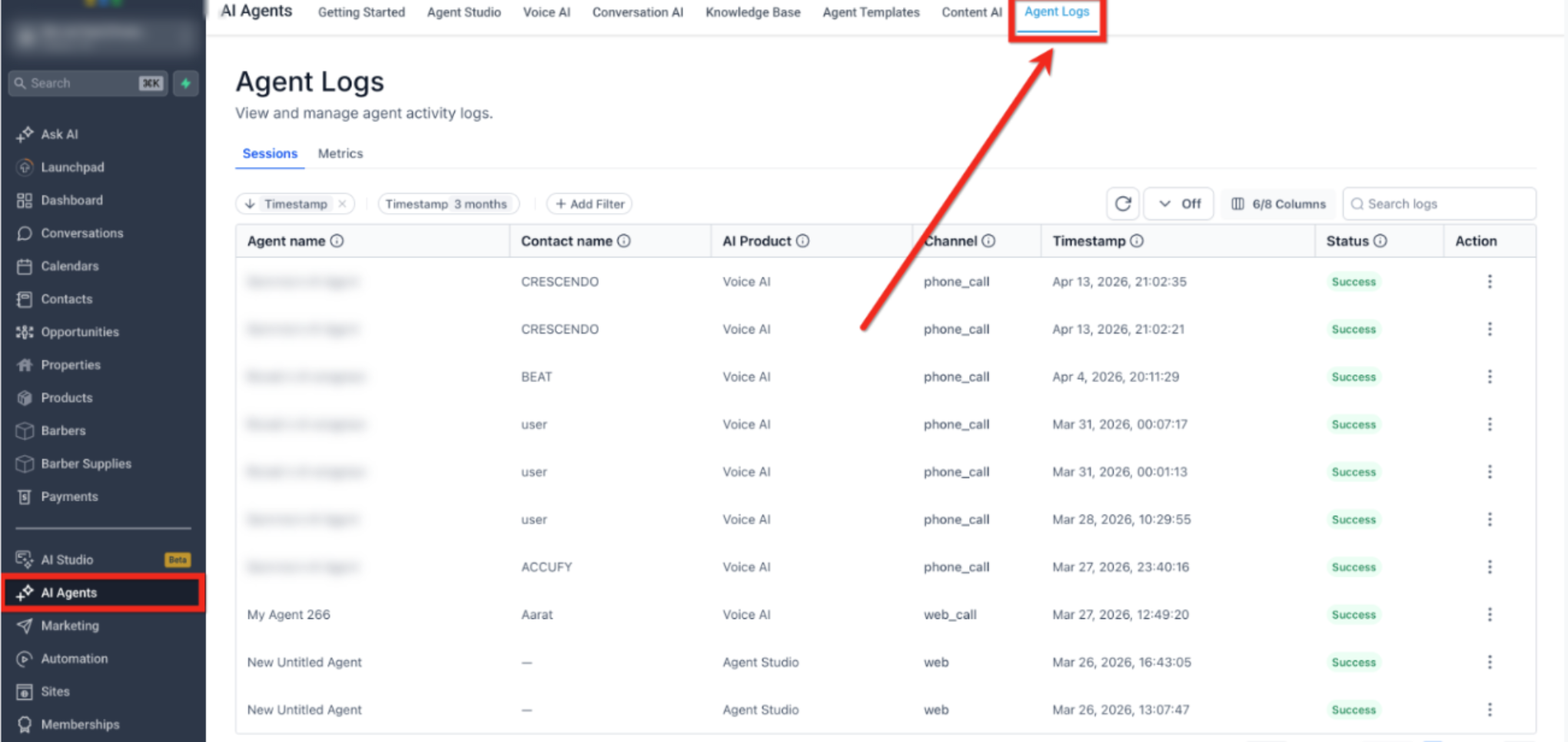
This image shows where to access Agent Logs from the main navigation.
Navigate to AI Agents
Click on Agent Logs in the top menu
Review the Logs Table
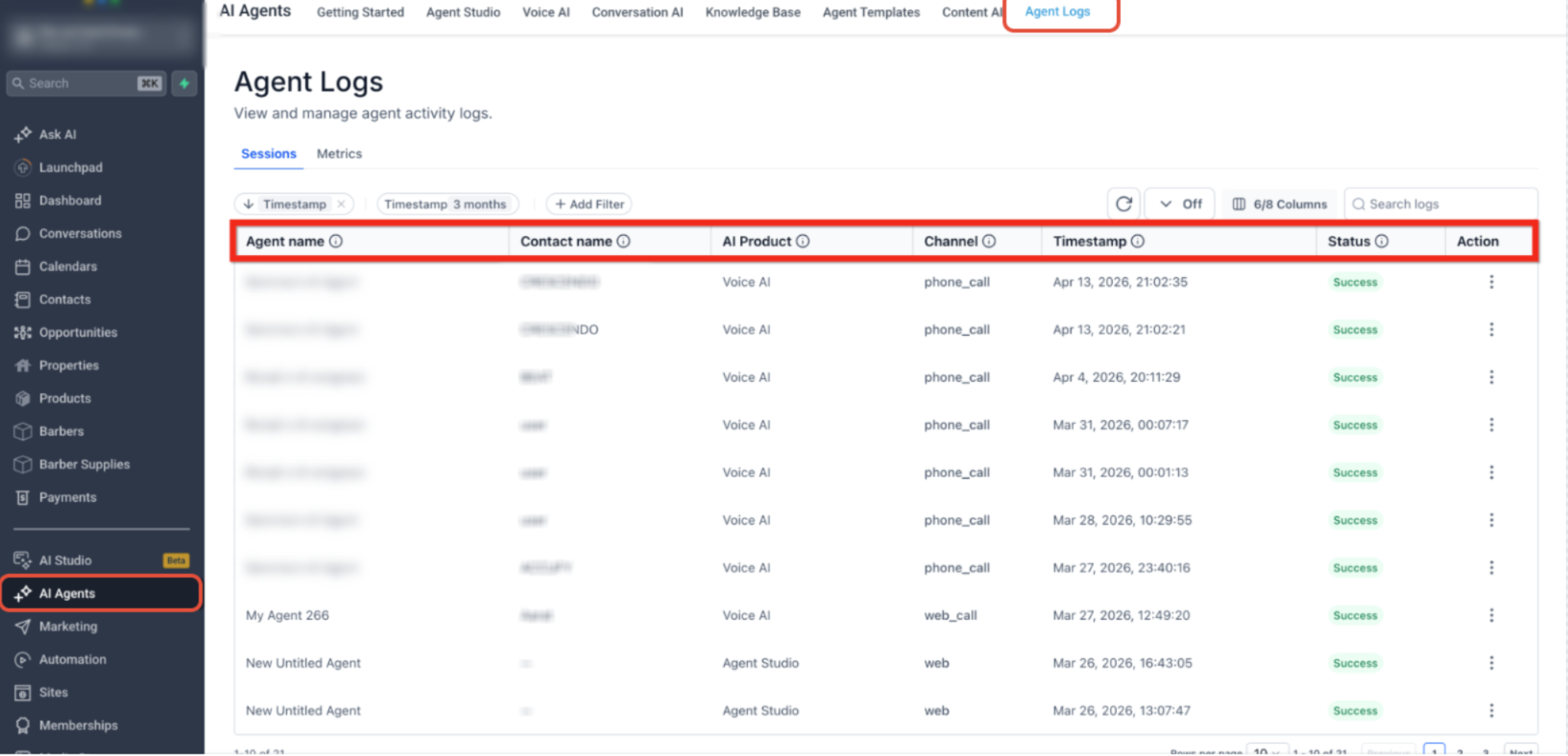
This image highlights the columns available in the logs table.
Use the table to review interactions based on:
Agent name
Contact name
AI product
Channel
Timestamp
Status
Use filters at the top to narrow down results
Locate and Select a Log
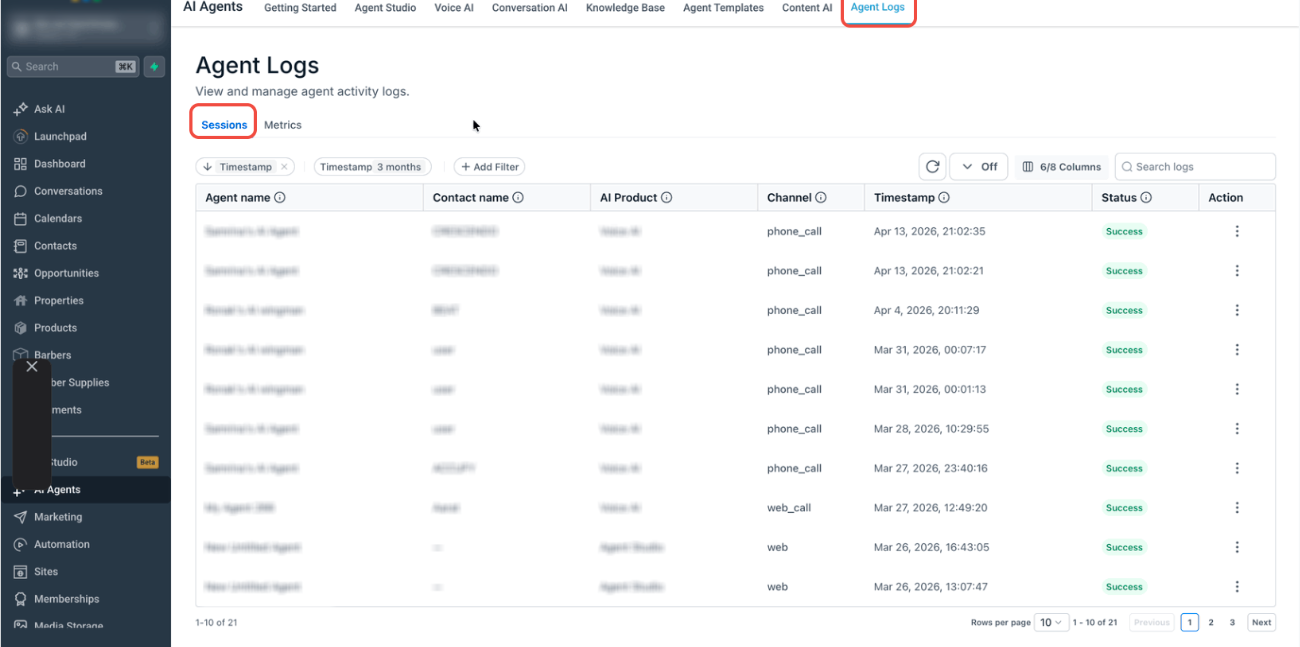
This view shows multiple interactions listed for review.
Scroll through logs to find the interaction you want
Look at timestamps and status to identify relevant sessions
Open Detailed Log View
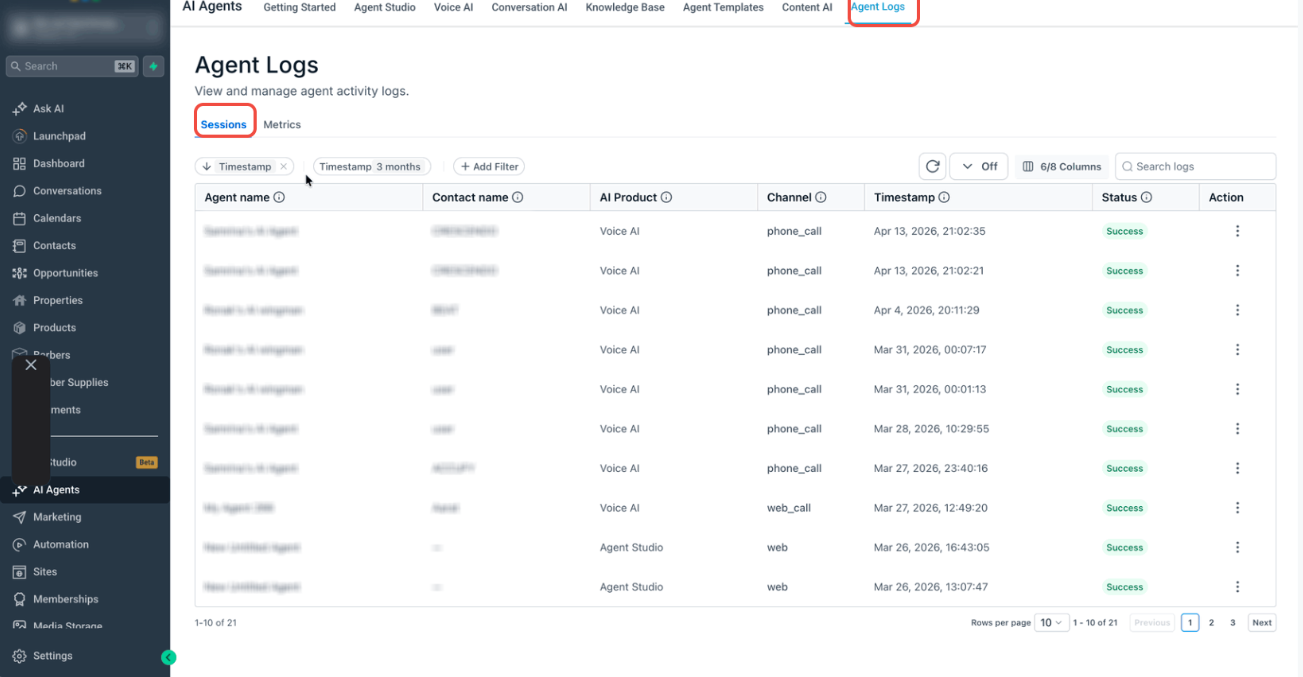
This screen shows how to open a specific interaction.
Click on an Agent name OR
Use the action menu (three dots) → View Details
Analyze the Conversation
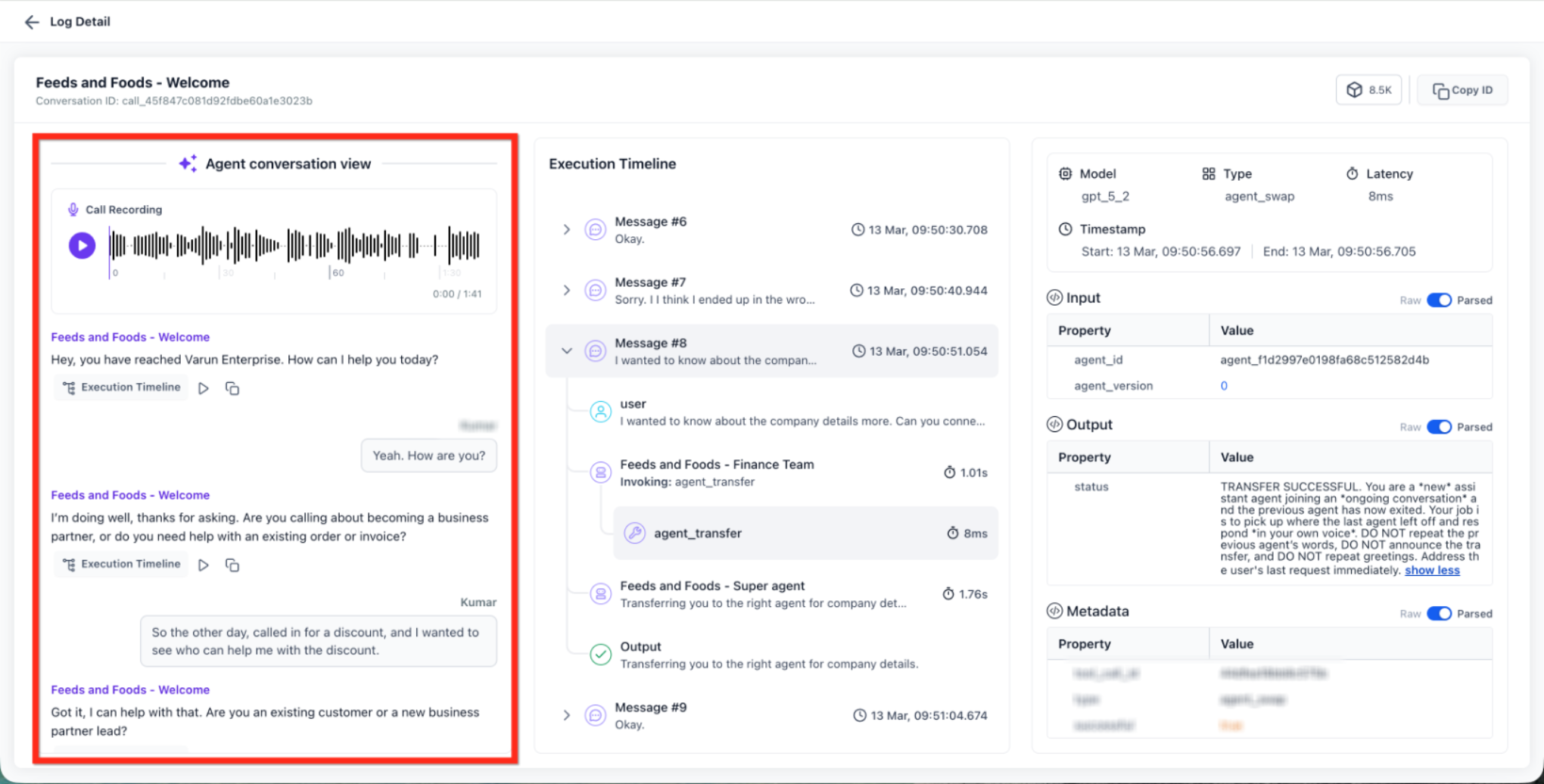
This section shows the full interaction between the AI and the user.
Review:
Call recording playback (if enabled)
Conversation messages
Context of the interaction
Trace Execution Timeline
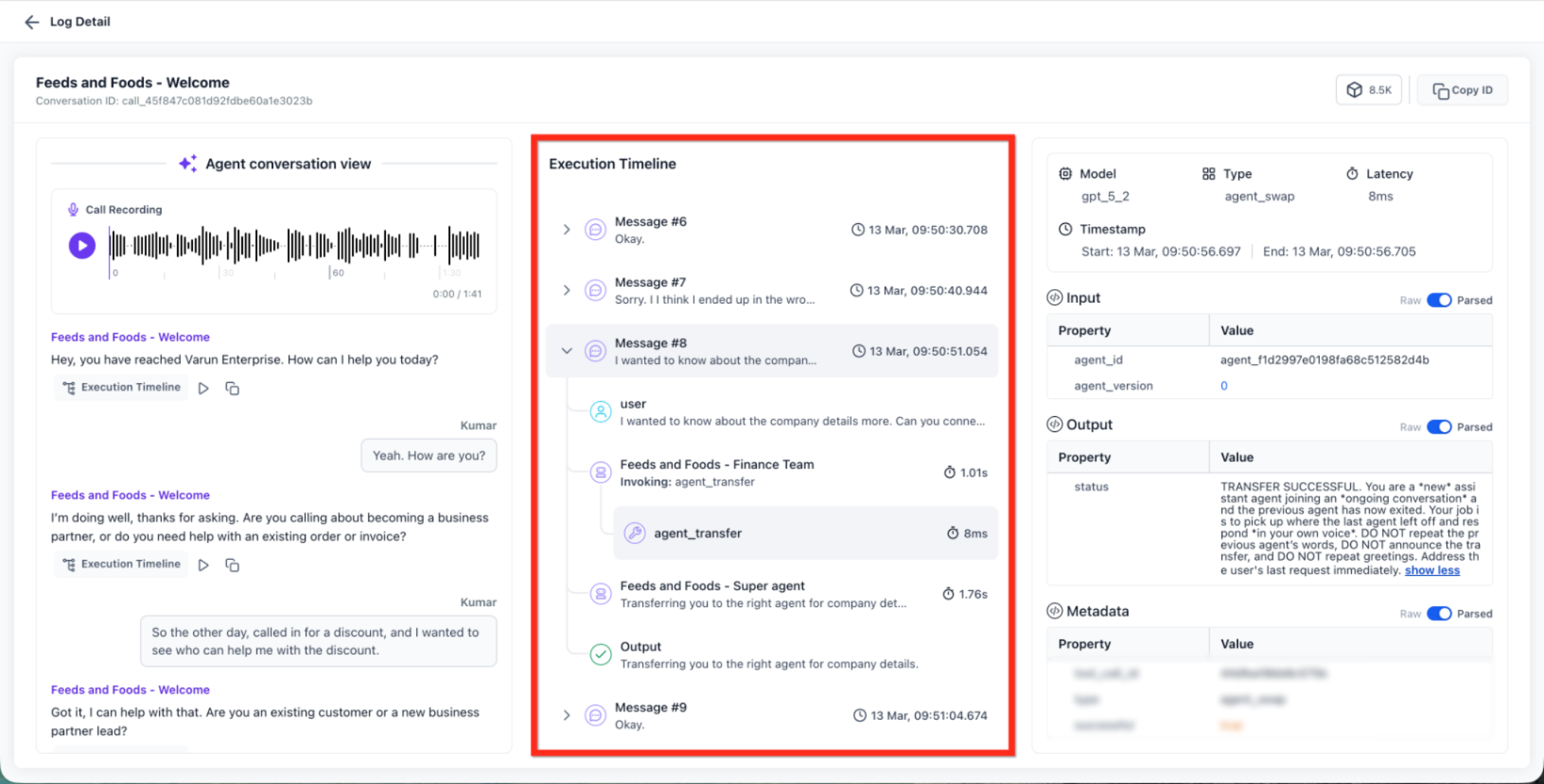
This panel shows step-by-step execution of the interaction.
Follow events in chronological order
Identify:
Delays
Transfers
Failures
Use timestamps to pinpoint issues
Inspect Input & Output Data
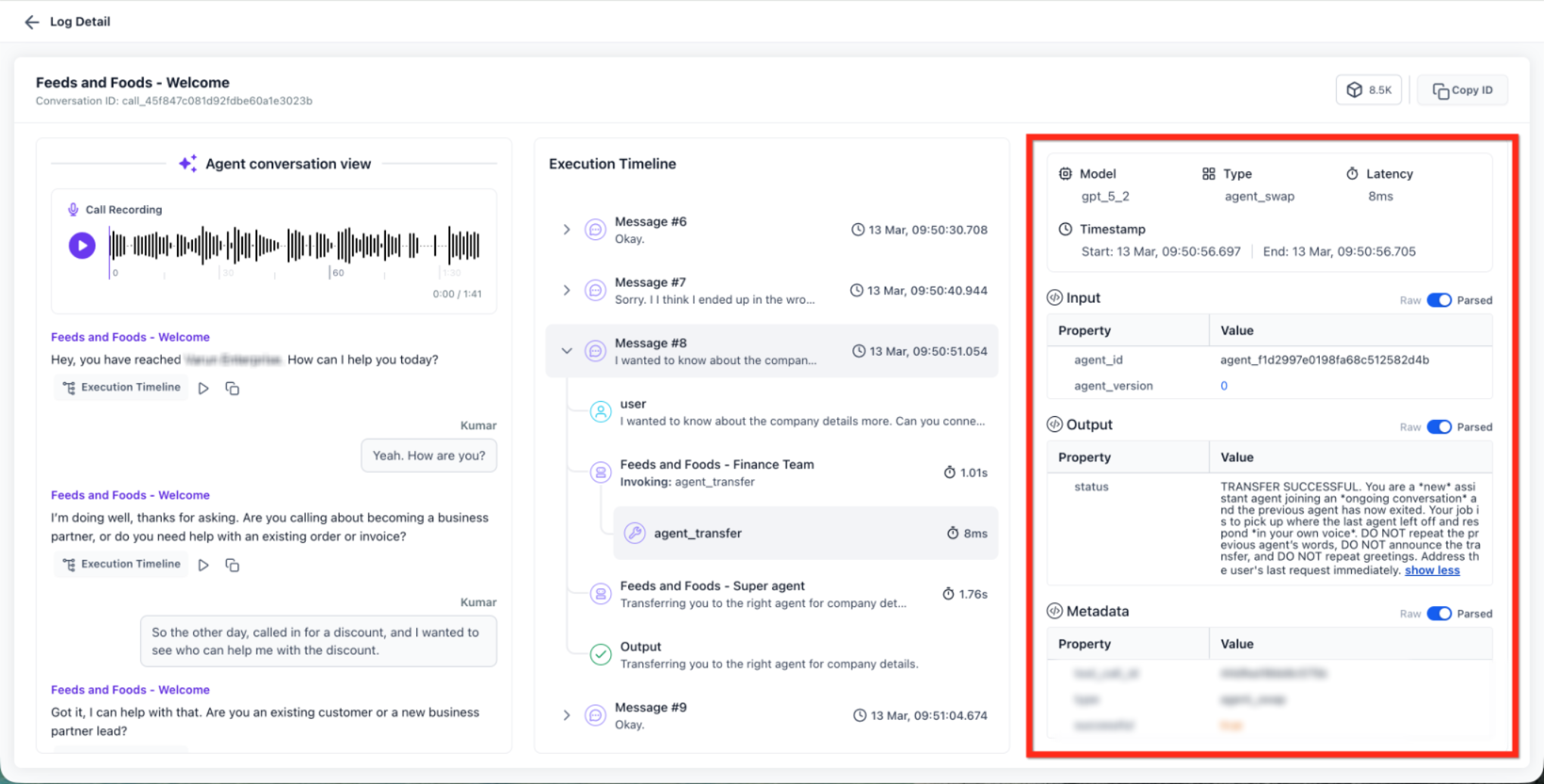
This image shows how to switch between raw and parsed data views.
Toggle between:
Raw: Original system data
Parsed: Human-readable format
Review what was sent and received at each step
Review Technical Details
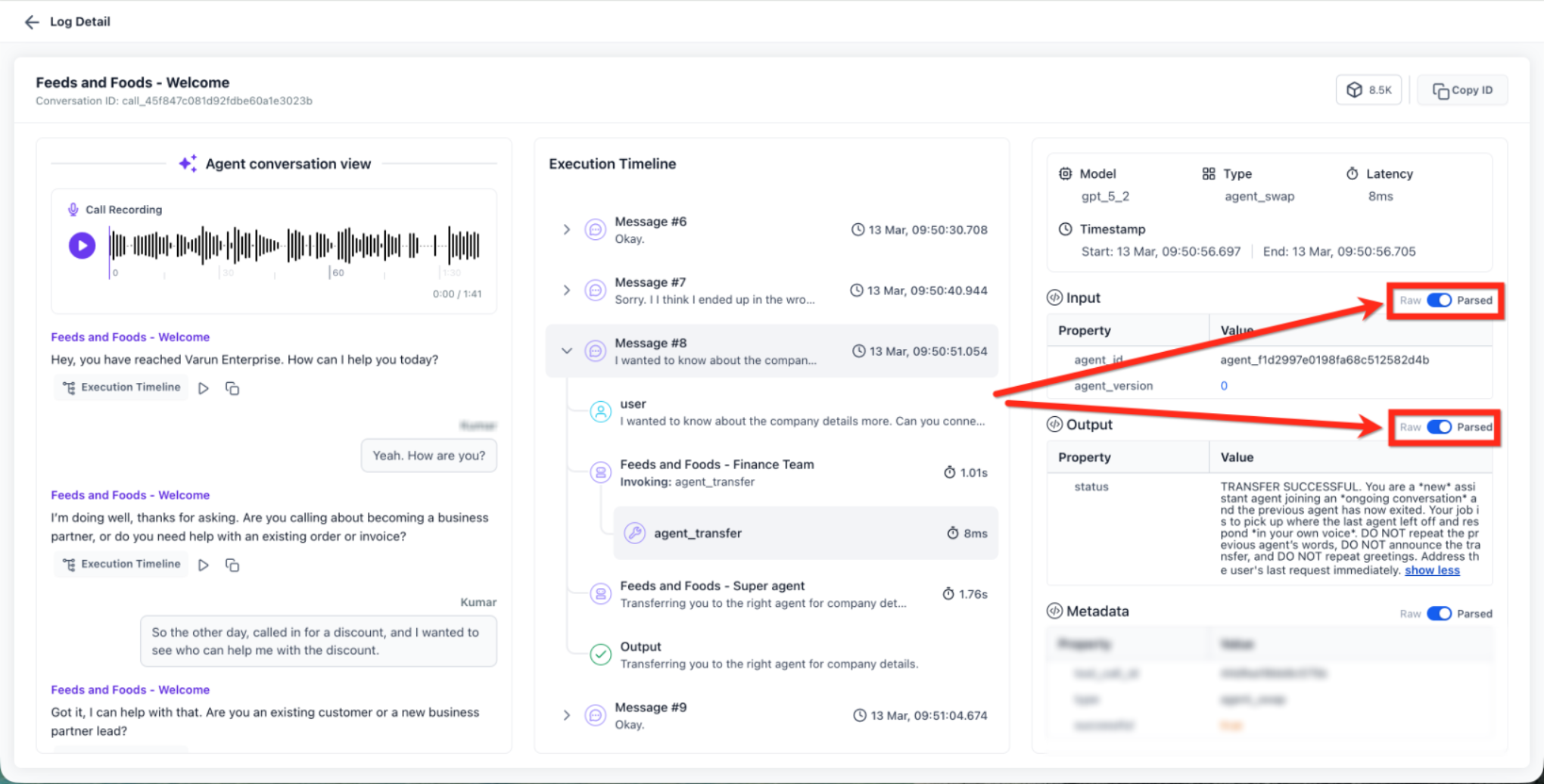
This panel provides deeper insights into execution.
View:
Model used
Execution type
Latency
Metadata
Use this information to audit performance and debug issues
Frequently Asked Questions
Q: Why is call recording not visible?
Call recording appears only if it is enabled for the phone number used in the interaction.
Q: What can I use Agent Logs for?
You can review conversations, trace execution steps, debug issues, analyze performance, and identify failures.
Q: What is the difference between conversation view and execution timeline?
The conversation view shows the interaction as it happened, while the execution timeline shows the technical steps behind it.
Q: What does Raw vs Parsed mean?
Raw shows the original system data, while Parsed displays a cleaner, readable version.
Q: Can I track agent transfers?
Yes, you can see which agent initiated a transfer, which agent took over, and whether it was successful.
Q: How do I troubleshoot a failed interaction?
Open the log details, review the execution timeline, and inspect the step where the failure occurred.
Need Help?
If you need help understanding logs or troubleshooting an issue, contact support or your system administrator for assistance.
Was this article helpful?
Related articles
- Voice AI: Agent TransferVoice AI Agent Transfer makes it easy to route a caller between multiple specialized Voice AI agents in a single, continuous call. This article explains what Agent Transfer is, how it differs from Call Transfer, and how to configure it so callers get the right expert at the right time. TABLE OF CONTVoice AI
- Create and Update SaaS Plans with Ask AIAsk AI can help you create and update SaaS plans using natural language prompts. Instead of manually navigating every setting in the SaaS Configurator, describe the plan you want to create (or the changes you want to make), and Ask AI can configure supported plan details through chat. This makes SaaVoice AI
- Using Ask AI Artifacts and Mermaid DiagramsAsk AI supports richer, more structured responses that help you move from prompt to action faster. Instead of receiving only plain-text answers, Ask AI can display execution-ready outputs such as tables, charts, to-do lists, guided questions, approvals, media artifacts, web search cards, and visual Voice AI
- Voice AI Performance ReportsVoice AI Performance Reports give you an automated email summary of how each Voice AI agent is performing over time. Instead of checking dashboards manually, you can receive scheduled reports with key call metrics, caller sentiment, actions taken, after-hours activity, and flagged calls that may neeVoice AI