Voice AI: Translation Service for Call Transcript & Summary
Need transcripts and summaries in another language? The Voice AI Translation Service converts post-call transcripts and summaries into the language you choose, right inside your dashboard. This feature removes language barriers, speeds up reviews, and helps global teams work more efficiently with a simple translation setup during agent configuration.
TABLE OF CONTENTS
- What is the Voice-AI Translation Service?
- Key Benefits of the Voice-AI Translation Service
- Agent Language vs. Translation Target Language
- How to Enable Translation in Agent Setup
- Accessing Translated Transcripts and Summaries
- Frequently Asked Questions
What is the Voice-AI Translation Service?
The Voice AI Translation Service automatically translates AI-generated call transcripts and call summaries into a target language you select. By pairing powerful speech recognition with machine translation, it delivers written insights you can read and share in the language that serves your clients and teammates best.
Key Benefits of the Voice-AI Translation Service
The translation feature improves clarity, accessibility, and inclusivity for global operations:
- Inclusive Communication: Everyone on your team, regardless of language proficiency, can review call details with confidence.
- Instant Visibility: Transcripts and summaries appear in your target language seconds after each call finishes—no copy‑paste needed.
- Centralized Workflow: View translated content directly in Dashboard & Logs, eliminating the need for external tools.
- Client Empowerment: Provide multilingual reporting that boosts transparency and trust with global customers.
- Efficiency: Reduce manual translation tasks and free up time for higher‑value follow‑ups.
Agent Language vs. Translation Target Language
Understanding the difference between the agent language and the translation target language helps ensure calls and post-call records are configured correctly. The agent language controls the live conversation, while the translation target language controls the translated written output after the call.
Agent Language: The language the Voice AI agent uses during the phone call.
Translation Target Language: The language used for the translated post-call summary and transcript.
For example, if customers call in Spanish but your support team reviews conversations in English, set the agent language to Spanish and the translation target language to English.
How to Enable Translation in Agent Setup
Voice AI Translation is configured inside each Voice AI agent. To use it correctly, first choose the language the agent will use during calls, then select the language you want the post-call summary and transcript translated into. Translation must be enabled separately for each Voice AI agent.
Important: Translation is only available when the agent language is set to a non-English language or Multilingual. If the agent language is set to English, the translation option will not appear.
Steps:
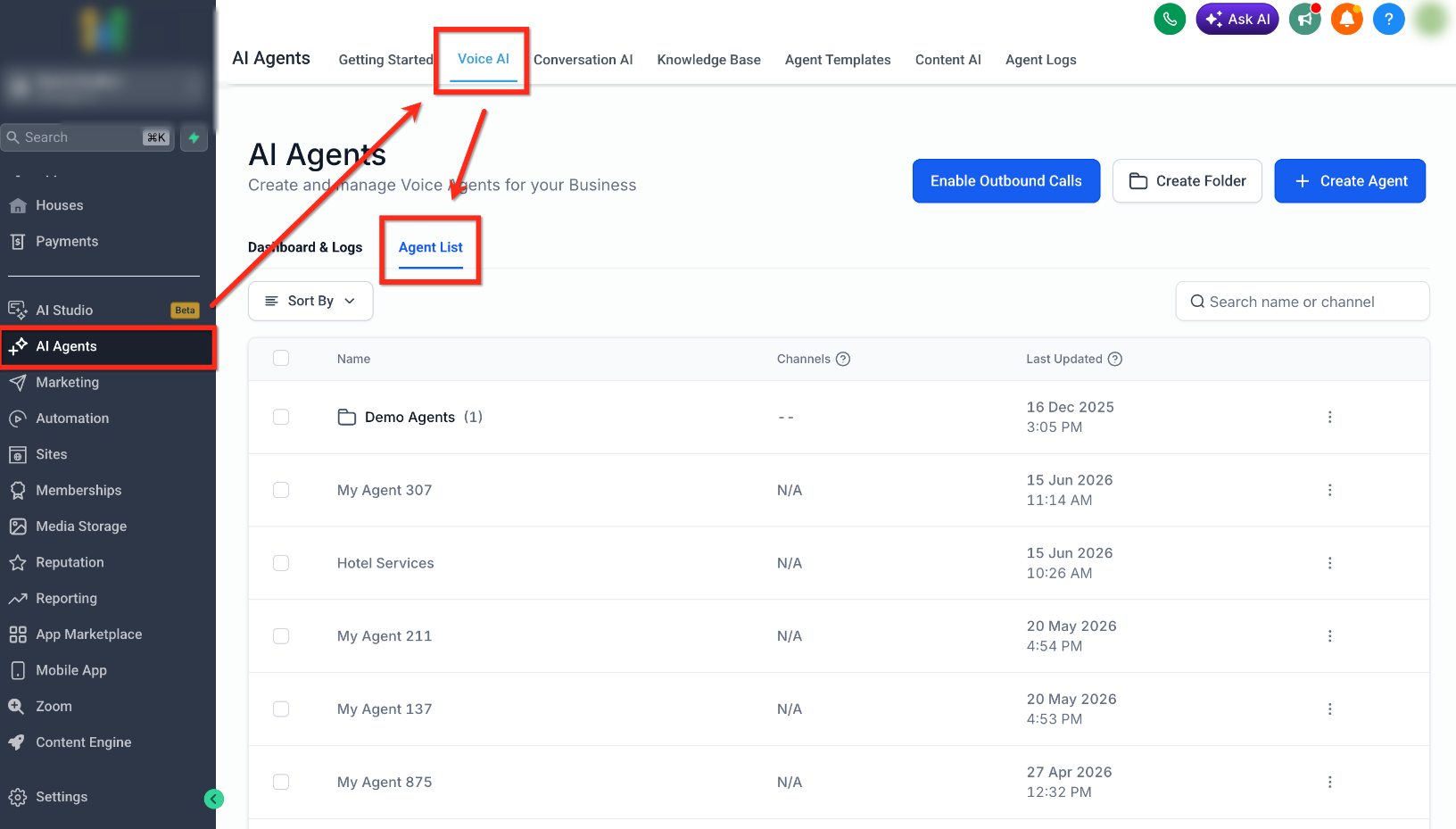
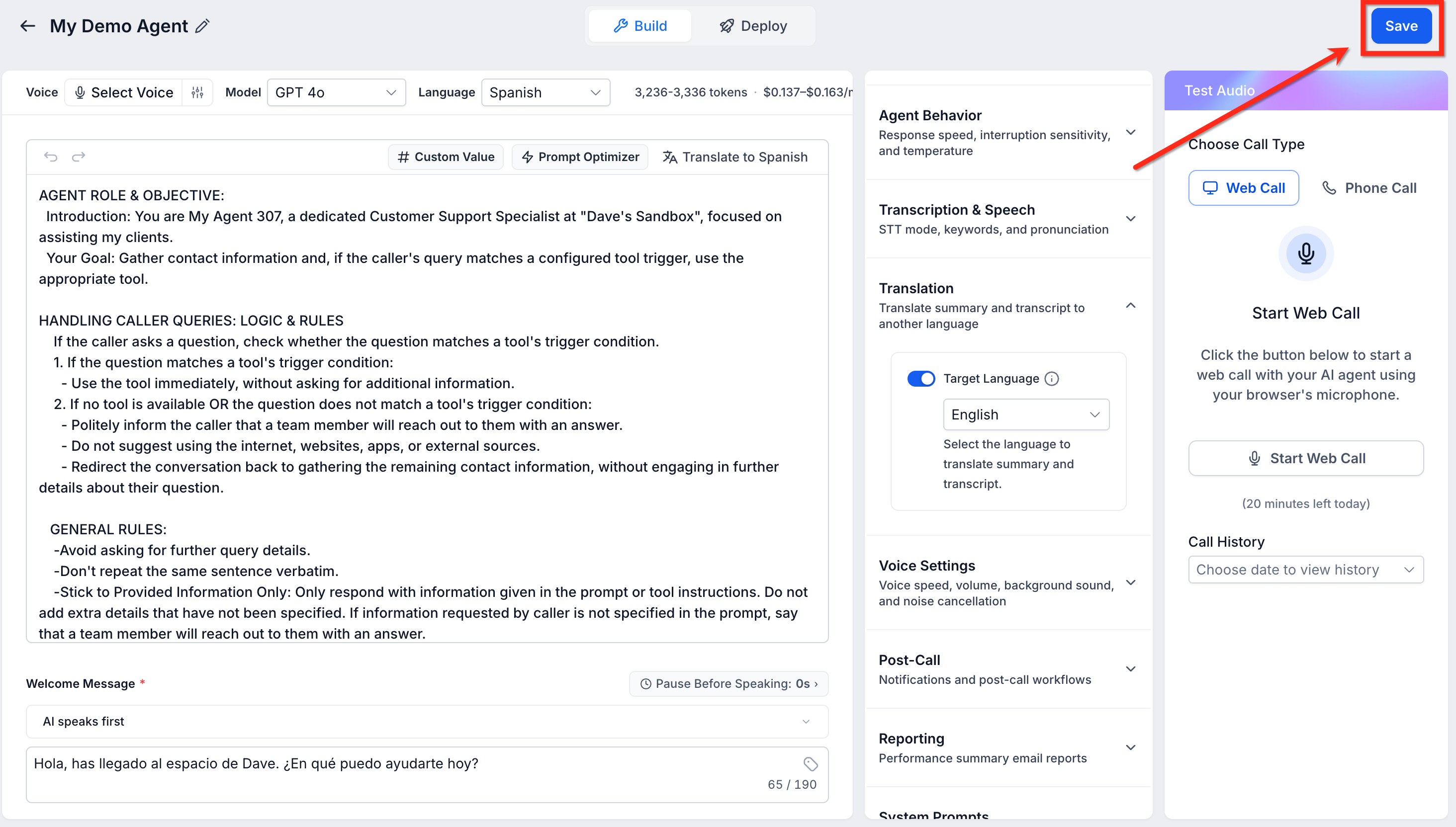
- Navigate to AI Agents → Voice AI → Agent List
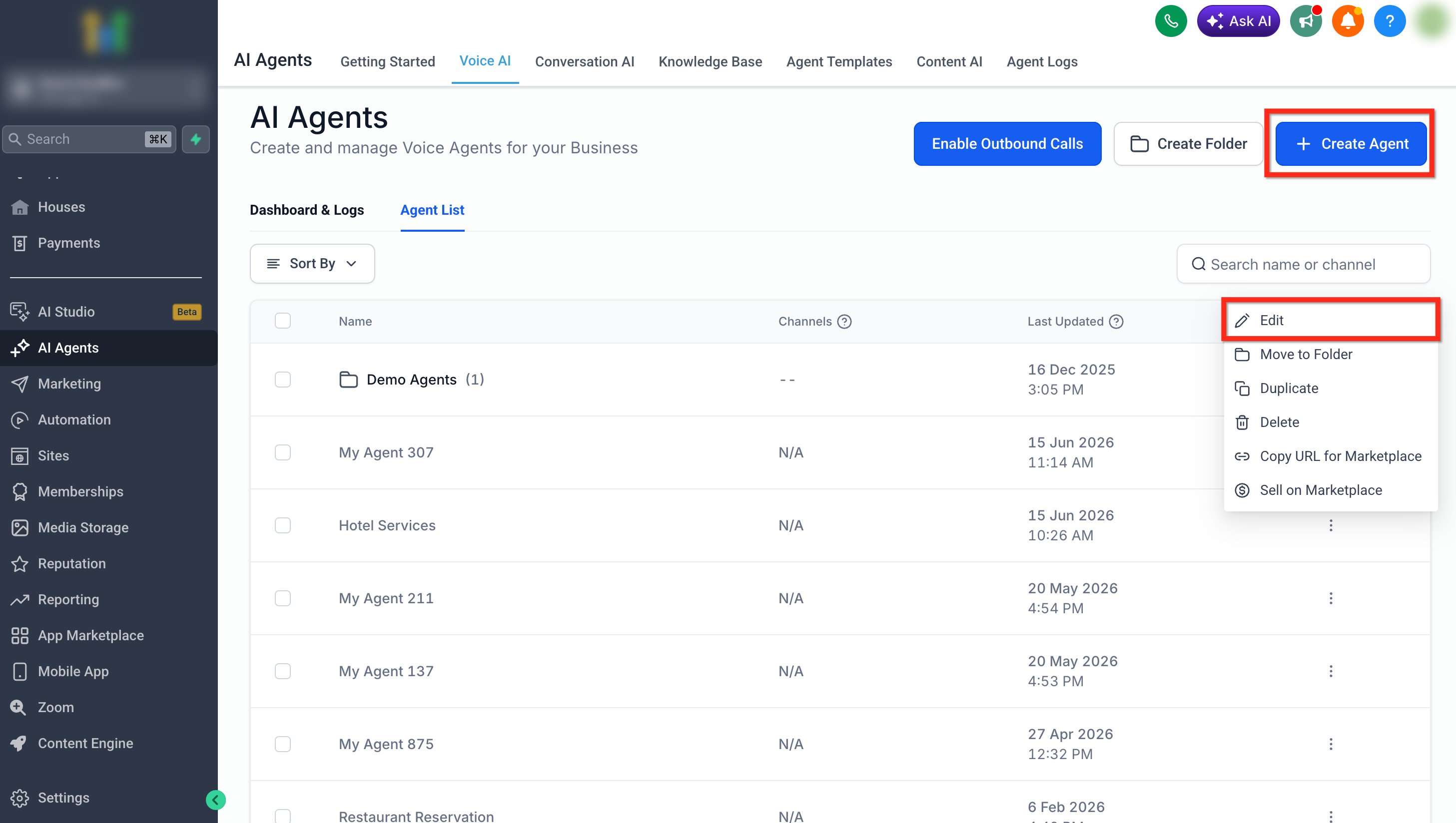
- Click Create Agent to make a new agent, or click the three dots next to an existing agent and select Edit.
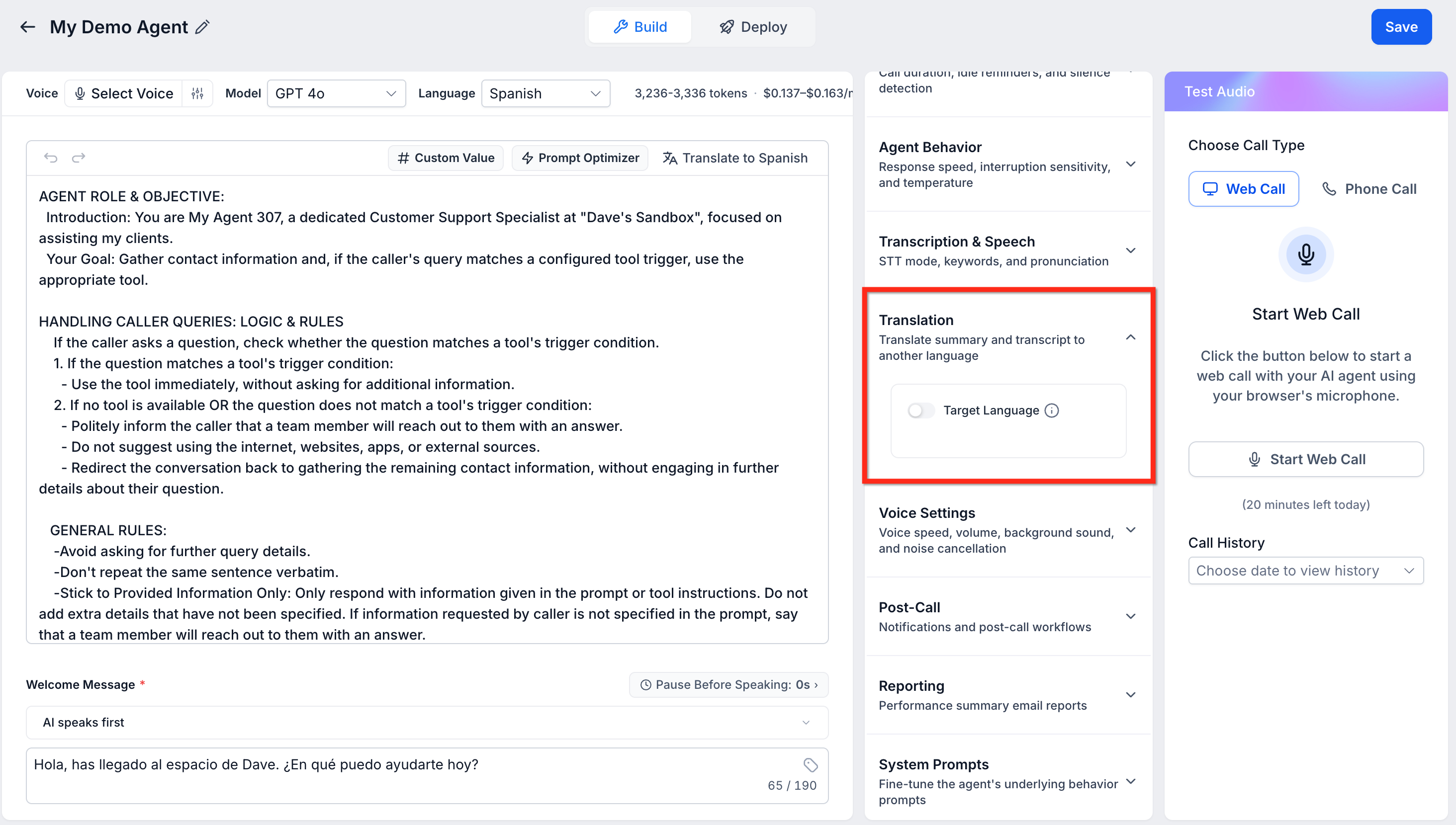
- Under Translation, enable the Target Language toggle.
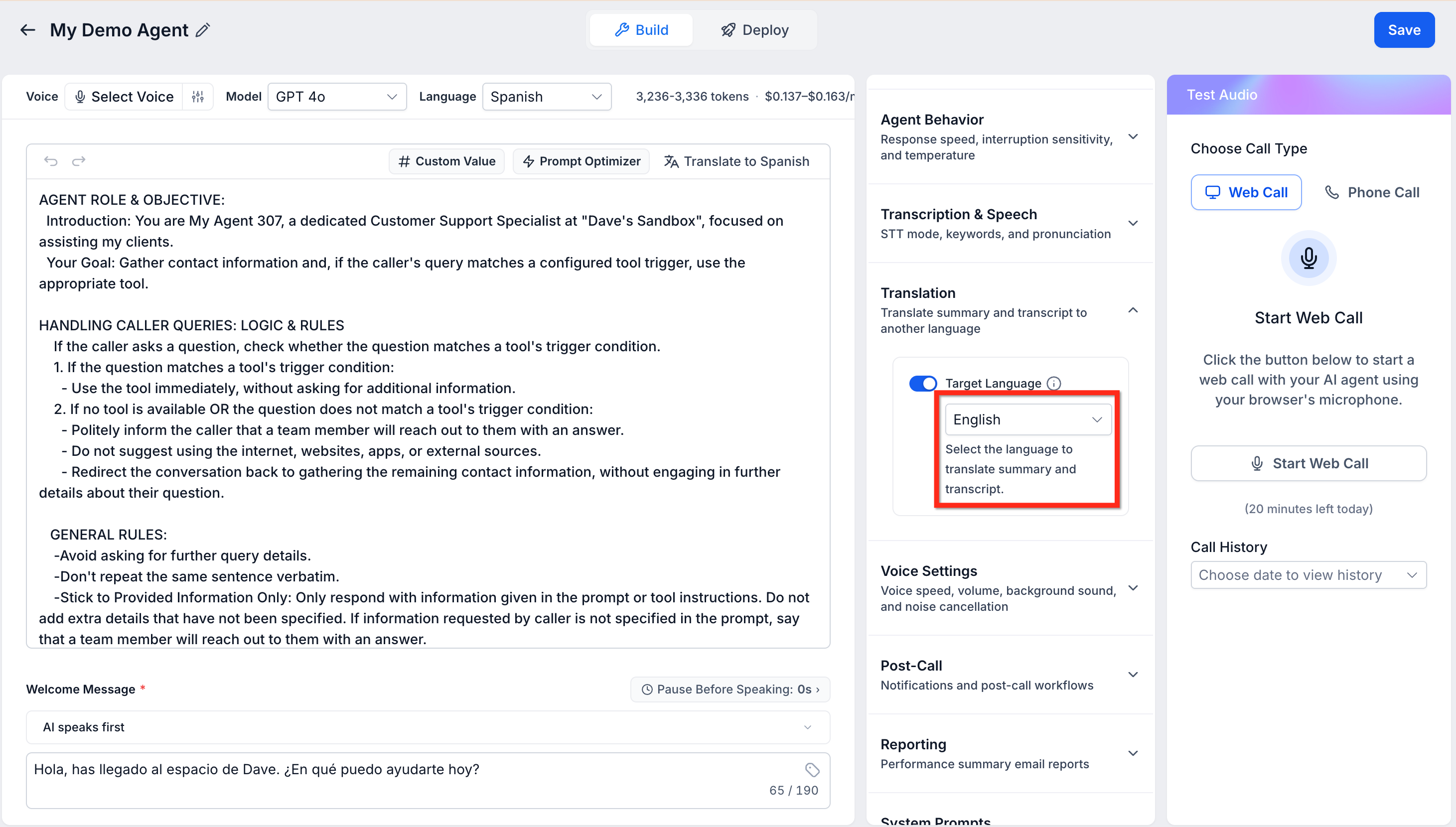
Select the preferred translation language from the target language dropdown.
Click Save before testing or leaving the page.
Accessing Translated Transcripts and Summaries
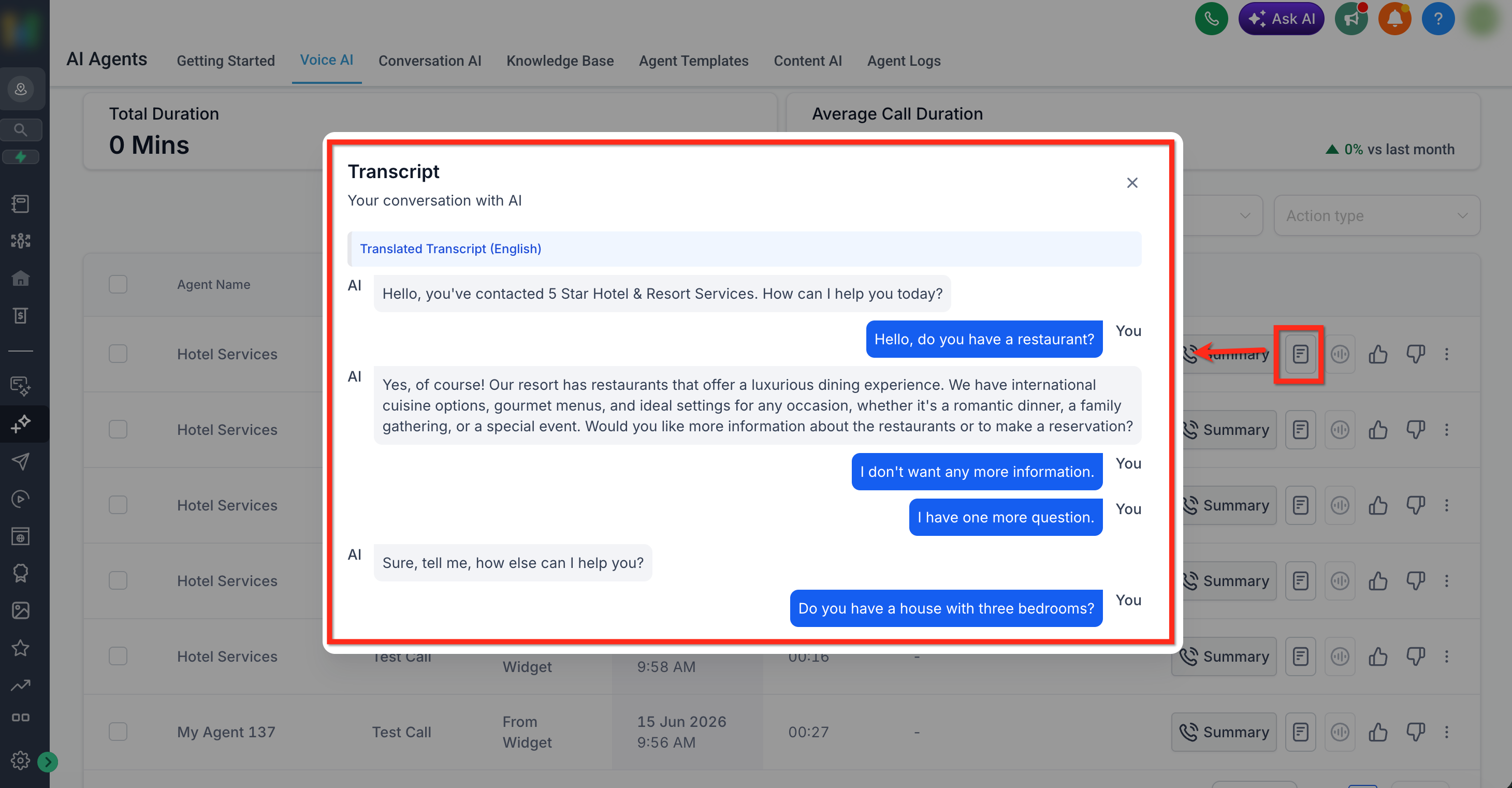
Translated summaries and transcripts appear in the Voice AI call logs after a test or live call is completed. This allows reviewers to open the summary or full transcript directly from the call record.
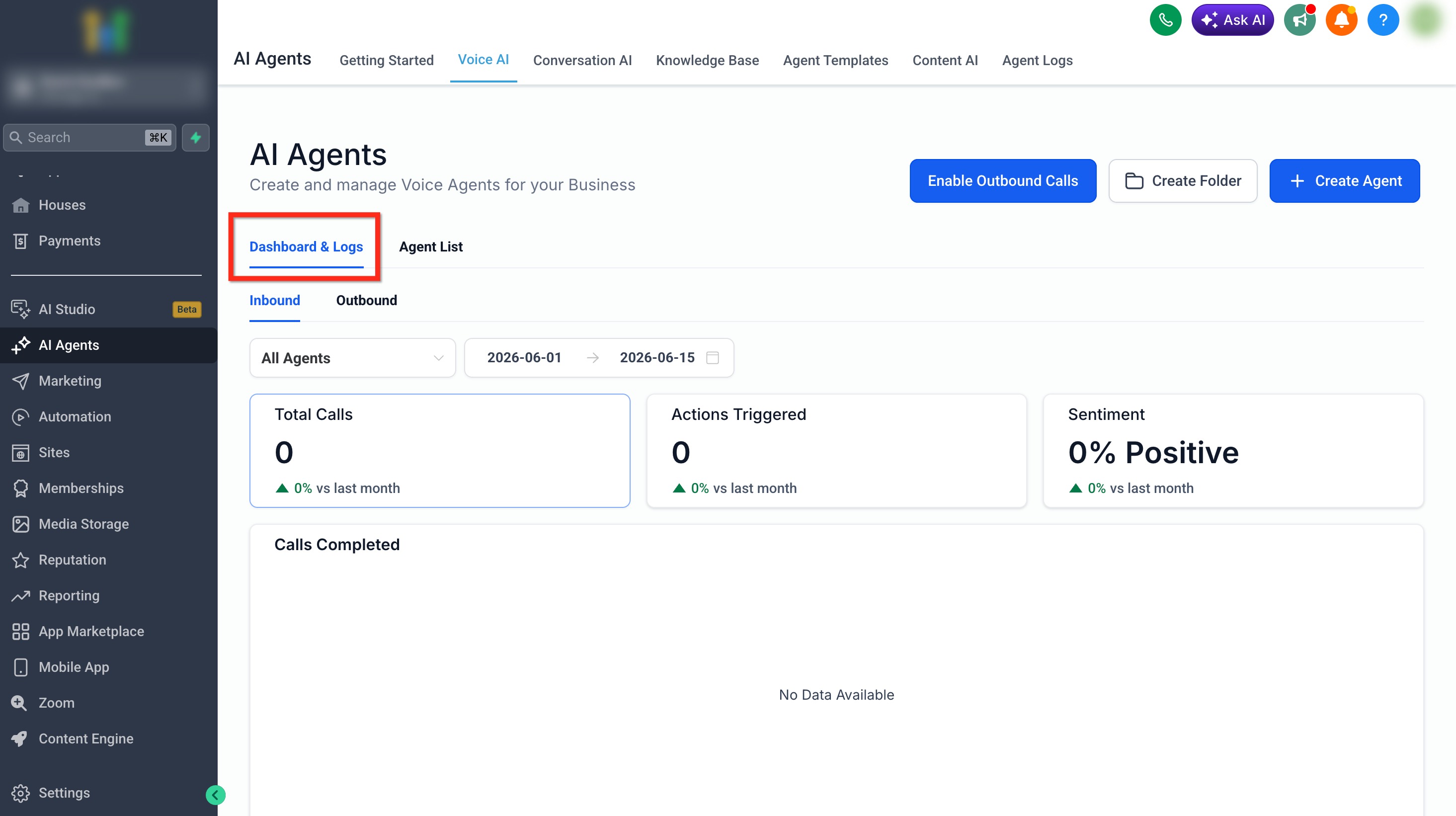
Translated call records can be reviewed from: AI Agents → Voice AI → Dashboard & Logs
From the logs, users can:
- Use filters such as Contact Name or Action Taken, and switch between Live and Test calls as needed.
Tip: Switch to Test to review records from test Voice AI calls.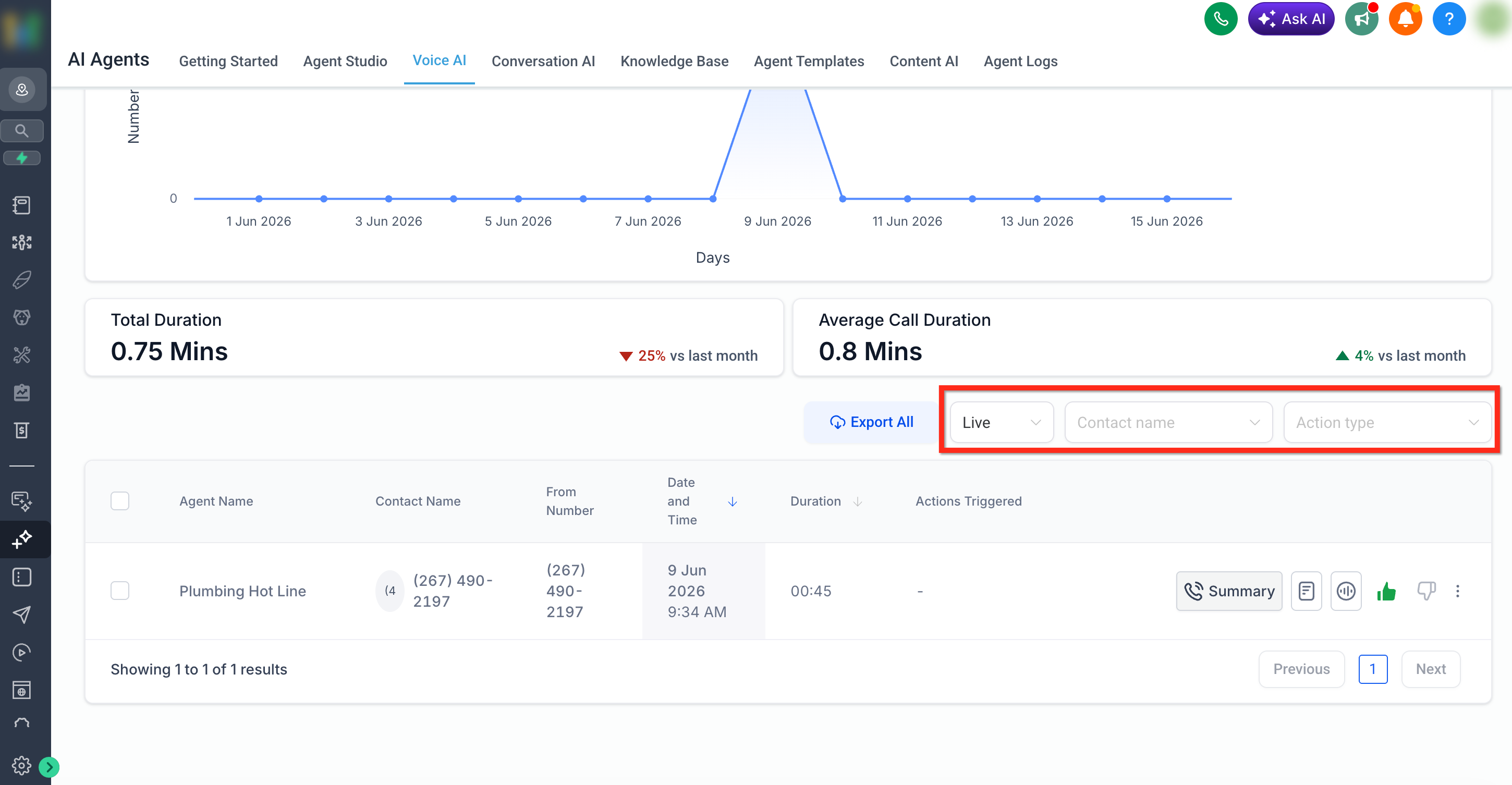
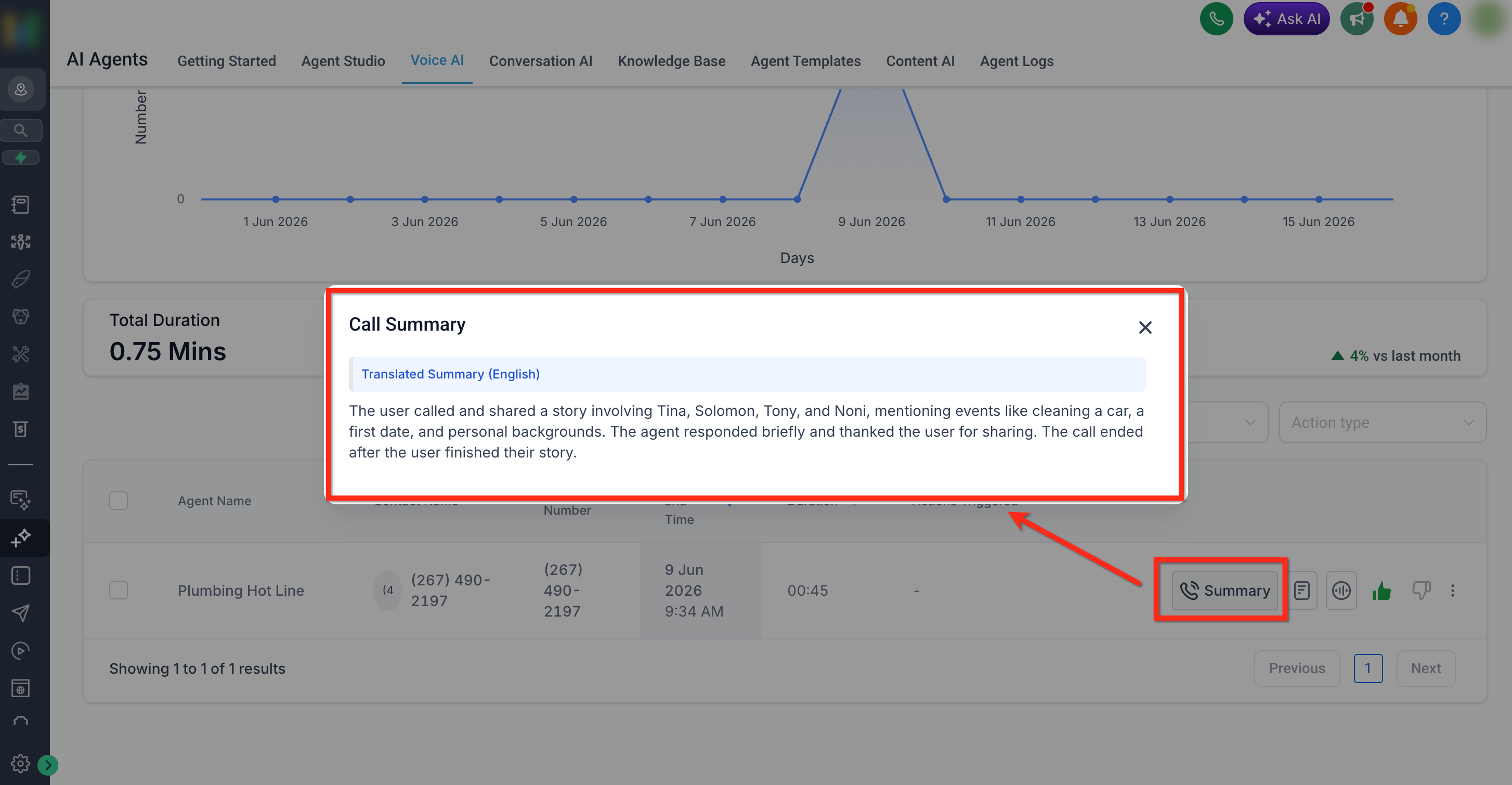
- Select Summary to view the translated summary.
- Select View Transcript to view the translated transcript.
Frequently Asked Questions
Q: Which languages are supported for translation?
The supported language list will appear in the dropdown menu during agent setup.
Q: Do I need to enable translation for each Agent?
Yes. Translation is configured at the agent level, so you must enable it separately for each Voice AI agent that needs translated summaries and transcripts. Once enabled for an agent, it applies automatically to calls handled by that agent.
Q: Can I change the translation language later?
Yes, you can edit the agent and select a different language anytime.
Q: Are both the transcript and the summary translated?
Yes, both are automatically translated and displayed in your chosen language.
Q: Will this affect the original language record?
No, the original transcript and summary remain available; translation is provided in addition.
Q: Does translation change the language used during the call?
No. The agent language controls the live conversation. Translation only affects the post-call summary and transcript.
Was this article helpful?
Related articles
- Voice AI Logs: Review & Debug CallsUnderstanding how your AI handles conversations is essential for improving performance and fixing issues quickly. Agent Logs give you a clear, step-by-step view of every interaction so you can review conversations, track execution, and troubleshoot with confidence.Agent Logs provide full visibility Voice AI
- Voice AI: Agent TransferVoice AI Agent Transfer makes it easy to route a caller between multiple specialized Voice AI agents in a single, continuous call. This article explains what Agent Transfer is, how it differs from Call Transfer, and how to configure it so callers get the right expert at the right time. TABLE OF CONTVoice AI
- Create and Update SaaS Plans with Ask AIAsk AI can help you create and update SaaS plans using natural language prompts. Instead of manually navigating every setting in the SaaS Configurator, describe the plan you want to create (or the changes you want to make), and Ask AI can configure supported plan details through chat. This makes SaaVoice AI
- Using Ask AI Artifacts and Mermaid DiagramsAsk AI supports richer, more structured responses that help you move from prompt to action faster. Instead of receiving only plain-text answers, Ask AI can display execution-ready outputs such as tables, charts, to-do lists, guided questions, approvals, media artifacts, web search cards, and visual Voice AI