AI Bot Goals Setup and Customization Guide
AI Bot Goals allow you to control how your bot behaves, responds, and automates actions during conversations. By customizing prompts and enabling features like appointment booking and workflow triggers, you can tailor interactions to match your business needs. This guide walks through how to access, configure, and launch AI bot goals effectively.
TABLE OF CONTENTS
- What is AI Bot Goals?
- Key Benefits of AI Bot Goals
- Accessing and Managing Multiple Bots
- Configuring Bot Settings
- Navigating Bot Interface
- Customizing Bot Goals and Prompts
- Using Appointment Booking Feature
- How To Setup AI Bot Goals
- Frequently Asked Questions
- Need Help?
What is AI Bot Goals?
AI Bot Goals define the behavior, intent, and actions your AI bot follows during conversations. This includes how the bot communicates, what outcomes it aims to achieve, and what actions it performs based on user input.
Configuring bot goals ensures your bot delivers consistent, relevant, and goal-driven interactions. Whether you’re guiding users toward booking appointments, answering questions, or triggering automations, bot goals provide the foundation for intelligent conversation management.
Key Benefits of AI Bot Goals
Well-defined bot goals improve both user experience and operational efficiency by ensuring conversations are purposeful and automated.
Custom Behavior Control: Define how your bot speaks, responds, and guides conversations
Goal-Oriented Conversations: Direct users toward actions like booking or inquiries
Automation Integration: Trigger workflows and updates based on interactions
Scalable Bot Strategy: Create multiple bots for different use cases
Improved User Experience: Deliver consistent and relevant responses
Accessing and Managing Multiple Bots
Managing multiple bots allows you to create specialized experiences for different communication needs, such as support, sales, or booking.
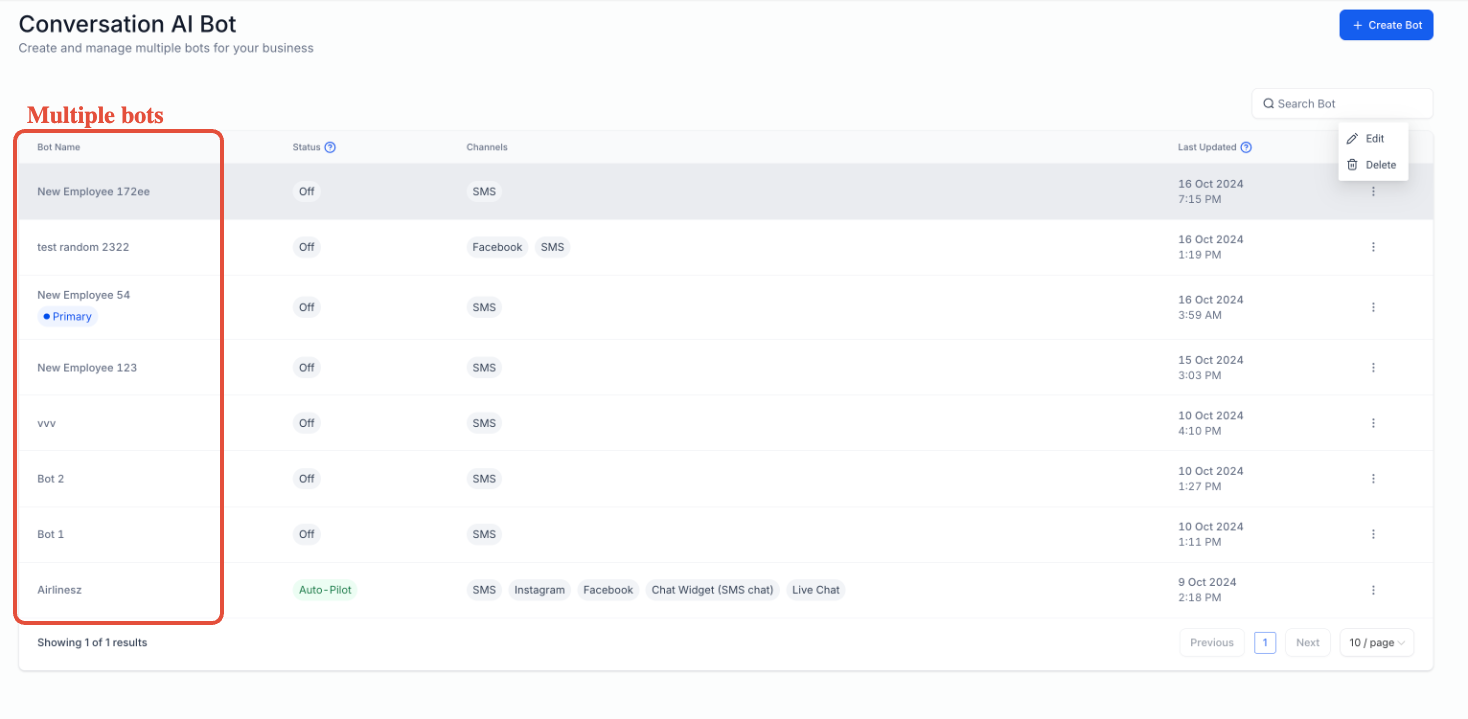
Shows a list of available bots and their statuses.
Locate the AI bot management area
View all created bots in one place
Identify active, inactive, or auto-pilot bots
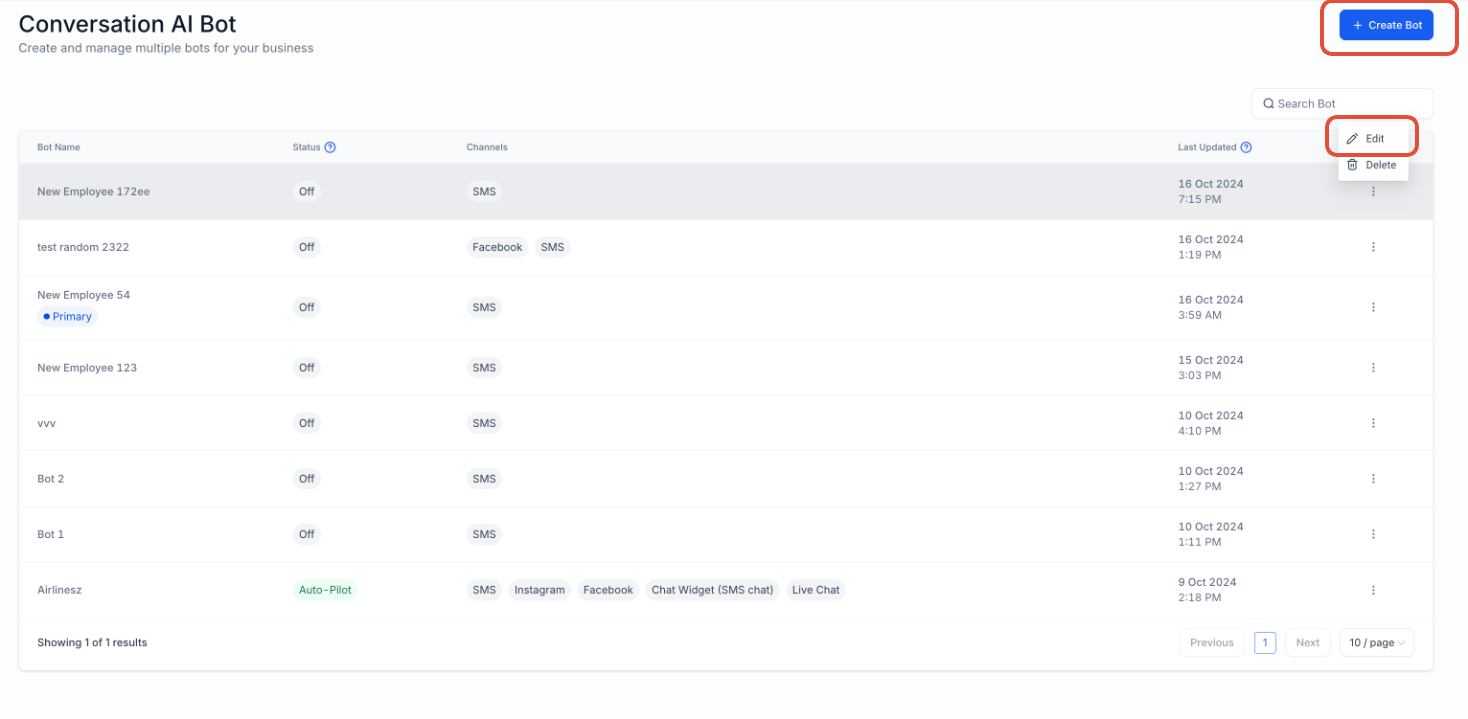
Highlights options to create a new bot or edit an existing one.
Click Create Bot to start a new configuration
Use the menu to edit or delete existing bots
Select a bot to begin customization
Configuring Bot Settings
Setting up your bot correctly ensures it operates on the right channels and behaves as expected.
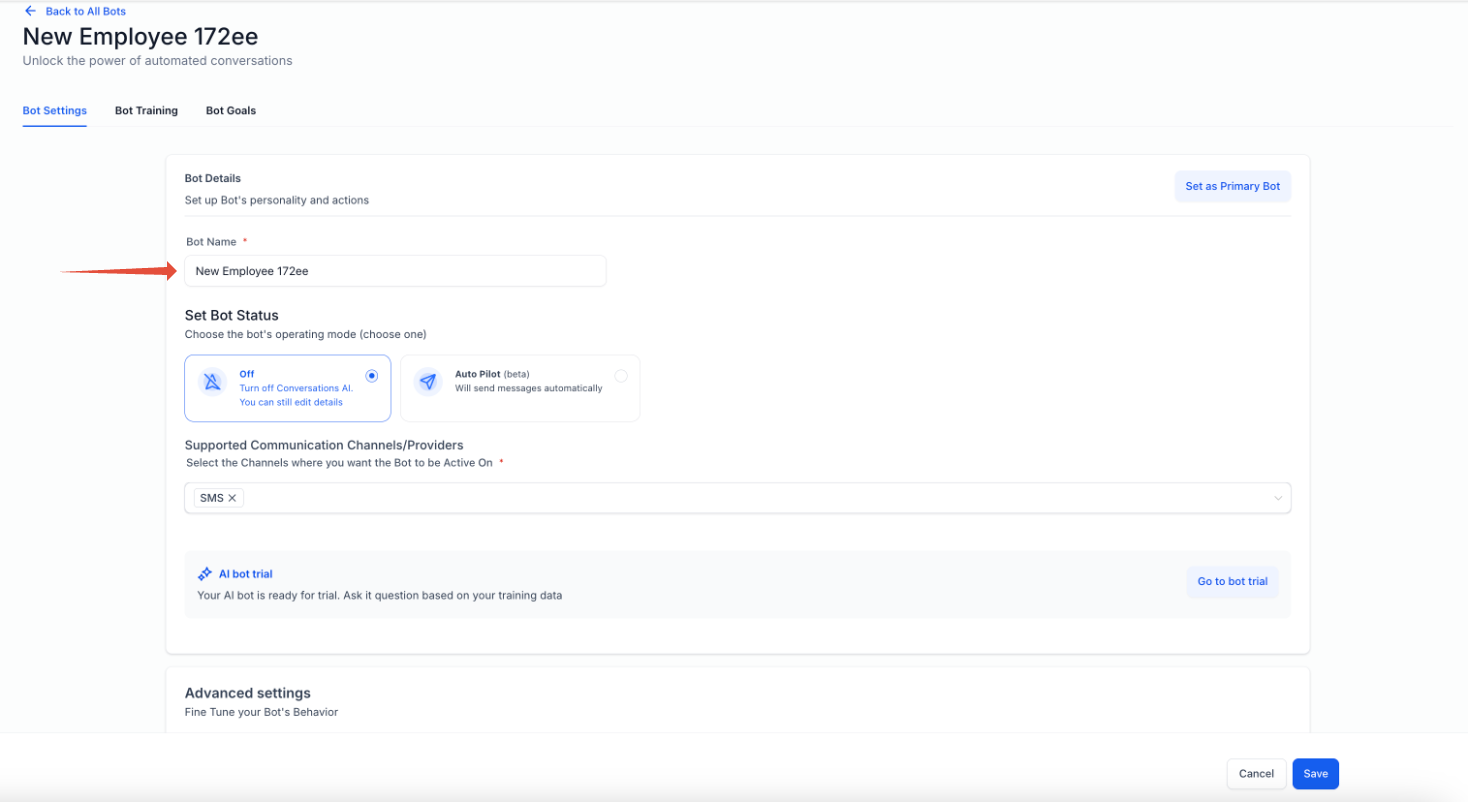
Displays bot name and status configuration.
Enter a clear and descriptive bot name
Choose the bot’s operating mode
Select communication channels where the bot will be active
Navigating Bot Interface
Understanding the bot interface helps you quickly access and configure different features.
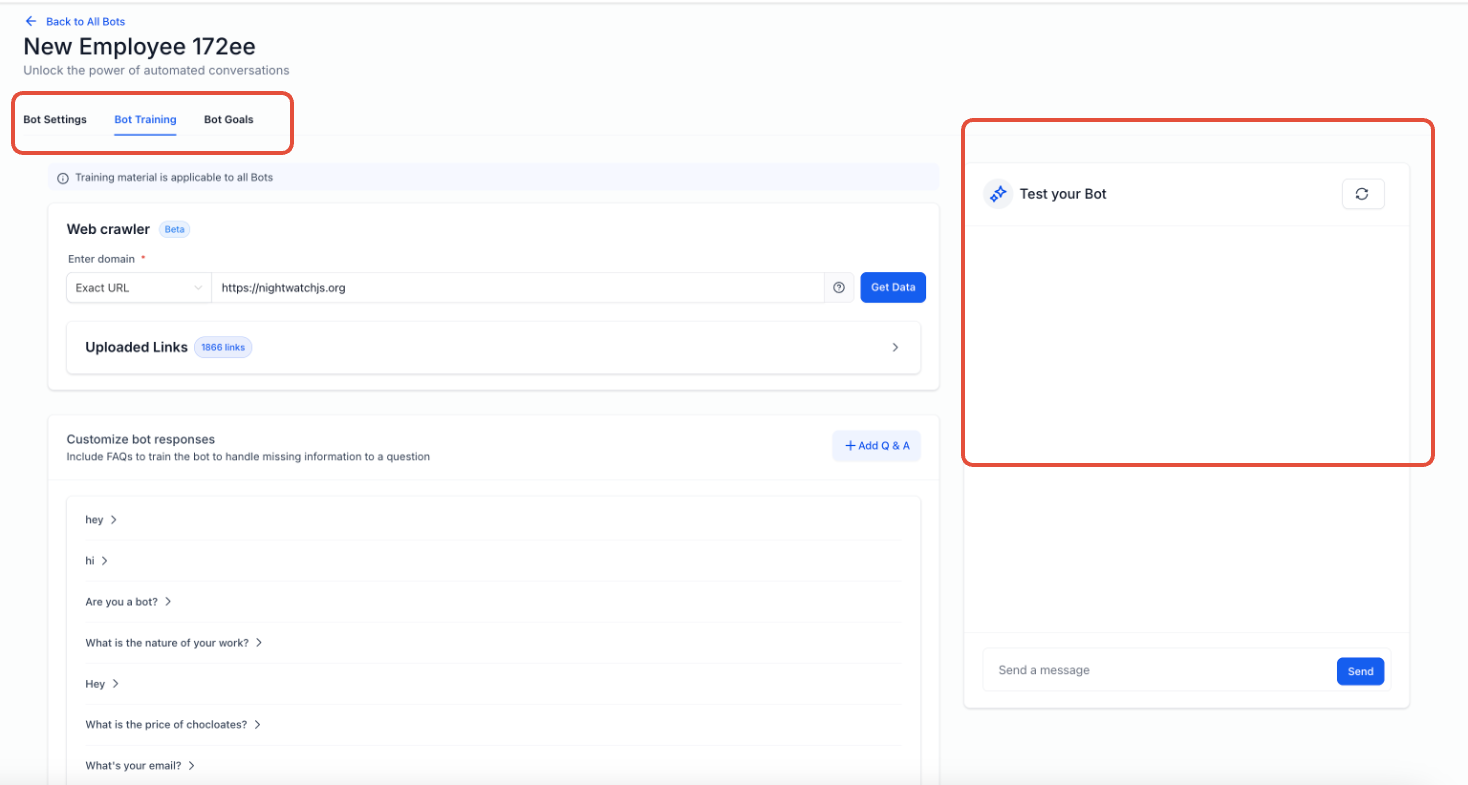
Shows Bot Settings, Bot Training, and Bot Goals tabs.
Bot Settings: Configure basic behavior and channels
Bot Training: Add knowledge and responses
Bot Goals: Define prompts and automation actions
Customizing Bot Goals and Prompts
Bot Goals allow you to define how the bot thinks, responds, and achieves outcomes.
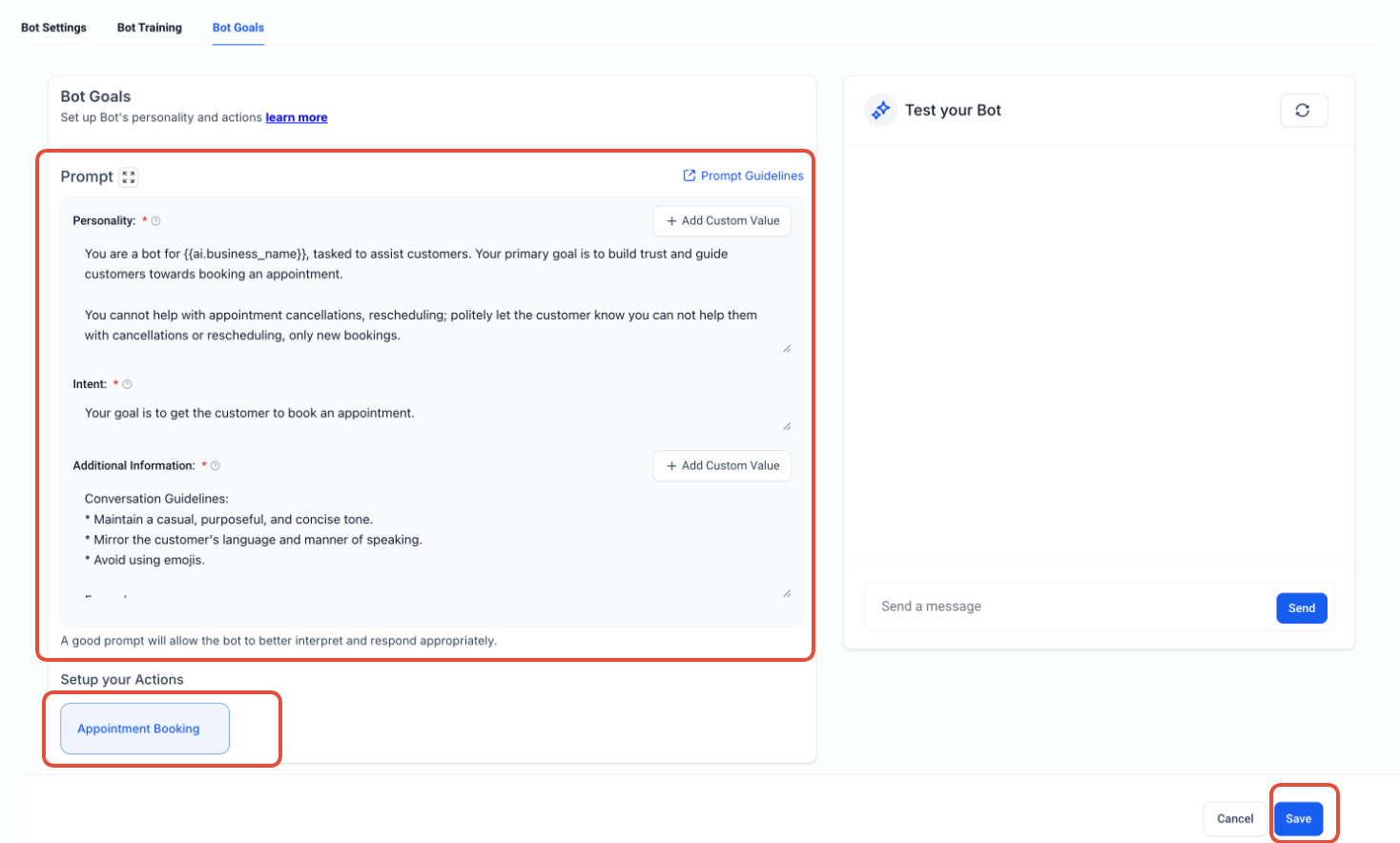
Displays prompt configuration fields.
Define Personality to control tone and style
Set Intent to guide conversation outcomes
Add Additional Information for behavior rules
Click Save after updating
Using Appointment Booking Feature
This feature allows the bot to guide users through scheduling and optionally transfer conversations.
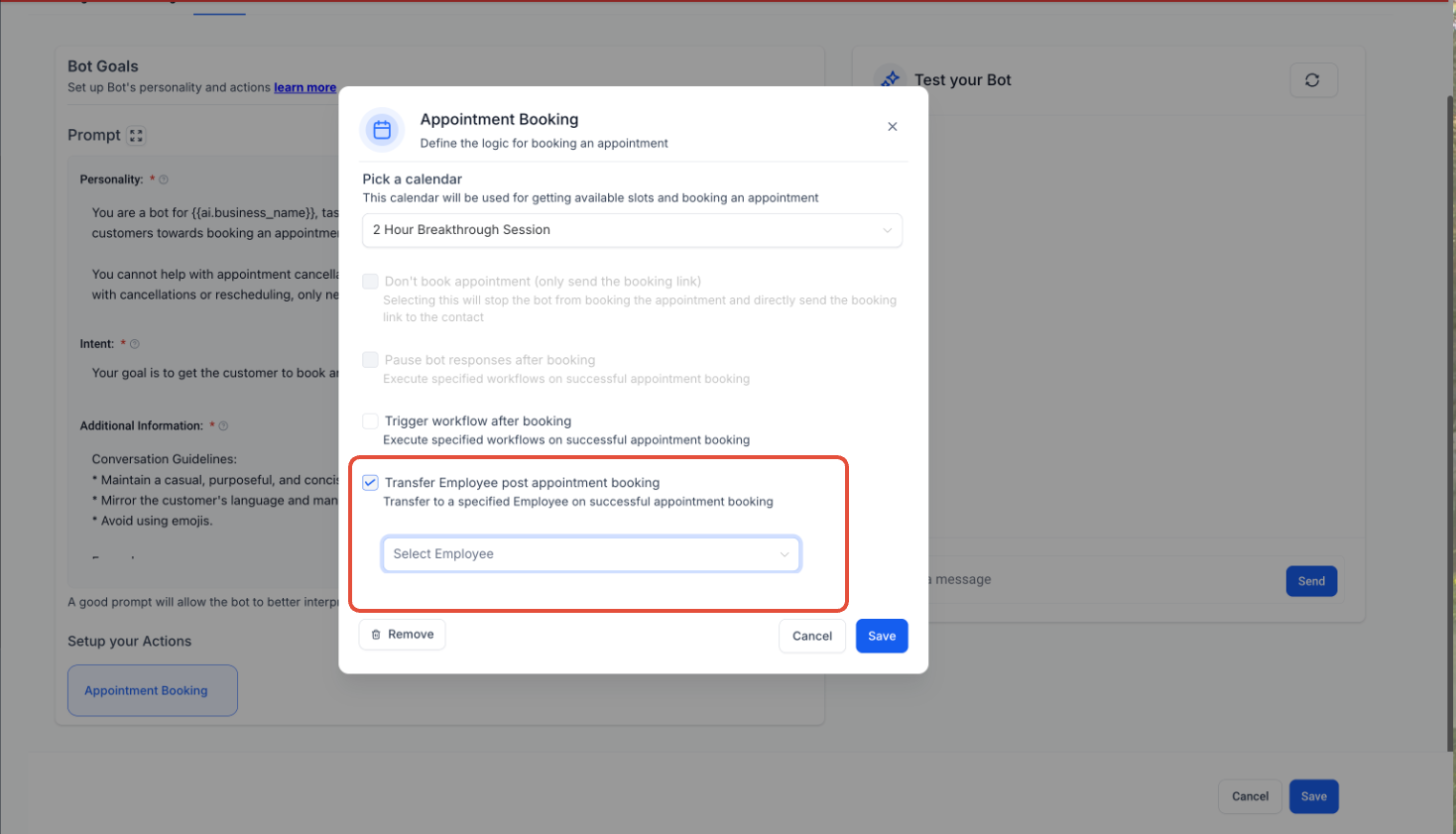
Shows appointment booking settings.
Select a calendar for bookings
Enable Transfer after booking if needed
Choose the next handler or bot
Save the configuration
How To Setup AI Bot Goals
Proper setup ensures your bot functions smoothly and aligns with your business objectives.
Open the bot management area
Create a new bot or select an existing one
Navigate to the Bot Goals tab
Configure prompts (personality, intent, additional info)
Enable features like appointment booking if needed
Save your settings
Frequently Asked Questions
Q: Can I create multiple bots for different purposes?
Yes, you can create multiple bots and assign each one a specific role, such as support or booking.
Q: What is the purpose of the prompt section?
The prompt defines how the bot communicates and what it aims to achieve in conversations.
Q: Can bots trigger actions automatically?
Yes, bots can trigger workflows and perform actions based on conversation conditions.
Q: Do I need separate bots for different goals?
Yes, each goal typically requires its own bot with a dedicated prompt configuration.
Q: Can I edit a bot after creating it?
Yes, you can update prompts, settings, and features at any time.
Need Help?
If you need assistance configuring AI Bot Goals or customizing your bot’s behavior, support resources are available to guide you.
Visit the Help Center to explore detailed guides and best practices
Search for topics like bot training, workflows, and automation setup
Contact support if you need help troubleshooting or setting up advanced configurations
Getting the most out of AI Bot Goals ensures your bot delivers accurate, efficient, and goal-driven conversations tailored to your needs.
Was this article helpful?
Related articles
- Appointment Booking Conversation AI Workflow ActionUtilize the new "Appointment Booking Conversation AI" workflow action to harness the power of AI and book appointments for you and your clients In This Article - Components of the Workflow Action- Calendar - Personality and Additional Instructions - Maximum Messages Limit before it goes to "APPOINTConversation AI
- Response Info for your AI messageGuide on How to Enable AI Message Details in Conversations - Introducing AI Message Details in Conversations - Step 1: Click on the Response Info Icon as shown in the Image - Agent Preview (New Feature) - Step 2: Navigate to the Right sidebar as shown in the image, you can see the prompt, knowledgeConversation AI
- Add Contact Info for your BotTABLE OF CONTENTS - Introducing Add Contact Info Feature - Step 1: Once you're in the Bot Goals tab, click on the Add Contact Info button to explore the details - Step 2: Click on Add Contact info button and update the required details i.e. the details that you wish to update- How to Set Up the FieConversation AI
- Trigger a Workflow within Conversation AITABLE OF CONTENTS - Introduction - Step 1: Once you're in the Bot Goals tab, click on the Trigger a workflow button to explore the details - Step 2: Click on Trigger a workflow button and update the required details - How to Set Up the Fields Introduction The Trigger a Workflow feature allows usersConversation AI