How to Add name, email, and phone in the prompt
To collect name, email and phone number from your contact - follow the steps and add these lines directly into your prompt.
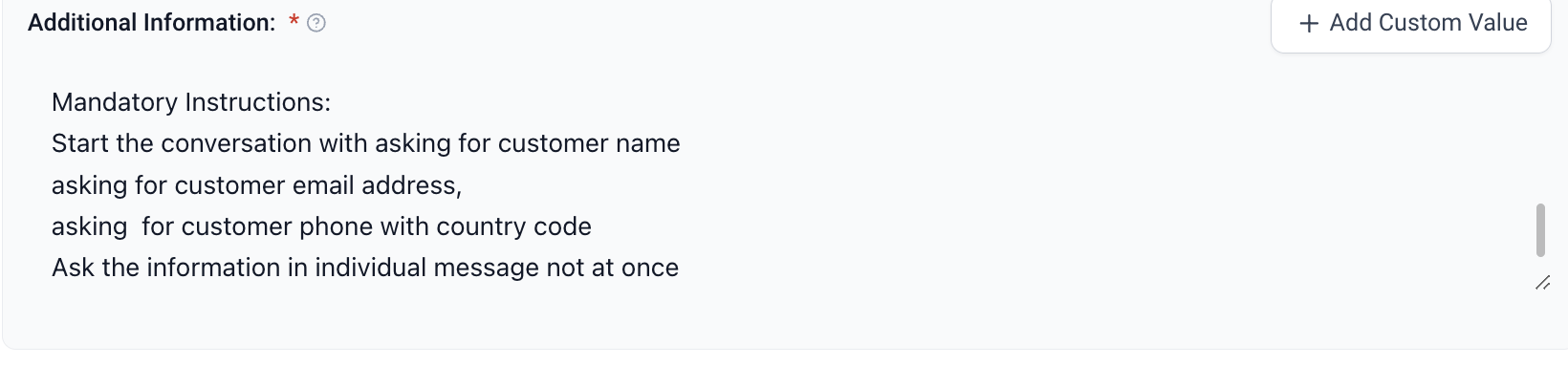
Lets say you want to collect name , email , phone Add this in the prompt to make sure the bot asks these questions Start the prompt from ### mandatory instruction
###mandatory instruction : before booking an appointment always start the conversation by asking these question one after another
1. Ask the customer his name
2. Ask the customer his email
3. Ask the customer his phone
Example.
Was this article helpful?
Related articles
- Appointment Booking Conversation AI Workflow ActionUtilize the new "Appointment Booking Conversation AI" workflow action to harness the power of AI and book appointments for you and your clients In This Article - Components of the Workflow Action- Calendar - Personality and Additional Instructions - Maximum Messages Limit before it goes to "APPOINTConversation AI
- Response Info for your AI messageGuide on How to Enable AI Message Details in Conversations - Introducing AI Message Details in Conversations - Step 1: Click on the Response Info Icon as shown in the Image - Agent Preview (New Feature) - Step 2: Navigate to the Right sidebar as shown in the image, you can see the prompt, knowledgeConversation AI
- Add Contact Info for your BotTABLE OF CONTENTS - Introducing Add Contact Info Feature - Step 1: Once you're in the Bot Goals tab, click on the Add Contact Info button to explore the details - Step 2: Click on Add Contact info button and update the required details i.e. the details that you wish to update- How to Set Up the FieConversation AI
- Trigger a Workflow within Conversation AITABLE OF CONTENTS - Introduction - Step 1: Once you're in the Bot Goals tab, click on the Trigger a workflow button to explore the details - Step 2: Click on Trigger a workflow button and update the required details - How to Set Up the Fields Introduction The Trigger a Workflow feature allows usersConversation AI