Conversation Views: Save Filters, Work Faster
Conversation Views let you save frequently used conversation filters as reusable views, making it faster to focus on the messages that matter most. You can create views for unassigned conversations, specific channels, tags, or other filter combinations, then return to them without rebuilding the filters each time. Views are private by default, while admins can share selected views with other users when team access is needed.
TABLE OF CONTENTS
Feature Overview
- Unassigned conversations
- Conversations from specific channels
- High-priority chats based on specific tags.
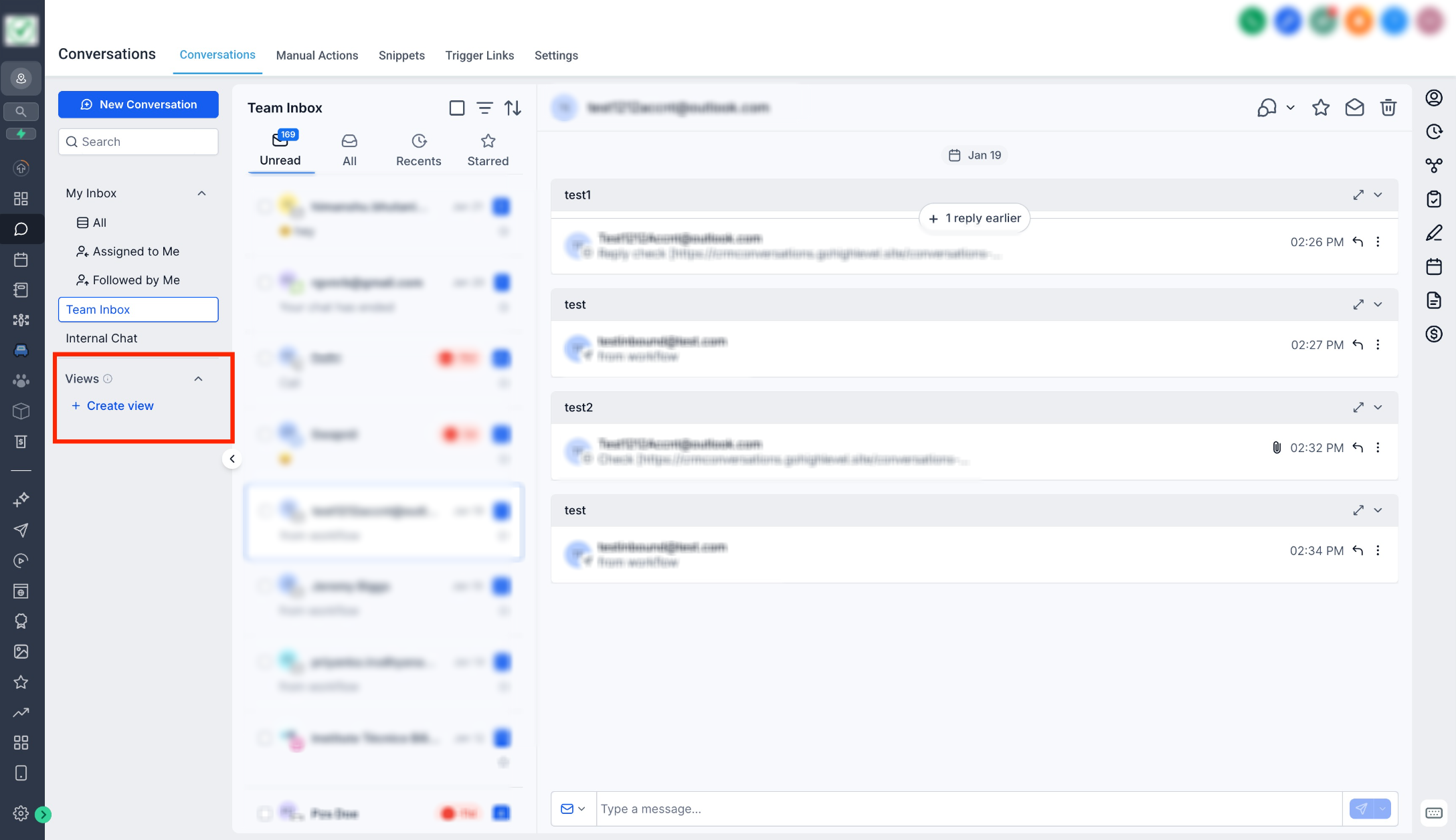
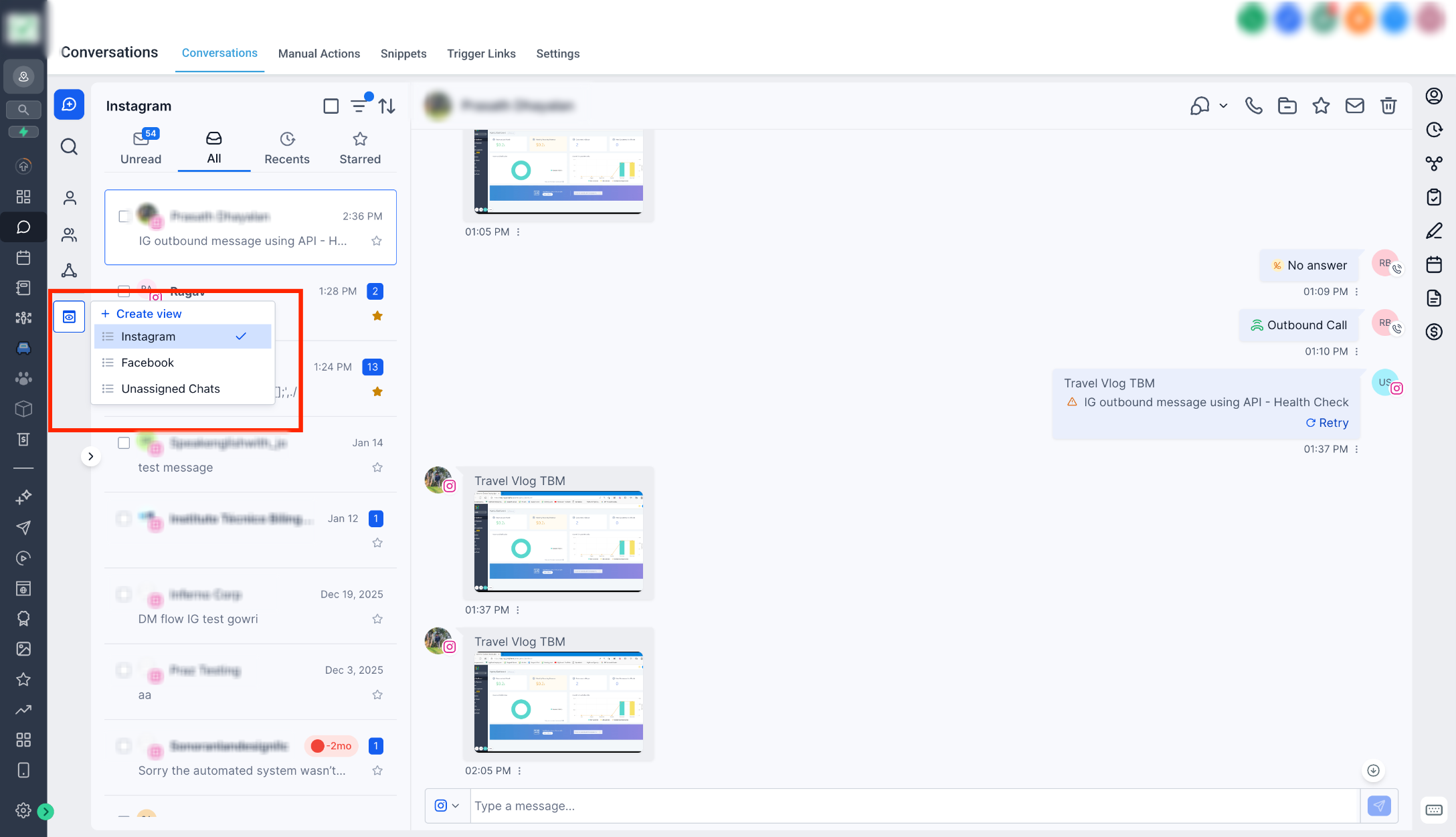
- Open Conversations and go to the Views section in the Inbox panel. Click + Create View.
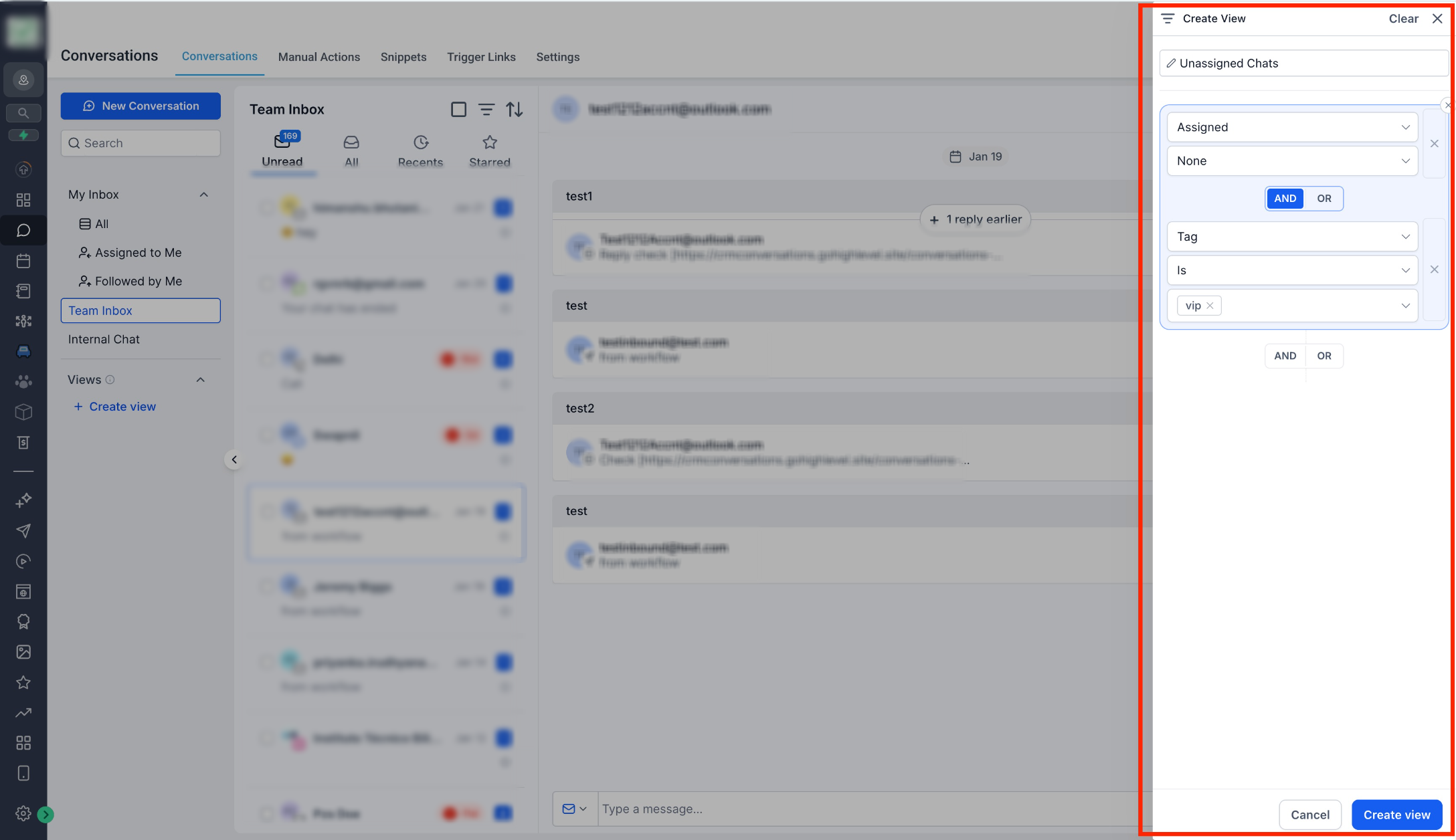
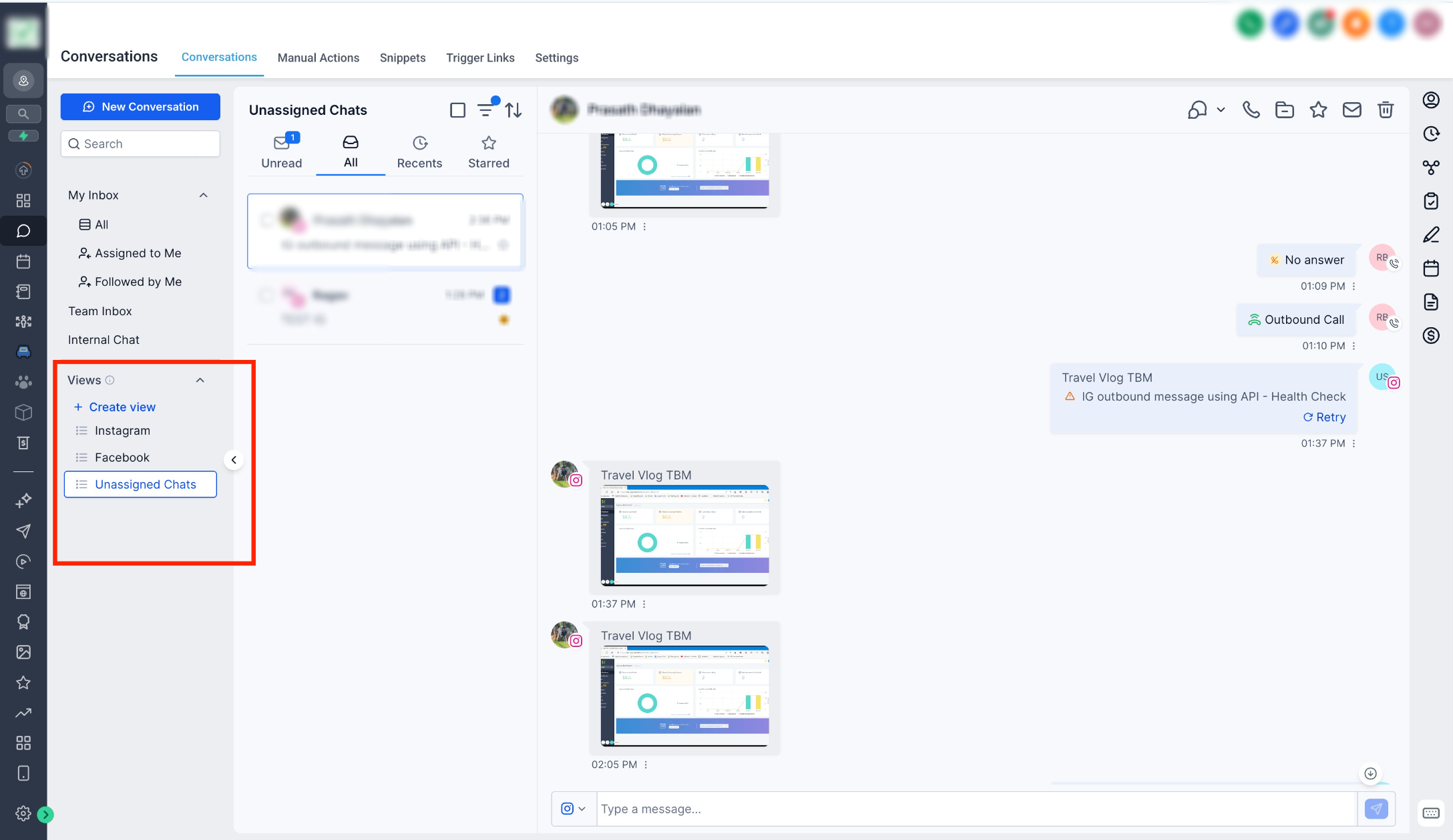
- Add the required filters and provide a name for the view, Once View is created, it is added to the Inbox panel and displays all conversations matching the applied filters.
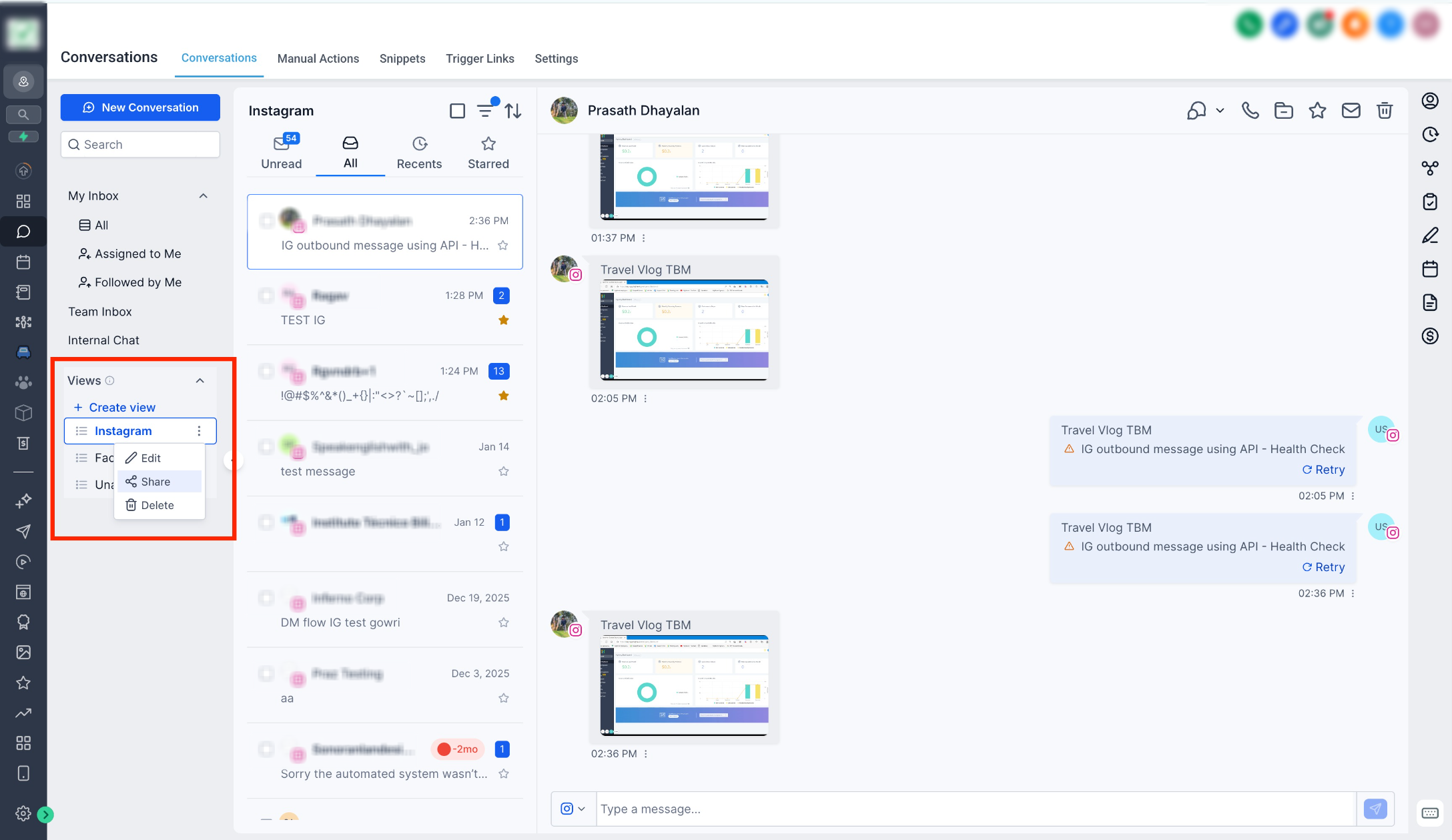
- Views are visible only to the user who created it by default. Admins can share views with other users from the view menu, helping teams stay aligned while managing conversations.
- Quickly switch between commonly used conversation filters
- Stay focused on high-priority or unassigned conversations
- Reduce repetitive filtering and save time
- Keep teams aligned with shared views
- You can enable this feature from Labs - Conversation Views: Save Filters, Work Faster. This feature is available only on the New Conversations interface. To enable the new interface, turn on CRM Redesign: Conversations and Contacts Page(Beta) from Labs.
Need Help?
If Conversation Views are missing or not showing the conversations you expect, first review the interface, feature access, and filters saved to the view.
Verify that:
- You are using the supported New Conversations interface.
- Conversation Views is enabled in Labs, if required for your account.
- The required Conversations redesign or updated interface is enabled.
- You are working in the correct account.
- The view was saved successfully after selecting the filters.
- The correct filters are included in the view.
- Tags, channels, assignees, or other filter values still match the conversations you expect to see.
- The view was created by your user or shared with you by an admin.
- A private view is not expected to appear for other users.
- Shared views were assigned to the intended users.
- Recent conversation changes still match the saved filter conditions.
If a saved view appears empty or incomplete, open the view settings and review each filter individually. Removing or adjusting one filter at a time can help identify which condition is excluding the expected conversations.
If the issue continues, collect the view name, filters applied, affected user, expected conversations, actual results, and screenshots of the Views panel and filter configuration before contacting support.
Was this article helpful?
Related articles
- How to use Conversation Filters & Bulk Actions OverviewThe Conversation left panel is a new addition to the Conversations UI, which helps users filter conversations & perform various actions on them. Features: Bulk actions (limited to 100 conversations at a time) You can perform Conversation specific Bulk Actions to handle multiple conversations at a Conversations View
- How to CC (Carbon Copy) and BCC (Blind Carbon Copy) for email composerOur email composer is equipped with the functionality of CC and BCC capabilities, providing a robust emailing experience. This feature allows users to effectively manage their communication by engaging multiple stakeholders in a single thread while preserving individual confidentiality. As an integrConversations View
- Conversations FAQsQ. What attachment types are supported in Conversations? A: Conversations supports the following attachment types: .pdf, .docx, .doc, .csv, .xlsx, .xls, .txt, .jpg, .jpeg, .png, .gif, .svg, .mp4, .mpeg, .mp3, .wav, .wave, .aiff, .aif, .aifc, .gsm, .ulaw, .vcf, .vcard, .pptx Q: Why am I receiving aConversations View
- Workflow Action - Log External CallThis document explains how to use the workflow action - Log External Call, to log calls from third-party calling tools into the ResQEngage CRM. Covered in this Article: - What is the Workflow Action - Log External Call? - How to use this action? What is the Workflow Action - Log External Calls? UConversations View