Conversations: SLA Workflow Triggers & Permissions
Conversation SLA workflows let you automate follow-up when a conversation becomes Due Soon, Overdue, or when an SLA is manually dismissed. You can use these events to notify users, reassign conversations, or trigger other workflow actions, while optional filters and repeated-trigger controls help keep automation targeted and prevent unnecessary alerts.
TABLE OF CONTENTS
Overview
How to Use
To understand how SLAs work in Conversations and how to set them up, refer to this guide: here
Building Conversations SLA Workflows
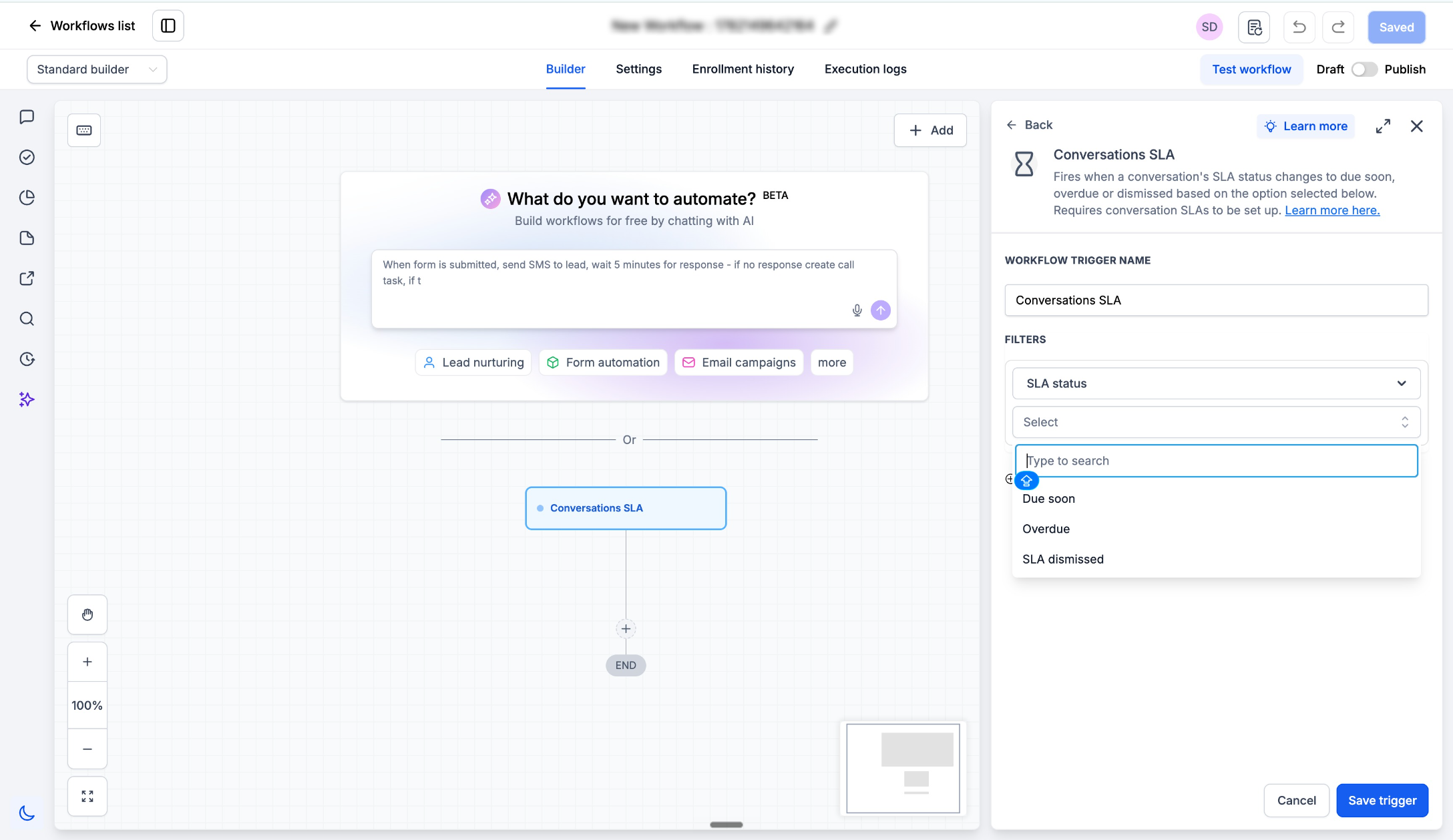
- Go to Automation → Workflows, Create a new workflow and select Conversation SLA as the trigger. Choose the SLA event: Due Soon / Overdue / SLA dismissed
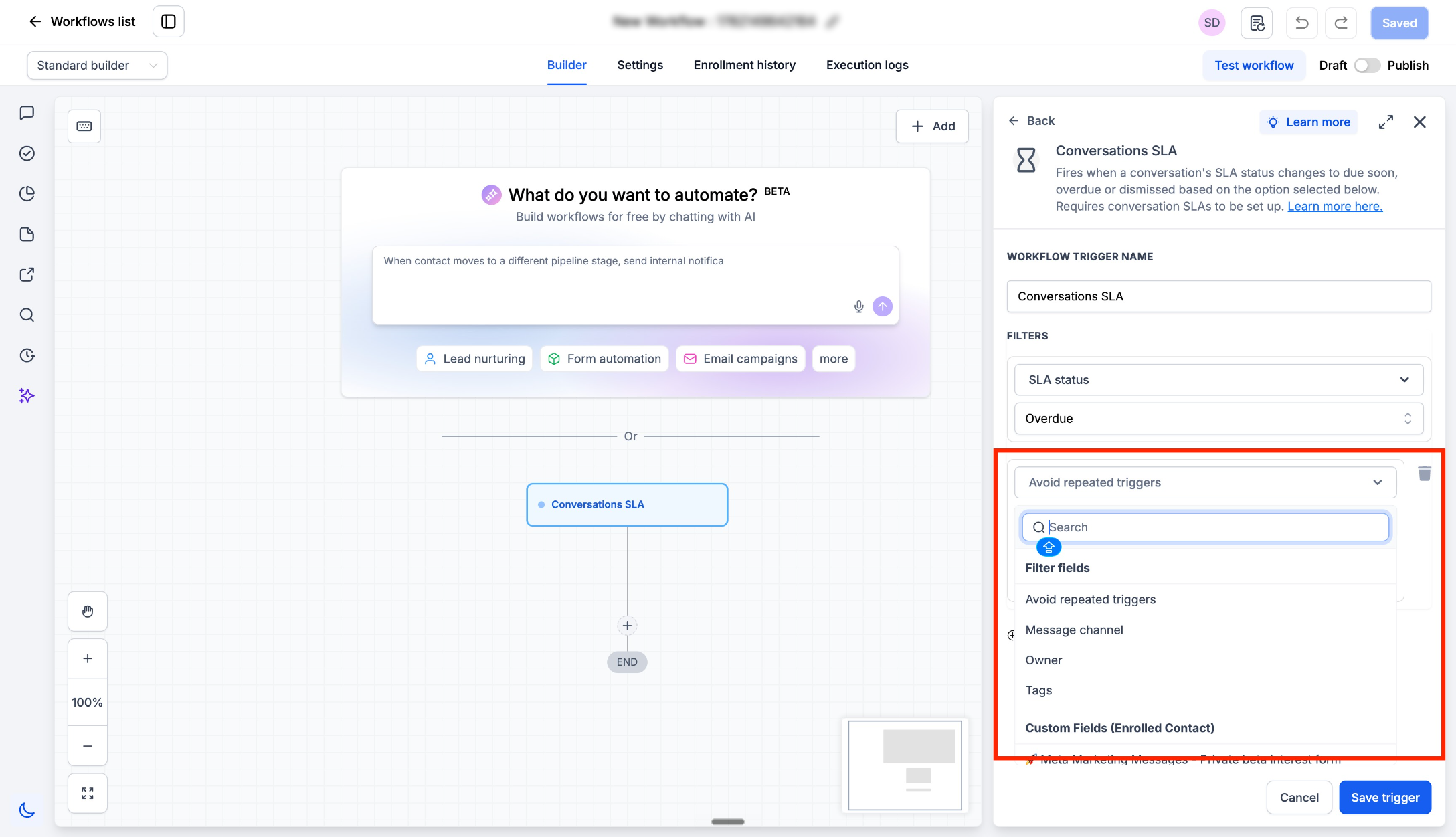
- You can also add optional filters such as: message channel, tags, owner, custom fields and define the actions you want the workflow to perform and publish it.
Configure Manual SLA Removal Permissions
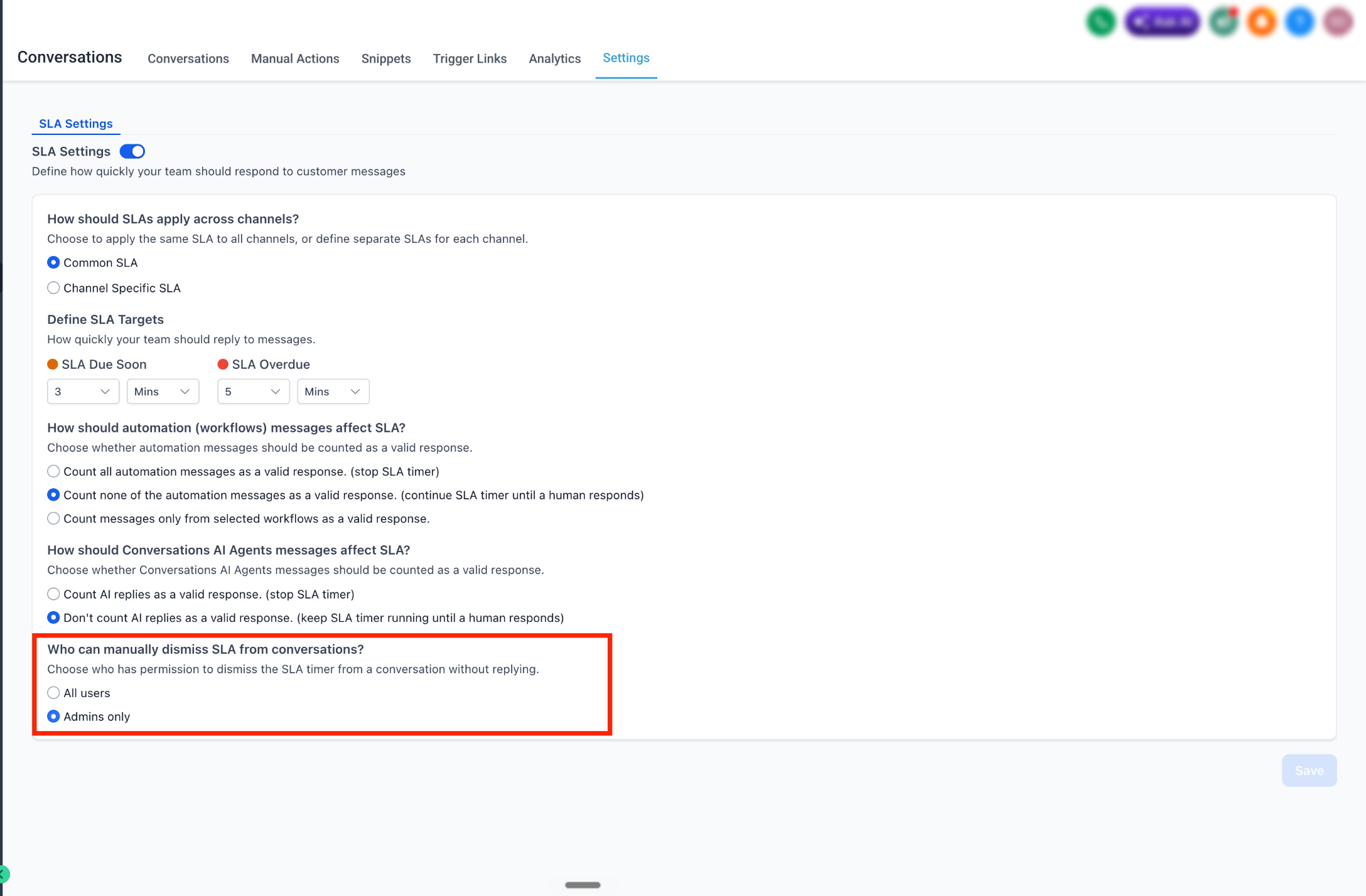
- Go to Conversations Settings. Under Who can manually dismiss SLA from conversations?Select: All users or Admins only. Save your changes.
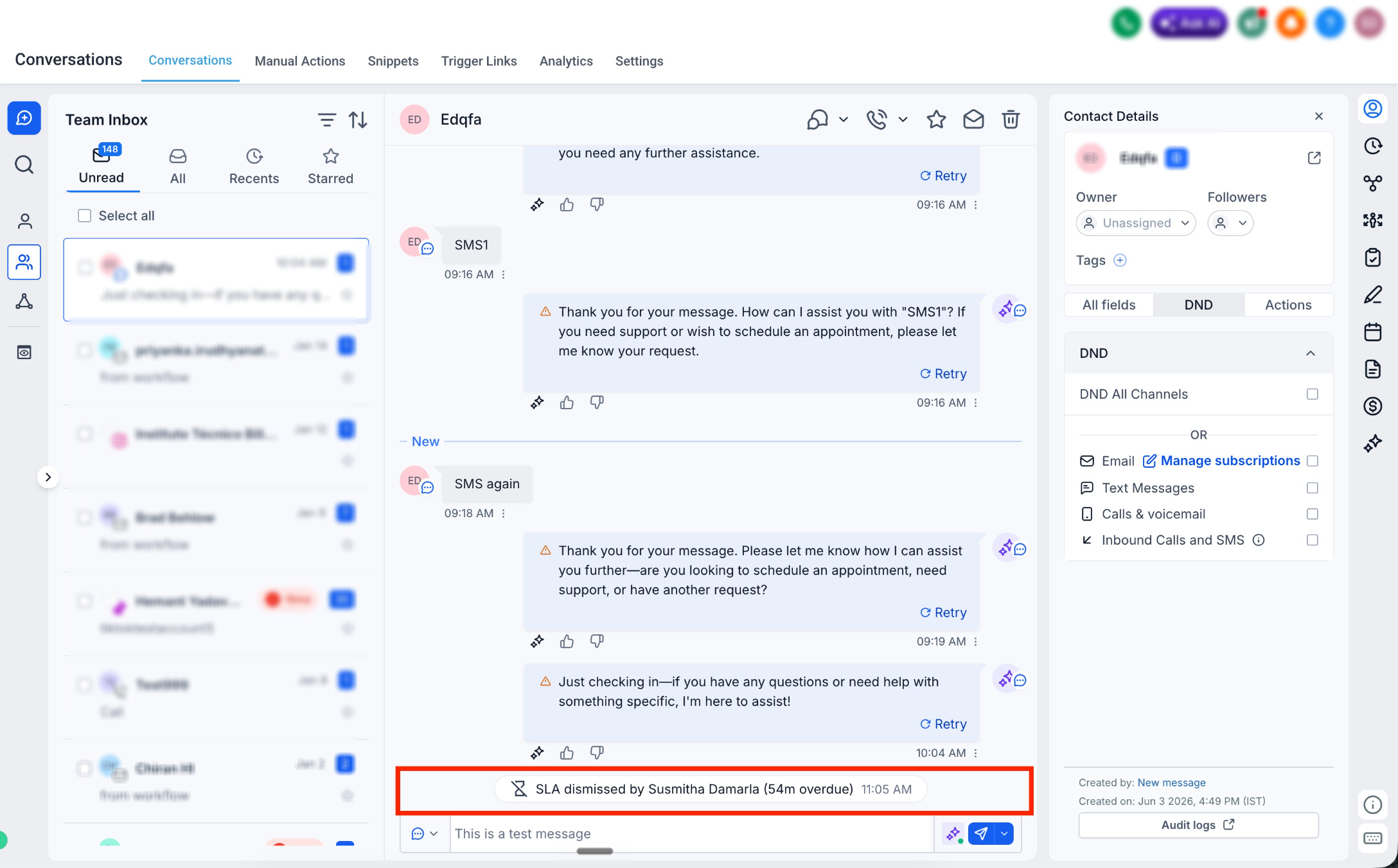
- Any user who has access to dismiss SLA can click on the SLA timer on center panel and dismiss the SLA
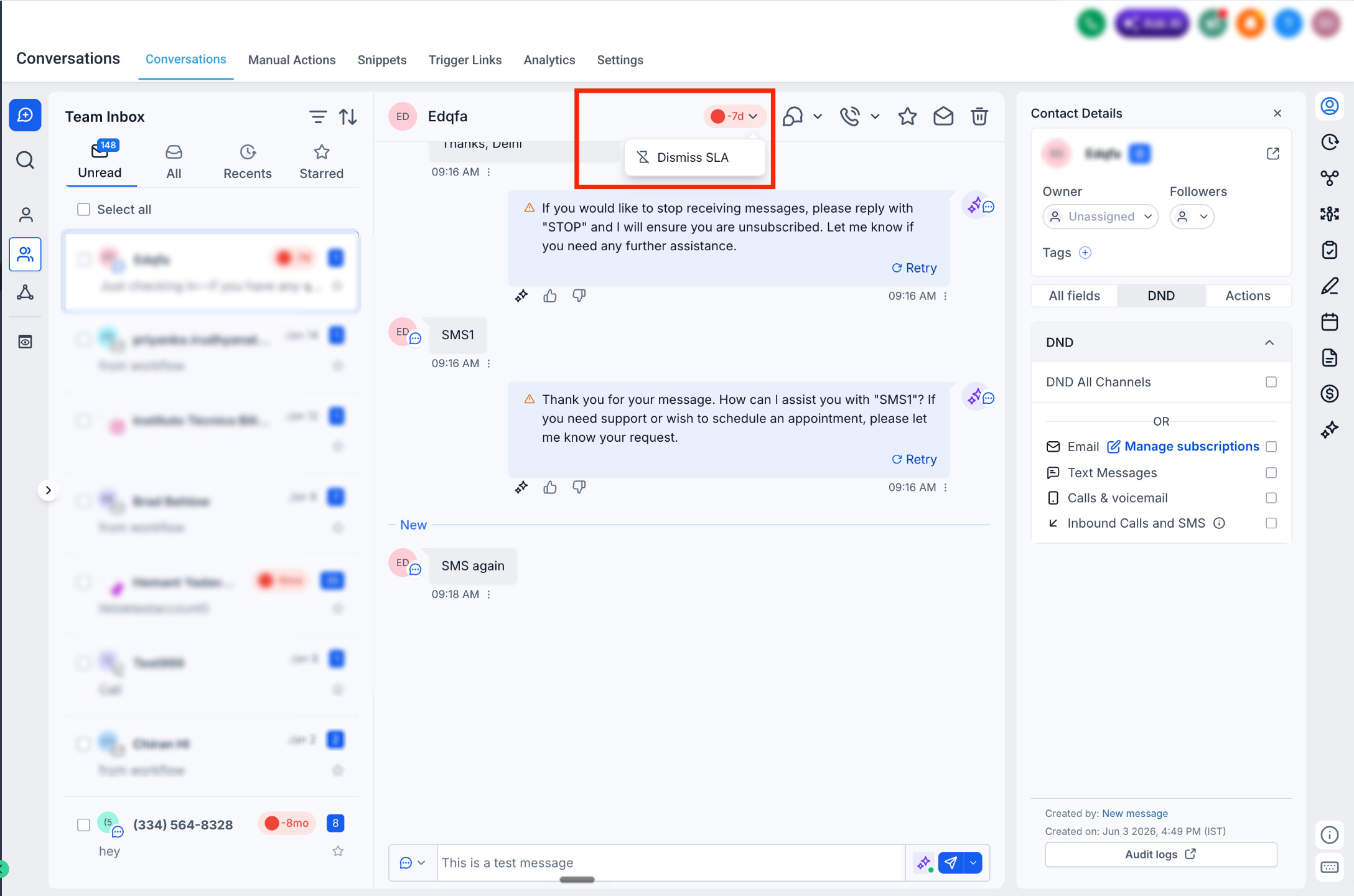
- When SLA is dismissed, a log is posted on the conversation showing which user dismissed the SLA and the SLA status at the time of dismissal.
Need Help?
If Conversation SLA workflows are not triggering or SLA dismissal is not available, first review the workflow trigger, filters, SLA status, and dismissal permissions.
Verify that:
- Conversation SLAs are enabled and configured.
- The workflow uses Conversation SLA as the trigger.
- The correct SLA event is selected: Due Soon, Overdue, or SLA Dismissed.
- The workflow is published and active.
- Optional filters such as channel, tags, owner, or custom fields match the affected conversation.
- Avoid Repeated Triggers is not preventing the workflow from running again within the configured 24-hour period.
- The conversation actually reached the SLA status selected in the workflow.
- The intended workflow actions are configured correctly.
- Manual SLA dismissal permissions are set to All Users or Admins Only as intended.
- The user attempting to dismiss the SLA has the required access.
- The SLA was dismissed from the conversation’s SLA timer.
- A dismissal log appears in the conversation showing who dismissed the SLA and its status at the time.
If the workflow does not trigger, test with a conversation that clearly meets the selected SLA event and temporarily review or remove optional filters to identify whether a condition is blocking execution.
If the issue continues, collect the workflow name, selected SLA event, active filters, conversation status, user permissions, expected result, and screenshots of the workflow and SLA settings before contacting support.
Was this article helpful?
Related articles
- How to use Conversation Filters & Bulk Actions OverviewThe Conversation left panel is a new addition to the Conversations UI, which helps users filter conversations & perform various actions on them. Features: Bulk actions (limited to 100 conversations at a time) You can perform Conversation specific Bulk Actions to handle multiple conversations at a Conversations View
- How to CC (Carbon Copy) and BCC (Blind Carbon Copy) for email composerOur email composer is equipped with the functionality of CC and BCC capabilities, providing a robust emailing experience. This feature allows users to effectively manage their communication by engaging multiple stakeholders in a single thread while preserving individual confidentiality. As an integrConversations View
- Conversations FAQsQ. What attachment types are supported in Conversations? A: Conversations supports the following attachment types: .pdf, .docx, .doc, .csv, .xlsx, .xls, .txt, .jpg, .jpeg, .png, .gif, .svg, .mp4, .mpeg, .mp3, .wav, .wave, .aiff, .aif, .aifc, .gsm, .ulaw, .vcf, .vcard, .pptx Q: Why am I receiving aConversations View
- Workflow Action - Log External CallThis document explains how to use the workflow action - Log External Call, to log calls from third-party calling tools into the ResQEngage CRM. Covered in this Article: - What is the Workflow Action - Log External Call? - How to use this action? What is the Workflow Action - Log External Calls? UConversations View