Creating a Quiz, Exam, or Self-Assessment
Quiz Builder lets you create and deliver assessments inside CPR Enroll, with results visible to admins and instructors in real time. The same builder produces a graded exam, a practice quiz or an ungraded self-assessment — the difference is one setting.
Before You Begin
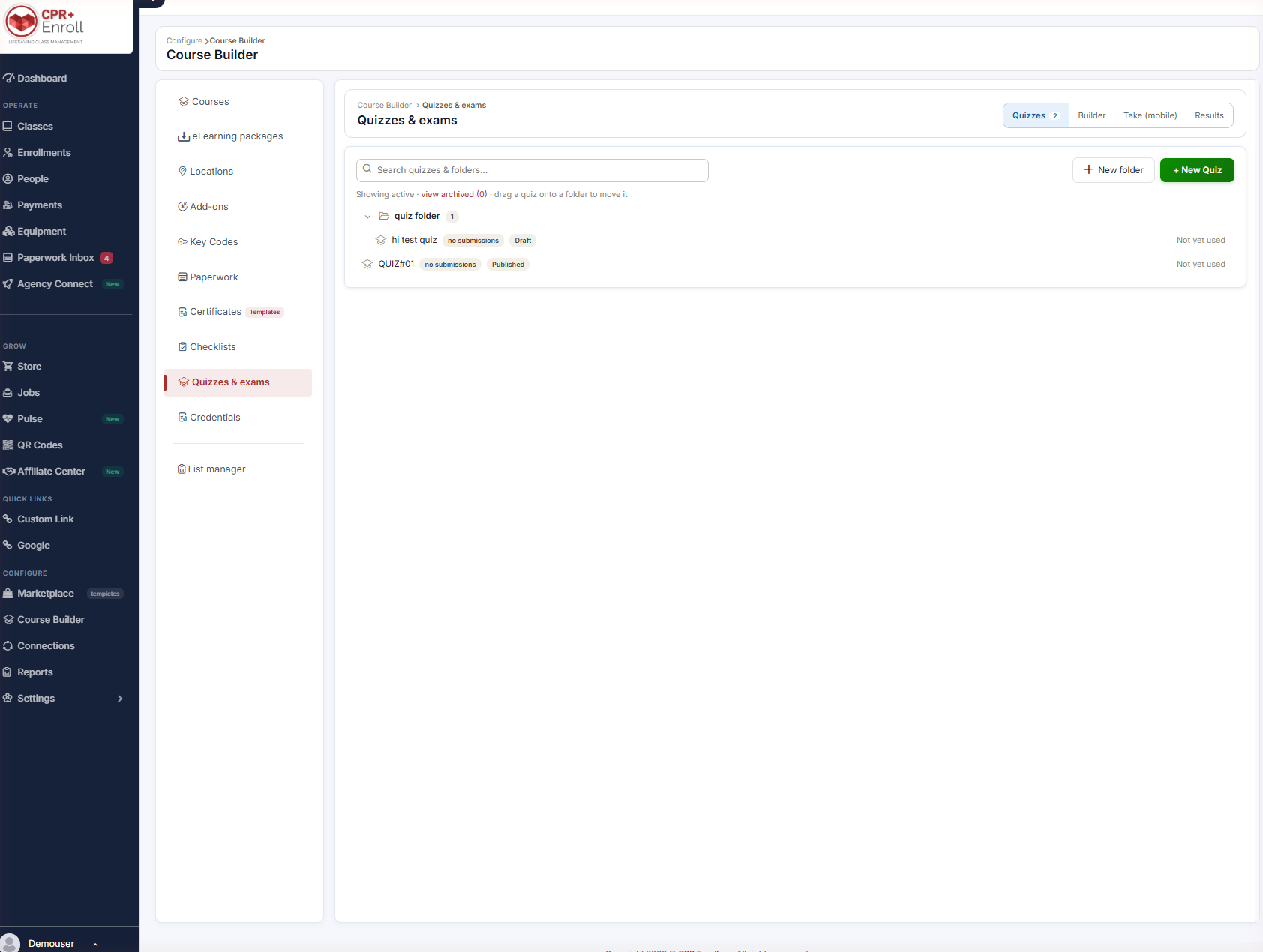
- Find it at Course Builder → Quizzes & exams. The page has four tabs: Quizzes, Builder, Take (mobile) and Results.
- Have the course you want to attach the quiz to already created.
- If you have questions in a spreadsheet or in your Question Bank, you can import them rather than retyping — see Step 3.
Step 1: Create the Quiz
- On the Quizzes tab, click + New Quiz. The Builder tab opens.
- Replace Untitled quiz with a name.
- Click + Add Question.
Step 2: Build a Question
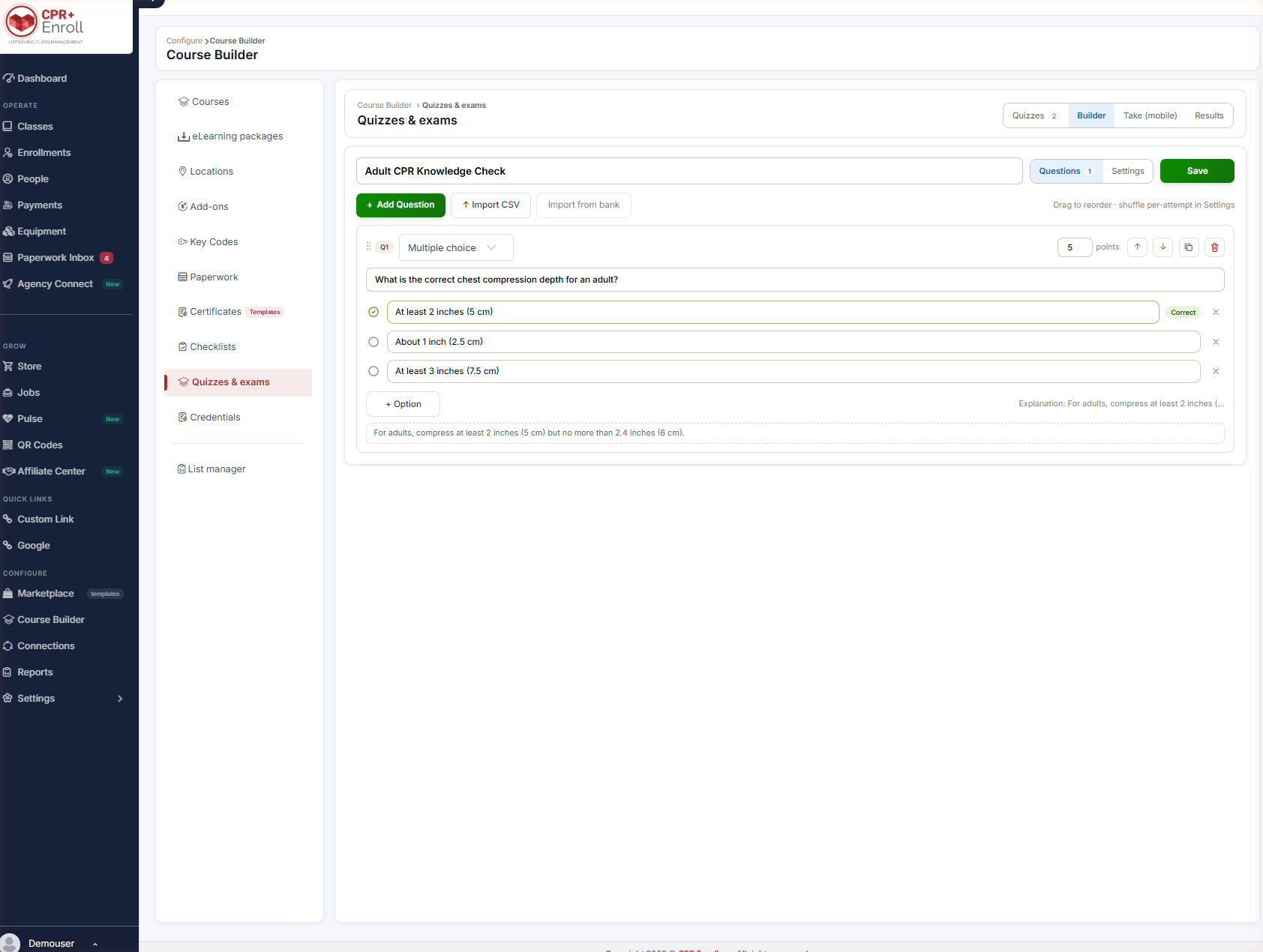
- Choose the question type from the dropdown: Multiple choice, Multiple select, or True / false.
- Type the question into the Question prompt field.
- Fill in the options. Click the circle to the left of an option to mark it Correct. Use + Option to add more.
- Set the point value for the question in the box on the right.
- Optionally add an Explanation shown on review — students see this when answer review is enabled.
- Repeat for each question, then click Save.
✔ Write the explanation while you write the question. It costs you thirty seconds now and saves an email later — and it is the difference between a quiz that scores and a quiz that teaches.
Step 3: Use the Question Controls
Each question card has arrows to move it up or down, a duplicate button, a delete button, and a drag handle. As the builder notes: drag to reorder — shuffle per-attempt is in Settings.
Step 4: Build Faster
- ↑ Import CSV — bulk-load questions from a spreadsheet.
- Import from bank — pull questions from your centralized Question Bank.
✔ Put reusable questions in the Question Bank first. A question written once and pulled into six quizzes is six chances to have written it well.
Step 5: Organize Your Quizzes
- On the Quizzes tab, click + New folder.
- Drag a quiz onto the folder to file it.
The tab header shows how many quizzes are active, with a view archived link beside it. Each quiz row shows its status (Draft or Published), its submission count and whether it has been used.
Best Practices
- Name quizzes after the course and version (“BLS Renewal — 2026”), not just the topic. You will have several.
- Point-weight questions deliberately rather than leaving everything at 1. A critical-action question should not score the same as a definition.
- Draft, take it yourself on the Take (mobile) tab, then publish. Most quiz bugs are visible in ten seconds on a phone.
- Import from CSV for anything over about fifteen questions — the builder is fine for editing and slow for bulk entry.
- Check the submission count before editing a published quiz. Changing questions under students mid-course invalidates comparisons.
Frequently Asked Questions
| Question | Answer |
|---|---|
| Where is Quiz Builder? | Course Builder → Quizzes & exams. |
| What question types are supported? | Multiple choice, Multiple select, and True / false. |
| How do I mark the right answer? | Click the circle to the left of the option to mark it Correct. |
| Can I bulk-load questions? | Yes — ↑ Import CSV, or Import from bank to pull from your Question Bank. |
| How do I reorder questions? | Drag to reorder, or use the arrows on the question card. Per-attempt shuffling is a Settings option. |
| What is the Explanation shown on review for? | Students see it when answer review is enabled. |
| Where do I see whether a quiz is live? | The quiz row shows Draft or Published, plus its submission count. |
✔ You’re all set. Next, read Quiz Settings Explained to set the passing score, timing, retakes and publishing.
Was this article helpful?
Related articles
- Live vs. Digital (SCORM): Choosing a Course Delivery FormatEvery course in CPR Enroll has a Delivery format, set in the Course content section of the course form. It determines whether the course is taught by a person, completed online, or both. Getting it right at creation time saves rework later, because the format decides whether the course expects an upDigital Learning
- Uploading and Managing eLearning PackagesThe eLearning packages library is where SCORM-compliant packages are uploaded, validated and hosted so they can be offered as online courses. Everything a Digital (SCORM) course needs starts here. Before You Begin - Find the library at Course Builder → eLearning packages. - Have your package as a SCDigital Learning
- Quiz Settings ExplainedThe Settings panel is where a quiz becomes an exam, a practice run or a self-check — and where you decide how hard it is to game. This article walks every option. Before You Begin - Open a quiz in Course Builder → Quizzes & exams → Builder and click Settings (next to Questions). - Have the course yoDigital Learning
- Delivering Blended Learning with CPR Enroll SCORM CoursesYou can pair an online SCORM course with an in-person skills session without buying external keycodes — the online portion is delivered by CPR Enroll itself. This article covers how the two halves are assembled and what keeps the roster compliant. Before You Begin - Have your online content ready asDigital Learning