Quiz Settings Explained
The Settings panel is where a quiz becomes an exam, a practice run or a self-check — and where you decide how hard it is to game. This article walks every option.
Before You Begin
- Open a quiz in Course Builder → Quizzes & exams → Builder and click Settings (next to Questions).
- Have the course you intend to attach the quiz to ready — students reach a quiz through their enrollment, not through a link.
- Decide up front whether this is graded. It changes which settings matter.
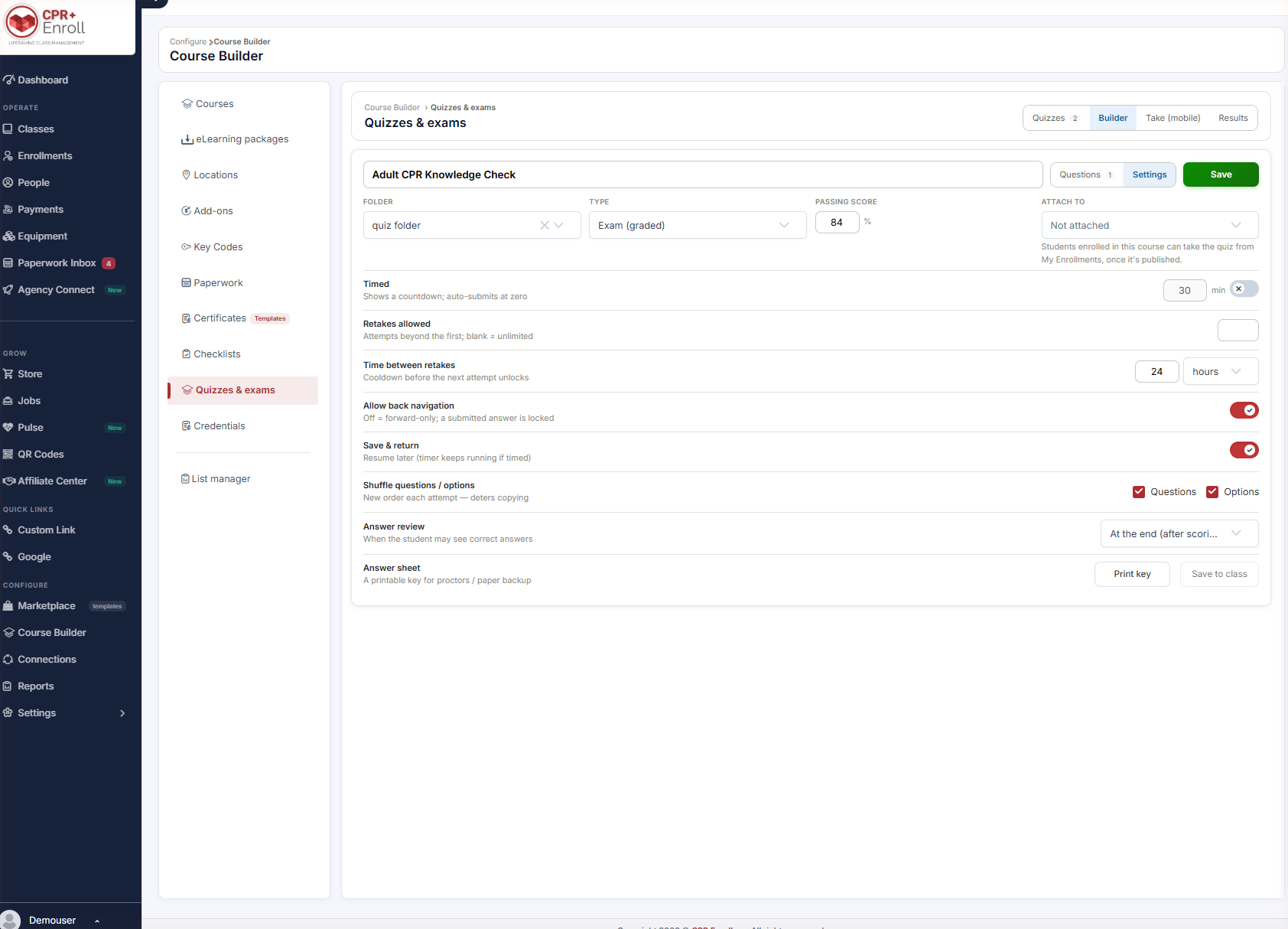
Step 1: Set the Top Row
| Setting | What it does |
|---|---|
| Folder | Files the quiz. Defaults to Top level (no folder). |
| Type | Exam (graded), Quiz (graded) or Self-assessment (ungraded). |
| Passing score | The percentage required to pass. Not used for self-assessments. |
| Attach to | The course this quiz belongs to. Students enrolled in that course can take the quiz from My Enrollments, once it is published. |
✔ Attach to is not optional in practice. A quiz with no course attached has no way for a student to reach it.
Step 2: Configure Delivery
- Timed — shows a countdown and auto-submits at zero. Enter the limit in minutes and switch the toggle on.
- Retakes allowed — attempts beyond the first. Leave blank for unlimited.
- Time between retakes — a cooldown before the next attempt unlocks, in hours or days.
- Allow back navigation — when off, the quiz is forward-only and a submitted answer is locked.
- Save & return — lets a student resume later. Note that the timer keeps running if the quiz is timed.
- Shuffle questions / options — tick Questions, Options, or both. A new order is generated each attempt, which deters copying.
- Answer review — controls when a student may see correct answers. The default is At the end (after scoring).
✔ Timed plus Save & return is a trap. The clock does not pause. If you want students to be able to stop and come back, do not also time the quiz — or say so plainly in the instructions.
Step 3: Use the Answer Sheet
The Answer sheet row gives you a printable key for proctors or as a paper backup:
- Print key — opens a printable answer key.
- Save to class — attaches the key to a class record.
Step 4: Publish
A quiz stays in Draft until you publish it. Students can only take a published quiz, and only if the quiz is attached to a course they are enrolled in.
Step 5: Pick a Sensible Combination
| Purpose | Type | Retakes | Timed | Shuffle | Answer review |
|---|---|---|---|---|---|
| Certification exam | Exam | Limited, with cooldown | Yes | Questions + Options | At the end |
| Practice quiz | Quiz | Unlimited | No | Questions | At the end |
| Self-check | Self-assessment | Unlimited | No | Off | At the end |
Best Practices
- Set a cooldown on graded exams. Unlimited immediate retakes turn an exam into a guessing game.
- Shuffle Options as well as Questions — shuffling questions alone still leaves “the answer is C” intact.
- Turn Allow back navigation off for proctored exams and on for practice. Forward-only is stressful for no gain when the stakes are low.
- Print the answer key before a proctored session. Wi-Fi fails; paper does not.
- Leave Passing score alone for self-assessments — it is not used.
Frequently Asked Questions
| Question | Answer |
|---|---|
| Where are these settings? | Open the quiz in Builder and click Settings, next to Questions. |
| How do I allow unlimited retakes? | Leave Retakes allowed blank. |
| Does the timer pause if a student saves and returns? | No. The timer keeps running. |
| What does turning off Allow back navigation do? | The quiz becomes forward-only and a submitted answer is locked. |
| Does shuffling change the questions themselves? | No — a new order is generated each attempt, which deters copying. |
| When do students see correct answers? | Per the Answer review setting. The default is At the end (after scoring). |
| Why can’t my students see the quiz? | It is probably still in Draft, or not attached to a course they are enrolled in. |
✔ You’re all set. Type, passing score, attachment and publish state are the four that decide whether a student ever sees the quiz.
Was this article helpful?
Related articles
- Live vs. Digital (SCORM): Choosing a Course Delivery FormatEvery course in CPR Enroll has a Delivery format, set in the Course content section of the course form. It determines whether the course is taught by a person, completed online, or both. Getting it right at creation time saves rework later, because the format decides whether the course expects an upDigital Learning
- Uploading and Managing eLearning PackagesThe eLearning packages library is where SCORM-compliant packages are uploaded, validated and hosted so they can be offered as online courses. Everything a Digital (SCORM) course needs starts here. Before You Begin - Find the library at Course Builder → eLearning packages. - Have your package as a SCDigital Learning
- Creating a Quiz, Exam, or Self-AssessmentQuiz Builder lets you create and deliver assessments inside CPR Enroll, with results visible to admins and instructors in real time. The same builder produces a graded exam, a practice quiz or an ungraded self-assessment — the difference is one setting. Before You Begin - Find it at Course Builder →Digital Learning
- Delivering Blended Learning with CPR Enroll SCORM CoursesYou can pair an online SCORM course with an in-person skills session without buying external keycodes — the online portion is delivered by CPR Enroll itself. This article covers how the two halves are assembled and what keeps the roster compliant. Before You Begin - Have your online content ready asDigital Learning