Uploading and Managing eLearning Packages
The eLearning packages library is where SCORM-compliant packages are uploaded, validated and hosted so they can be offered as online courses. Everything a Digital (SCORM) course needs starts here.
Before You Begin
- Find the library at Course Builder → eLearning packages.
- Have your package as a SCORM 1.2 or SCORM 2004 zip file. Supported versions are 1.2, 2004_3 and 2004_4.
- Upload the package before you create the course that will use it — it makes linking a single step.
Step 1: Understand the Four-Step Flow
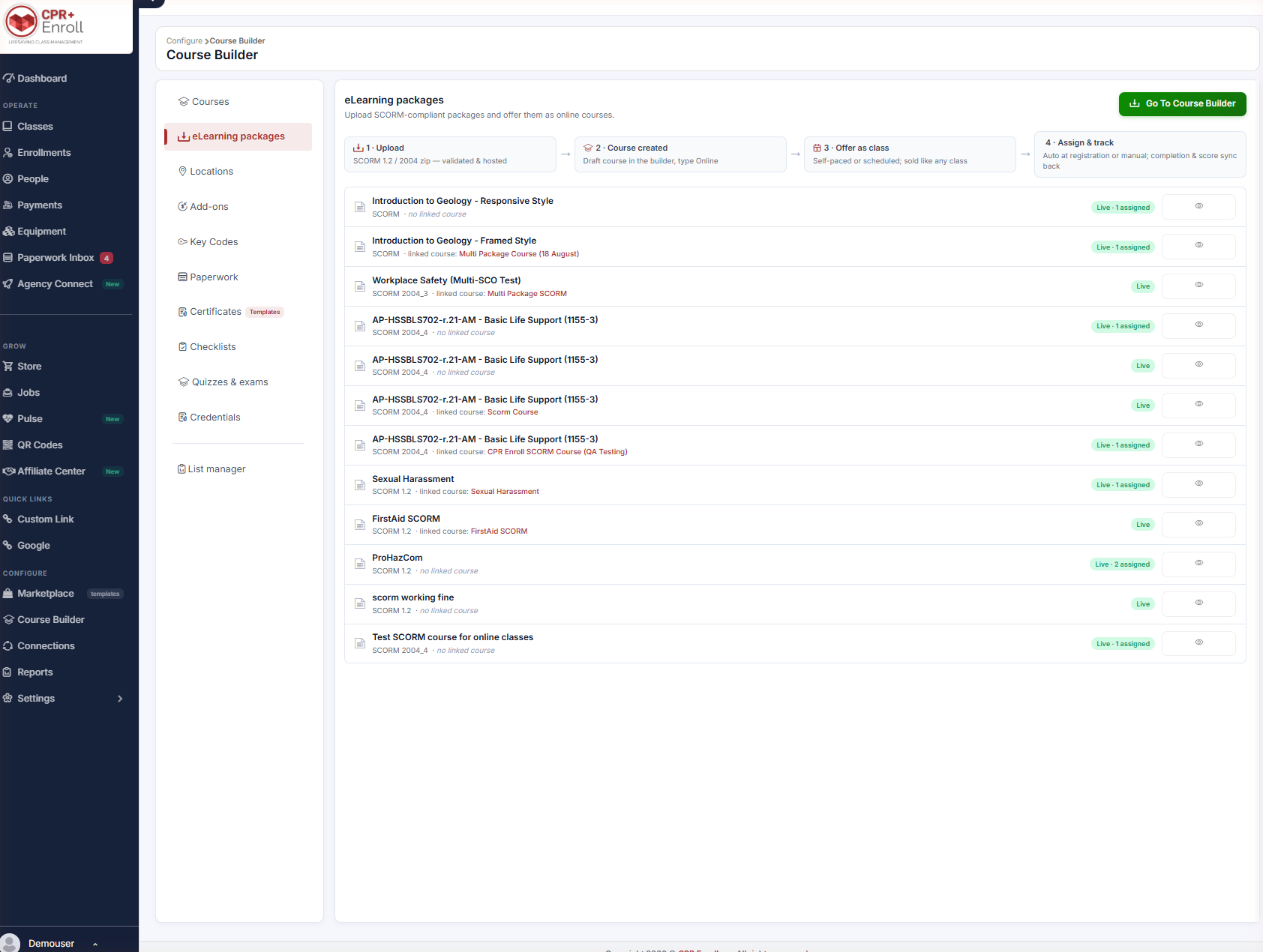
The page opens with the pipeline laid out across the top. Knowing where you are in it makes the rest of the page read easily.
| Stage | What happens |
|---|---|
| Upload | A SCORM 1.2 or 2004 zip file is uploaded, validated and hosted. |
| Course created | A draft course appears in the builder with type Online. |
| Offer as class | Self-paced or scheduled; sold like any other class. |
| Assign & track | Assignment happens automatically at registration or manually, and completion and score data sync back. |
Step 2: Upload a Package
- Go to Course Builder → eLearning packages.
- Upload your SCORM zip file.
- Wait for validation. The package is parsed and its manifest read; the SCORM version is detected automatically.
Step 3: Read the Library
Each row in the library shows:
- The package name.
- The SCORM version — 1.2, 2004_3 or 2004_4.
- The linked course, or no linked course if the package has not been attached yet.
- A status chip such as Live or Live · 1 assigned, telling you how many courses currently use the package.
- A preview (eye) button, so you can see what students will see before you sell it.
✔ Preview before you publish. The eye button opens the package exactly as a learner sees it — the fastest way to catch a broken or wrong-version upload.
Step 4: Link a Package to a Course
- Use Go To Course Builder from the eLearning packages page.
- Set the course’s Delivery format to Digital (SCORM).
- Select the package.
A single package can be linked to more than one course — useful when the same online module supports several programs.
Step 5: Replace a Package
- Open the course.
- Scroll to Course content.
- Click Replace next to the current package and upload the new one.
✔ Replacing is safe. Existing learner progress is preserved; new learners start on the new package.
Step 6: Work With Multi-Lesson Packages
Packages containing multiple modules and lessons are fully supported:
- Students get a contents menu and can move between lessons without losing progress.
- Where the package sets one, a student must reach a passing score before the next lesson unlocks.
- A course stays incomplete until all required lessons are done.
- A completed course can be reopened in Review mode without changing the recorded result.
Best Practices
- Preview every package after upload, before linking it to a saleable course.
- Reuse one package across courses rather than uploading duplicates — the status chip tells you how many courses depend on it.
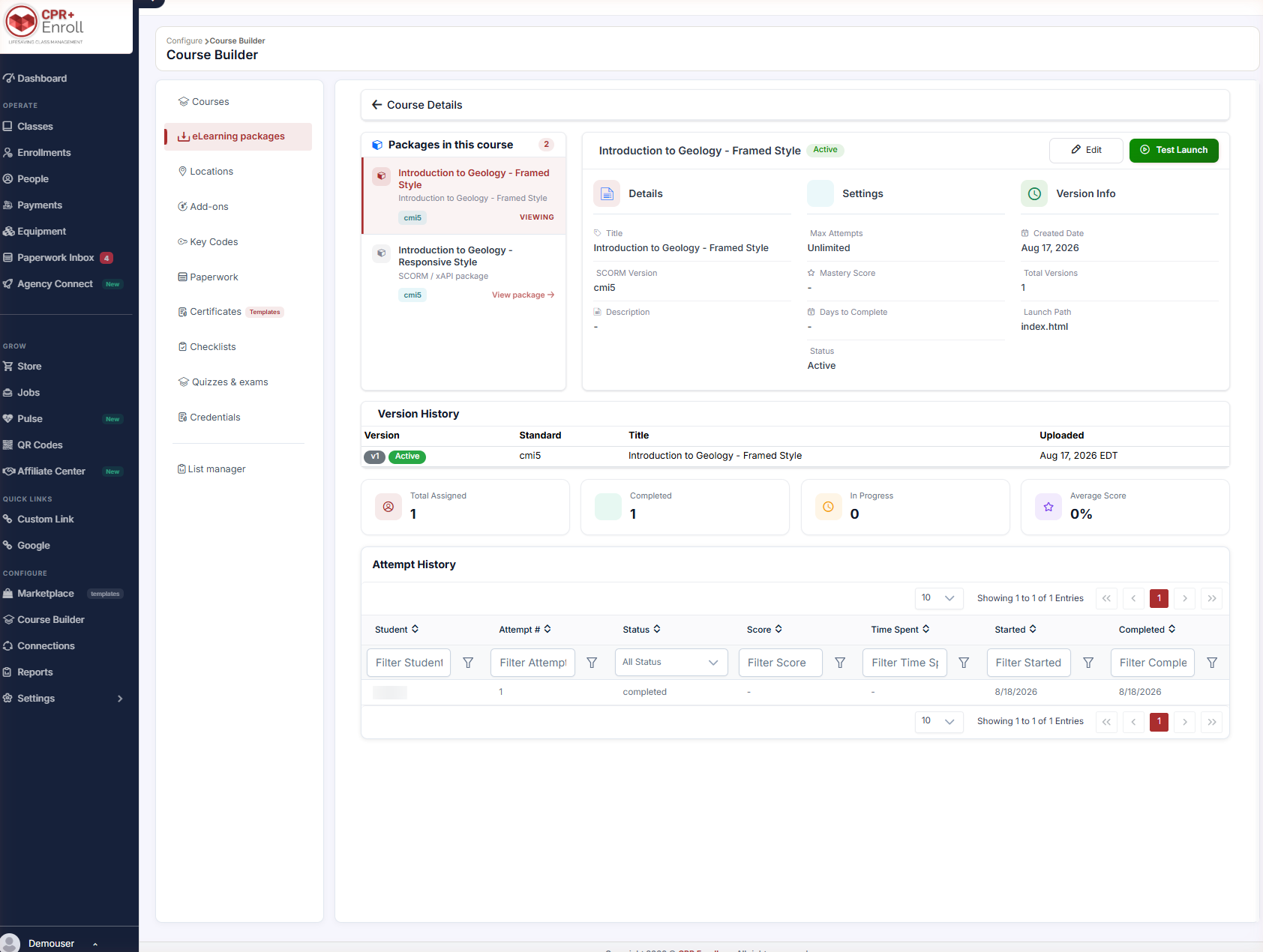
- Check the status chip before replacing a package. Live · 3 assigned means three courses change at once.
- Keep the package name meaningful and versioned; the library is sorted by name, not by upload date.
Frequently Asked Questions
| Question | Answer |
|---|---|
| Which SCORM versions are supported? | SCORM 1.2 and SCORM 2004 — specifically 1.2, 2004_3 and 2004_4. |
| Can one package serve several courses? | Yes. A single package can be linked to more than one course. |
| Will replacing a package wipe learner progress? | No. Existing learner progress is preserved; new learners start on the new package. |
| How do students move between lessons? | A contents menu is provided. Progress is kept when moving between lessons. |
| Can a student redo a completed course? | Yes — a completed course can be reopened in Review mode without changing the recorded result. |
| What does Live · 1 assigned mean? | The package is live and currently used by one course. |
✔ You’re all set. Next, read Live vs. Digital (SCORM): Choosing a Course Delivery Format to attach the package to a course.
Was this article helpful?
Related articles
- Live vs. Digital (SCORM): Choosing a Course Delivery FormatEvery course in CPR Enroll has a Delivery format, set in the Course content section of the course form. It determines whether the course is taught by a person, completed online, or both. Getting it right at creation time saves rework later, because the format decides whether the course expects an upDigital Learning
- Creating a Quiz, Exam, or Self-AssessmentQuiz Builder lets you create and deliver assessments inside CPR Enroll, with results visible to admins and instructors in real time. The same builder produces a graded exam, a practice quiz or an ungraded self-assessment — the difference is one setting. Before You Begin - Find it at Course Builder →Digital Learning
- Quiz Settings ExplainedThe Settings panel is where a quiz becomes an exam, a practice run or a self-check — and where you decide how hard it is to game. This article walks every option. Before You Begin - Open a quiz in Course Builder → Quizzes & exams → Builder and click Settings (next to Questions). - Have the course yoDigital Learning
- Delivering Blended Learning with CPR Enroll SCORM CoursesYou can pair an online SCORM course with an in-person skills session without buying external keycodes — the online portion is delivered by CPR Enroll itself. This article covers how the two halves are assembled and what keeps the roster compliant. Before You Begin - Have your online content ready asDigital Learning