DMARC Validation Feature - Understanding and Fixing Email Authentication Alerts
TABLE OF CONTENTS
Email Sender Validation Feature - Complete Guide
Our new email sender validation feature proactively checks your email configuration before sending campaigns to ensure maximum deliverability and protect your sender reputation.
This guide covers the three validation cases, shows you exactly what the errors look like, and provides step-by-step solutions.
Why We Released This Feature
Starting February 2024, Gmail and Yahoo require proper email authentication. Without this validation:
- Emails silently land in spam folders
- Major providers reject your messages
- Low deliverability with no explanation
- Sender reputation damage
- Reduced campaign ROI
Our validation catches these issues BEFORE they hurt your campaigns.
Three Validation Cases We Check
Our system validates three critical email configuration issues:
Case 1: No DMARC Record Found
ERROR MESSAGE: "No DMARC record found for this domain. Please try a different email."
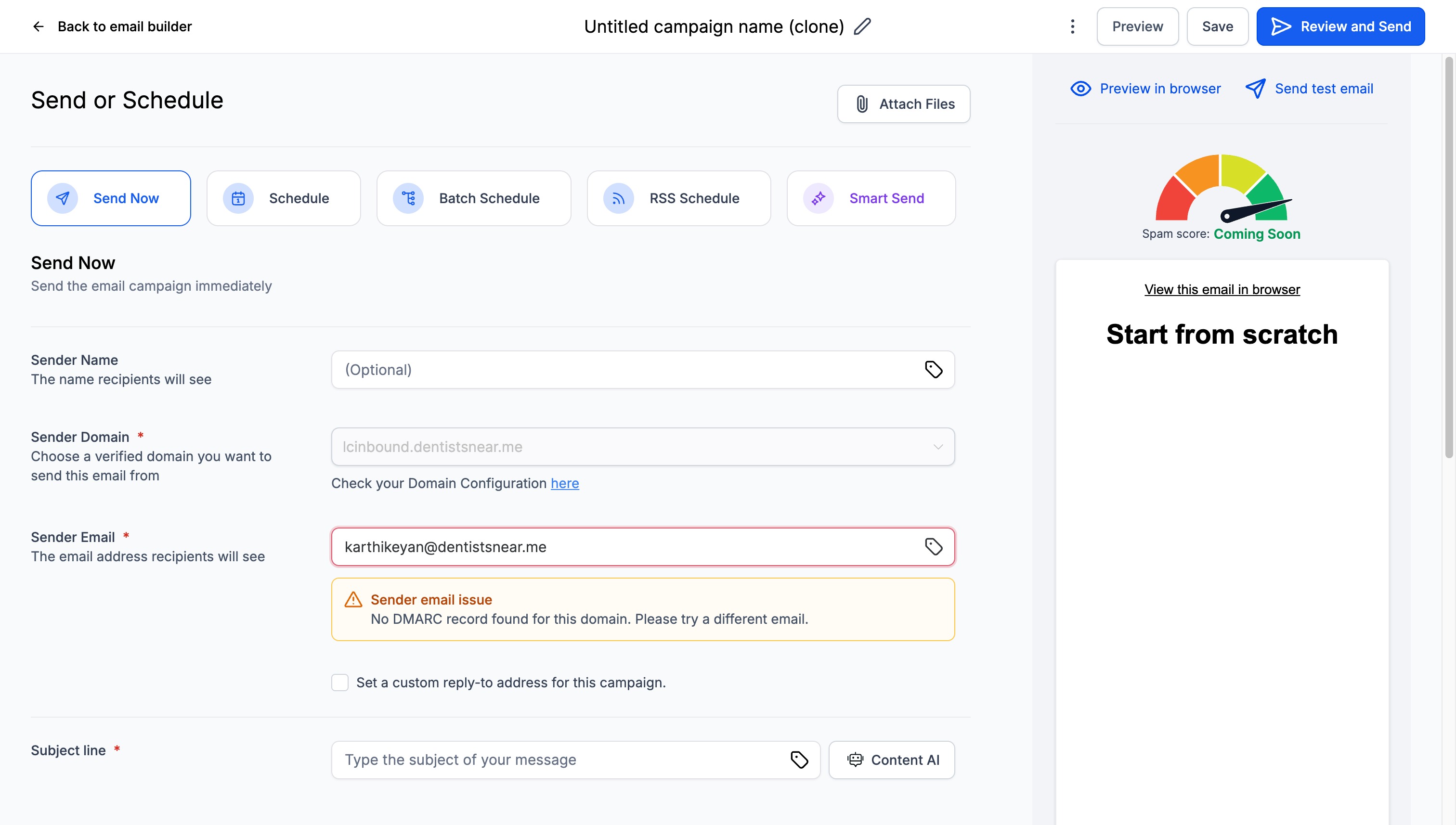
WHAT IT MEANS: Your 'From' email domain doesn't have any DMARC record configured in DNS.
EXAMPLE SCENARIO:
- Sender Domain: inbox.yourdomain.com (authenticated)
- From Email: info@yourdomain.com
- Issue: yourdomain.com has no DMARC record
Solutions for Case 1
PERMANENT SOLUTION (1-2 hours):
Add a DMARC record to your main domain's DNS:
| Field | Value |
|---|---|
| Record Type | TXT |
| Name/Host | _dmarc.yourdomain.com |
| Value | v=DMARC1; p=none; rua=mailto:[email protected] |
| TTL | 3600 (or default) |
QUICK FIX (5 minutes):
Change your 'From' email to match your authenticated sending domain:
- Current: info@yourdomain.com
- Change to: info@inbox.yourdomain.com
Case 2: Invalid DMARC Record Format
ERROR MESSAGE: "Invalid DMARC record format detected for the Sender Email's domain. Please use a different email."
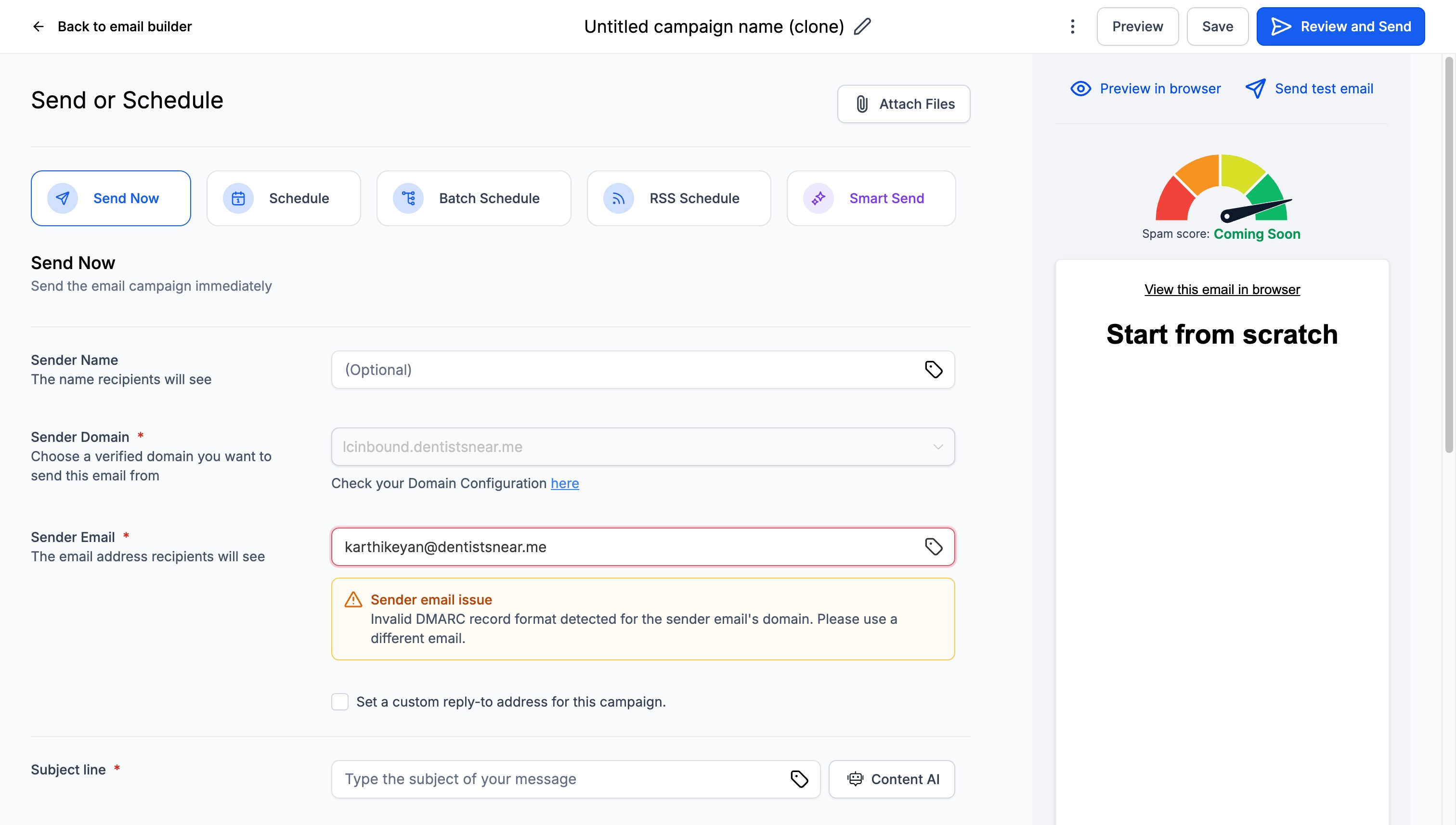
WHAT IT MEANS: Your domain has a DMARC record, but it contains syntax errors or invalid configuration.
COMMON INVALID EXAMPLES:
- Wrong version: v=DMARC2; p=none;
- Invalid policy: v=DMARC1; p=invalid;
- Missing semicolons: v=DMARC1 p=none
- Wrong email format: [email protected] (missing mailto:)
Solutions for Case 2
CHECK THESE COMMON ISSUES:
| Issue | Wrong | Correct |
|---|---|---|
| Version | v=DMARC2 or v=dmarc1 | v=DMARC1 |
| Policy | p=invalid or p=block | p=none, p=quarantine, p=reject |
| Syntax | v=DMARC1 p=none (no semicolon) | v=DMARC1; p=none; |
| Email Format | [email protected] | rua=mailto:[email protected] |
CORRECTED DMARC RECORD EXAMPLE:
_dmarc.yourdomain.com TXT "v=DMARC1; p=none; rua=mailto:[email protected]"
Case 3: Domain Mismatch
ERROR MESSAGE: "The sender email's domain doesn't match the selected sender domain. Please try a different email."
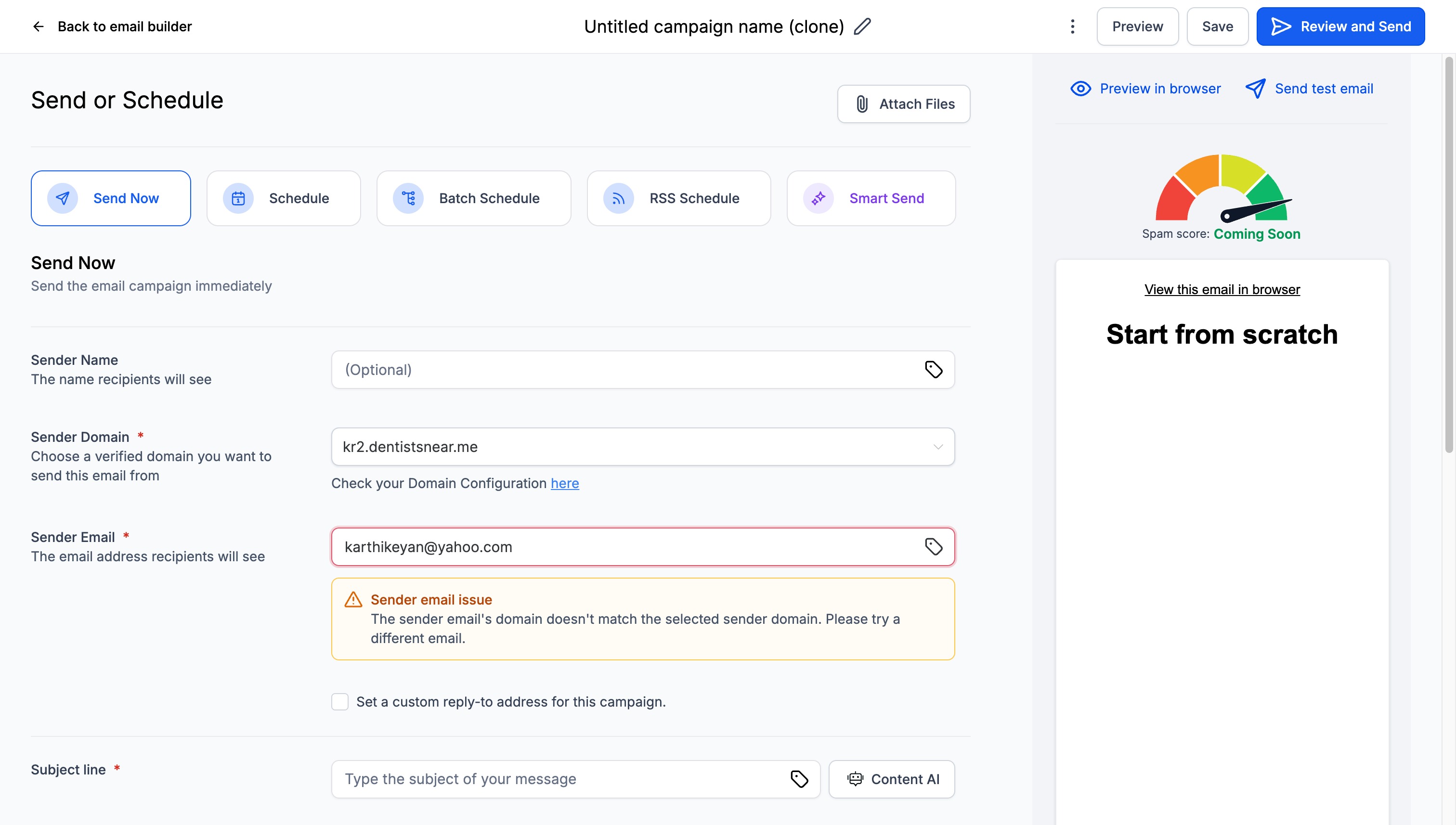
WHAT IT MEANS: Your 'From' email address uses a different domain than your selected sending domain.
EXAMPLE SCENARIO:
- Sender Domain: inbox.yourdomain.com
- From Email: [email protected]
- Issue: leadconnectorhq.com ≠ inbox.yourdomain.com
Solutions for Case 3
OPTION 1: Change From Email (Immediate)
Update your 'From' email to match your sending domain:
- Wrong: john@leadconnectorhq.com
- Correct: john@inbox.yourdomain.com
OPTION 2: Use Your Own Authenticated Domain
If you have your own domain configured:
- Select your authenticated domain as sender domain
- Use matching email address (e.g., john@leadconnectorhq.com)
- Ensure domain has proper SPF, DKIM, and DMARC setup
OPTION 3: Subdomain Strategy
Create aligned subdomains:
- Sending Domain: mail.yourdomain.com
- From Email: [email protected]
- Benefit: Maintains brand consistency
Step-by-Step DNS Configuration
Follow these steps to add a DMARC record to your domain:
Step 1: Access Your DNS Provider
Log into your domain registrar or DNS hosting provider:
- GoDaddy: Go to DNS Management
- Cloudflare: Navigate to DNS tab
- Namecheap: Access Advanced DNS
- Google Domains: Go to DNS settings
Step 2: Add TXT Record
Create a new TXT record with these values:
| Field | Value | Example |
|---|---|---|
| Record Type | TXT | TXT |
| Name/Host | _dmarc | _dmarc.yourdomain.com |
| Value | v=DMARC1; p=none; rua=mailto:[email protected] | Basic monitoring policy |
| TTL | 3600 | 1 hour |
Step 3: Save and Wait
After saving your DNS record:
- DNS propagation takes 24-48 hours worldwide
- Some providers propagate faster (1-4 hours)
- You can check propagation status using online DNS lookup tools
Step 4: Verify Your Record
Use these tools to verify your DMARC record:
- MXToolbox DMARC Lookup
- DMARC Analyzer
- Google Admin Toolbox
- Command line: nslookup -type=txt _dmarc.yourdomain.com
Troubleshooting Common Issues
| Issue | Cause | Solution |
|---|---|---|
| Still seeing alerts after adding DMARC | DNS propagation delay | Wait 24-48 hours for full propagation |
| Record shows as invalid after correction | Syntax errors or unsupported values | Use DMARC generator tools to create valid records |
| Domain mismatch error persists | Using external email providers (Gmail, Yahoo) as 'From' address | Switch to your authenticated domain or subdomain |
| Emails still going to spam | Other authentication issues (SPF, DKIM) | Ensure complete email authentication setup |
Frequently Asked Questions
Q: Can I disable this validation?
A: No, this validation protects your email deliverability. However, we provide multiple quick fix options.
Q: Will this affect my existing campaigns?
A: Only new campaigns are validated. Existing scheduled campaigns will continue as planned.
Q: Can I use Gmail or Yahoo as my 'From' address?
A: Not recommended. Use your authenticated domain for better deliverability and to pass validation.
Q: How long does DNS propagation take?
A: Typically 24-48 hours, but can be faster depending on your DNS provider.
Q: What if I can't access my DNS settings?
A: Contact your IT team, domain registrar, or use the quick workaround of aligning your email domains.
Quick Reference Guide
VALIDATION ERRORS AND QUICK FIXES:
| Error Message | Quick Fix | Permanent Solution |
|---|---|---|
| No DMARC record found | Change From email to match sending domain | Add DMARC record to main domain |
| Invalid DMARC record format | Use From email with working DMARC | Fix DMARC syntax errors |
| Domain doesn't match | Align From email with sending domain | Set up proper domain authentication |
BASIC DMARC RECORD TEMPLATE:
_dmarc.yourdomain.com TXT "v=DMARC1; p=none; rua=mailto:[email protected]"
Was this article helpful?
Related articles
- What is ResQEngage Email?LeadConnector Email is designed to help businesses avoid the hassle of signing up for Mailgun or any 3rd party email service provider. In the past, when a business signed up they would need to either integrate with Mailgun or another email service provider to send/receive email. With LeadConnector EResQEngage Email
- How to set up a dedicated sending domain within a Sub-AccountEmail marketing is a great way to reach customers and increase sales. But if you're not careful, you could end up in trouble. A dedicated sending domain gives you control over what appears to be coming from your business. That means you can avoid spam filters and other issues that might make your meResQEngage Email
- How to Set Up Unsubscribe LinksAn unsubscribe link is a link within your email that allows recipients to opt-out from receiving any email newsletters for your products or services. Maintaining a clean email list is imperative for email deliverability, and adding an unsubscribe link in the email footer is always the best practice.ResQEngage Email
- Two Way Email Sync for OutlookUsing 2-Way Sync for Outlook, Users can link their Outlook account with the CRM and sync emails to and from both platforms. Both platforms will create a connection when an email is first sent out from the CRM. All subsequent emails in the thread will be in sync between both platforms. Covered in thResQEngage Email