How to Add a Physical Address to Your LC Email Footer
CAN-SPAM and similar anti-spam regulations require commercial emails to include a valid physical mailing address. This article explains how to enable the physical address footer, use your business address by default, and optionally override it with a custom address all without changing your main business profile.
Note: This feature is supported for ResQEngage (LC) Email only.
Laws like CAN-SPAM (US), CASL (Canada), and GDPR (EU) require commercial emails to include a valid physical postal address. Failing to include one can result in complaints, deliverability issues, or regulatory penalties.
The Physical Address in Email Footer setting lets sub-accounts automatically append a compliant postal address to every outbound email without manually editing each template.
| Attribute | Details |
|---|---|
| Supported Email Provider | ResQEngage (LC) Email only |
| Access Level | Sub-account settings |
| Default Address Source | Business Physical Address (from Business Profile) |
| Custom Address | Optional override — does not change the main Business Profile |
Once enabled, the footer address is automatically appended to every outbound email — no template changes required.
Make sure you are inside the sub-account where ResQEngage Email is configured as the email sending provider.
From the left-hand menu, go to Settings, then click Business Profile.
Scroll down to the General section on the Business Profile page. You will see a list of compliance toggles.
Check the toggle/checkbox labelled Make emails compliant by adding a Physical Address in the email footer. The address saved in your Business Physical Address settings will be pre-populated automatically and will appear in the footer of every outgoing email.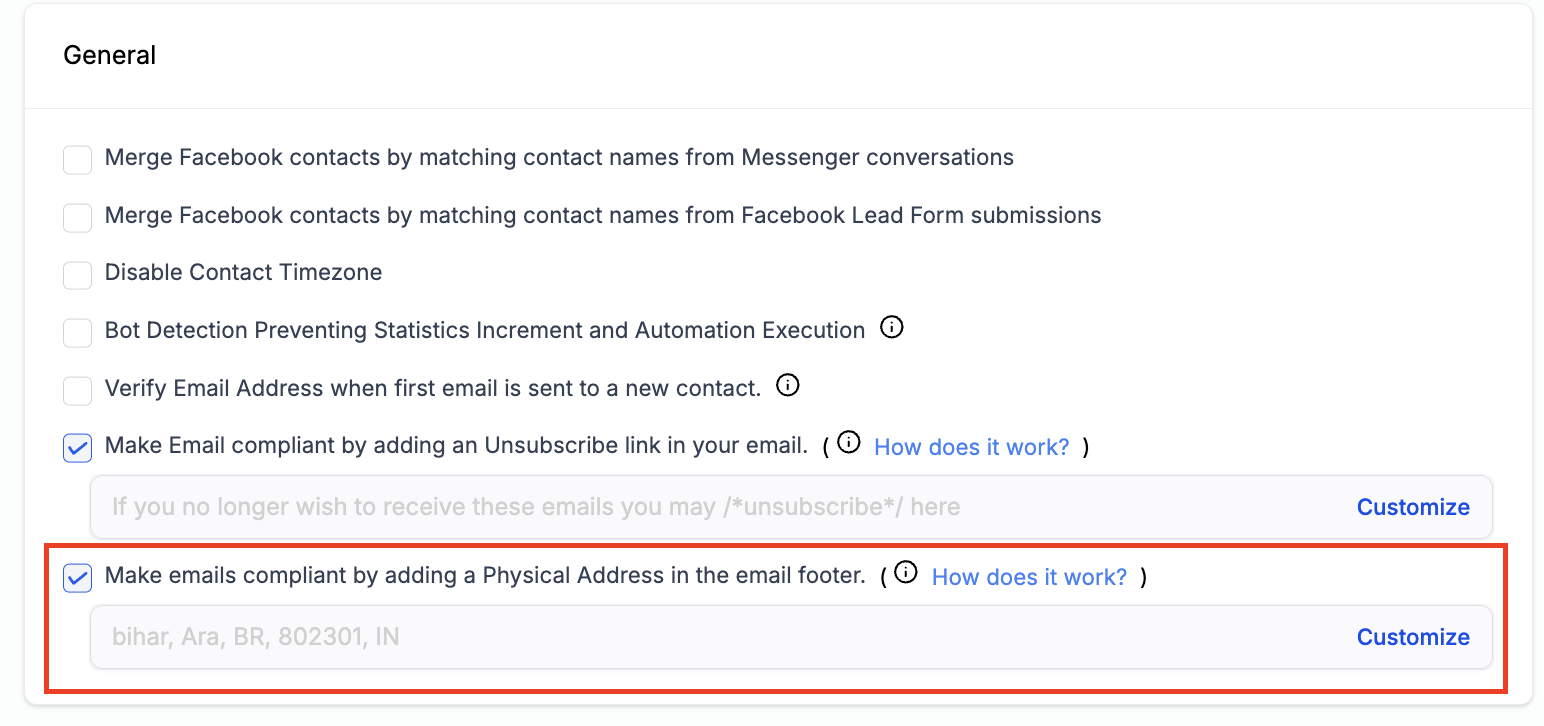
No further configuration is needed. The footer address is applied out of the box once the checkbox is enabled. You can see a preview of the address that will appear (e.g. 400 N Saint Paul St STE 980, Dallas, 75201) directly in the settings panel.
If you want the email footer to show a different address — for example, a P.O. box, virtual mailbox, or alternate office location — you can override the default business address without changing your main Business Profile.
After enabling the footer toggle, click the Customize link shown next to the address preview. An inline address form will expand.
The form includes the following required fields:
- Street Address
- City
- State / Prov / Region
- Postal / Zip Code
- Country
Click Save Address to apply the override. This custom address is saved independently and does not overwrite the main Business Physical Address in your Business Profile settings.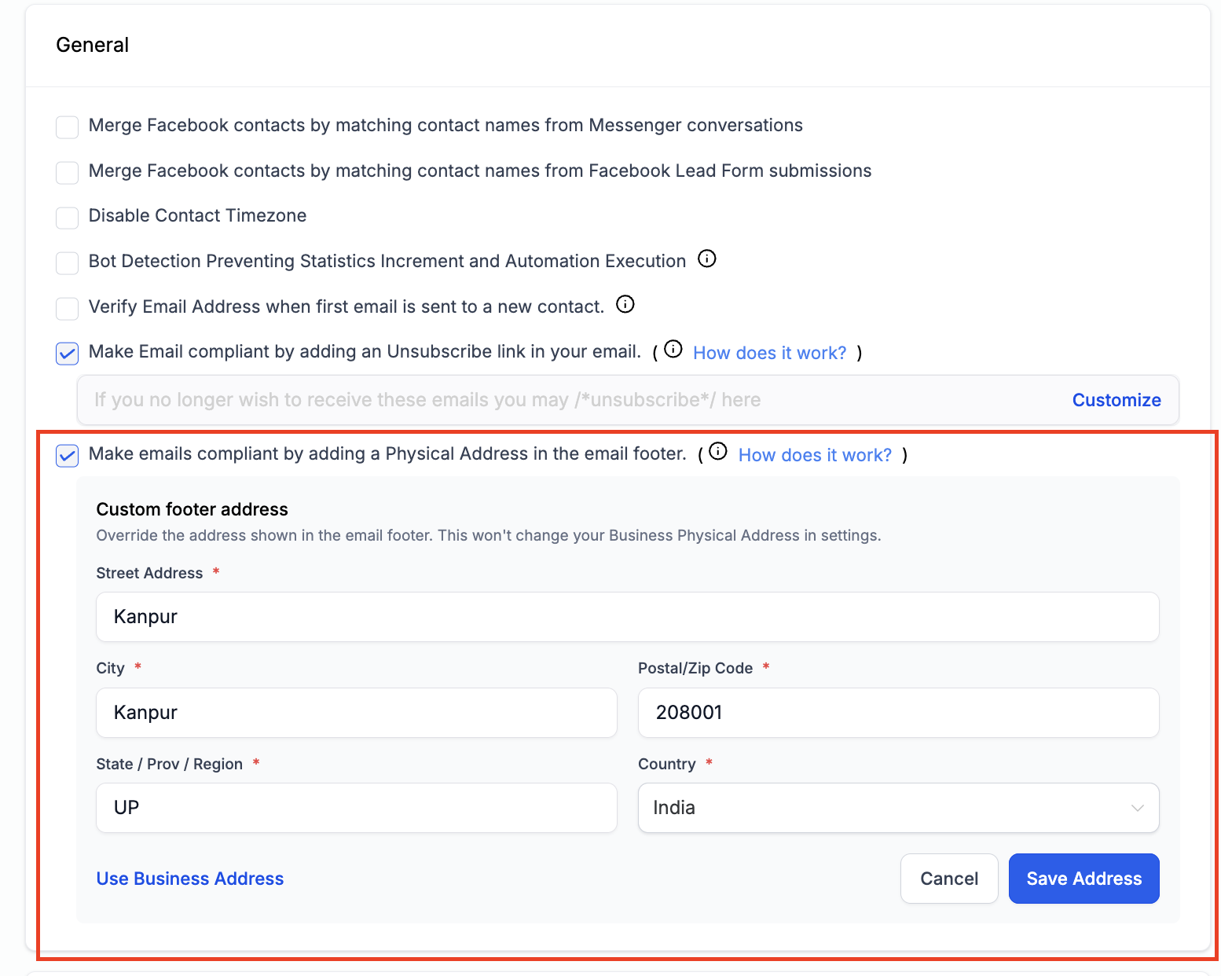
To revert to the default business address at any time, click Use Business Address at the bottom of the custom address form. This clears the override and restores the address pulled from your Business Profile.
If you leave the checkbox unchecked and choose not to include a physical address in your email footer, the following warning message will appear inline in your settings:
⚠️ Sending commercial emails without a physical address may violate CAN-SPAM and other anti-spam regulations. We recommend including an address to stay compliant.
This warning is non-blocking — you can still save your settings and send emails without a physical address. However, we strongly recommend enabling this setting to remain compliant and protect your sender reputation.
Was this article helpful?
Related articles
- What is ResQEngage Email?LeadConnector Email is designed to help businesses avoid the hassle of signing up for Mailgun or any 3rd party email service provider. In the past, when a business signed up they would need to either integrate with Mailgun or another email service provider to send/receive email. With LeadConnector EResQEngage Email
- How to set up a dedicated sending domain within a Sub-AccountEmail marketing is a great way to reach customers and increase sales. But if you're not careful, you could end up in trouble. A dedicated sending domain gives you control over what appears to be coming from your business. That means you can avoid spam filters and other issues that might make your meResQEngage Email
- How to Set Up Unsubscribe LinksAn unsubscribe link is a link within your email that allows recipients to opt-out from receiving any email newsletters for your products or services. Maintaining a clean email list is imperative for email deliverability, and adding an unsubscribe link in the email footer is always the best practice.ResQEngage Email
- Two Way Email Sync for OutlookUsing 2-Way Sync for Outlook, Users can link their Outlook account with the CRM and sync emails to and from both platforms. Both platforms will create a connection when an email is first sent out from the CRM. All subsequent emails in the thread will be in sync between both platforms. Covered in thResQEngage Email