Domain Removal Blocked Due to Active Campaign Assignment
If you’re trying to delete a domain from your system but get an error saying it’s still linked to an active campaign, don’t worry.
This guide walks you through unlinking the domain from every campaign it’s tied to, so you can remove it cleanly — without affecting deliverability or any campaign that’s currently sending.
Click Delete Domain for the domain you want to remove. If the domain is tied to a campaign, you’ll see an alert letting you know it can’t be deleted yet.
“The domain is currently assigned to a scheduled Campaign Domain (except test campaign). Try again after the campaign has finished sending, or remove the domain from the Campaign Domain (except test campaign).”
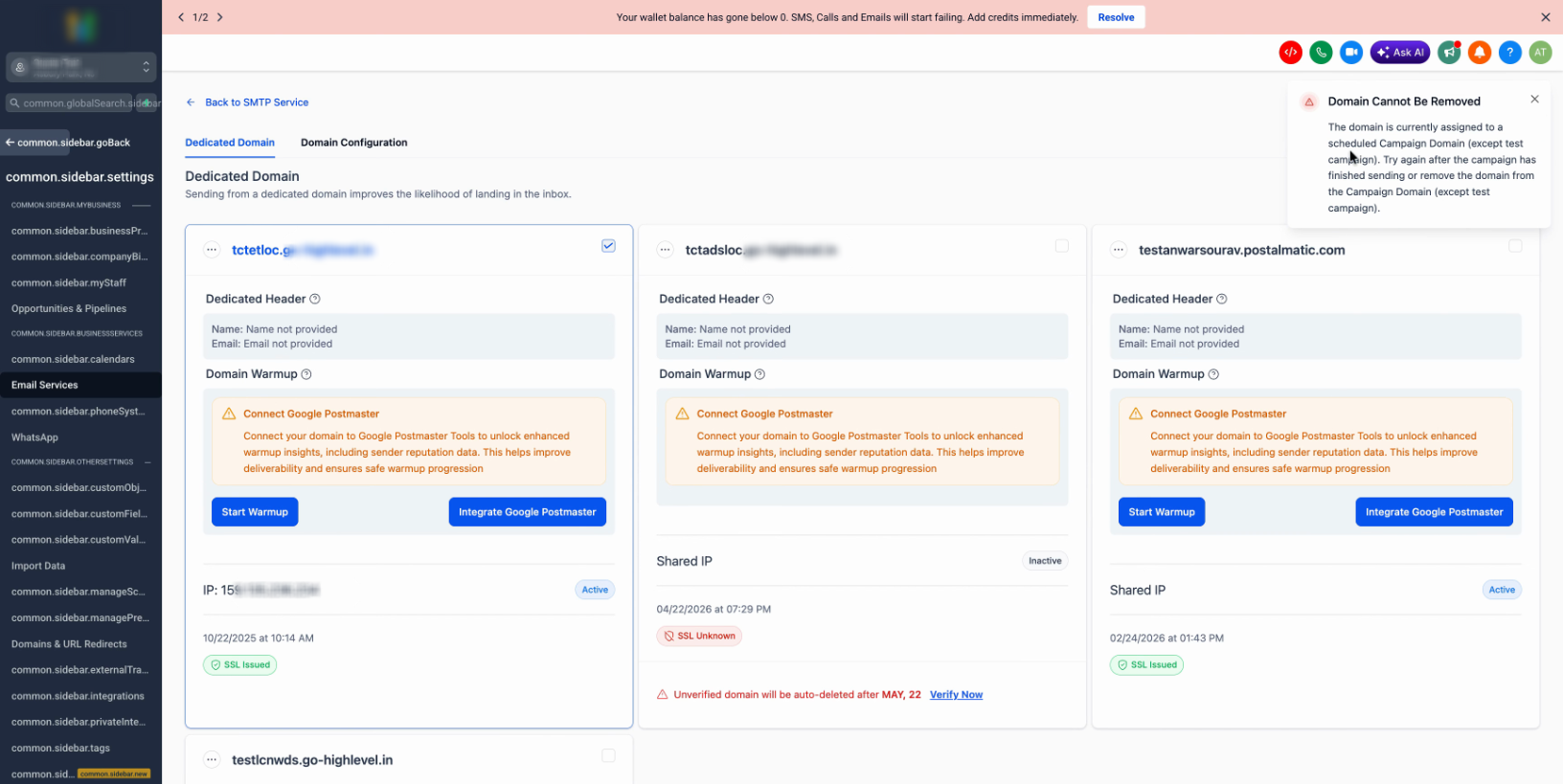
Open the Domain Configurator option in your menu. Find and select the domain that’s causing the deletion error.
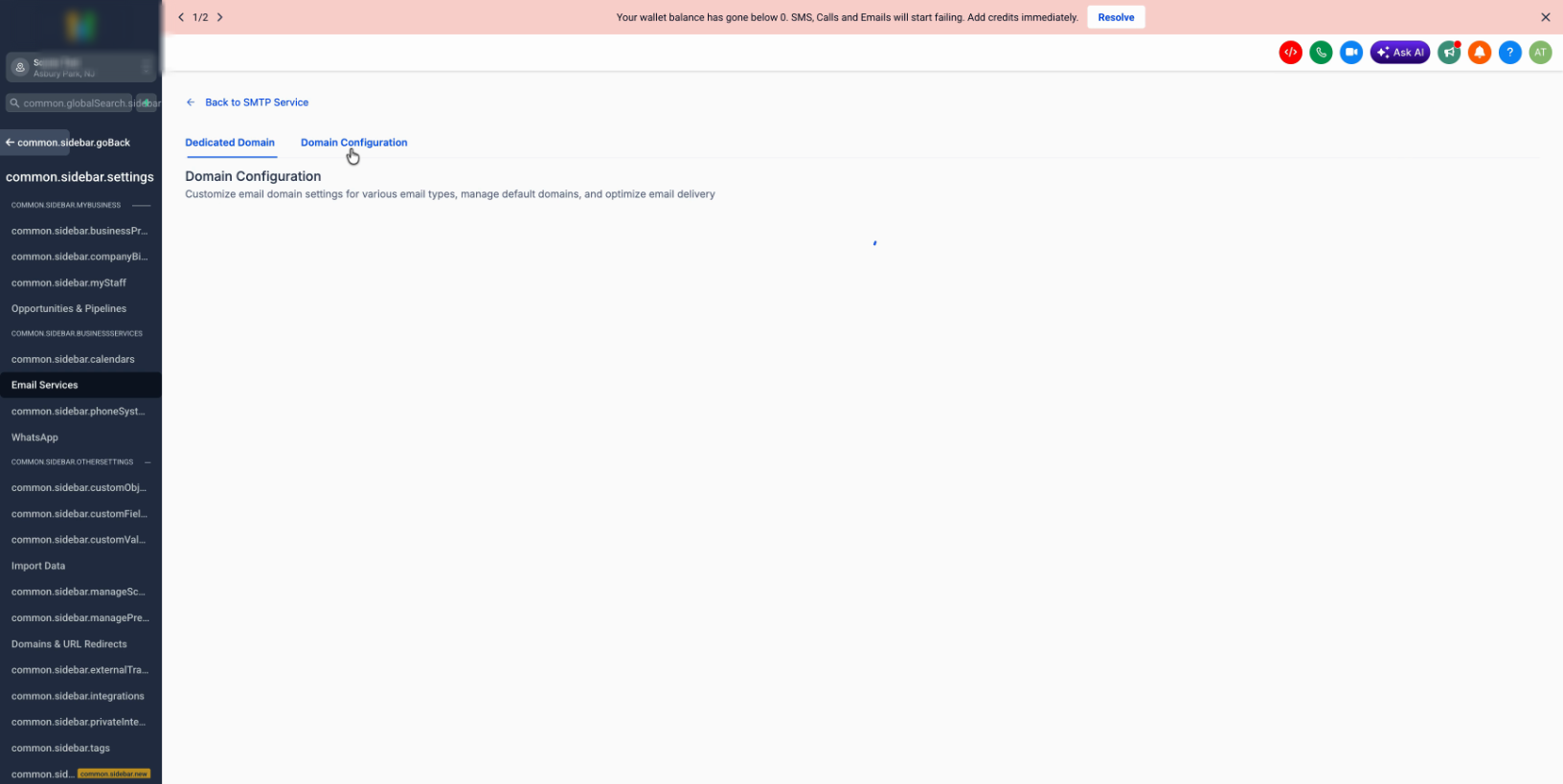
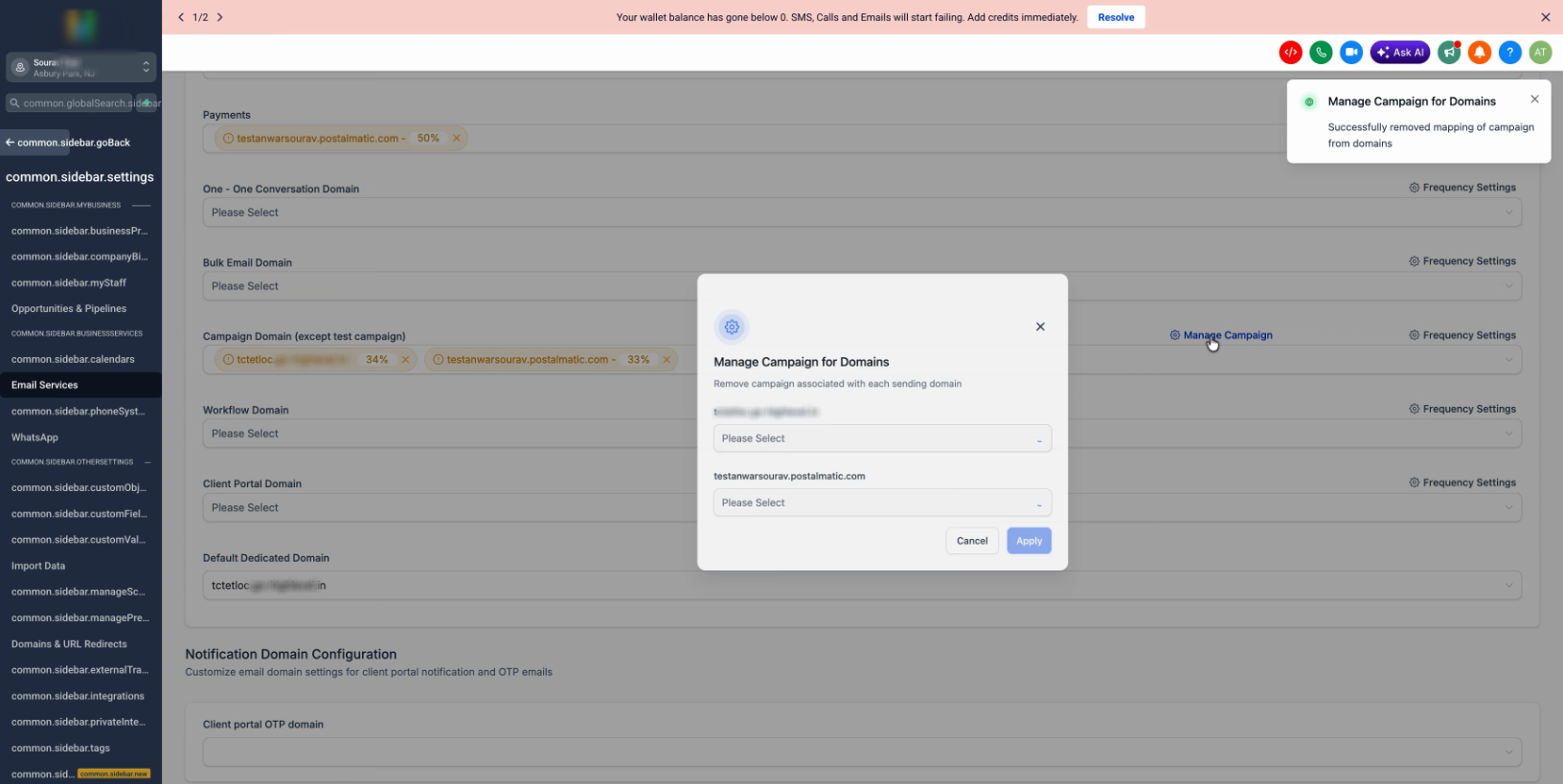
Click Manage Campaign for that domain to view all campaigns currently linked to it.
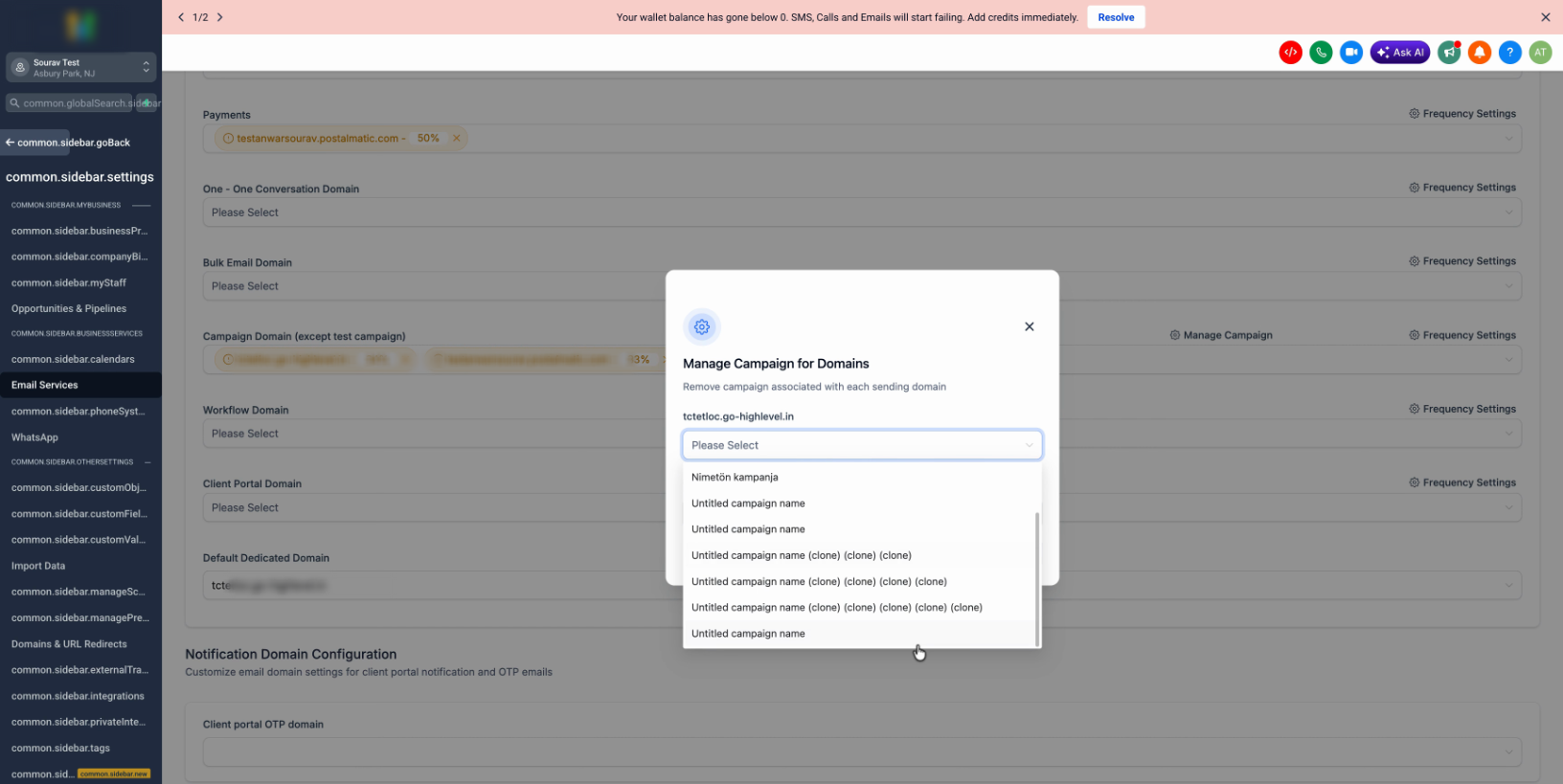
Select all campaigns associated with the domain, then use the Remove option to unlink your domain from every campaign in the list.
Make sure to remove the domain from every campaign shown — missing even one will block the delete in the next step.
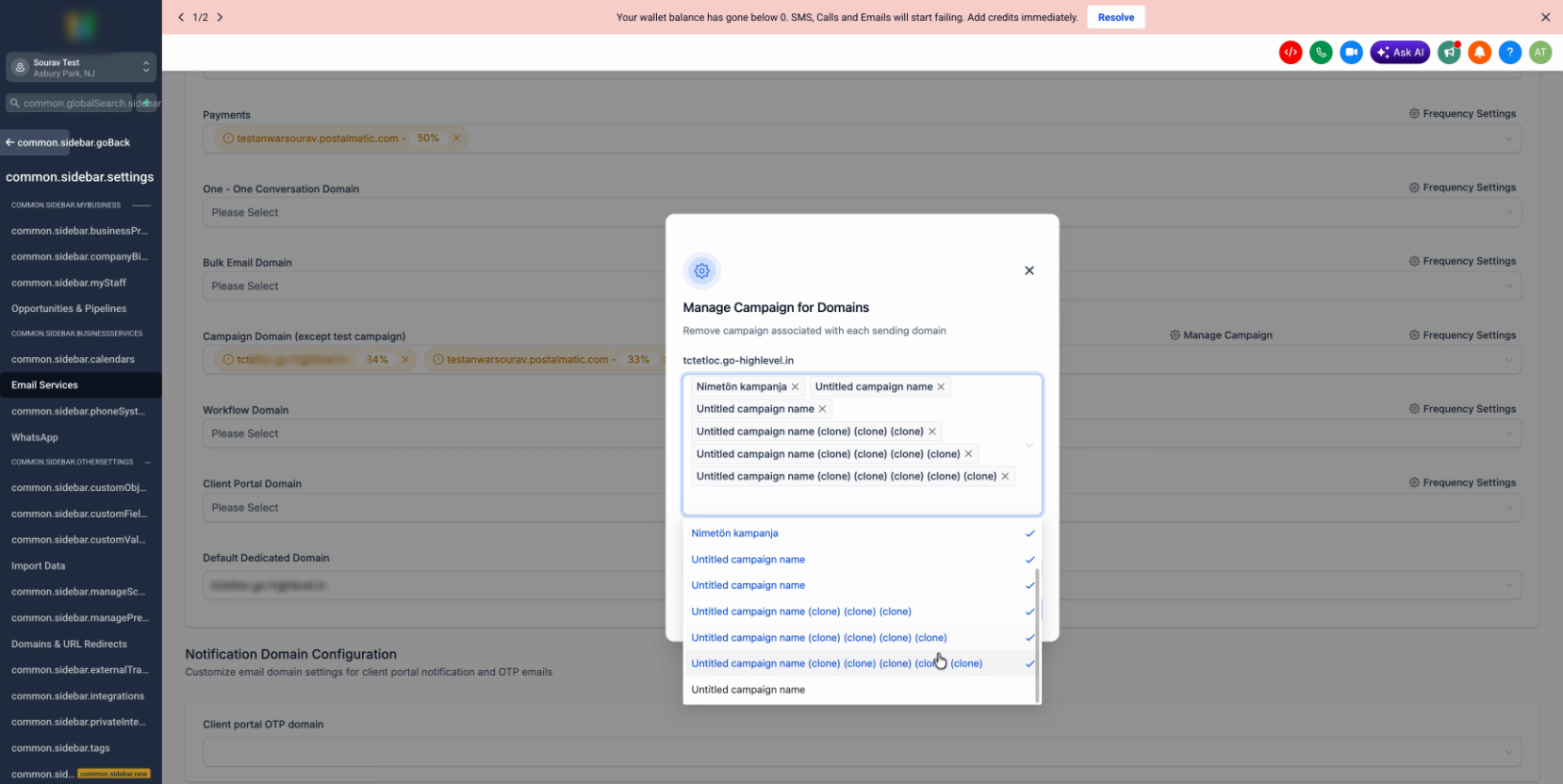
Click Apply to confirm the removal. The system will save the unlinked state across all selected campaigns.
Go back to Manage Campaign to confirm no campaigns are linked. The list should now be completely blank.
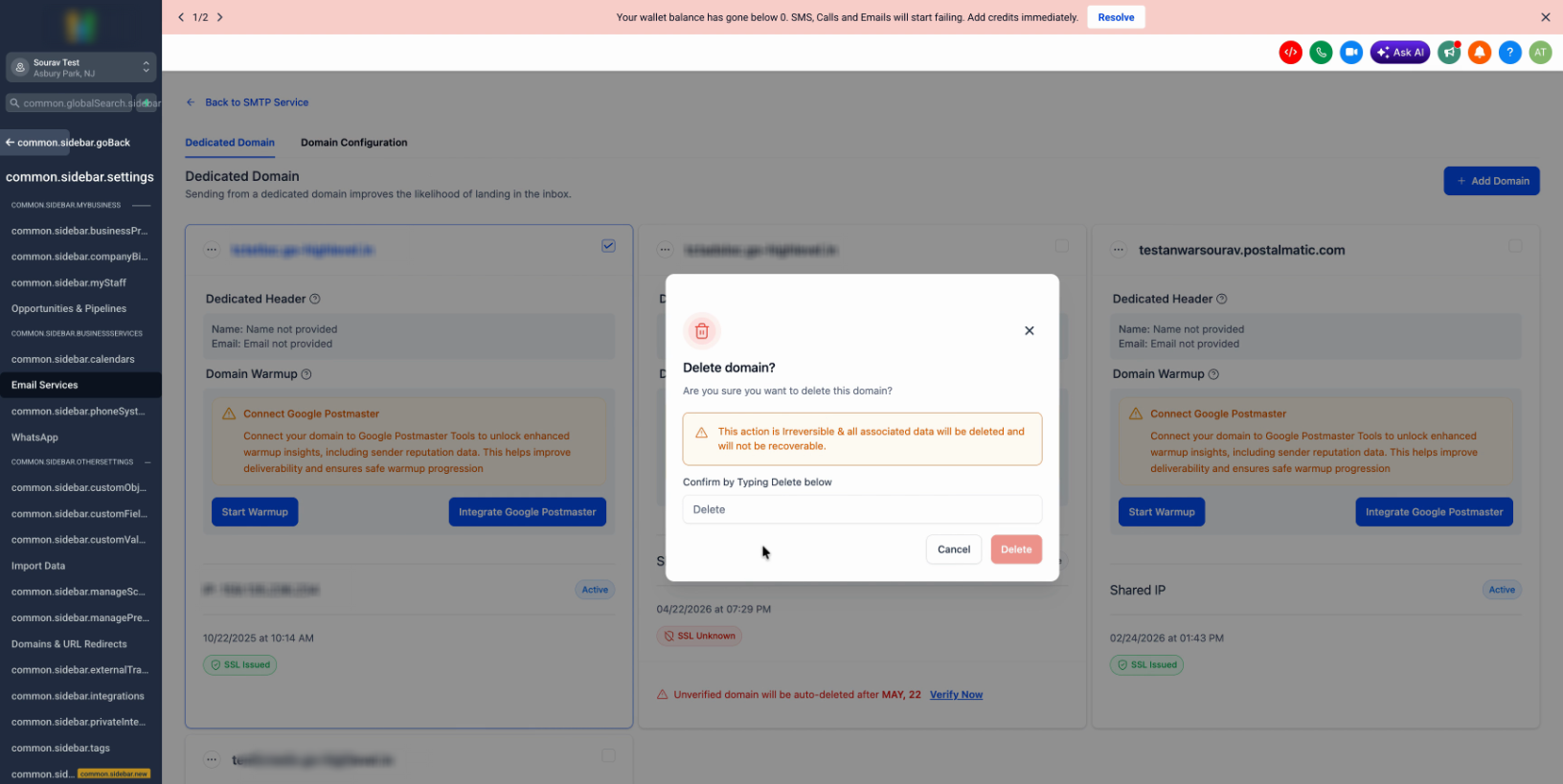
Return to the main domain list. This time, you’ll see the option to delete the domain. Enter the required confirmation text (such as “delete”) and click Delete.
The domain is now fully removed. Unlinking before deletion prevents accidental data loss and keeps your active campaigns running smoothly.
Was this article helpful?
Related articles
- What is ResQEngage Email?LeadConnector Email is designed to help businesses avoid the hassle of signing up for Mailgun or any 3rd party email service provider. In the past, when a business signed up they would need to either integrate with Mailgun or another email service provider to send/receive email. With LeadConnector EResQEngage Email
- How to set up a dedicated sending domain within a Sub-AccountEmail marketing is a great way to reach customers and increase sales. But if you're not careful, you could end up in trouble. A dedicated sending domain gives you control over what appears to be coming from your business. That means you can avoid spam filters and other issues that might make your meResQEngage Email
- How to Set Up Unsubscribe LinksAn unsubscribe link is a link within your email that allows recipients to opt-out from receiving any email newsletters for your products or services. Maintaining a clean email list is imperative for email deliverability, and adding an unsubscribe link in the email footer is always the best practice.ResQEngage Email
- Two Way Email Sync for OutlookUsing 2-Way Sync for Outlook, Users can link their Outlook account with the CRM and sync emails to and from both platforms. Both platforms will create a connection when an email is first sent out from the CRM. All subsequent emails in the thread will be in sync between both platforms. Covered in thResQEngage Email