How do I Add a Course Discipline?
Disciplines categorize your courses by the type of training they cover — BLS, ACLS, First Aid, CPR/AED, and so on. Every course in CPR Enroll+ should be assigned a discipline. Disciplines are used to filter your course catalog on the student registration page, making it easier for students to find the training they need.
Before You Begin
CPR Enroll+ includes 13 built-in disciplines:
- ACLS (Advanced Cardiovascular Life Support)
- ASLS (Advanced Stroke Life Support)
- BBP (Bloodborne Pathogens)
- BLS (Basic Life Support)
- CPR/AED
- EMS (Emergency Medical Services)
- First Aid
- First Aid CPR/AED
- Heartsaver
- NRP (Neonatal Resuscitation Program)
- PALS (Pediatric Advanced Life Support)
- PEARS (Pediatric Emergency Assessment, Recognition, and Stabilization)
- Other
Step-by-Step Instructions
Step 1: Assign a Discipline to a Course
- Go to Course Builder > Courses.
- Click + Create for a new course, or ⋮ > Edit on an existing one.
- In the course form, find the Discipline dropdown.
- Select the appropriate discipline.
- Click Save.
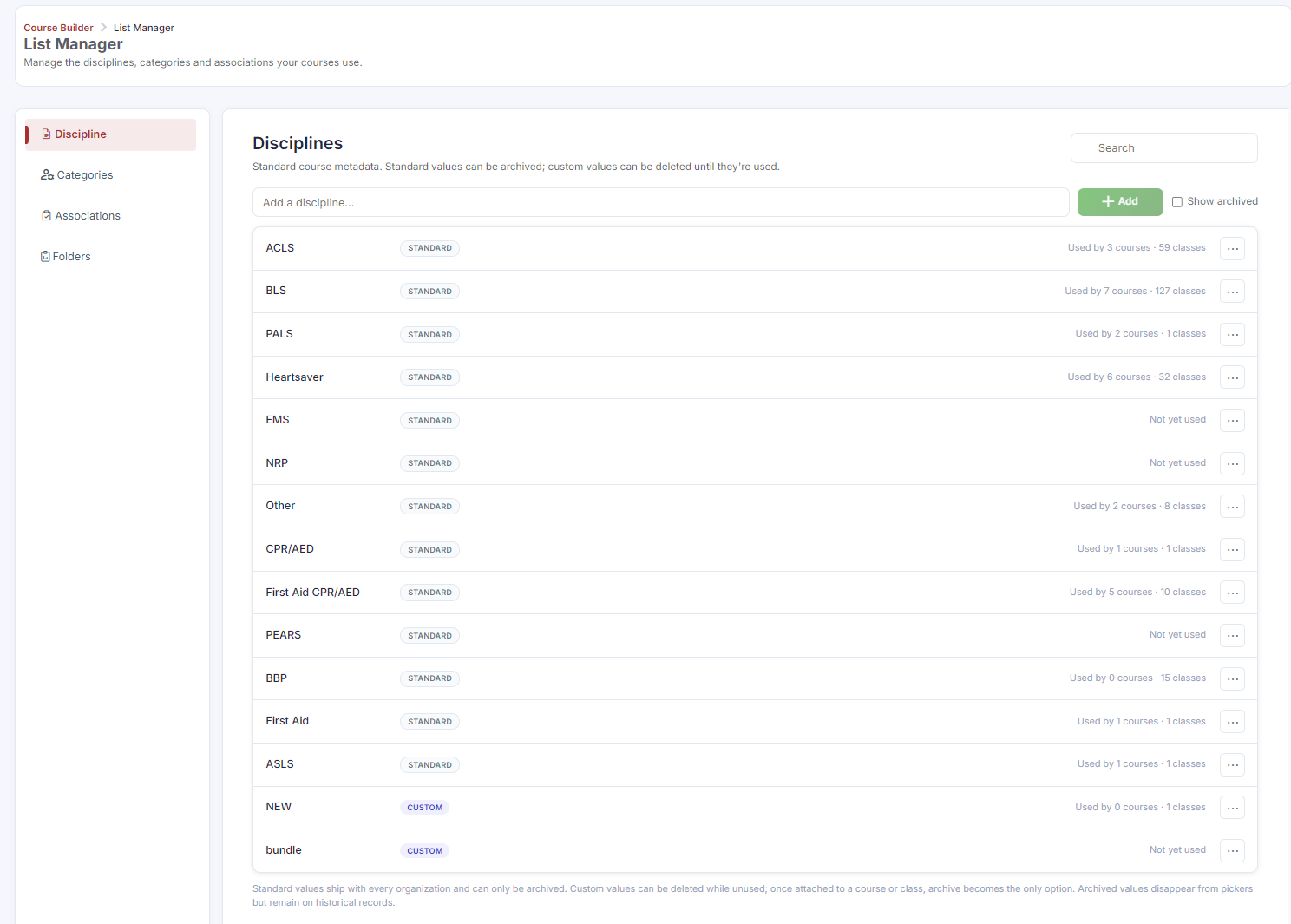
Step 2: Browse Discipline Templates from the Marketplace
- Click Marketplace in the sidebar.
- Select Disciplines from the category dropdown.
- Hover over a discipline card and click Use Template to import it into your account.
✔ Disciplines as registration filters: On your student registration page, students can filter your class catalog by discipline. Make sure every course has the correct discipline assigned so students can find classes easily.
Best Practices
- Assign a discipline to every course, even ones outside the standard 13, using "Other" if nothing else fits.
- Double-check discipline assignment when cloning a course, since it's easy to overlook when reusing an existing course as a template.
- Browse the Marketplace for discipline templates before assuming you need to build a new discipline structure from scratch.
- Review your full course list periodically to confirm no courses are missing a discipline, since this affects how easily students can filter and find them.
Frequently Asked Questions
| Question | Answer |
|---|---|
| How many built-in disciplines does CPR Enroll+ include? | 13, ranging from ACLS to PEARS, plus a general "Other" category. |
| What happens if a course has no discipline assigned? | Students won't be able to find it when filtering the class catalog by discipline on the registration page, making it harder to discover. |
| Where can I find additional discipline templates? | In the Marketplace, under the Disciplines category. |
✔ You're all set. Your course now has a discipline assigned, making it easy for students to filter and find on the registration page.
Was this article helpful?
Related articles
- Managing LocationsLocations define where your classes take place. Every class that has a physical or virtual meeting place must be linked to a Location record in CPR Enroll+. You can create as many locations as you need — training rooms, partner venues, and virtual meeting links. CPR Enroll+ also includes three speciLocations
- What Is a Virtual Location and How Do I Create One?A Virtual Location in CPR Enroll+ is a saved video conferencing link — your Zoom room, Microsoft Teams meeting, Google Meet link, or any other video platform URL — that you attach to a scheduled class. When a class uses a virtual location, CPR Enroll+ automatically includes the meeting link in the sLocations
- Understanding Client, Student, and Mobile LocationsCPR Enroll+ includes three special built-in default locations — Client Location, Student Location, and Mobile Location — that handle training scenarios where the venue is not a fixed, pre-saved address. Each is designed for a different flexible training model. All three are archived by default and mLocations