What Is a Virtual Location and How Do I Create One?
A Virtual Location in CPR Enroll+ is a saved video conferencing link — your Zoom room, Microsoft Teams meeting, Google Meet link, or any other video platform URL — that you attach to a scheduled class. When a class uses a virtual location, CPR Enroll+ automatically includes the meeting link in the student's enrollment confirmation email and class reminder emails, so students always have the link without you distributing it manually.
Before You Begin
A Virtual Location is a good fit when:
- You are delivering a live, instructor-led class via video (Virtual class type).
- You want students to receive the meeting link automatically in their confirmation email.
- You have a dedicated recurring video room (e.g., a permanent Zoom link) used for all your virtual sessions.
- You offer both in-person and virtual versions of the same course and want separate location records for each.
ℹ Virtual Location vs. Online class type: A Virtual Location is for live, scheduled video sessions where an instructor and students are present simultaneously. The Online class type is for fully self-paced courses with no instructor and no fixed time — it requires no location at all. Do not assign a virtual location to an Online class.
Step-by-Step Instructions
Step 1: Create a Virtual Location
- From the sidebar, go to Course Builder > Locations.
- Click + Create.
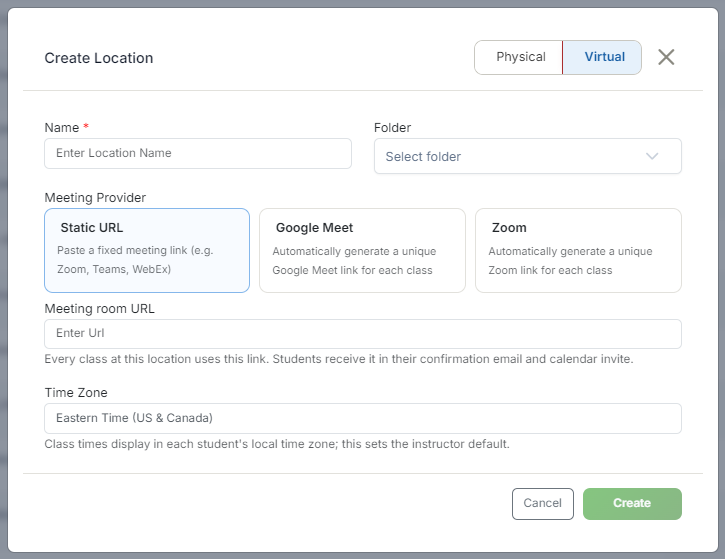
- Select Virtual as the location type.
- Enter the Location Name — be descriptive so it is easy to identify when scheduling (e.g., "Zoom — BLS Training Room" or "Teams — Main Virtual Classroom").
- Enter the Meeting URL — paste the full video conferencing link. This is the link students will receive in their confirmation and reminder emails.
- Set the Timezone — virtual locations have one timezone (unlike physical locations, which support a primary and secondary).
- Click Save.
✔ Use a permanent meeting room link: Most video platforms (Zoom, Teams, Google Meet) offer a Personal Meeting Room or Permanent Meeting Link that does not change between sessions. Save this as your virtual location URL so the same link works for every class — you will not need to update it after each session.
Step 2: Schedule a Class With a Virtual Location
- Go to Classes > + to create a new class.
- Select Virtual as the Class Type.
- Select your virtual location from the Location dropdown.
- Select the Instructor, set the Date, Start Time, End Time, and Timezone.
- Configure Max Students and any Listing Settings, then click Save.
Step 3: Know What Students See
- On the registration page: the class is listed with the virtual location name and scheduled time.
- In the enrollment confirmation email: the meeting URL is included automatically — students click it to join on class day.
- In the class reminder email: the meeting link is repeated so students have it close to class time.
Step 4: Manage Multiple Virtual Locations
If multiple instructors each use their own video room, or if you run classes on different platforms (some on Zoom, some on Teams), create a separate Virtual Location record for each. This keeps meeting links organized and ensures the correct link goes to each class's students.
Running a Virtual Class — Quick Checklist
- Before class: verify the enrolled student list via Classes > ⋮ > View Details and confirm the meeting URL is correct.
- At class time: start your video meeting 5–10 minutes early and admit students from the waiting room as they join.
- After class: go to Reports > Student Attendance and use Mark as Present to record attendance for all present students.
- If paperwork is required: go to Classes > ⋮ > Generate Class Paperwork to create skills assessment documents.
Best Practices
- Use a permanent meeting room link so you never have to update the location record between sessions.
- Name virtual locations descriptively, especially if you run classes on multiple platforms or with multiple instructors.
- Start your video meeting 5–10 minutes early to admit students smoothly from the waiting room.
- Never assign a virtual location to an Online (self-paced) class — those class types require no location at all.
Frequently Asked Questions
| Question | Answer |
|---|---|
| Do students have to ask me for the meeting link? | No. The meeting URL is included automatically in the enrollment confirmation email and repeated in the class reminder email. |
| Can a virtual location have a primary and secondary timezone like a physical location? | No. Virtual locations have a single timezone setting. |
| Should I create one virtual location for all instructors to share? | Only if they share the same video room. If each instructor or platform uses a different link, create a separate Virtual Location record for each. |
✔ You're all set. Your Virtual Location is created and ready to attach to classes, so students automatically receive the meeting link in their emails.
Was this article helpful?
Related articles
- Managing LocationsLocations define where your classes take place. Every class that has a physical or virtual meeting place must be linked to a Location record in CPR Enroll+. You can create as many locations as you need — training rooms, partner venues, and virtual meeting links. CPR Enroll+ also includes three speciLocations
- Understanding Client, Student, and Mobile LocationsCPR Enroll+ includes three special built-in default locations — Client Location, Student Location, and Mobile Location — that handle training scenarios where the venue is not a fixed, pre-saved address. Each is designed for a different flexible training model. All three are archived by default and mLocations
- How do I Add a Course Discipline?Disciplines categorize your courses by the type of training they cover — BLS, ACLS, First Aid, CPR/AED, and so on. Every course in CPR Enroll+ should be assigned a discipline. Disciplines are used to filter your course catalog on the student registration page, making it easier for students to find tLocations