Managing Locations
Locations define where your classes take place. Every class that has a physical or virtual meeting place must be linked to a Location record in CPR Enroll+. You can create as many locations as you need — training rooms, partner venues, and virtual meeting links. CPR Enroll+ also includes three special built-in default locations (Client Location, Student Location, and Mobile Location) designed for flexible and on-site training arrangements. See Your NEW Setup Guide: Understanding Client, Student, and Mobile Locations for details on those.
Before You Begin
Review the location types below to decide which ones your business needs:
| Location Type | Best For | Address Source |
|---|---|---|
| Physical | Fixed training venues with a set address | Entered at location creation |
| Virtual | Live video classes (Zoom, Teams, etc.) | Meeting URL entered at location creation |
| Client Location | On-site training at a corporate client's facility | Pre-saved in People > Clients profile |
| Student Location | Instructor travels to each student's address | Collected from student at registration |
| Mobile Location | Flexible — student chooses "we come to you" or picks from approved venues | Collected at registration or selected by student |
Step-by-Step Instructions
Step 1: Create a Physical Location
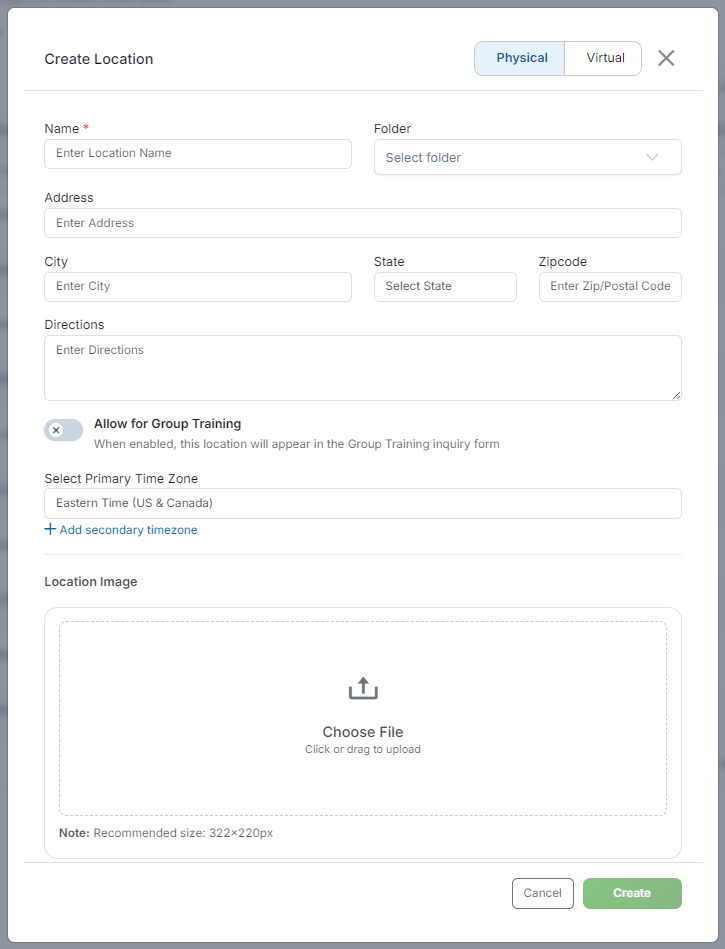
- From the sidebar, go to Course Builder > Locations.
- Click + Create.
- Select Physical as the location type.
- Enter the Location Name (required).
- In the Address field, begin typing the address. Google Maps autocomplete will suggest matching addresses as you type — select one to auto-fill the full validated address with a green checkmark.
- If no match is found, toggle to manual entry and fill in Address, City, State (dropdown with all 50 states, DC, and territories), and Zip Code separately.
- Add Directions using the plain text field — driving directions, parking notes, or entry instructions for students.
- Set the Primary Timezone and optionally a Secondary Timezone (useful for locations near a timezone border).
- Upload a Location Image (322 × 220 px recommended) to display on your registration page.
- Click Save.
Step 2: Set Schedule Availability
Define when each location is available for scheduling to prevent accidentally booking classes when the venue is closed.
- Click ⋮ > Edit on a location.
- Click the Schedule Availability tab in the left sidebar of the edit view.
- Check the boxes for each available day of the week.
- Set the available time range for each day (default: 8:00 AM – 5:00 PM).
- Click + Add Time on any day to add multiple time blocks (e.g., a morning and an evening session).
- Click Save.
ℹ Archiving vs. deleting locations: Locations can only be archived, not permanently deleted. This preserves historical class and enrollment records linked to that location. To archive: click ⋮ > Archive on the location row. To see archived locations, change the view filter from Active to All.
ℹ Certificate field: The Create Location form also includes a Certificate dropdown for associating a certificate template with the location.
ℹ Allow for Group Training: Toggle this checkbox ON if you want this location to appear as an option in the Group Training inquiry form.
Best Practices
- Add clear Directions to every physical location so students can find the venue without calling for help.
- Set Schedule Availability for each location to prevent double-booking or scheduling classes when a venue is closed.
- Archive locations you no longer use instead of trying to delete them, to preserve historical records.
- Only activate the default locations (Client, Student, Mobile) that your business model actually uses, to avoid cluttering the Location dropdown.
Frequently Asked Questions
| Question | Answer |
|---|---|
| Can I permanently delete a location? | No. Locations can only be archived, which preserves historical class and enrollment records linked to that location. |
| How do I see archived locations? | Change the view filter from Active to All in the Locations list. |
| What are Client Location, Student Location, and Mobile Location? | Three special built-in default locations designed for flexible and on-site training arrangements. See Your NEW Setup Guide: Understanding Client, Student, and Mobile Locations for details. |
✔ You're all set. Your location is created, its availability is configured, and it's ready to be assigned to classes.
Was this article helpful?
Related articles
- What Is a Virtual Location and How Do I Create One?A Virtual Location in CPR Enroll+ is a saved video conferencing link — your Zoom room, Microsoft Teams meeting, Google Meet link, or any other video platform URL — that you attach to a scheduled class. When a class uses a virtual location, CPR Enroll+ automatically includes the meeting link in the sLocations
- Understanding Client, Student, and Mobile LocationsCPR Enroll+ includes three special built-in default locations — Client Location, Student Location, and Mobile Location — that handle training scenarios where the venue is not a fixed, pre-saved address. Each is designed for a different flexible training model. All three are archived by default and mLocations
- How do I Add a Course Discipline?Disciplines categorize your courses by the type of training they cover — BLS, ACLS, First Aid, CPR/AED, and so on. Every course in CPR Enroll+ should be assigned a discipline. Disciplines are used to filter your course catalog on the student registration page, making it easier for students to find tLocations