How do I customize my profile page?
Your profile page in CPR Enroll+ lets you personalize your presence within the platform and, for instructors, set up an email signature that is automatically included in student communications.
This article covers updating your basic profile information and configuring an instructor email signature.
Before You Begin
- Have your current contact details on hand (name, email, phone, address).
- Decide what you want included in your instructor signature — credentials, contact details, or a personal message.
Step-by-Step Instructions
Step 1: Update Your Basic Profile Information
- Click your username at the bottom of the left sidebar.
- Select My Settings from the menu.
- Update your First Name, Last Name, Email, and Phone as needed.
- Update your Address if required — the Address field uses Google Maps autocomplete.
- Click Save.
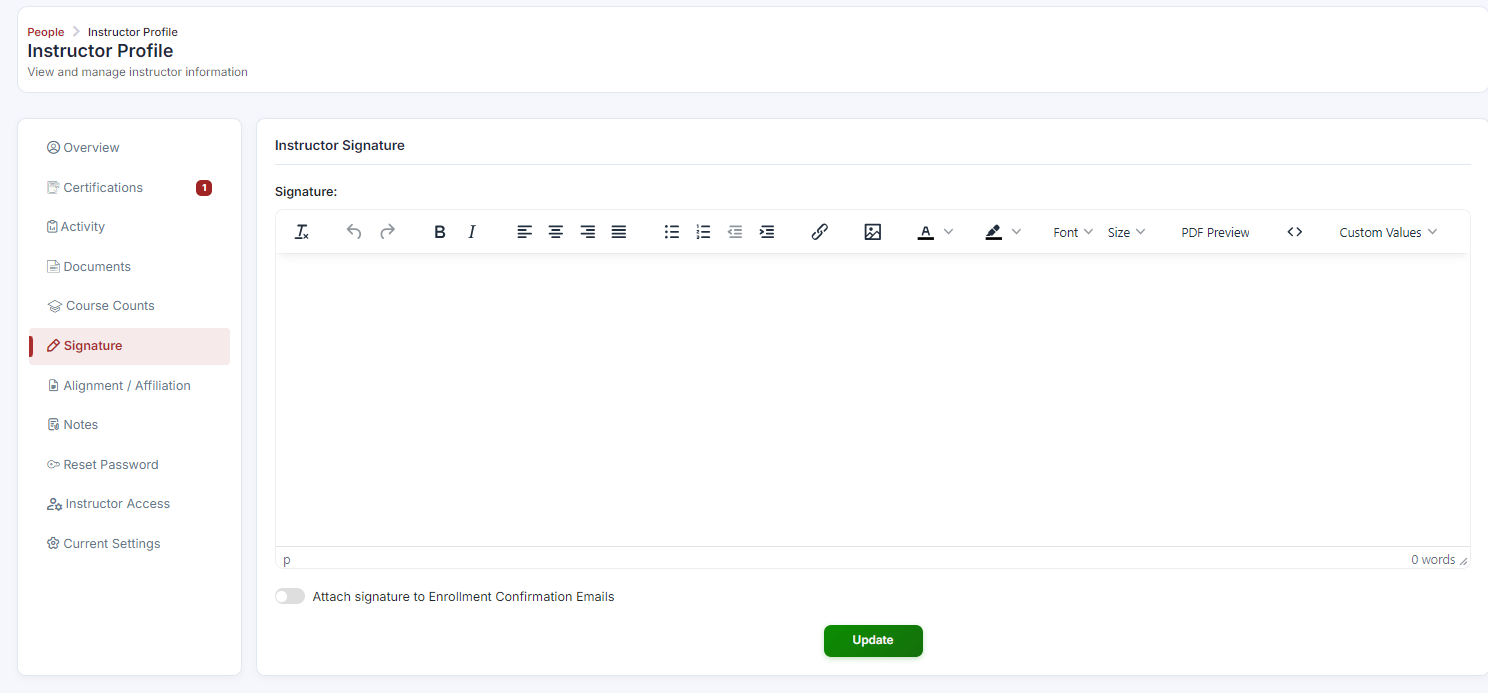
Step 2: Set Up an Instructor Email Signature
Instructors can set a custom email signature that is automatically appended to enrollment confirmation emails sent to their students.
- Go to People > Instructors in the sidebar.
- Open the instructor's profile from the list.
- Click the Signature tab in the left-hand menu.
- Use the rich text editor to compose your signature. You can include your name, contact details, credentials, and a personal message.
- Click the Custom Values dropdown in the editor toolbar to insert dynamic fields such as your organization name, instructor name, or contact details that auto-populate when the email is sent.
- Toggle on Attach signature to Enrollment Confirmation Emails to activate it.
- Click Save.
✔ Custom Values tip: Use Custom Values merge fields (such as {instructorname} and {organizationname}) rather than typing them manually. This ensures the signature is always accurate even if the instructor's name or your organization name changes.
Best Practices
- Keep your contact information current so students and staff can always reach you.
- Use Custom Values merge fields in signatures instead of hardcoded text, so signatures stay accurate automatically.
- Keep instructor signatures concise — name, credentials, and one line of contact info is usually enough.
- Double-check the Attach signature toggle after editing, since a saved signature won't appear on emails until it's activated.
Frequently Asked Questions
| Question | Answer |
|---|---|
| Where do I go to edit my own profile information? | Click your username at the bottom of the left sidebar, then select My Settings. |
| Will my signature appear on every student email? | Only on Enrollment Confirmation Emails, and only once the Attach signature toggle is switched on. |
| What are Custom Values used for? | They insert dynamic fields, like organization name or instructor name, that auto-populate when the email is sent — so the signature stays accurate even if those details change later. |
✔ You're all set. Your profile information is up to date, and your instructor signature will now appear automatically on enrollment confirmation emails.
Was this article helpful?
Related articles
- Selecting your Time ZoneSetting the correct time zone in CPR Enroll+ is critical for class scheduling accuracy. If your time zone is set incorrectly, class times will display incorrectly on student registration pages and in email confirmations — leading to missed classes and student frustration. This article walks you throGetting Started
- How can I change the Logo of my Account?CPR Enroll+ uses two separate logo upload areas: one for your student-facing registration pages (Branding), and one for your business profile and internal documents. Make sure you upload to both for a consistent experience across your account. This article walks you through uploading your registratiGetting Started
- Is There Any Way to Change the Profile Picture?Profile pictures in CPR Enroll+ are associated with individual user accounts. Administrators and instructors with portal access can update their own profile pictures through their account settings, and administrators can also update profile pictures on behalf of any instructor. This article walks yoGetting Started
- How to set notifications?CPR Enroll+ sends automated emails for new registrations, enrollment confirmations, class reminders, key code inventory warnings, and more. Notification settings let you control which events trigger an email and who receives it. This article walks you through accessing your notification settings, coGetting Started