How to set notifications?
CPR Enroll+ sends automated emails for new registrations, enrollment confirmations, class reminders, key code inventory warnings, and more. Notification settings let you control which events trigger an email and who receives it.
This article walks you through accessing your notification settings, configuring each category, and setting instructor email preferences.
Before You Begin
Before configuring notifications, decide:
- Who should receive enrollment and registration alerts — coordinators, admins, or instructors.
- How far in advance you want certification expiration reminders sent.
- Who is responsible for reordering key codes when inventory runs low.
- Whether your instructors prefer an alert for every enrollment or a daily summary.
Step-by-Step Instructions
Step 1: Access Notification Settings
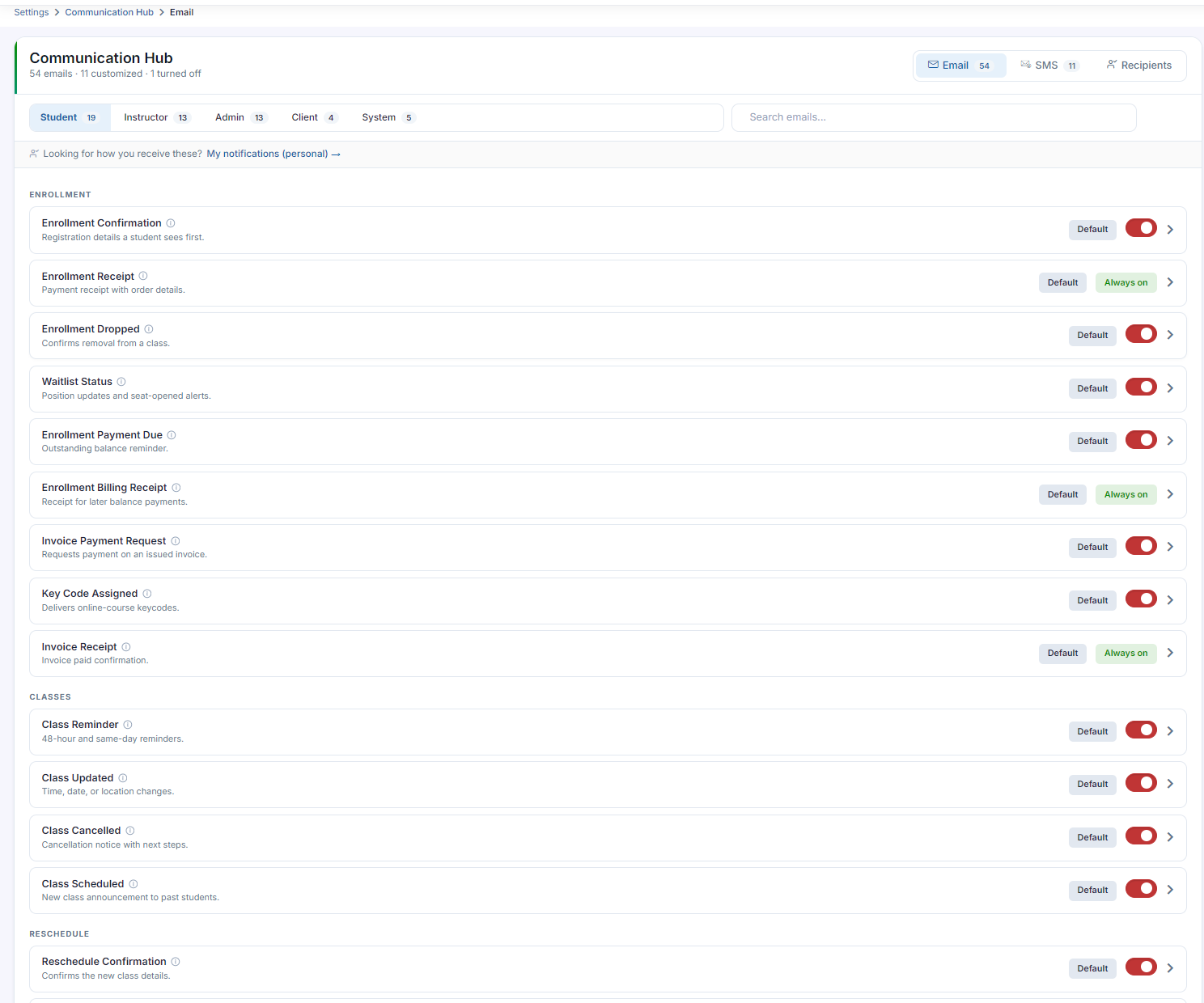
- From the sidebar, go to Settings > Communication Hub.
- You'll see four expandable notification categories.
Step 2: Configure Each Notification Category
| Category | What It Controls | Guidance |
|---|---|---|
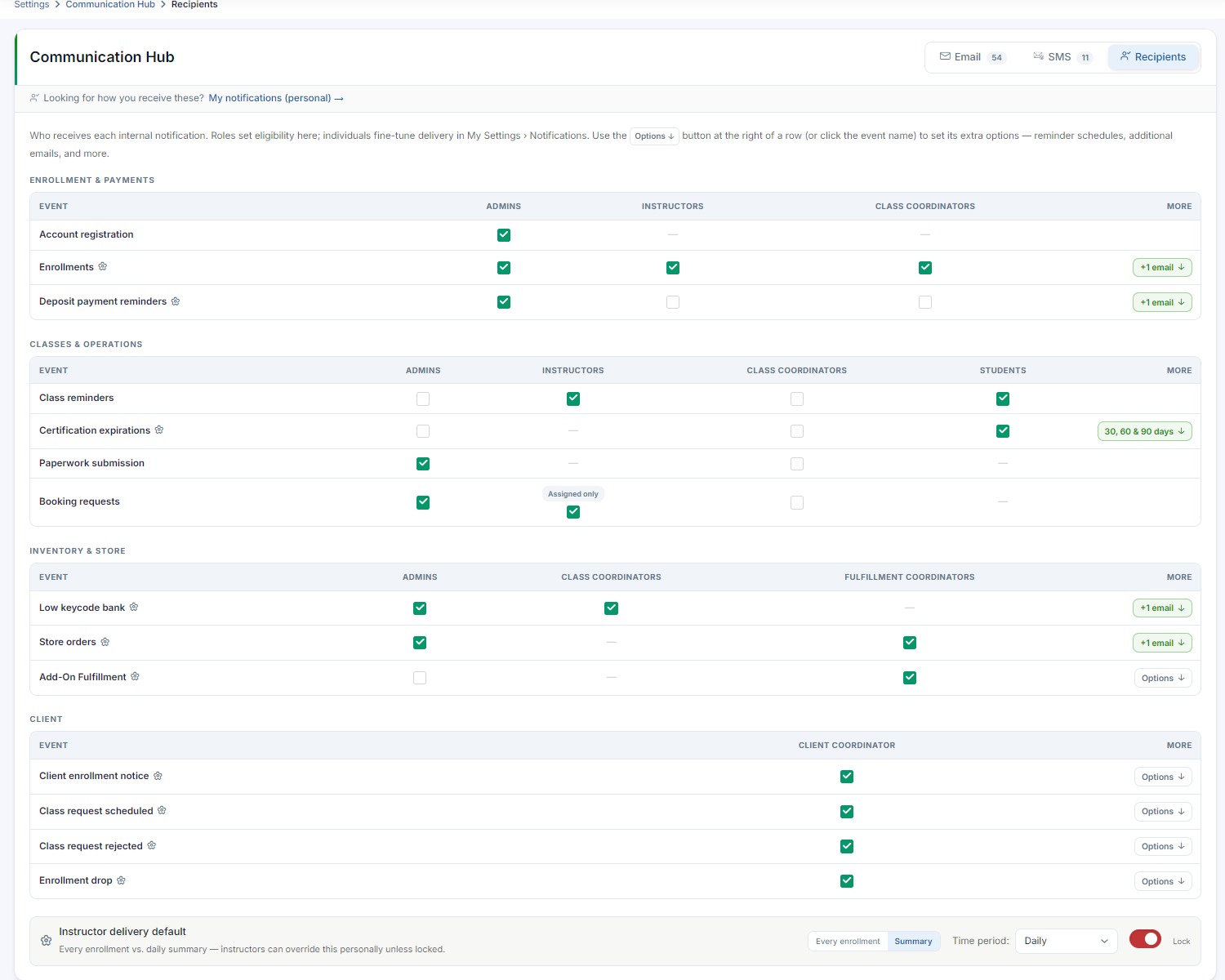
| Account & Enrollment Alerts | Who receives emails for new account registrations and student enrollments. | Route enrollment alerts to coordinators or admins rather than all instructors to avoid notification noise in high-volume operations. |
| Reminders & Certification Expirations | Class reminder timing and student certification expiration alerts. | Expiration alerts are available at three frequencies: 30 days, 30+60 days, or 30+60+90 days. Use more frequent reminders for corporate or healthcare clients with strict compliance requirements. |
| Payments & Key Operational Triggers | Deposit payment reminders and the Low Bank Key Code Notification (fires when your keycode inventory is running low). | Route the Low Bank Key Code Notification to the person responsible for reordering from your certification body. |
| Store Orders & Fulfillment | Who receives alerts when a store order is placed. | Route directly to your fulfillment coordinator. |
Step 3: Set Instructor Email Preferences
At the bottom of Notifications, configure how instructors receive enrollment alerts:
- Every Enrollment — individual email per new student.
- Summary — all enrollments grouped into one daily update.
✔ Tip: Use Summary for busy instructors teaching high-volume or back-to-back sessions, so their inbox isn't flooded with individual enrollment emails.
Best Practices
- Route each alert type to the person best positioned to act on it — coordinators for enrollments, certification-body contacts for key code reorders, fulfillment staff for store orders.
- Match certification expiration frequency to client type — more frequent reminders for corporate or healthcare clients with strict compliance requirements.
- Switch high-volume instructors to Summary mode to reduce inbox noise while keeping them informed.
- Review your notification routing periodically as staff roles or responsibilities change.
Frequently Asked Questions
| Question | Answer |
|---|---|
| How many notification categories are there? | Four: Account & Enrollment Alerts, Reminders & Certification Expirations, Payments & Key Operational Triggers, and Store Orders & Fulfillment. |
| What frequencies are available for certification expiration alerts? | 30 days, 30+60 days, or 30+60+90 days. |
| What's the difference between Every Enrollment and Summary for instructors? | Every Enrollment sends an individual email per new student, while Summary groups all enrollments into one daily update. |
✔ You're all set. Your notifications are now routed to the right people, keeping your team informed without overwhelming their inboxes.
Was this article helpful?
Related articles
- Selecting your Time ZoneSetting the correct time zone in CPR Enroll+ is critical for class scheduling accuracy. If your time zone is set incorrectly, class times will display incorrectly on student registration pages and in email confirmations — leading to missed classes and student frustration. This article walks you throGetting Started
- How can I change the Logo of my Account?CPR Enroll+ uses two separate logo upload areas: one for your student-facing registration pages (Branding), and one for your business profile and internal documents. Make sure you upload to both for a consistent experience across your account. This article walks you through uploading your registratiGetting Started
- Is There Any Way to Change the Profile Picture?Profile pictures in CPR Enroll+ are associated with individual user accounts. Administrators and instructors with portal access can update their own profile pictures through their account settings, and administrators can also update profile pictures on behalf of any instructor. This article walks yoGetting Started
- How do I customize my profile page?Your profile page in CPR Enroll+ lets you personalize your presence within the platform and, for instructors, set up an email signature that is automatically included in student communications. This article covers updating your basic profile information and configuring an instructor email signature.Getting Started