WordPress - Adding Domains for your site
This article provides instructions for adding and configuring domains for a WordPress website.
Covered in this Article
How to add Domains to your WordPress website?
a) Adding new Root Domain as your primary Domain
b) Adding WWW domain as Primary for your WordPress site
c) Adding Sub-Domain to WP site:
How to add Domains to your WordPress website?
Adding a domain to a WordPress site is necessary to make the website accessible to the public through that Domain. A domain serves as the website's address, and visitors can use it to access the site.
The article provides step-by-step instructions for adding a primary domain, additional domains, and a root domain (also known as an apex domain or naked Domain) to a WordPress site.
It also highlights that users may need a staging domain before adding domains to their WordPress website to see how their Website looks before they attach their domain to it. It also provides specific instructions for users with a domain in GoDaddy.
Check out this Loom Video to Know more on Adding Root Domain:
Check out this Loom Video to Know more on Adding WWW/Sub-Domain:
a) Adding new Root domain as your Primary Domain:
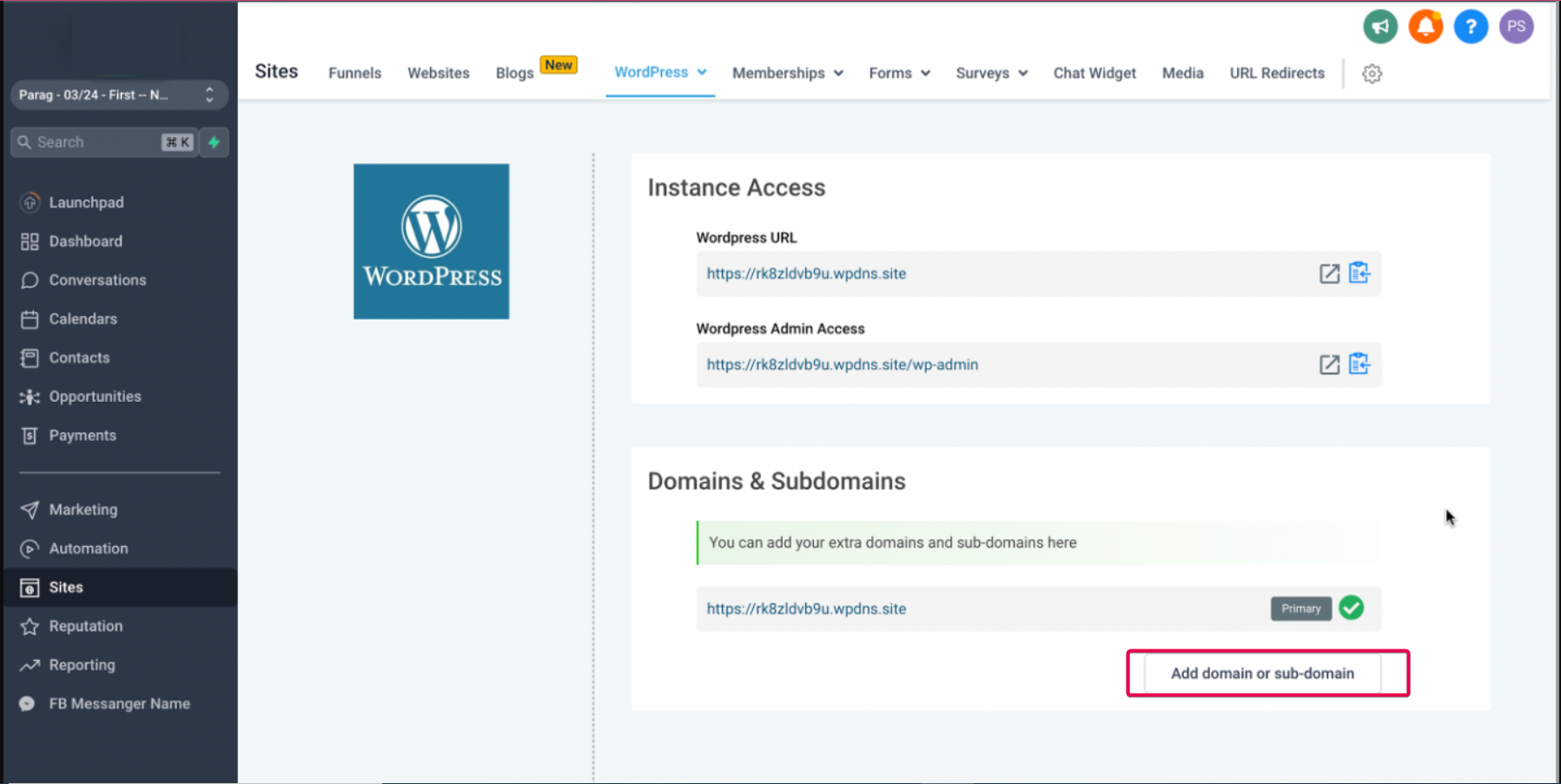
1) To add your first Root Domain (example: theparag.com), click the add Domain or sub-domain button. Enter your Domain name and click on the 'Add Domain' Button. You will get two TXT records. Add your TXT records to your DNS Provider and make sure to set the TTL Value to the lowest value possible.
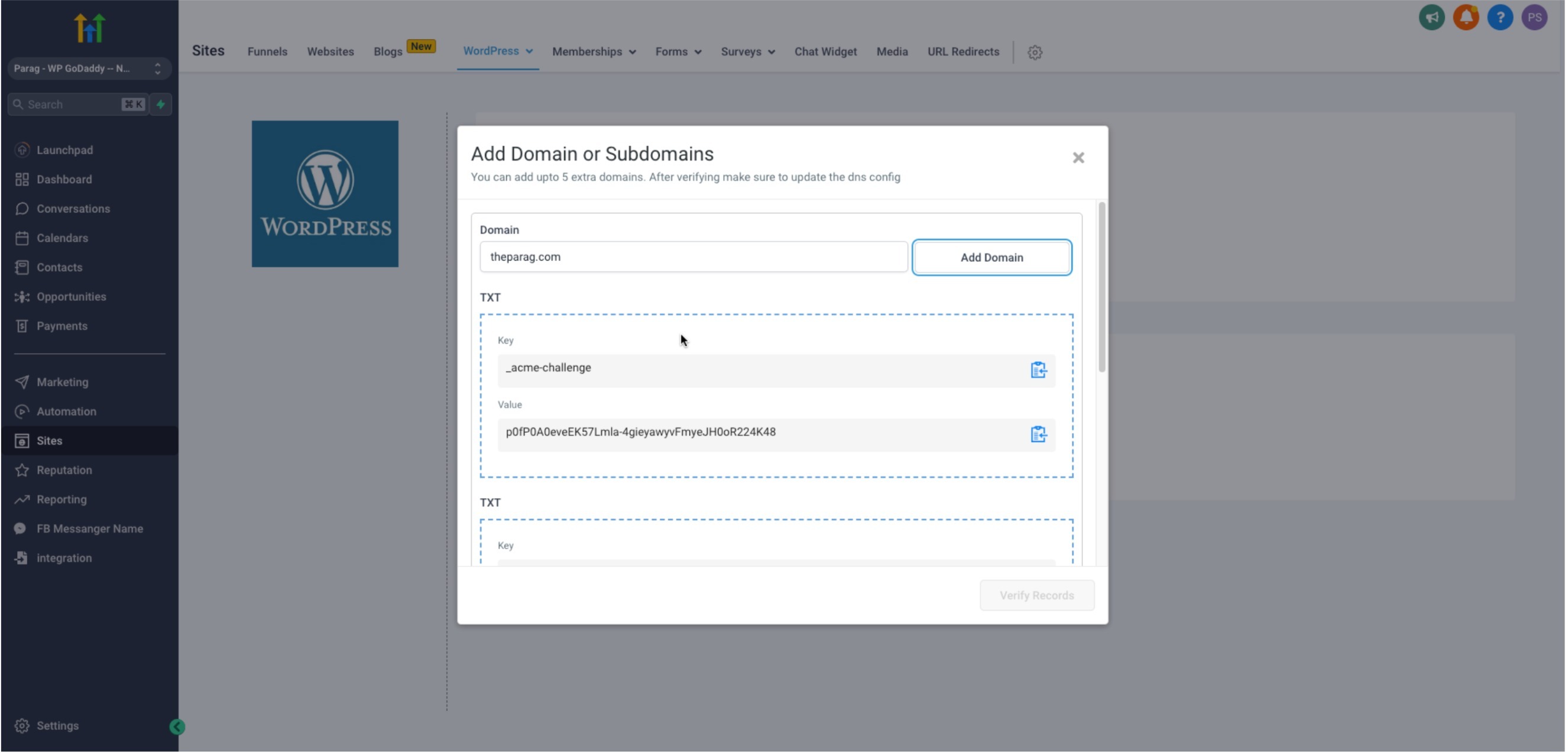
2) Once you add your txt records with your domain provider, click on the confirmation box and proceed to verify records. You will now get one A Record and CNAME value. Additionally add the CNAME, if you want to add the WWW subdomain to the website (Ex: www.theparag.com) .
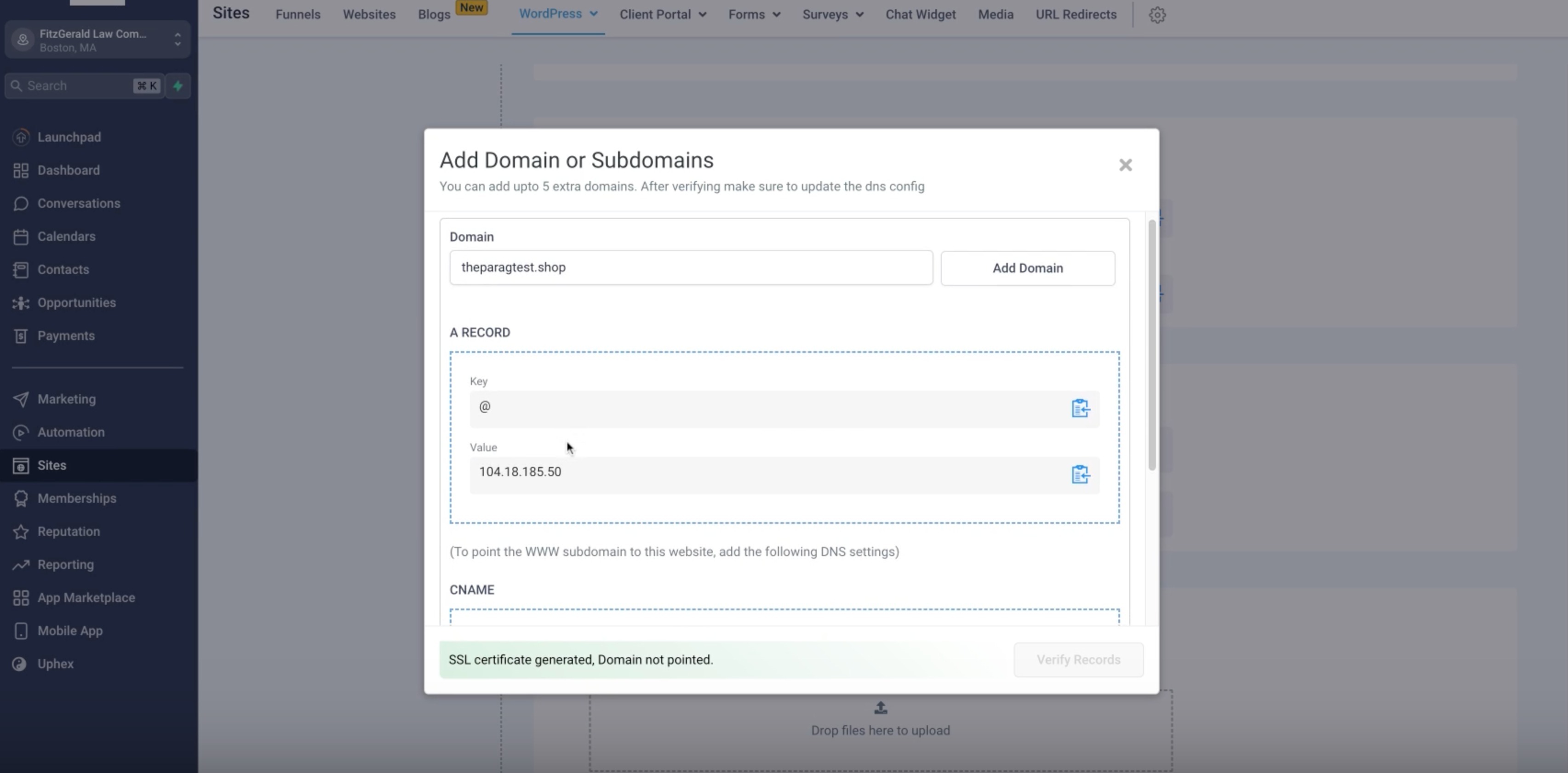
2) Copy the Key and Value of the A-record. Configure the A-record for your Domain in your DNS provider.
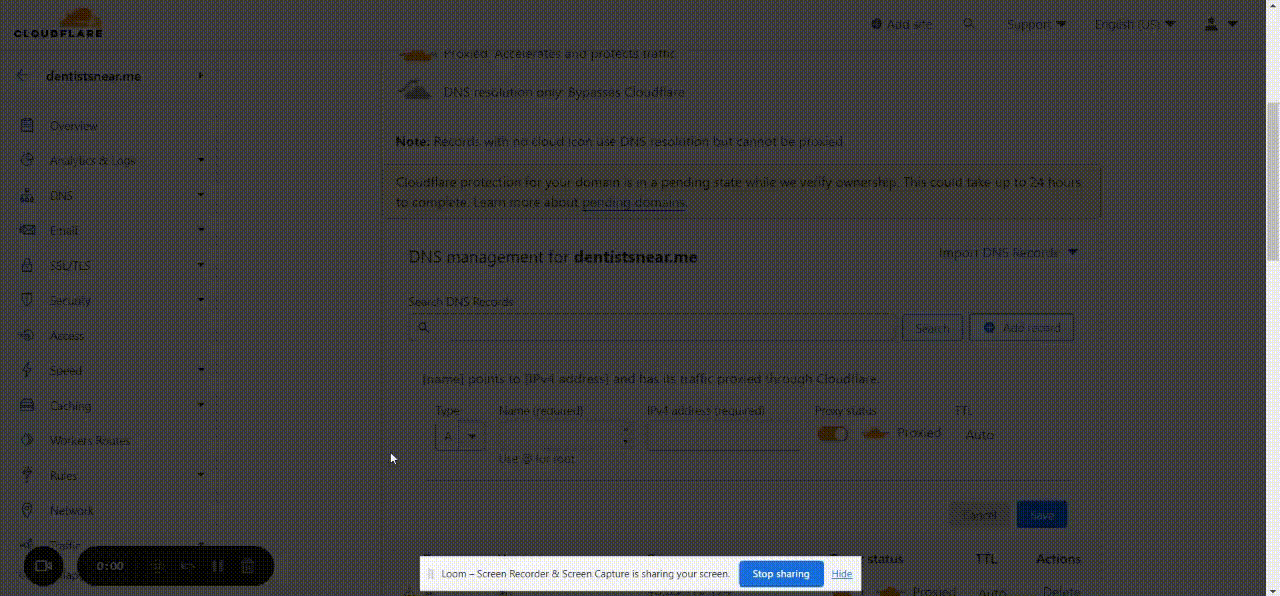
Please Note:
If you are using CLoudflare, please make sure to disable Cloudflare Proxy and switch the Proxy status to DNS only.
After inserting the TXT and A-record into your DNS provider, return to your WordPress dashboard, checkmark the please; I have added the above domain records in my domain provider's DNS settings checkbox, and then click on Verify Records.
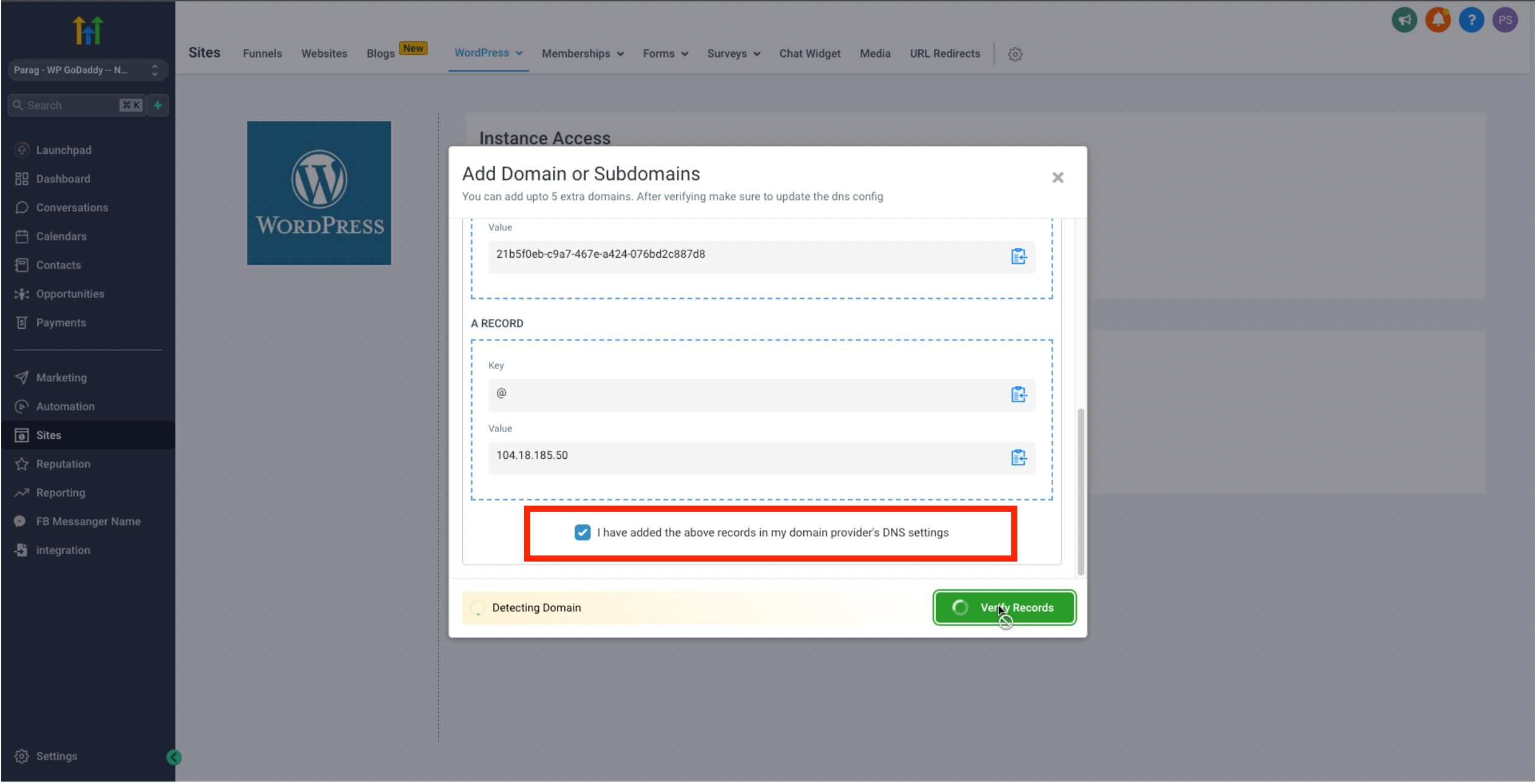
3) Once configured the Domain will be set as your Primary Domain by Default.
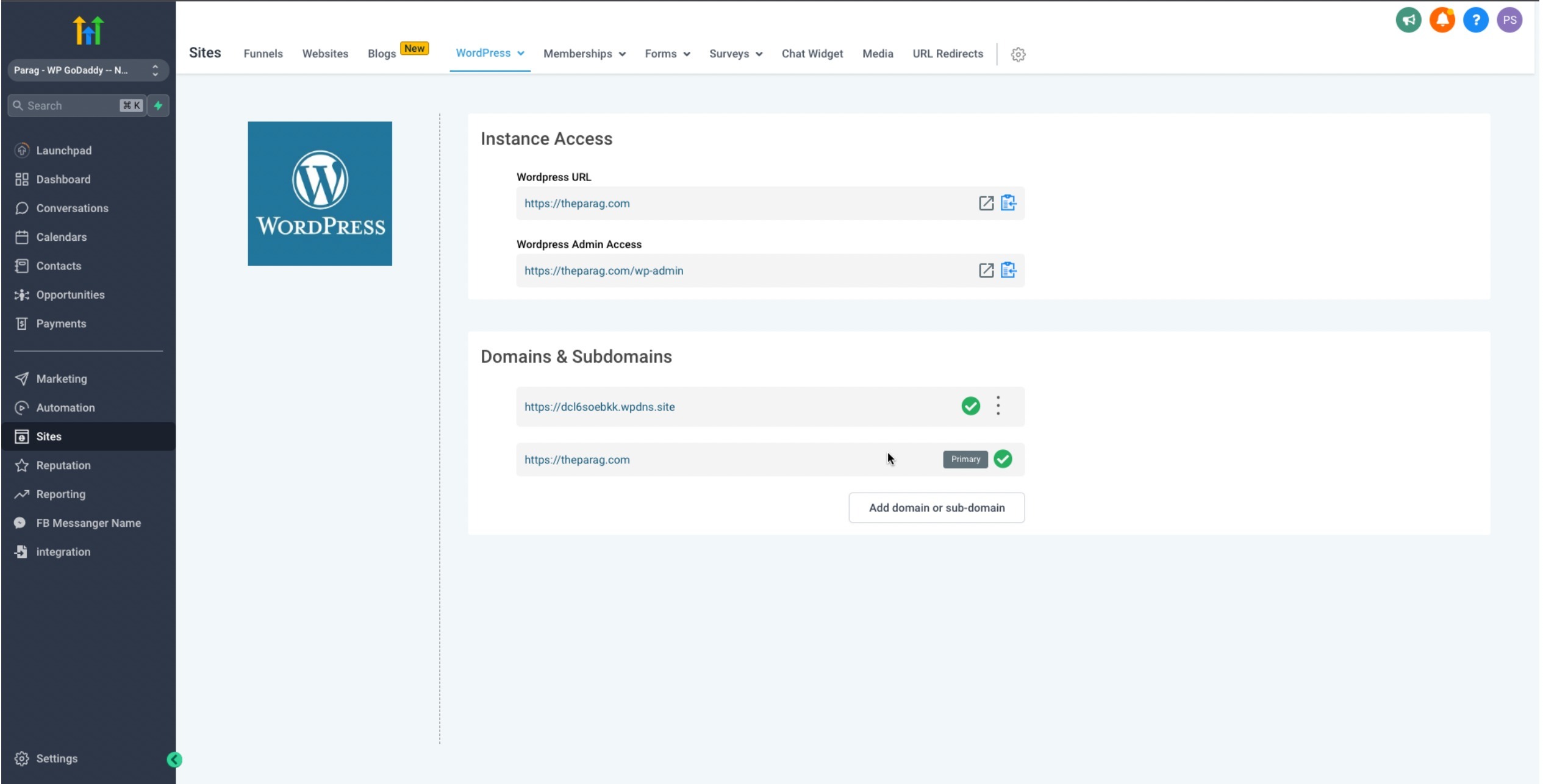
b) Adding WWW domain as Primary for your WordPress site
1) While adding www version of root domain (www.theparag.com) when (theparag.com) is already added, you will get the below instruction. Configure the CNAME Key and Value generated with your DNS provider and the domain should work as expected.
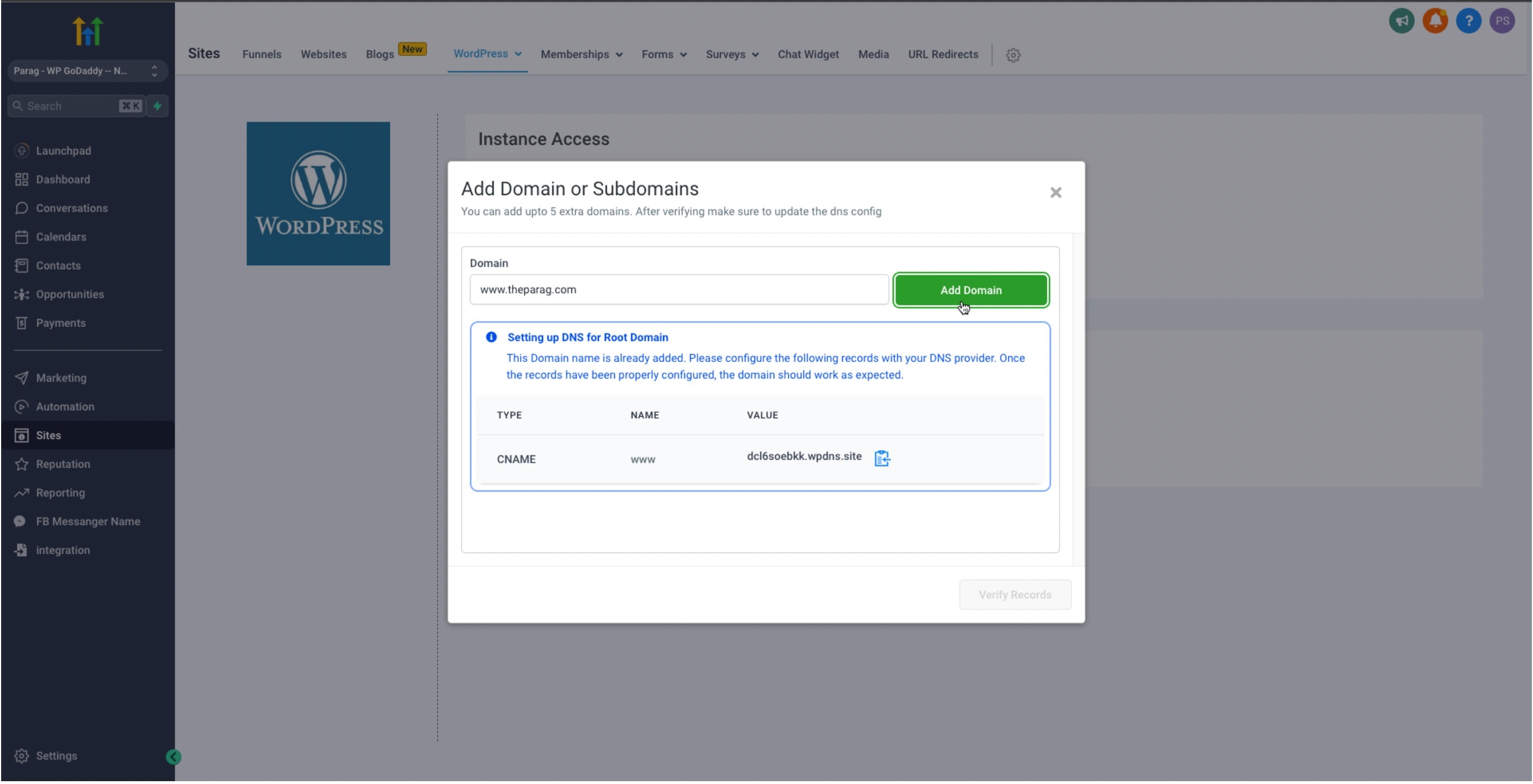
2) In an alternative scenario when a user tries to add a root domain namely - theparag.com, when there already is a domain existing as www.theparag.com, the user will get an A-Record which they can configure in their DNS Provider
c) Adding Sub-Domain to WP site:
1) When a user tries to add a Sub-Domain, Configure the 2 TXT records generated with your DNS Provider.
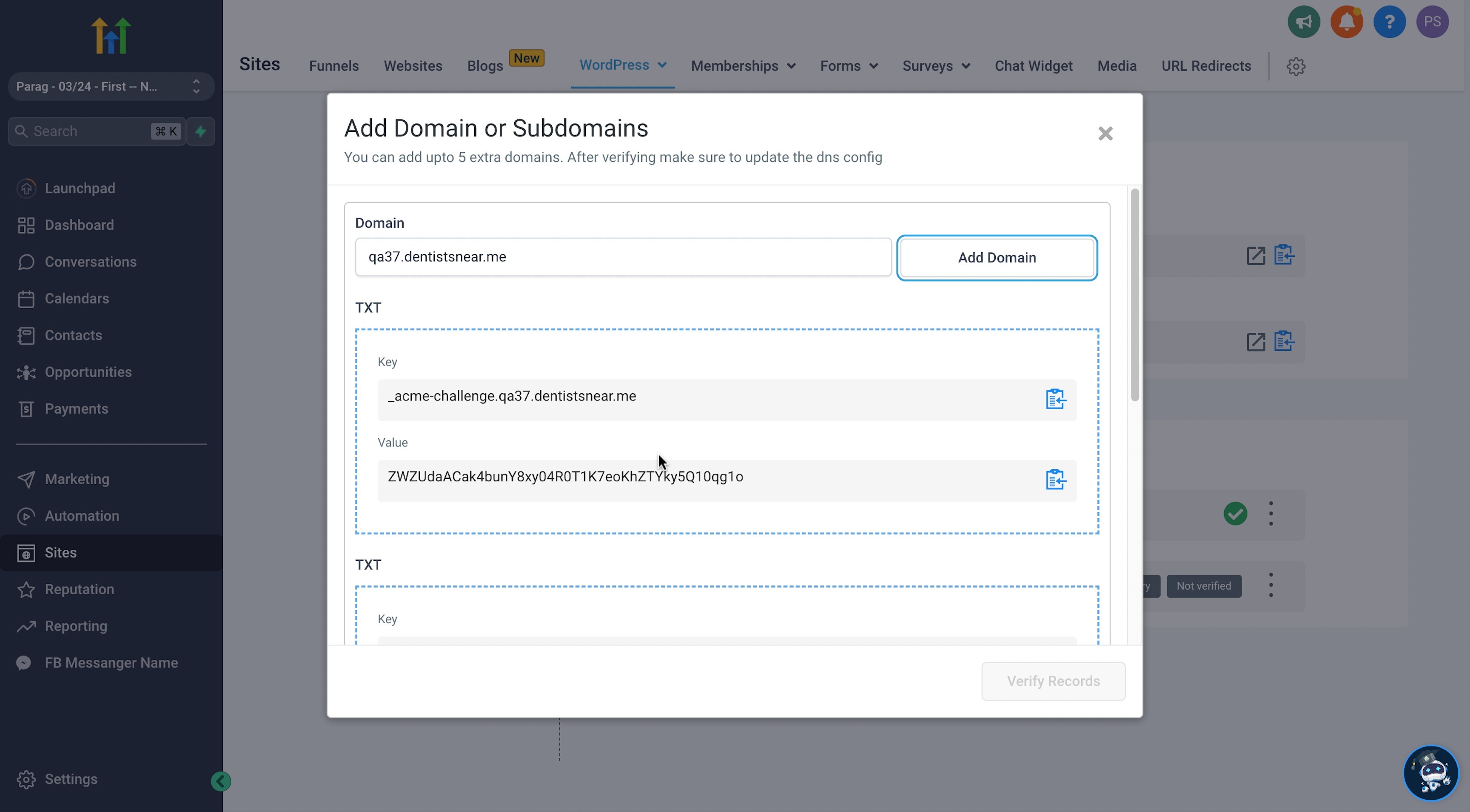
2) After configuring the TXT Records, click on I have added the above domain records in my domain provider's DNS settings checkbox, and then click on Verify Records.
3) You will now get a CNAME Record. Copy the Key and Value of the CNAME. Configure the CNAME for your Domain in your DNS provider.
2) Any additional domain will not be set as Primary by Default, and the user can opt to set it as Primary if required.
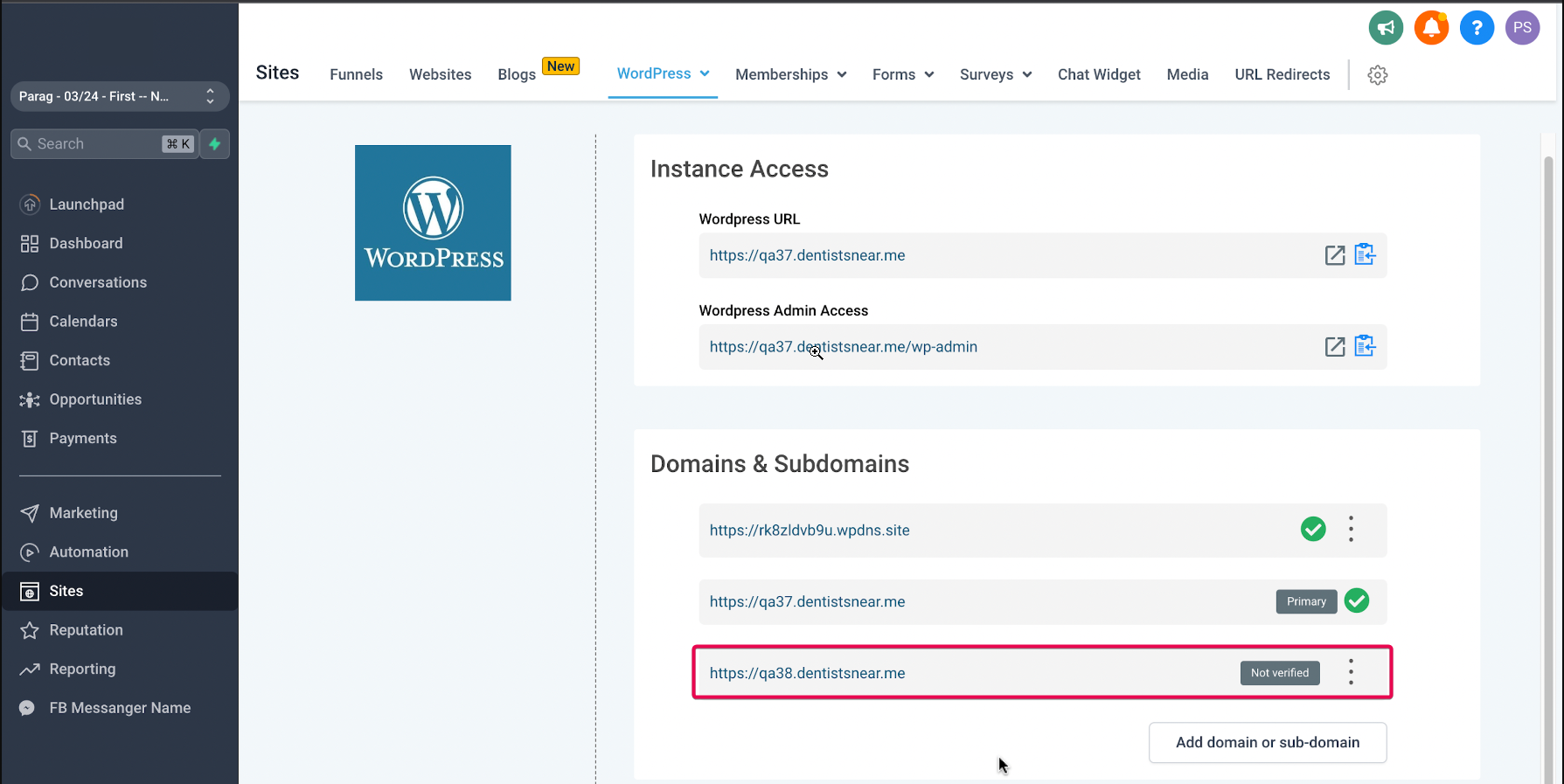
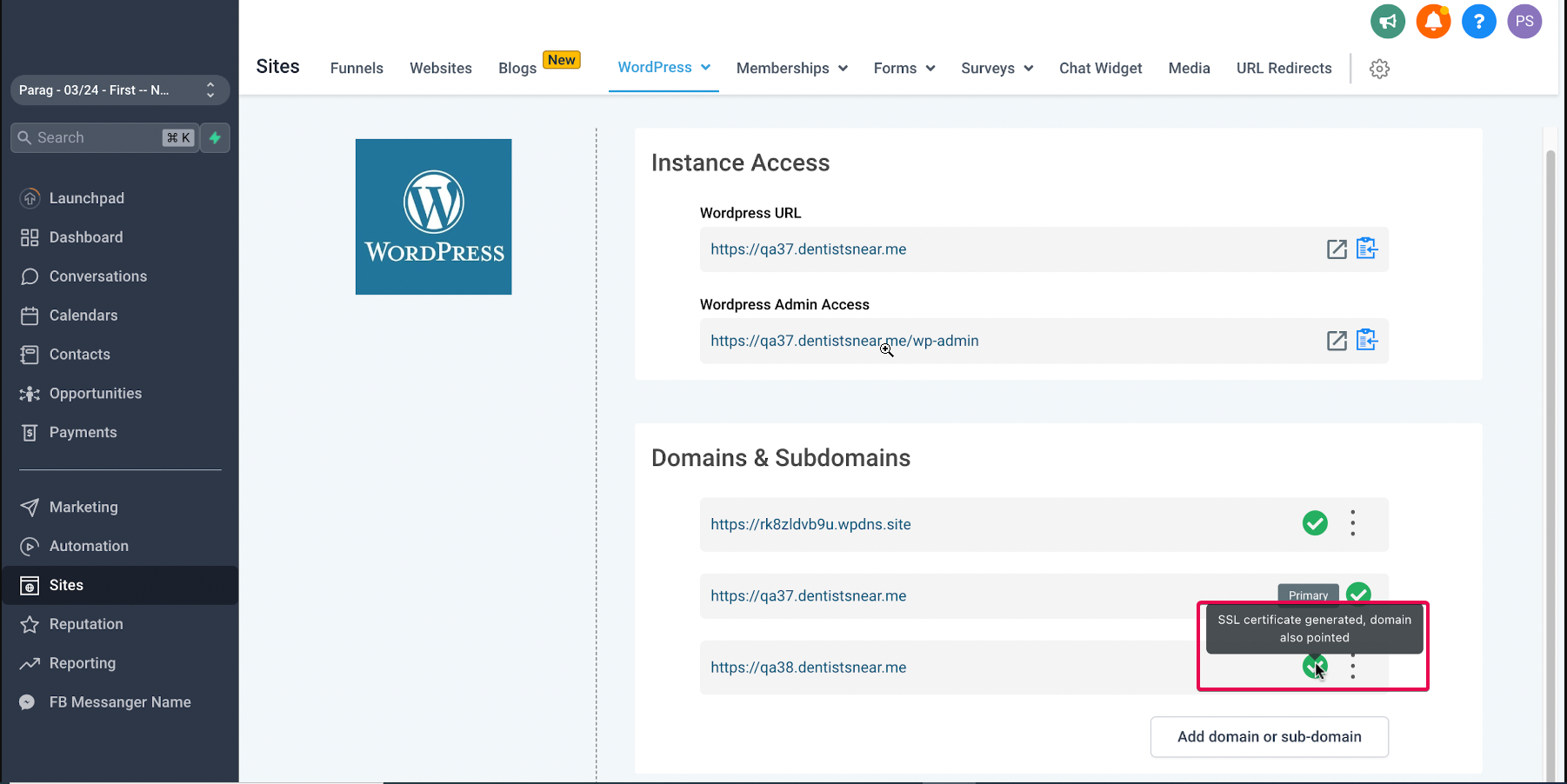
3) You will see an unverified tag near the Domain for any added domain, but the DNS Verification is not yet done.
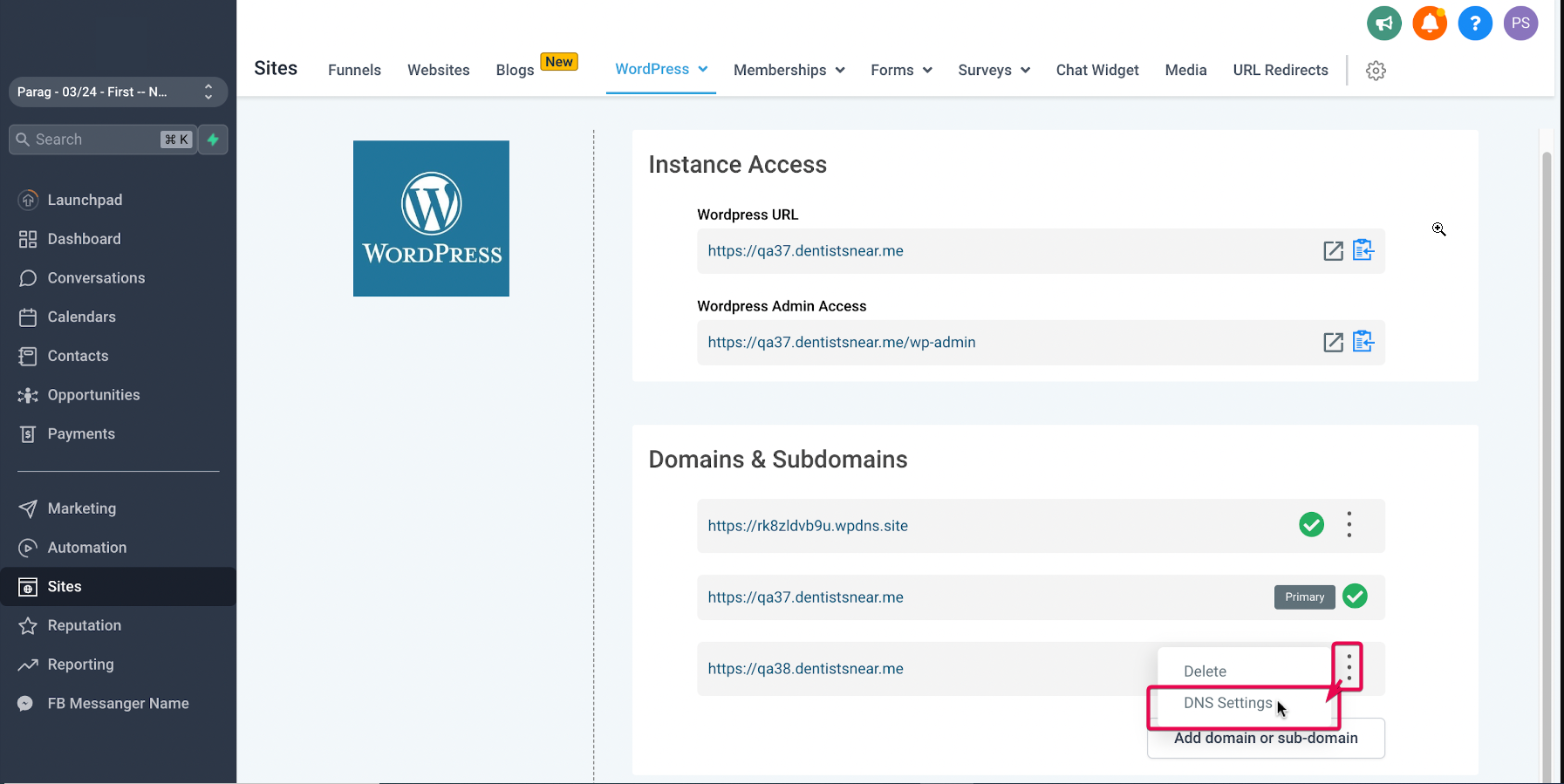
4. Click on DNS Settings to add your credentials to your domain hosting platform
Was this article helpful?
Related articles
- WordPress Error Codes and FAQOur WordPress Hosting system has a few error codes that are unique only to our system and need specific troubleshooting steps to take care of them. Covered in this Article What is the meaning and Troubleshooting for each of these errors? - File Corrupted: - Plugin Issue: - Unknown Error (where bWordPress Folder
- WP File Manager Plugin (Stable Alternative for FTP Access)A WordPress file manager is a plugin that enables users to perform file management tasks from the WordPress dashboard. Instead of logging in to your control panel or File Transfer Protocol (FTP) client, you can access the WordPress website files from a single location. Covered in this Article: WhyWordPress Folder
- LC WordPress Plugin | Fixing Cron Jobs/Crashing IssueFor Resolving the LC Plugin creating too many cron jobs/crashing your website please follow the steps provided below. Step 1 - Deactivate the LC plugin by going to Plugins -> Installed Plugins. Skip if already in Inactive state. Step 2 - Download the leadconnector-cron-fix plugin by clicking hWordPress Folder
- WordPress Hosting: Step-by-Step Migration GuideWelcome! This guide will help you seamlessly migrate your WordPress website into your new hosting environment. You have two simple options for migration — choose the one that best suits your needs. Option 1: Effortless Migration with the LC Migrator Plugin Best For: Fast, non-technical migrations WordPress Folder