You can add a processing fee to every transaction so that card costs are carried by the customer rather than absorbed by your business. The setup is short; the decision about whether to do it deserves more thought than the configuration does.
Before You Begin
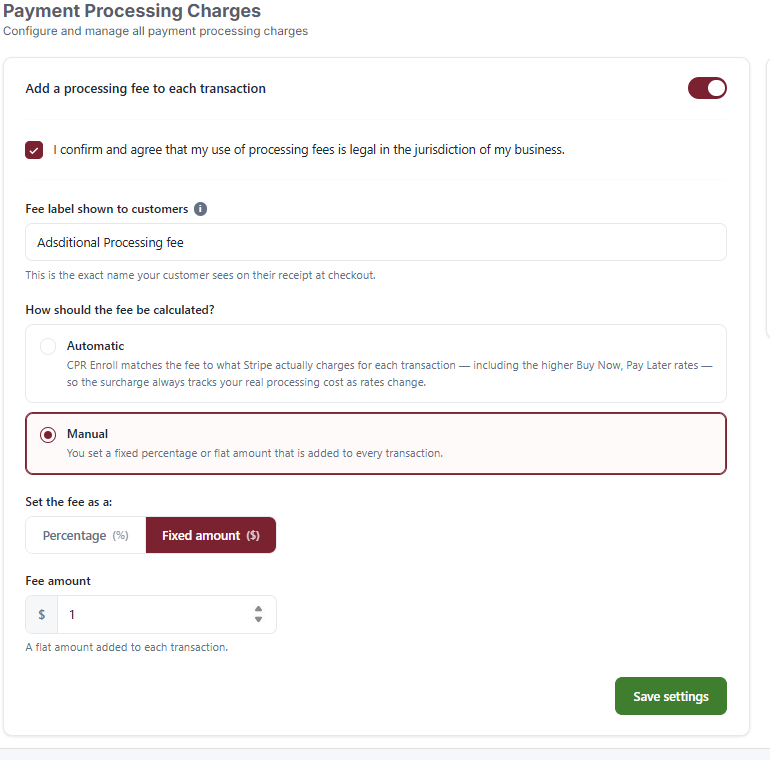
- Find it at Payments → Payment Settings → Payment Processing Charges.
- Confirm surcharging is legal for your business first. Rules vary by country, by state and by card network.
- Decide on the wording customers will see on their receipt — you will be asked for it during setup.
Step 1: Turn It On
- Switch on Add a processing fee to each transaction.
- Tick I confirm and agree that my use of processing fees is legal in the jurisdiction of my business.
- Set the Fee label shown to customers.
- Choose how the fee is calculated (Step 2).
- Click Save settings.
The helper text on the label field is explicit: this is the exact name your customer sees on their receipt at checkout. Whatever you type is what appears — so write it in plain language.
✔ The legal confirmation is not boilerplate. Surcharging rules vary by country, by state and by card network. Confirm your position before you tick it.
Step 2: Choose Automatic or Manual
| Option | What it does |
|---|---|
| Automatic | CPR Enroll matches the fee to what Stripe actually charges for each transaction — including the higher Buy Now, Pay Later rates — so the surcharge always tracks your real processing cost as rates change. |
| Manual | You set a fixed percentage or flat amount that is added to every transaction. |
- Choose Automatic if you want the surcharge to stay accurate without maintenance. Because it reads Stripe’s actual fee per transaction, it also covers the higher Buy Now Pay Later rates, which a fixed percentage will under-recover.
- Choose Manual if you need a predictable, published figure — for example when a corporate client’s purchase order specifies the fee.
Step 3: Configure a Manual Fee
- Under Set the fee as a: choose Percentage (%) or Fixed amount ($).
- Enter the value in Fee amount.
A fixed amount is added flat to every transaction regardless of size.
Step 4: Check the Receipt Preview
The Customer receipt preview panel on the right shows exactly what the customer will see — the class registration line, your fee label and amount, and the total. Change the Sample subtotal to model different order values; the preview updates live.
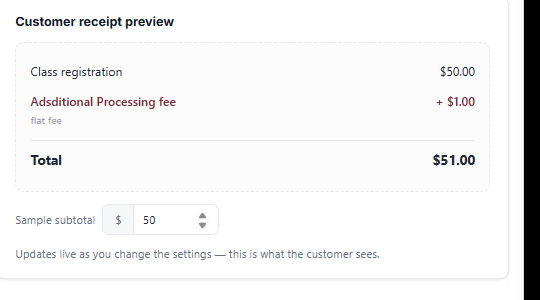
✔ Use the preview before saving. It is the fastest way to spot a fee that looks reasonable as a setting but unreasonable on a $500 corporate booking.
Step 5: Know Where the Fee Appears Afterwards
- On enrollment checkout, as a separate line using your chosen label.
- On store order details, where taxes and processing fees are itemised separately.
- On invoices and receipts, kept consistent with the Stripe transaction state.
A Related but Separate Setting
The Platform Fee field on each course decides who pays CPR Enroll’s platform fee — Account Paid or Student Paid. That is a separate decision from the payment processing fee, and the two are easy to confuse.
Best Practices
- Name the fee something a customer would not have to look up. “Card processing fee” beats anything with an acronym in it.
- Prefer Automatic unless a contract obliges you to publish a fixed number. Card rates move; your setting should not have to.
- Model a large order in the preview before saving. Percentage fees scale in ways flat fees do not, and vice versa.
- Avoid a fixed dollar amount if your order values vary widely — it over-charges small orders and under-recovers large ones.
- Decide the Platform Fee question separately, per course, and document which choice you made.
Frequently Asked Questions
| Question | Answer |
|---|---|
| Is surcharging legal? | It varies by country, by state and by card network. You must confirm your own position — the setting requires you to. |
| What will the customer see on the receipt? | Exactly the Fee label shown to customers that you typed. |
| Which option keeps up with rate changes? | Automatic — it matches what Stripe actually charges per transaction. |
| Does Automatic cover Buy Now, Pay Later? | Yes, including the higher BNPL rates that a fixed percentage under-recovers. |
| When is Manual the better choice? | When you need a predictable, published figure — for example on a corporate purchase order. |
| Can I see the fee before going live? | Yes — the Customer receipt preview updates live as you change the Sample subtotal. |
| Is this the same as the Platform Fee? | No. Platform Fee on each course decides who pays CPR Enroll’s fee — Account Paid or Student Paid. |
✔ You’re all set. Fee configured, label checked against a real-sized order, and the Platform Fee treated as the separate decision it is.
Was this article helpful?
That’s Great!
Thank you for your feedback
Sorry! We couldn't be helpful
Thank you for your feedback
Feedback sent
We appreciate your effort and will try to fix the article