CPR Enroll offers two tax engines: fixed manual rates you maintain yourself, and automatic calculation via Stripe Tax based on the customer’s address. This article explains both and how to choose.
Before You Begin
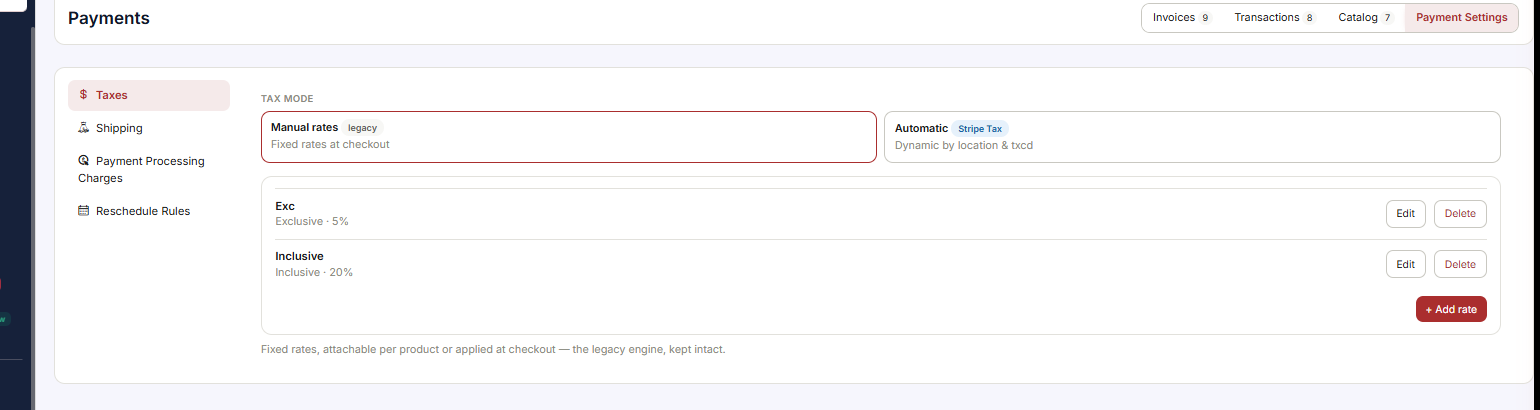
- Find it at Payments → Payment Settings → Taxes.
- If you are considering Stripe Tax, have your nexus registrations set up in Stripe first.
- Know which of your products and courses are taxable in your jurisdiction — see the note below.
✔ This is not tax advice. Whether educational services are taxable in your jurisdiction is a question for your accountant. CPR Enroll gives you both mechanisms; the choice of treatment is yours.
Step 1: Choose a Mode
| Mode | Description | Choose it when |
|---|---|---|
| Manual rates (legacy) | Fixed rates at checkout. | Your tax treatment is simple and stable, or you already have working rates you do not want to disturb. |
| Automatic (Stripe Tax) | Dynamic by location & txcd. | You sell across jurisdictions and need tax calculated from the customer’s address. |
Step 2: Configure Manual Rates
Rates are listed beneath the mode selector, each showing its name and treatment — for example Exc · Exclusive · 5% or Inclusive · Inclusive · 20% — with Edit and Delete buttons and + Add rate to create a new one.
| Treatment | What it means |
|---|---|
| Exclusive | Tax is added on top of the displayed price. |
| Inclusive | Tax is already contained in the displayed price. |
The footer describes the model: fixed rates, attachable per product or applied at checkout — the legacy engine, kept intact.
Step 3: Or Switch to Automatic (Stripe Tax)
Stripe calculates tax at checkout based on the customer’s address, your nexus registrations and the product’s tax code. Nothing is entered manually.
✔ If automatic tax reports a configuration problem, CPR Enroll surfaces guidance and a link to the unresolved item. Resolve it in Stripe, then return.
Step 4: Control Tax Per Product
Products and courses can be marked non-taxable.
- On the course form, the Sales Tax toggle explains when to use it: calculated by Stripe based on the customer’s address and your nexus registrations — most courses don’t require tax, so enable it only when your jurisdiction taxes educational services.
- Store products show their tax treatment in the Tax column of the Products grid — Legacy rate or a dash.
✔ Finding the toggle. Open any course at Course Builder → Courses, choose Edit, and scroll past Pricing to Add-ons. Sales Tax sits directly beneath the Add-ons Description field, with its helper text underneath. It is off by default on every course.
Best Practices
- Ask your accountant whether educational services are taxable where you operate before configuring either engine.
- Stay on manual rates if you sell in one jurisdiction and your rates are stable. Complexity you do not need is still complexity.
- Move to Stripe Tax when you start selling across state or national lines — that is the point where manual rates start being wrong.
- Be deliberate about Exclusive versus Inclusive. It changes the price your customer sees, not just the arithmetic.
- Check the Tax column on the Products grid after any mode change — it is the quickest audit of what is actually being taxed.
Frequently Asked Questions
| Question | Answer |
|---|---|
| Where do I choose the tax mode? | Payments → Payment Settings → Taxes. |
| What is the difference between Exclusive and Inclusive? | Exclusive adds tax on top of the displayed price. Inclusive means tax is already contained in it. |
| Do I enter rates for Stripe Tax? | No. Stripe calculates from the customer’s address, your nexus registrations and the product’s tax code. |
| Are my courses taxable? | Most courses don’t require tax. Enable the Sales Tax toggle only when your jurisdiction taxes educational services. |
| Where do I see a product’s tax treatment? | The Tax column of the Products grid — Legacy rate or a dash. |
| Stripe Tax is reporting a configuration problem. What now? | CPR Enroll links you to the unresolved item. Resolve it in Stripe, then return. |
| Can CPR Enroll tell me what to charge? | No. This is not tax advice — ask your accountant. |
✔ You’re all set. Next, read Adding a Processing Fee to Each Transaction — a separate setting from tax, on the same Payment Settings page.
Was this article helpful?
That’s Great!
Thank you for your feedback
Sorry! We couldn't be helpful
Thank you for your feedback
Feedback sent
We appreciate your effort and will try to fix the article