Archiving a User Account

Archiving removes a person’s access without destroying their history. Once someone has an enrollment, a certification or an issued credential attached to them, archiving is almost always the right choice over deletion.
Before You Begin
- Find it at Settings → Users & Permissions, then the action menu (⋮) at the end of the user’s row.
- Know whether the account has any history. If it does, do not delete it.
- The status dropdown above the grid defaults to Active — remember that when you go looking for someone afterwards.
Step 1: Archive the User
- Open Settings → Users & Permissions.
- Find the user. Use the column filters — First Name, Last Name, Username, Email, Roles, Status — to narrow the list.
- Open the action menu (⋮) and choose Archive.
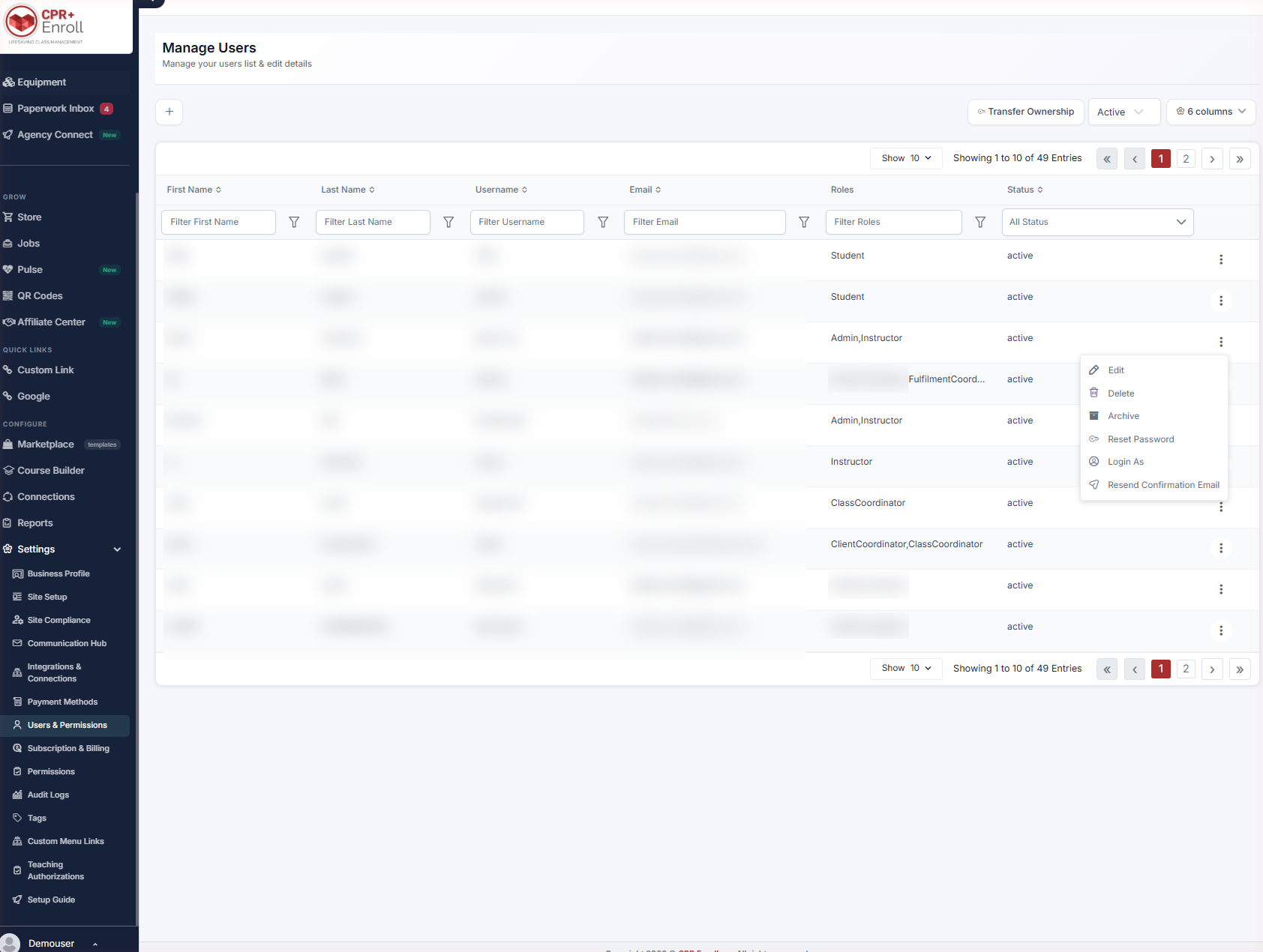
Step 2: Know What Archiving Does
| Archiving does | Archiving does not |
|---|---|
| Stop the account signing in. | Delete anything. |
| Preserve student records, enrollment history, certifications and other historical data. | Remove the person from past rosters, certificates or reports. |
| Keep the user available for historical and reporting purposes. | Affect anyone else’s access. |
✔ Archiving is reversible; deletion is not. If you are unsure which you want, archive. You can always revisit the decision.
Step 3: Choose Archive or Delete
Use Delete only for accounts created in error that carry no history. Once a person has an enrollment, a certification or an issued credential, deleting them risks breaking the records that depend on them. Archive instead.
Step 4: Find Archived Users Later
Use the status dropdown above the grid — it defaults to Active — to switch to archived accounts.
Step 5: Know the Other Actions in This Menu
- Edit — change name, username, email and roles.
- Resend Confirmation Email — resend the account or enrollment confirmation.
- Reset Password — send the user a password reset.
- Delete — permanently remove the account. Use only for accounts created in error that carry no history; see the Archive vs. Delete section above.
- Login As — authorized administrators can securely access a user’s account for support and troubleshooting.
Best Practices
- Archive on the person’s last day rather than in a quarterly cleanup. Access should end when employment does.
- Before deleting anything, search the person in Reports. If they appear anywhere, archive instead.
- Use Edit to strip roles before archiving if you want the change reflected in an audit trail as two deliberate steps.
- Reach for Log In As for support rather than asking a user for their password — which you should never do.
- Check the archived list before creating a “new” account for a returning staff member.
Frequently Asked Questions
| Question | Answer |
|---|---|
| Can an archived user still sign in? | No. The account can no longer sign in. |
| Does archiving remove them from past rosters or certificates? | No. Historical data is preserved and the user remains available for reporting. |
| When should I delete instead of archive? | Only for accounts created in error that carry no history. |
| Where did the archived user go? | The status dropdown above the grid defaults to Active. Switch it to see archived accounts. |
| Can I resend someone’s confirmation email? | Yes — Resend Confirmation Email in the row action menu. |
| What is Login As? | A way for authorized administrators to securely access a user’s account for support and troubleshooting. |
✔ You’re all set. Access closed, history intact — which is what an auditor will want to see.
Was this article helpful?
Related articles
- How to Manage Users?Users in CPR Enroll+ are the people who have login access to your admin dashboard. This includes administrators, managers, and instructors who need to access and manage your account. This guide covers creating users, assigning roles, and managing access. Before You Begin - Decide which role each newGetting Started
- How to change a Student Profile to Instructor?In CPR Enroll+, students and instructors are separate record types. Students are stored as enrollment records, while instructors are a distinct user category under People > Instructors. If someone who was previously only a student in your system now needs to be an instructor, you need to create a neGetting Started
- How to Send Account Creation Invitation EmailsWhen you create a new instructor or user account in CPR Enroll+, the system does not automatically send them their login details. You need to send the account creation email manually. This gives you control over when new users receive their credentials — useful when you are setting up multiple accouGetting Started
- Managing Student EnrollmentsWhile most students self-register through your public registration page, there are many situations where you will need to manually enroll a student — a walk-in on class day, a corporate client sending a list of employees, or a student who had trouble completing the online checkout. CPR Enroll+ proviGetting Started