How to Quickly Add Instructors?
Adding instructors efficiently is crucial for streamlining your CPR Enroll experience and ensuring smooth operations. Instructors need to be in the system before you can assign them to a class, so this is one of the first things to set up as you build out your account. Follow these straightforward steps to quickly add an instructor.
Accessing Add Instructor
- From the left-hand menu, click People.
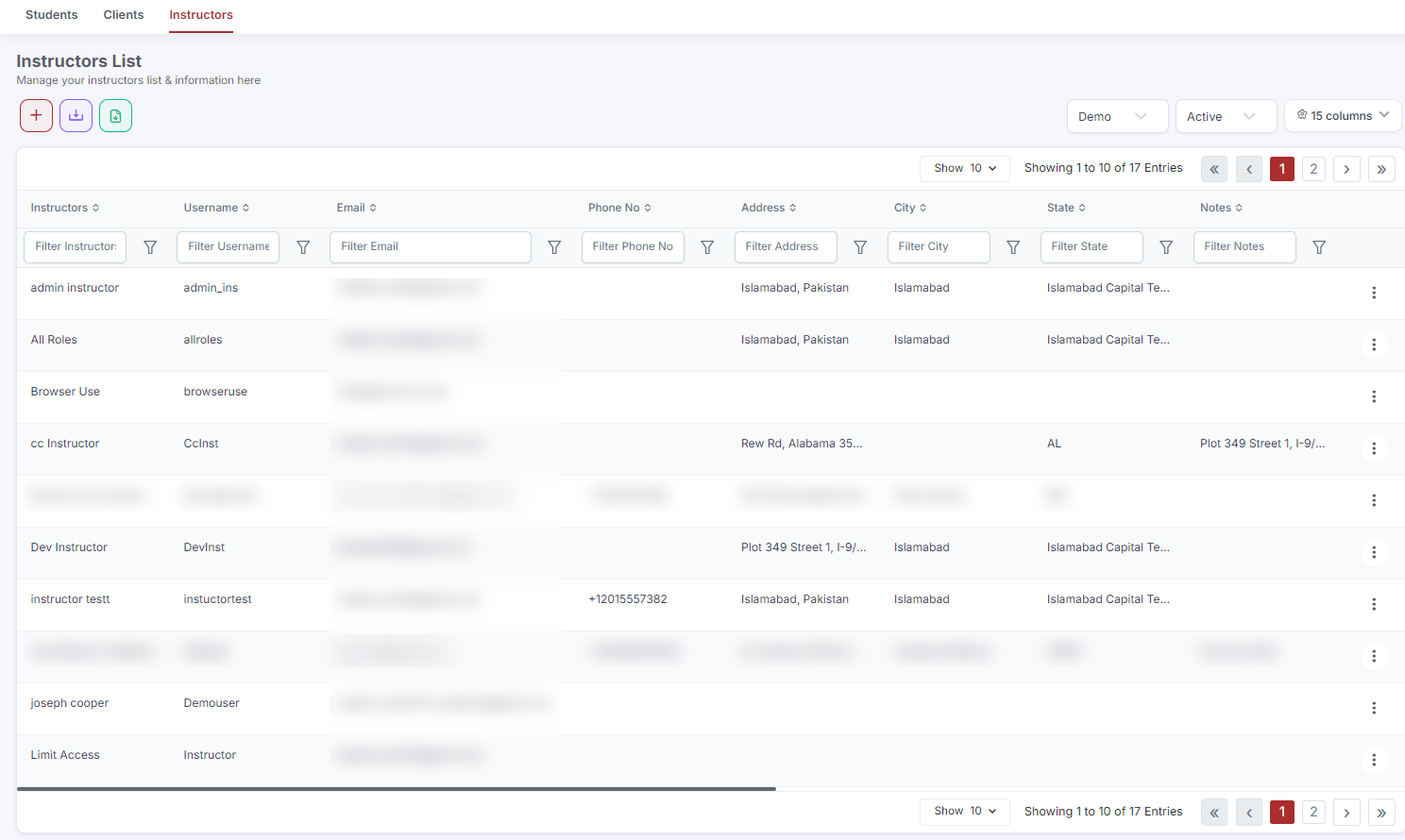
- Click the Instructors tab.
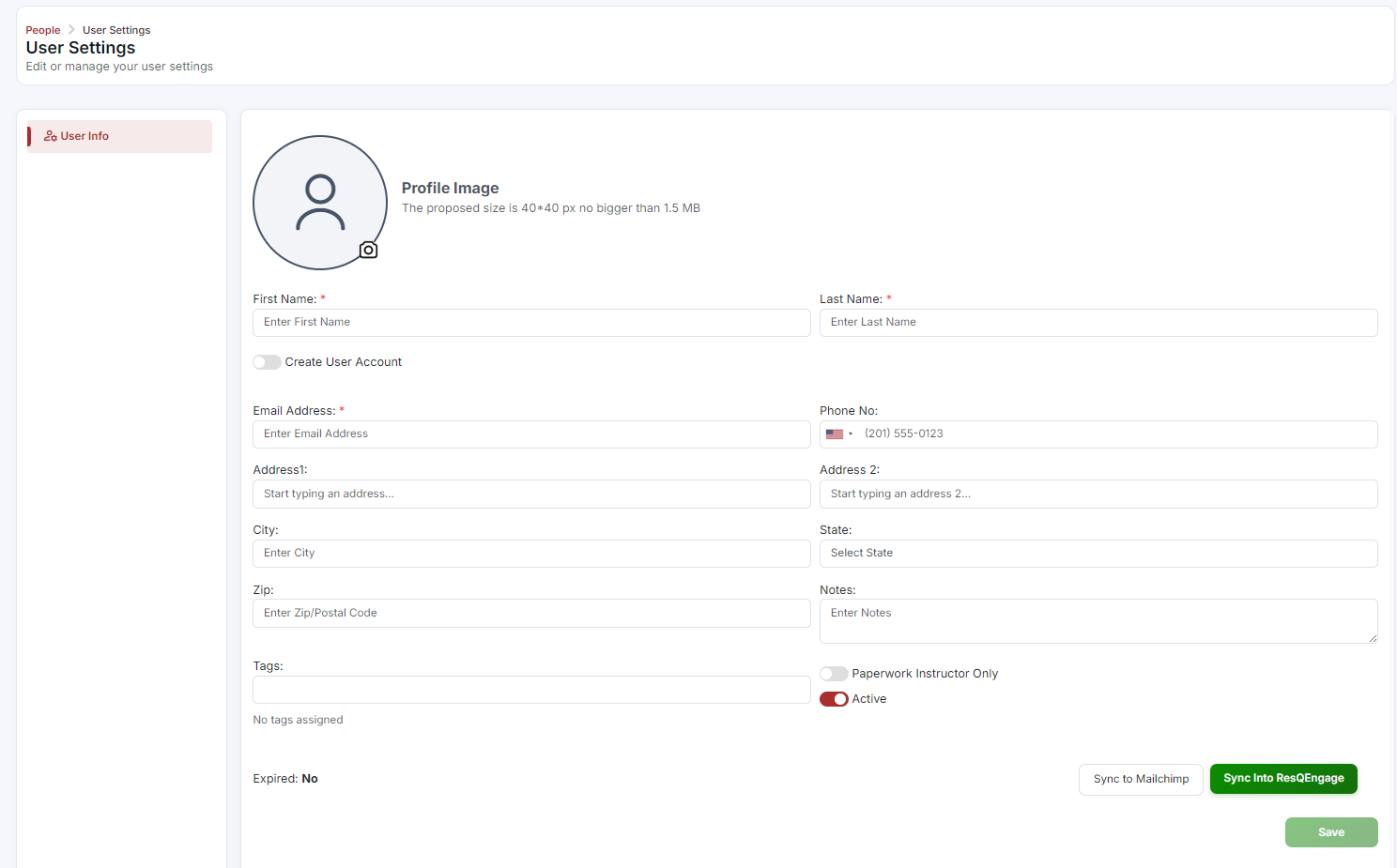
- Click the + Add Instructor button. You will be redirected towards the User Settings Page where you can enter the instructor's details.
✔ Where this lived before. This step used to be reached from the Launchpad's Quick Add Instructor card. That card is retired along with the rest of the Launchpad — People → Instructors → + Add Instructor is now the place to add instructors, whether it's your first one or your fiftieth.
Entering Instructor Details
In the pop-up window, fill in the necessary details for the instructor:
- First Name — the instructor's first name.
- Last Name — the instructor's last name.
- Username — optional; a username for the instructor.
- Password — a password for the instructor's account.
- Email Address — the instructor's email address.
- Phone No — the instructor's phone number.
- Address 1 and Address 2 — the instructor's address details.
- City — the instructor's city of residence.
- State — select the state from the dropdown menu.
- Zip — the zip or postal code.
- Notes — optional; any relevant notes about the instructor.
Adding Tags and Associations
- Tags — assign tags to categorize the instructor, such as "Paperwork Instructor Only," "Active," or any other relevant tags for your organization.
- Associations — associate the instructor with specific types, names, IDs, associations, or affiliations as required by your organization.
Adding a Profile Picture
Optionally, add a profile picture for the instructor by clicking the icon below the profile picture section. This personalizes the instructor's account and makes them easier to identify throughout the dashboard.
Finalizing the Addition
- Review all entered details and configurations for accuracy.
- Click the green Savebutton to finalize the addition of the instructor to your CPR Enroll account.
The instructor now appears in the Instructor dropdown whenever you create or edit a class.
✔ Full instructor management. People → Instructors is also where you go later to update an instructor's certifications, portal access, or email signature — just click into an existing instructor's record and use the full edit form.
Was this article helpful?
Related articles
- How to Manage Users?Users in CPR Enroll+ are the people who have login access to your admin dashboard. This includes administrators, managers, and instructors who need to access and manage your account. This guide covers creating users, assigning roles, and managing access. Before You Begin - Decide which role each newGetting Started
- How to change a Student Profile to Instructor?In CPR Enroll+, students and instructors are separate record types. Students are stored as enrollment records, while instructors are a distinct user category under People > Instructors. If someone who was previously only a student in your system now needs to be an instructor, you need to create a neGetting Started
- How to Send Account Creation Invitation EmailsWhen you create a new instructor or user account in CPR Enroll+, the system does not automatically send them their login details. You need to send the account creation email manually. This gives you control over when new users receive their credentials — useful when you are setting up multiple accouGetting Started
- Managing Student EnrollmentsWhile most students self-register through your public registration page, there are many situations where you will need to manually enroll a student — a walk-in on class day, a corporate client sending a list of employees, or a student who had trouble completing the online checkout. CPR Enroll+ proviGetting Started