Managing Instructor Certifications
Keeping your instructors' certifications current is a compliance requirement for virtually every certification body — AHA, ARC, HSI, and others require that instructors maintain valid certifications to teach accredited courses. CPR Enroll+ stores instructor certifications, tracks their expiration dates, and alerts you via the Certificates report when renewals are coming due.
Before You Begin
- Have the instructor's certification details ready: type, issuing association, certification number, discipline, initial date, and expiration date.
- Have a scan or photo of the certification card on hand if you want to attach it to the record.
Step-by-Step Instructions
Step 1: Add a Certification to an Instructor Record
- From the sidebar, go to People > Instructors.
- Click ⋮ > Profileon the instructor whose certification you want to add.
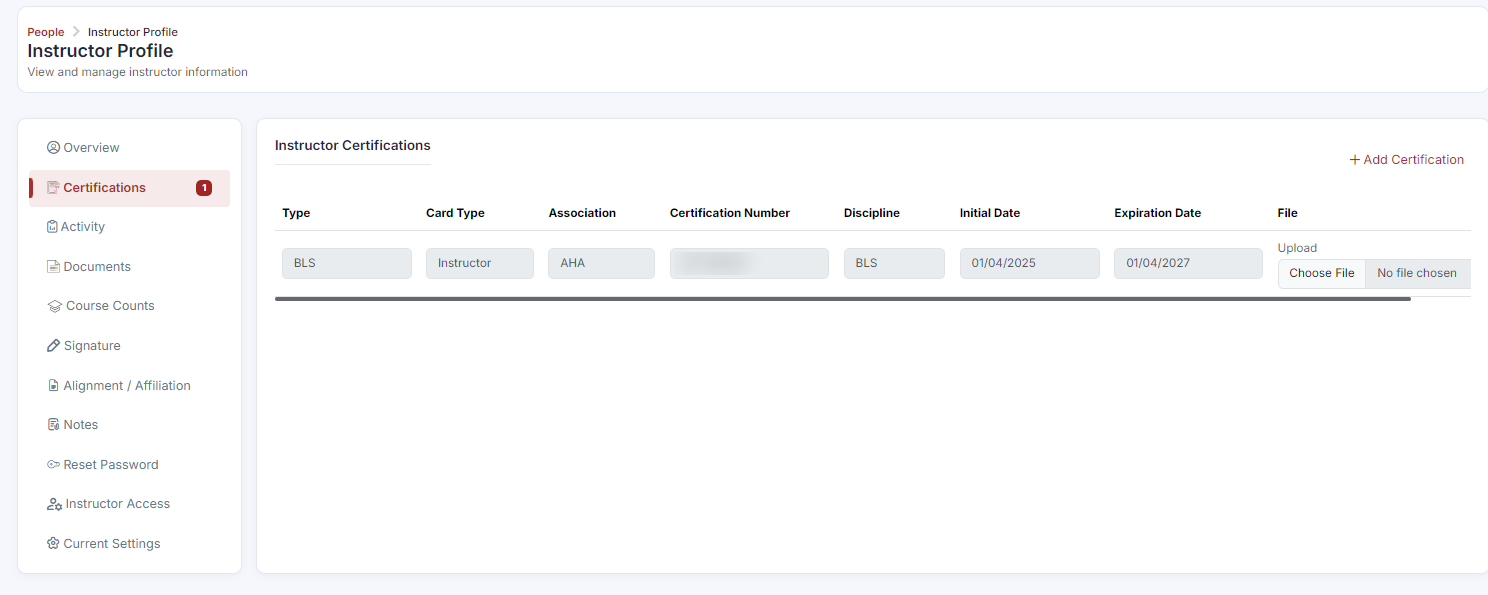
- In the instructor edit view, scroll to the Certifications section.
- Click + Add Certification.
- Fill in the certification details:
- Type — the certification type (e.g., BLS Instructor, ACLS Instructor)
- Association — the issuing body (AHA, ARC, HSI, ECSI, NAEMT, NSC, ProTrainings, SafeSitter, AAP)
- Certification Number — the unique ID from the certification card
- Discipline — the training discipline covered
- Initial Date — when the certification was first issued
- Expiration Date — when the certification expires
- Optionally upload a scan or photo of the certification card using the file upload button.
- Click Save.
Step 2: Track Expiring and Expired Certifications
- From the sidebar, go to Reports > Certificates.
- Click the Instructor tab.
- Use the Coming Due sub-tab to see certifications approaching their expiration date — act on these before they lapse.
- Use the Expired sub-tab to see certifications that have already expired — instructors with expired certifications may not be eligible to teach accredited courses.
- Export the data using the Export button for use in compliance reviews or renewal planning.
✔ Build renewal reminders into your process. Set a calendar reminder to check the Instructor Certifications report monthly — especially 90 days before any expiration date. Most certifying bodies require renewal before the expiration date; a lapsed certification may not be renewable on the standard track.
Best Practices
- Check the Coming Due report monthly, and treat the 90-day mark before expiration as your action point.
- Upload a scan of each certification card so proof is on hand for audits without chasing paperwork later.
- Don't let a certification lapse — many certifying bodies won't allow standard-track renewal once it expires.
- Export the Certificates report ahead of any compliance review so you have documentation ready.
Frequently Asked Questions
| Question | Answer |
|---|---|
| What happens if an instructor's certification expires? | Instructors with expired certifications may not be eligible to teach accredited courses, and a lapsed certification may not be renewable on the standard track. |
| Where can I see certifications that are about to expire? | Go to Reports > Certificates > Instructor tab > Coming Due sub-tab. |
| Can I attach a copy of the certification card to the record? | Yes. You can optionally upload a scan or photo of the certification card when adding or editing a certification. |
✔ You're all set. Your instructor's certification is on file, and you know how to track upcoming renewals before they lapse.
Was this article helpful?
Related articles
- How to Manage Users?Users in CPR Enroll+ are the people who have login access to your admin dashboard. This includes administrators, managers, and instructors who need to access and manage your account. This guide covers creating users, assigning roles, and managing access. Before You Begin - Decide which role each newGetting Started
- How to change a Student Profile to Instructor?In CPR Enroll+, students and instructors are separate record types. Students are stored as enrollment records, while instructors are a distinct user category under People > Instructors. If someone who was previously only a student in your system now needs to be an instructor, you need to create a neGetting Started
- How to Send Account Creation Invitation EmailsWhen you create a new instructor or user account in CPR Enroll+, the system does not automatically send them their login details. You need to send the account creation email manually. This gives you control over when new users receive their credentials — useful when you are setting up multiple accouGetting Started
- Managing Student EnrollmentsWhile most students self-register through your public registration page, there are many situations where you will need to manually enroll a student — a walk-in on class day, a corporate client sending a list of employees, or a student who had trouble completing the online checkout. CPR Enroll+ proviGetting Started