How to Use Tags to Organize Your Data
Tags in CPR Enroll+ are custom labels you can apply to students, instructors, classes, and other records to categorize and filter your data. Think of them as flexible metadata — you define the tags, then apply them wherever they are useful. Tags make it easy to filter your data in ways the standard fields don't support.
Before You Begin
- Decide on a naming convention for your tags (e.g., by employer, discipline, or account type) so they stay consistent across your team.
- Identify which records — students, instructors, or classes — you plan to tag first.
Step-by-Step Instructions
Step 1: Create a Tag
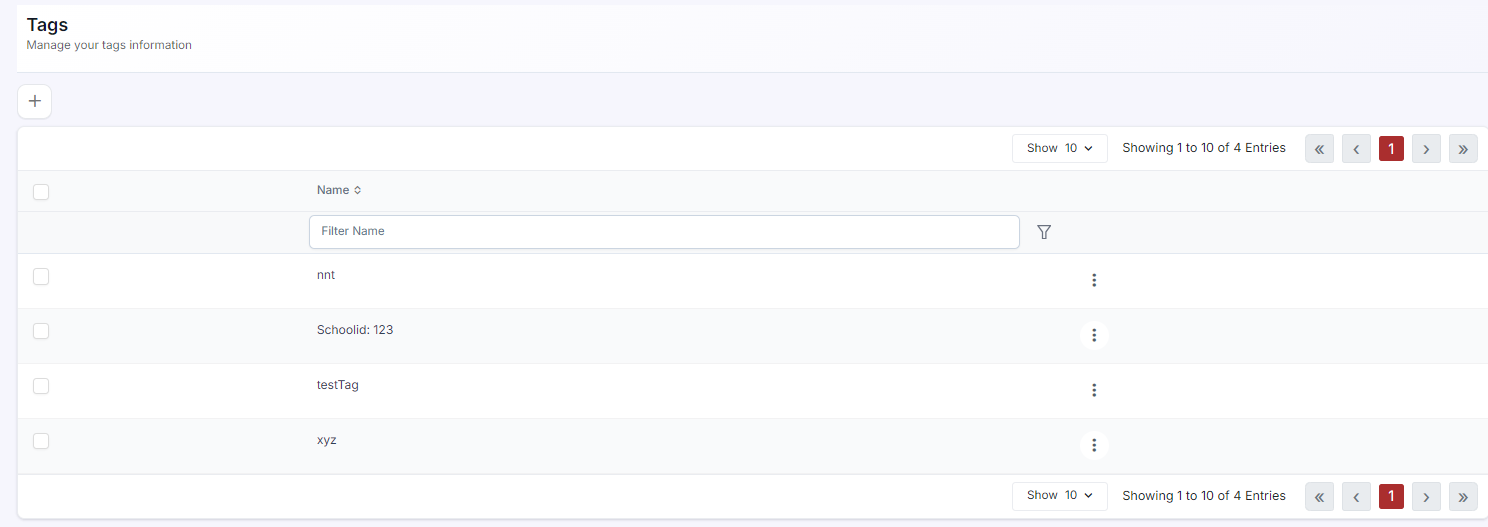
- From the sidebar, go to Settings > Tags.
- Click + Add New.
- Enter the Tag Name (e.g., "Corporate Client", "Healthcare Worker", "Renewal Student", "VIP").
- Click Create. The tag is now available across the platform.
Step 2: Apply Tags to Records
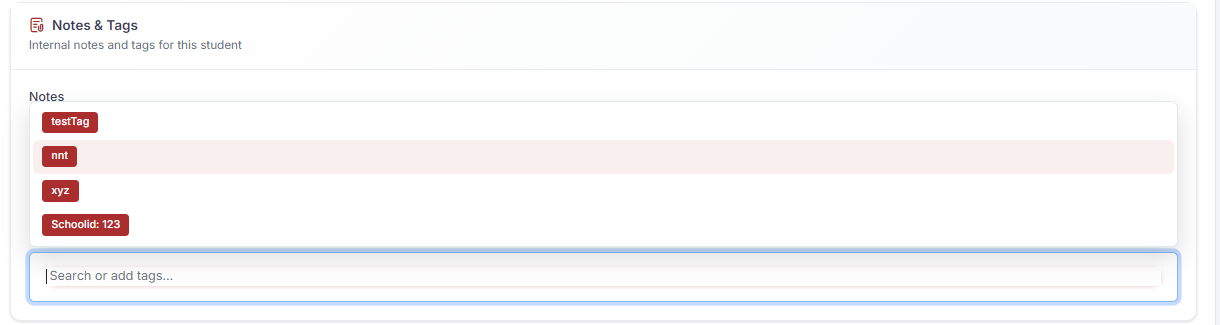
- Students — when enrolling a student (Quick Add or Import), use the Tags field to apply one or more tags. Useful for grouping students by employer, training need, or account type.
- Instructors — in the Instructor create/edit form, apply tags to categorize instructors by specialty, location, or status.
- Classes — in the class create/edit form, apply tags to flag special sessions.
Step 3: Filter by Tags
- Go to Enrollments > List view (or the Instructors list, or the Classes list).
- Use the Tags column filter or the Filters panel to filter records by a specific tag.
- The list narrows to show only records with that tag applied.
✔ Use cases for tags. Common tag strategies: tag students by employer (filter by company for bulk billing), tag instructors by their specialty discipline (filter for staffing decisions), tag classes by funding source or contract (filter for reporting to a specific client).
Best Practices
- Agree on a shared tag vocabulary with your team before creating tags, to avoid duplicate or overlapping labels.
- Use tags for groupings the standard fields don't capture, such as employer, funding source, or account status.
- Apply tags consistently at the point of enrollment or record creation, rather than adding them later.
- Review your Tags list periodically and retire ones that are no longer useful.
Frequently Asked Questions
| Question | Answer |
|---|---|
| What kinds of records can I tag? | Students, instructors, classes, and other records throughout CPR Enroll+ can all be tagged. |
| Can I apply more than one tag to a record? | Yes. The Tags field on students, instructors, and classes accepts multiple tags. |
| Where can I filter records by tag? | Tags appear as filterable columns in list views throughout the platform, including Enrollments, Instructors, and Classes. |
✔ You're all set. Your tags are created and applied, and you can now filter your data in ways the standard fields don't support.
Was this article helpful?
Related articles
- How to Manage Users?Users in CPR Enroll+ are the people who have login access to your admin dashboard. This includes administrators, managers, and instructors who need to access and manage your account. This guide covers creating users, assigning roles, and managing access. Before You Begin - Decide which role each newGetting Started
- How to change a Student Profile to Instructor?In CPR Enroll+, students and instructors are separate record types. Students are stored as enrollment records, while instructors are a distinct user category under People > Instructors. If someone who was previously only a student in your system now needs to be an instructor, you need to create a neGetting Started
- How to Send Account Creation Invitation EmailsWhen you create a new instructor or user account in CPR Enroll+, the system does not automatically send them their login details. You need to send the account creation email manually. This gives you control over when new users receive their credentials — useful when you are setting up multiple accouGetting Started
- Managing Student EnrollmentsWhile most students self-register through your public registration page, there are many situations where you will need to manually enroll a student — a walk-in on class day, a corporate client sending a list of employees, or a student who had trouble completing the online checkout. CPR Enroll+ proviGetting Started