Configuring Searchable Fields for Objects
This feature allows admins to configure which fields are searchable for their location.
Once updated, this change reflects for all users and impacts every place where the object can be searched, enhancing the flexibility and customization of searches.
In This Article
Feature 1 - Configuring Searchable Fields for Your Organization
Admins now have the flexibility to update the fields that are searchable for objects such as Contacts, Opportunities, and Custom Objects. This feature allows for streamlined search customization and offers regex search capabilities for specific fields.
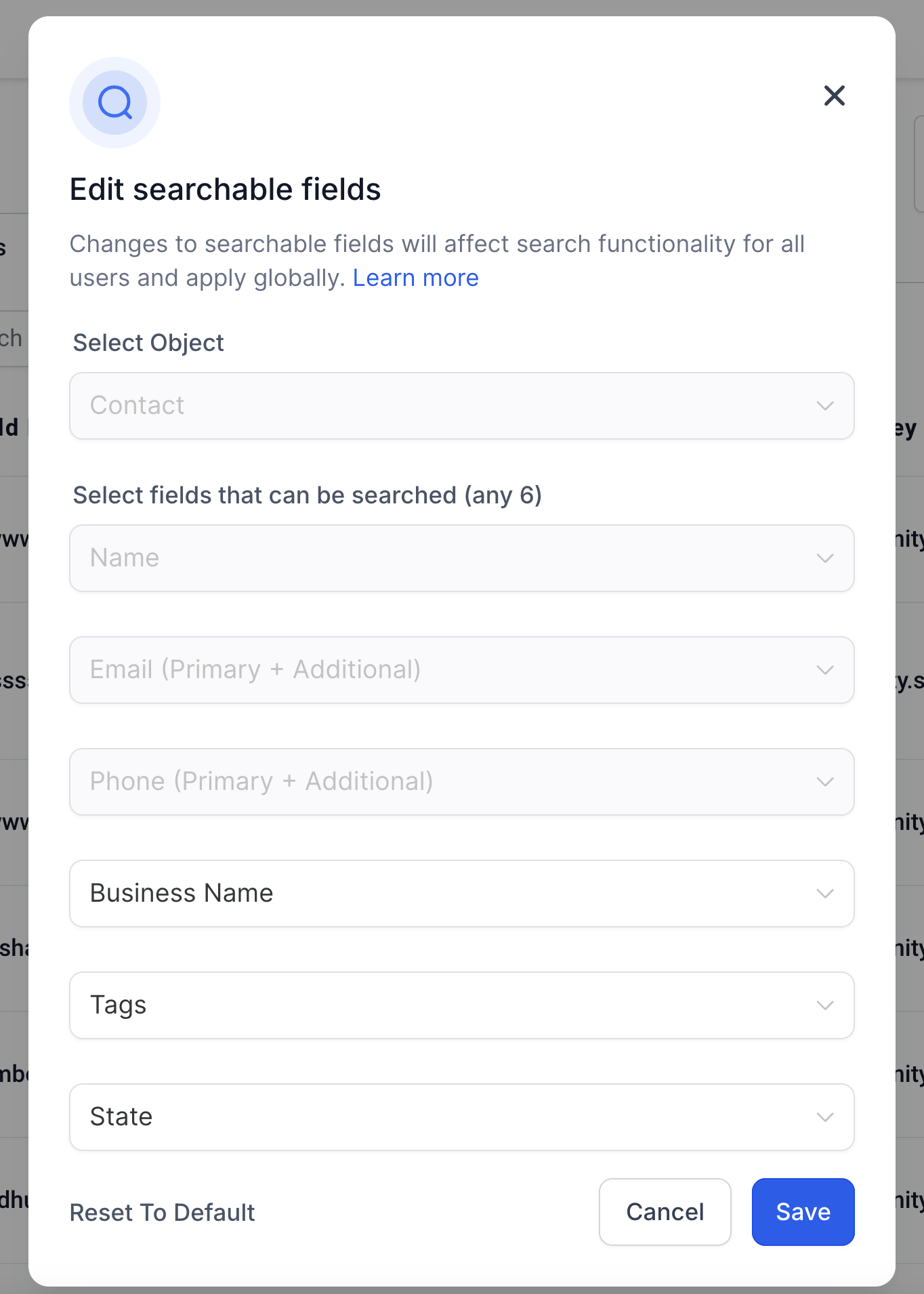
For Contacts and Opportunities - you can search for upto 6 fields.
A minimum of 3 characters need to be added in the search box for any search to execute.
For Contacts - Contact Name, Phone Number and Email Address are mandatory and cannot be removed from the searchable fields.
For Opportunities - Opportunity Name cannot be removed from the searachable fields. 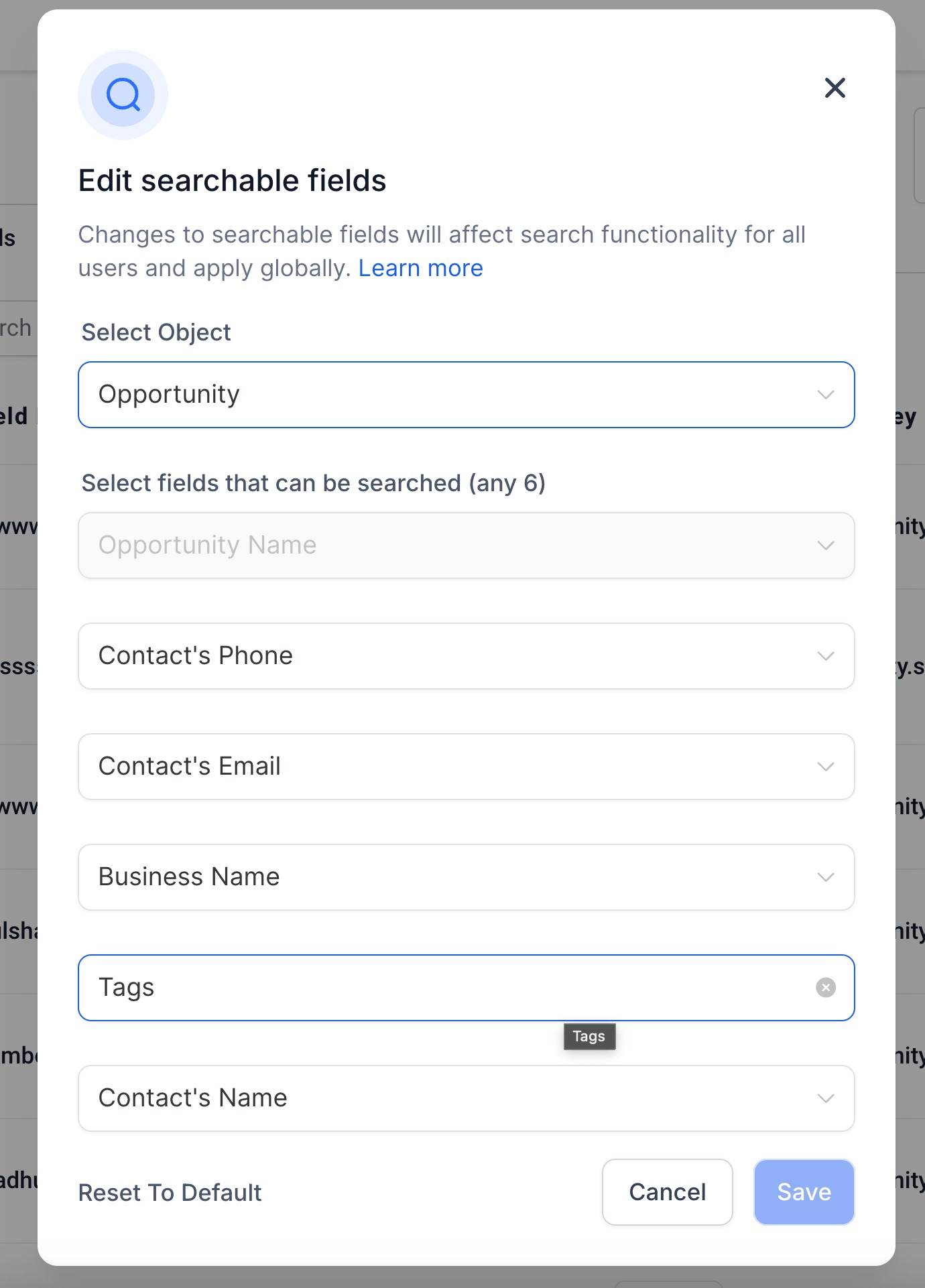
Feature 2 - Admin Only Access
Feature 3 - Changes Apply Globally
For Contacts, that includes:
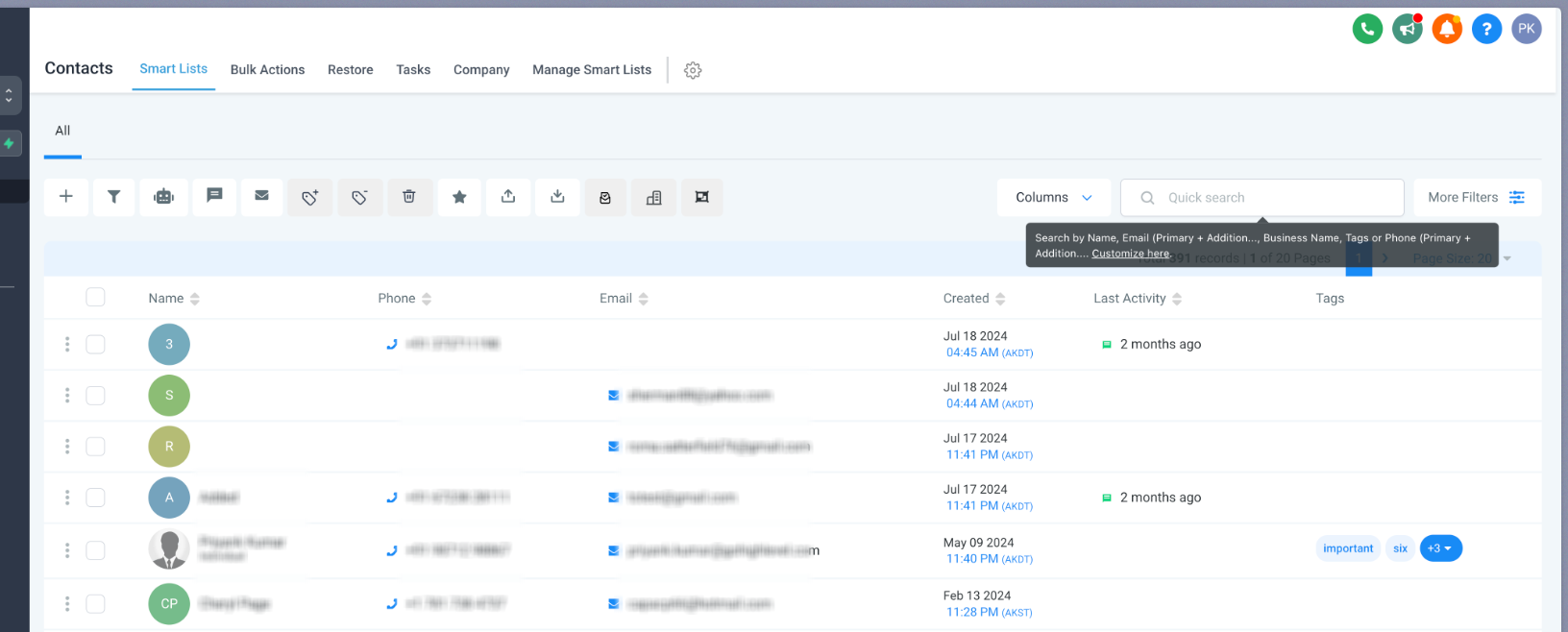
1. Contacts Search bar
2. Global Search Bar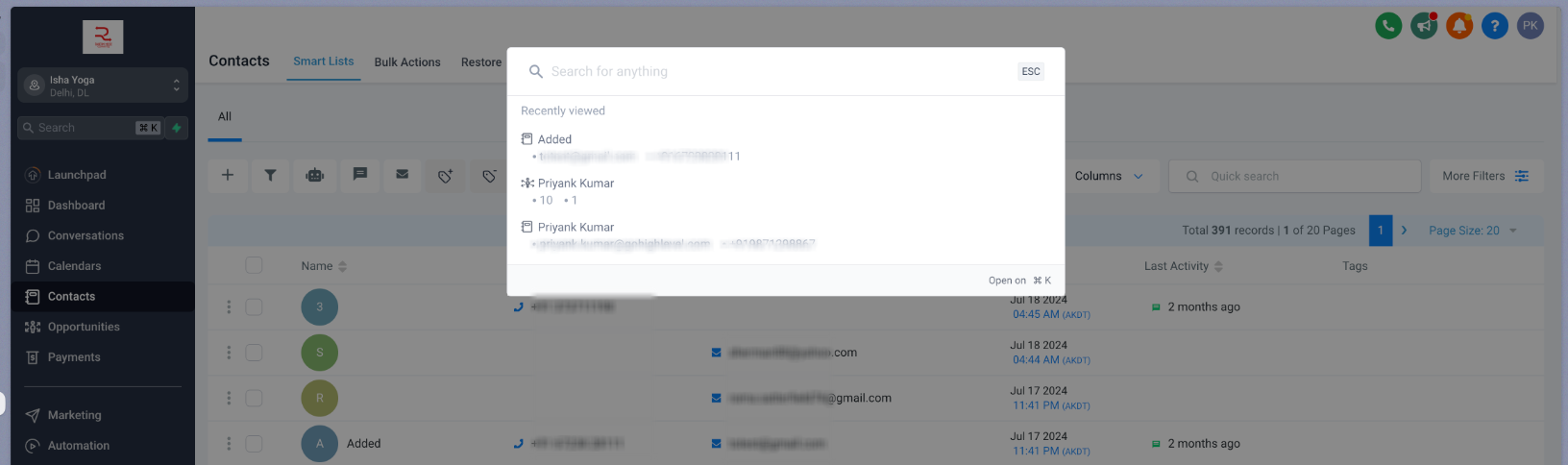
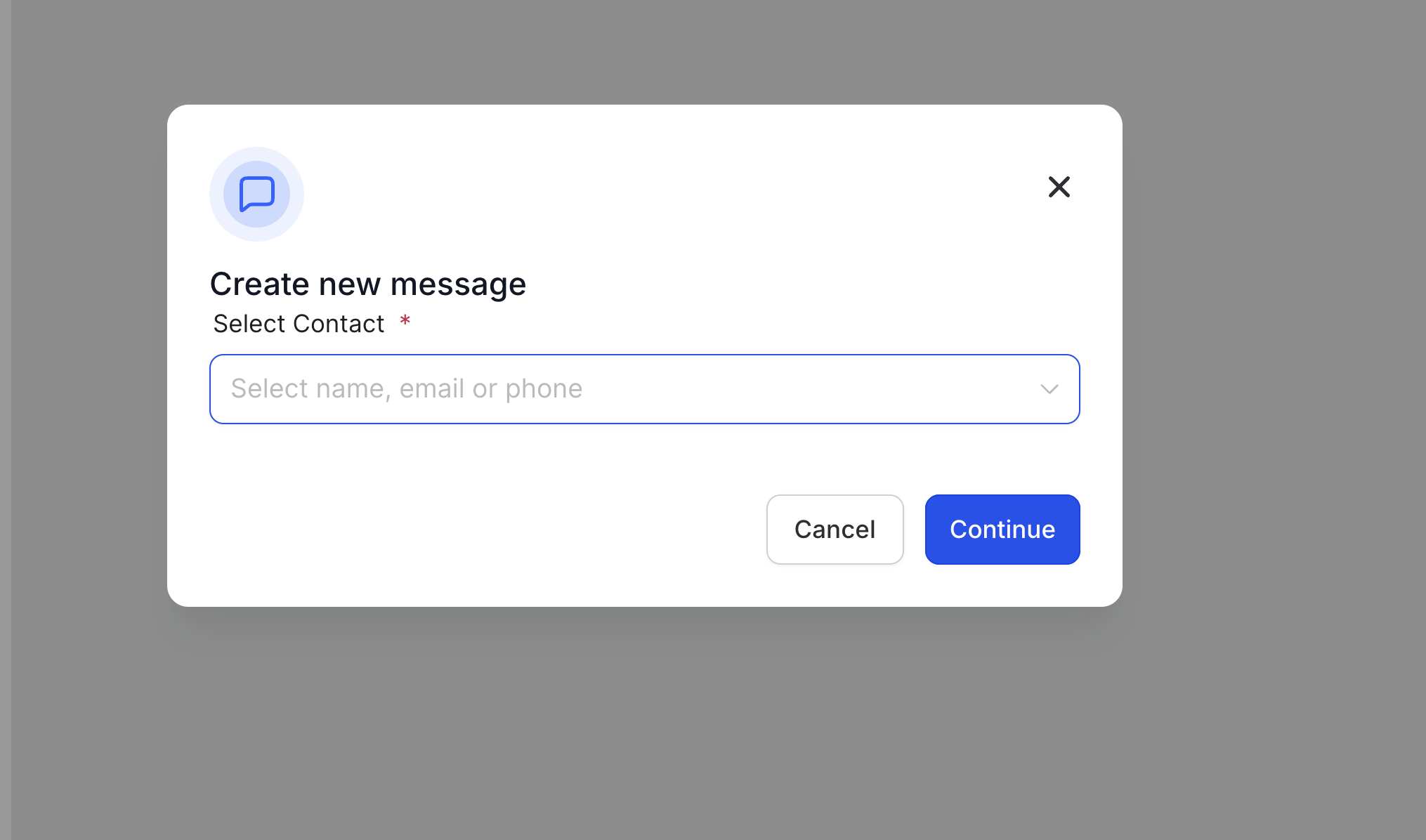
3. Creating a new message in Conversations
4. Creating a new appointment in Calendars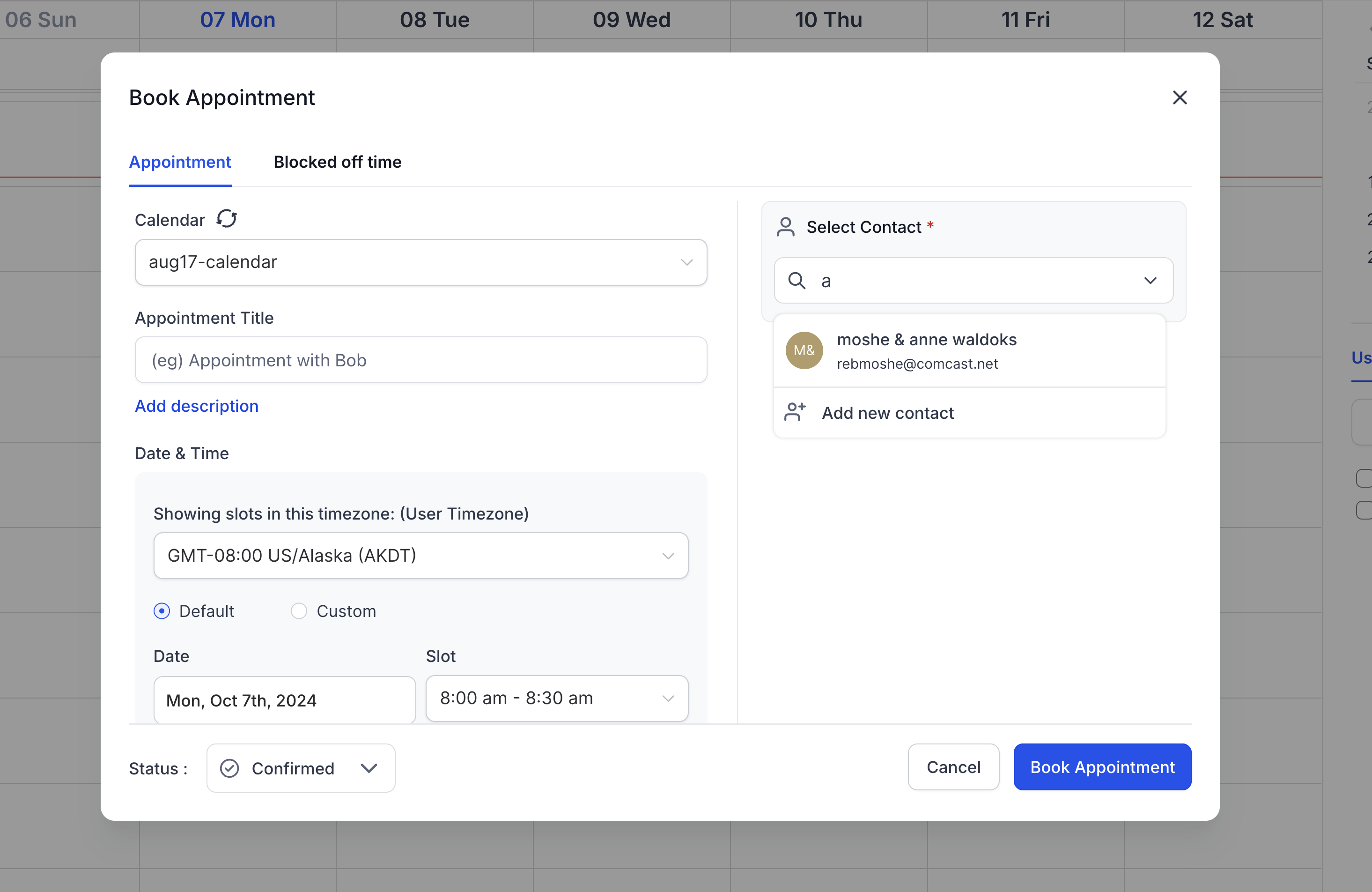
5. Creating and Updating Tasks in Contacts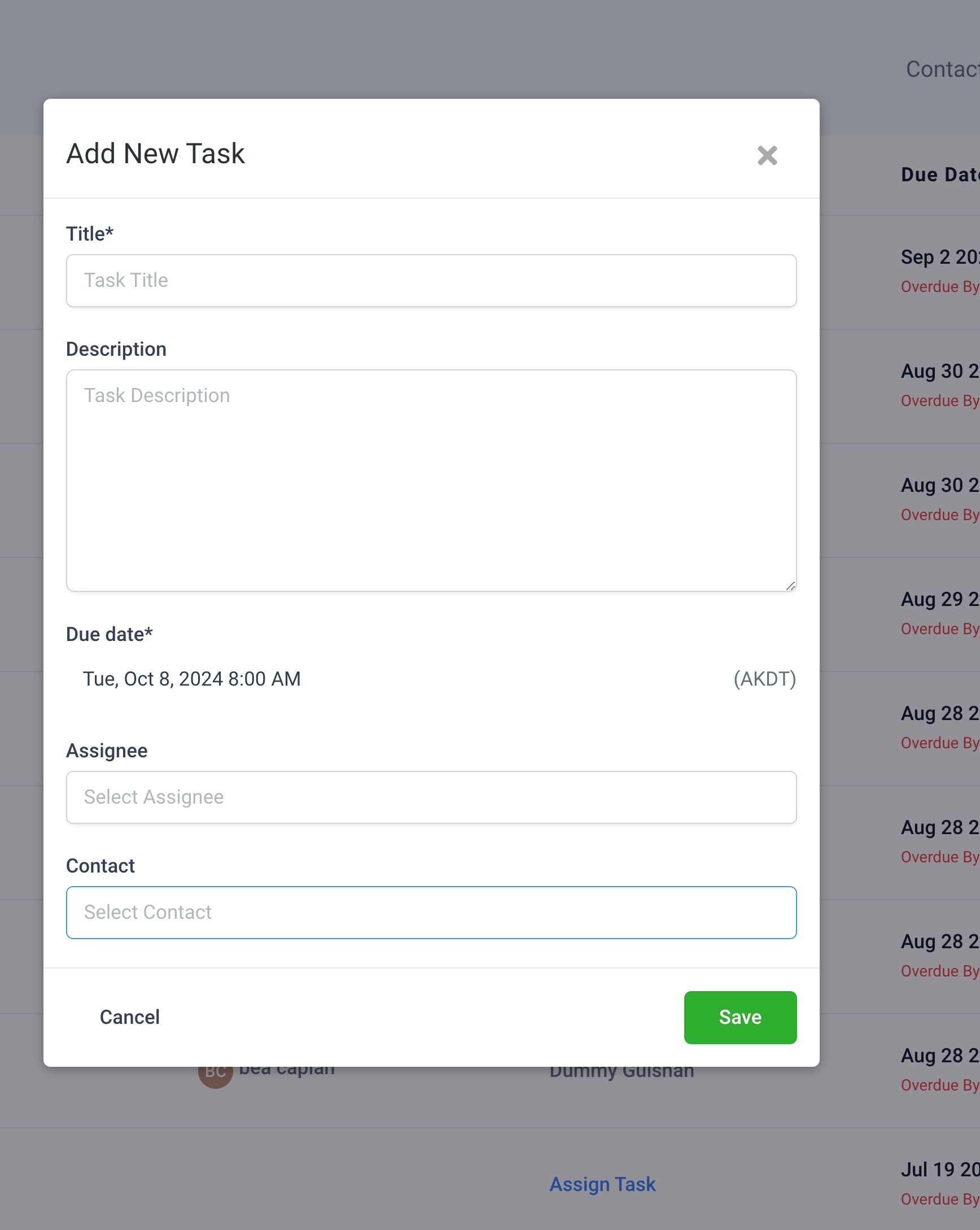
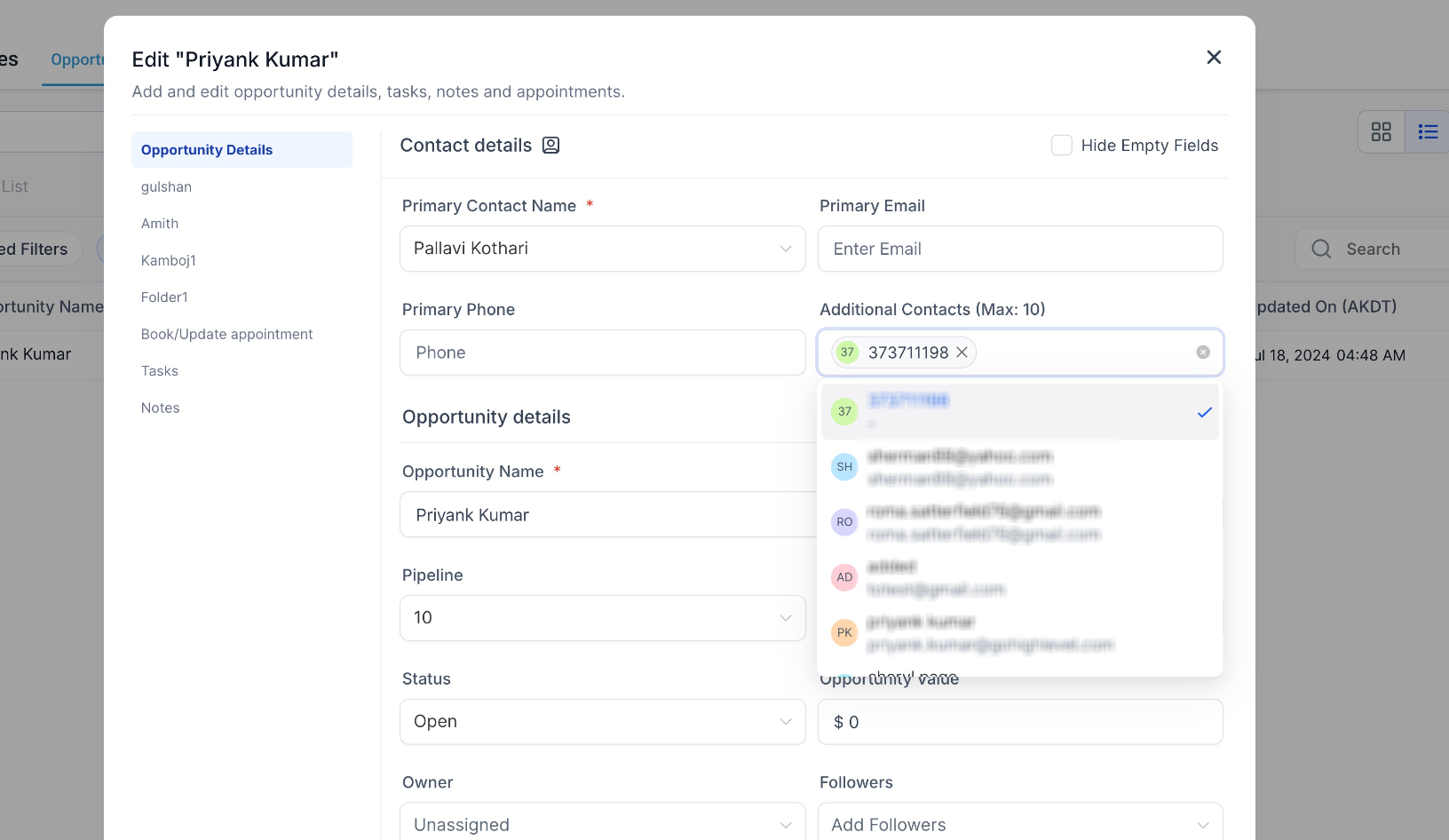
6. Contacts and Additional Contacts fields in Opportunities
And also across the following modules:
|
|
|
|
|
|
|
|
|
|
|
|
Feature 4 - Regex Search
Users can take advantage of regex for more tailored searches.
However, please note that regex will not work on fields like contact names, phone numbers, monetary values, numeric fields and other similar fields.
Regex supports:
*abc: Searches for records ending with "abc."*abc*: Searches for records containing "abc."abc*: Searches for records starting with "abc."
Regex search does not work on fields like contact name, phone numbers and monetary values
How to update your searchable fields?
- Launch the Subaccount > Settings > Custom Fields
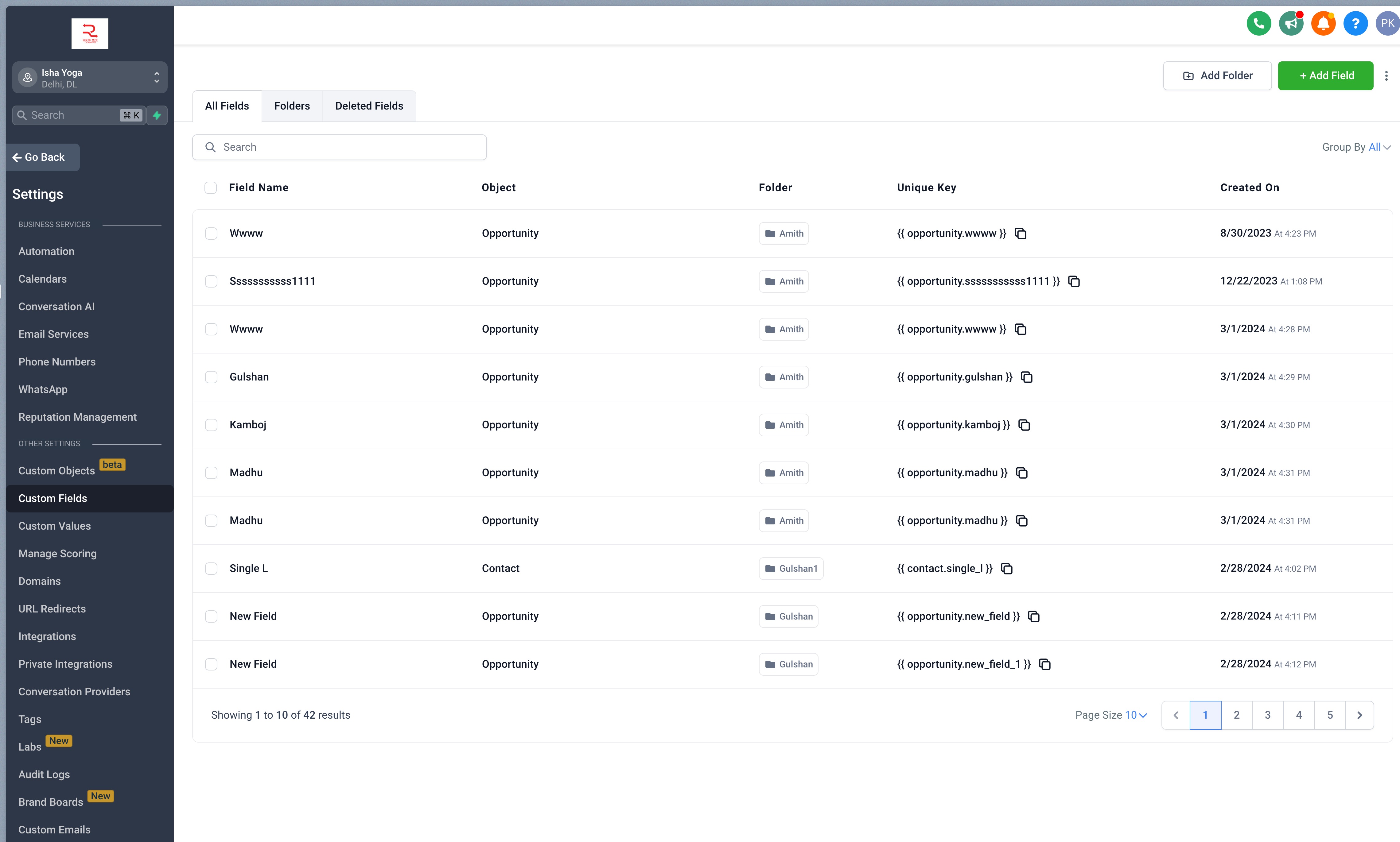
- Go to the kebab menu (3 dots) on the top right and click on "Edit searchable fields"
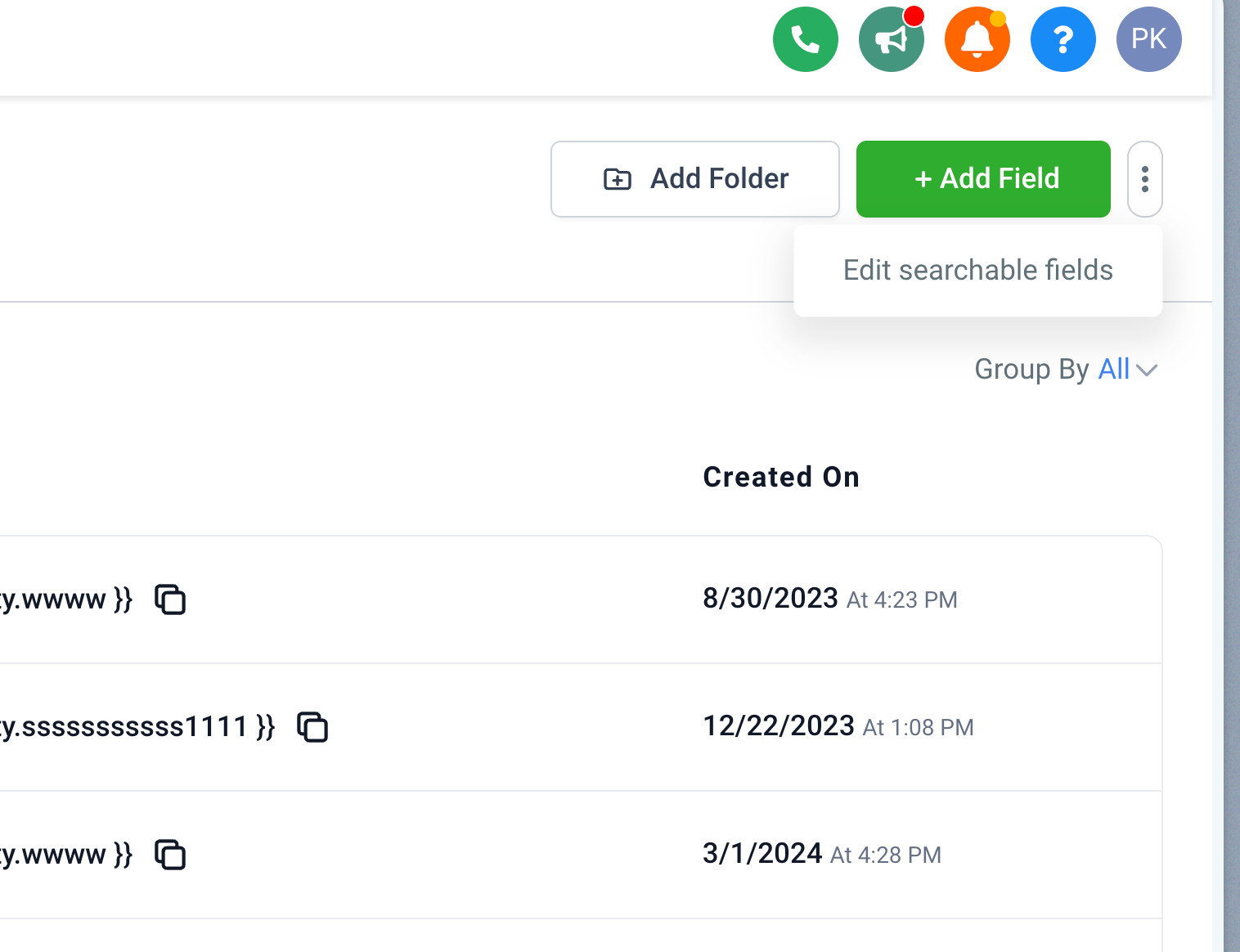
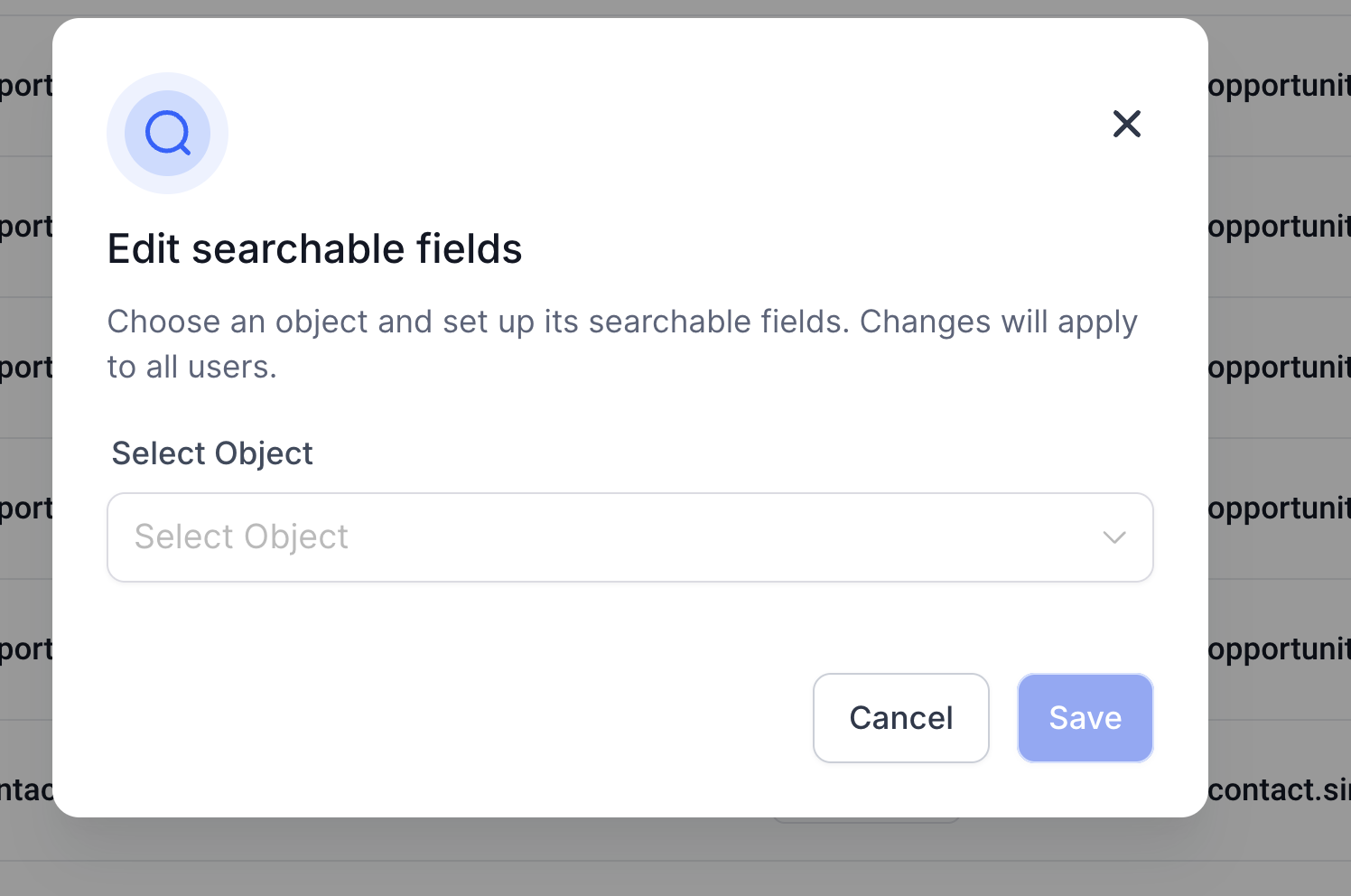
- Select the object you want to update the searchable fields for.
- Select fields that you want to mark Searchable.
- Save and confirm the changes.
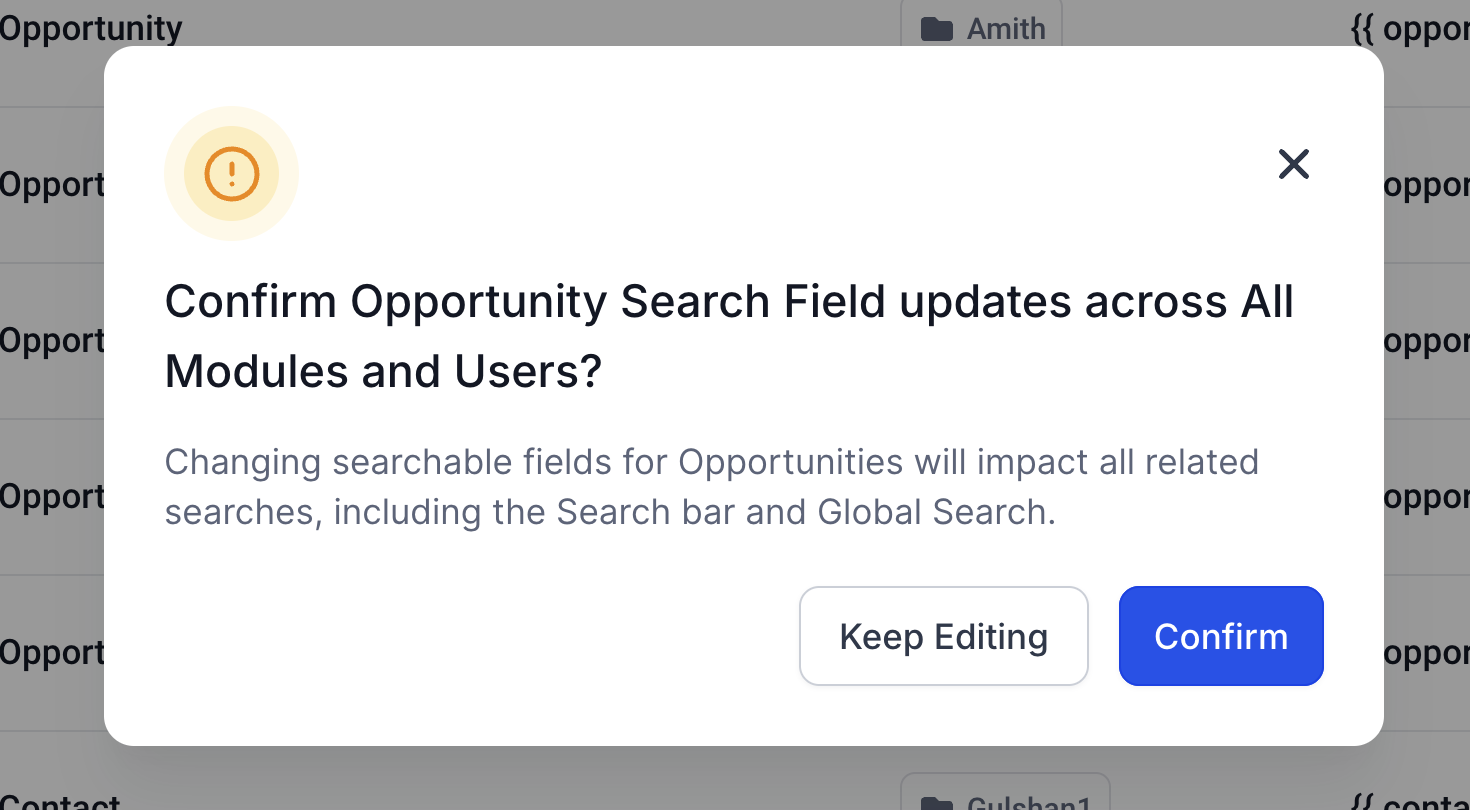
- The searchable fields are now updated for all modules and users in this account.
In the refreshed Settings > Custom Fields page, open the page menu and select Edit searchable fields to manage searchable fields for the selected object.
Was this article helpful?
Related articles
- How to input Multiple Phone Numbers for a Contact?Multiple Phone Numbers for a Contact allows users to efficiently manage multiple phone numbers for a single contact efficiently, thereby improving communication and organization. From adding and editing multiple numbers to designating a primary contact, this feature is about optimizing user experienContacts
- Bulk Add and Remove Tags from ContactsThese features provide enhanced control over bulk actions for tags, allowing for more efficient management of contacts. You can easily, add selected tags, remove selected/all tags from selected contacts and restore them when needed. This feature is currently live via Labs. IN THIS ARTICLE - FeaturContacts
- Importing Contacts and Opportunities via CSV (Coming Soon)The "Import Contacts and Opportunities" feature allows you to efficiently import both contacts and opportunities from a CSV file. You can map fields, create or update records, and monitor the import process seamlessly, ensuring accurate data entry and time-saving for bulk actions. Do check out thisContacts
- Associate Contacts Using Custom LabelsContacts • Associations • CRM Associate Contacts Using Custom Labels Contact Associations let you connect related contacts and other CRM records using custom labels. Relationships can represent spouses, managers, employees, buyers, sellers, or contacts connected to Custom Objects. Association labelsContacts