How to Add Clients
Adding clients to your CPR Enroll account is a fundamental step in managing your organization's interactions and relationships effectively. Follow these detailed instructions to seamlessly add clients to your account:
Access the People Section: Begin by navigating to the "People" section in the left-hand navigation. You can find it below "Enrollments" and above "Payments" in the left corner of the screen.
Select Clients: Within the "People" section, locate and select the "Clients" option. It is positioned to the left of "Instructors" and to the right of "Students."
Initiate Client Addition: Once you're in the "Clients" section, press the green "Add Client" button situated beside the "Import Clients" option.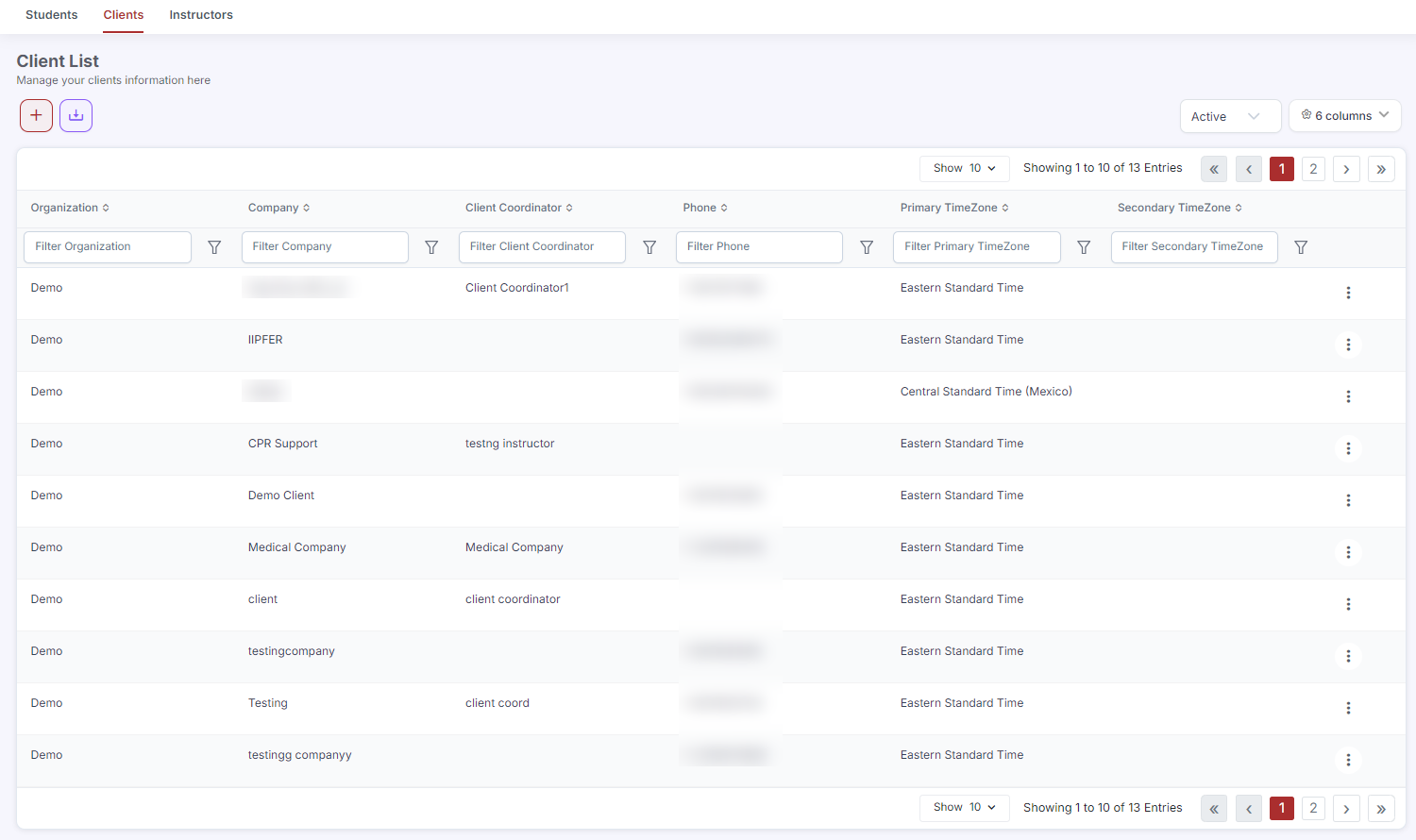
Enter Client Details: A pop-up window will appear, allowing you to input client details. Fill in the required information as follows:
Company: Enter the client's company name.
Abbreviation: Provide an abbreviation for the company, if applicable.
First Name: Enter the client's first name.
Last Name: Input the client's last name.
Username: Assign a username for the client's account.
Password: Set a password for the client's account.
Email Address: Provide the client's email address.
Contact Date: Select the date of contact with the client.
Website: Enter the client's website URL.
Main Phone: Input the main phone number of the client.
Address 1 and Address 2: Enter the client's address details.
Mobile Phone: Optionally, provide the client's mobile phone number.
Fax: Optionally, enter the client's fax number.
City, State, Zip: Fill in the client's city, state, and zip/postal code.
CC Confirmations To: Enter the email address(es) for CC confirmations, if applicable.
Upload Client Picture: Optionally, you can edit the picture of the client by clicking on the logo at the top middle portion of the pop-up window. This personalizes the client's profile and enhances identification.
Add Notes: Utilize the "Shared Notes" and "Internal Notes" sections to encode any relevant information or comments about the client.
Upload Client Public Cover Image: Optionally, you can upload a client public cover image for enhanced visibility. Ensure to use a 1358x570 image for the best fit.
Finalize Addition: After entering all necessary details and configurations, review the information for accuracy. Once satisfied, click the green "Create" button located at the center bottom portion of the pop-up window to finalize the addition of the client to your CPR Enroll account.
By following these comprehensive steps, you can efficiently add clients to your CPR Enroll account, enabling effective management of interactions and fostering strong client relationships.
Was this article helpful?
Related articles
- Importing Student Lists in BulkCorporate clients often need to enroll 10, 50, or 200 employees at once for scheduled CPR training. Rather than adding each student manually, CPR Enroll+ lets you import an entire client roster from an Excel spreadsheet in seconds. This guide covers the complete bulk import process from spreadsheet Getting Started
- Managing Corporate Training PortalsCPR Enroll+ handles both consumer (individual student) and B2B (business-to-business) training engagements. When you work with corporate clients — hospitals, schools, fire departments, or businesses — you need to keep their training organized separately from your general public classes. This guide cGetting Started
- Requesting a Private Group ClassA private group class is a dedicated training session for a company, organization, or group — scheduled at their preferred date and location, rather than one of your regular public sessions. This guide explains how training organizations can set up a workflow for receiving and fulfilling private groGetting Started
- Connecting With Other OrganizationsConnections link your organization to another so you can share work — job networking, paperwork submission, store purchasing and, where granted, class creation. A connection can be started by either side, and there are three different ways to make one. Before You Begin - Connections is in the left nGetting Started