Requesting a Private Group Class
 A private group class is a dedicated training session for a company, organization, or group — scheduled at their preferred date and location, rather than one of your regular public sessions. This guide explains how training organizations can set up a workflow for receiving and fulfilling private group training requests using CPR Enroll+.
ℹ For training organizations This article is for instructors and admins who manage private corporate training requests. If you are a corporate contact looking to request training, reach out to the training organization directly using the contact information on their registration page. |
The Private Group Request Workflow
Step | Action | Tool |
1 | Client inquires about group training | External — email, phone, website form |
2 | Confirm date, location, headcount, course | External communication |
3 | Create the private class in CPR Enroll+ | Classes > + (Private toggle ON) |
4 | Enroll employees | Bulk Import or Share private class link |
5 | Invoice the company | Payments > Invoices |
6 | Class runs, attendance marked, certs issued | Reports > Student Attendance + Certificates |
Step 1 — Make It Easy for Clients to Find You
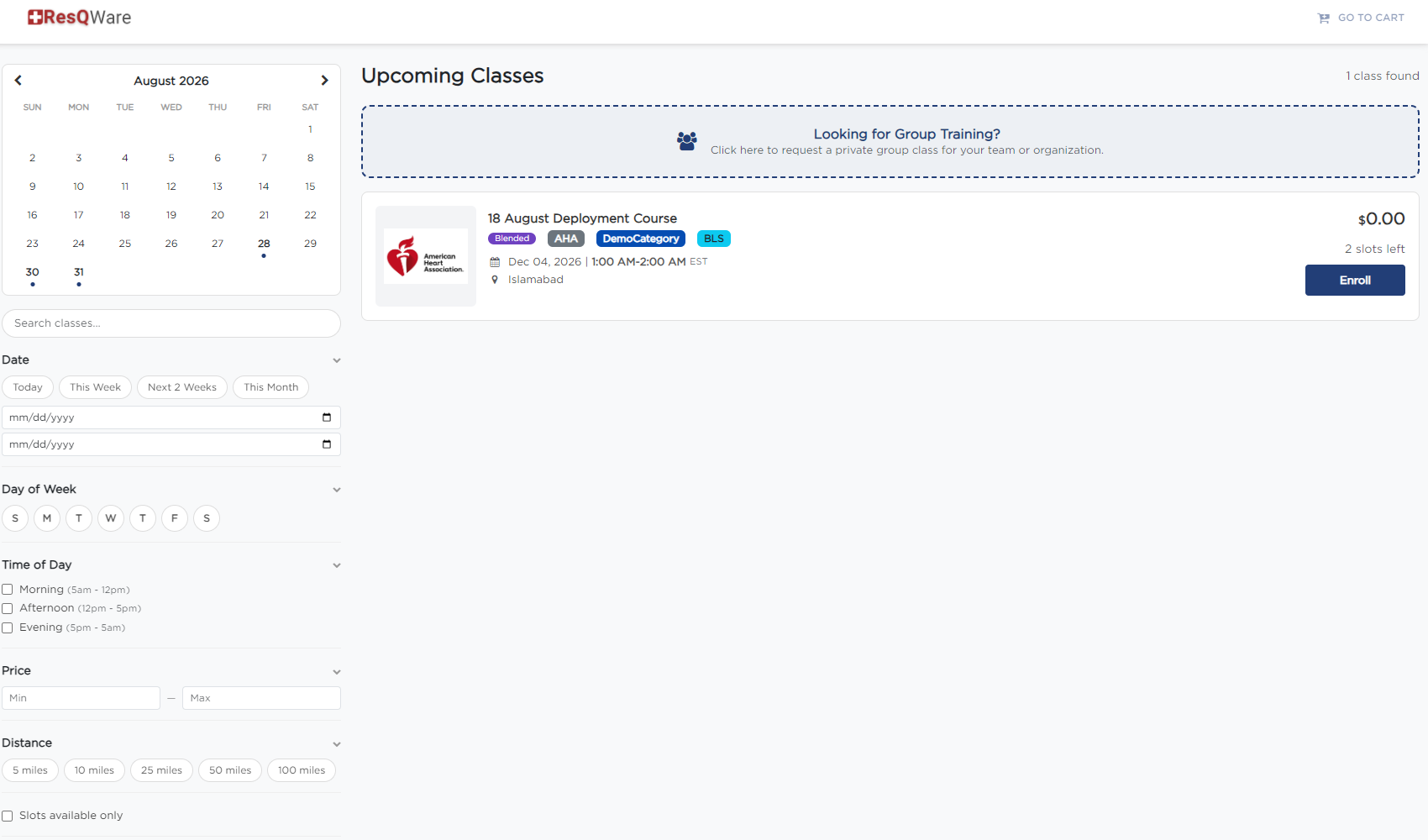
- Go to Settings > Branding > Site Branding.
- Add a contact email and phone number in the Contact Details section.
- In the Page Description (rich text), add a clear invitation for corporate groups: e.g., "Need group CPR training at your facility? Contact us for private group scheduling."
Step 2 — Create the Private Class
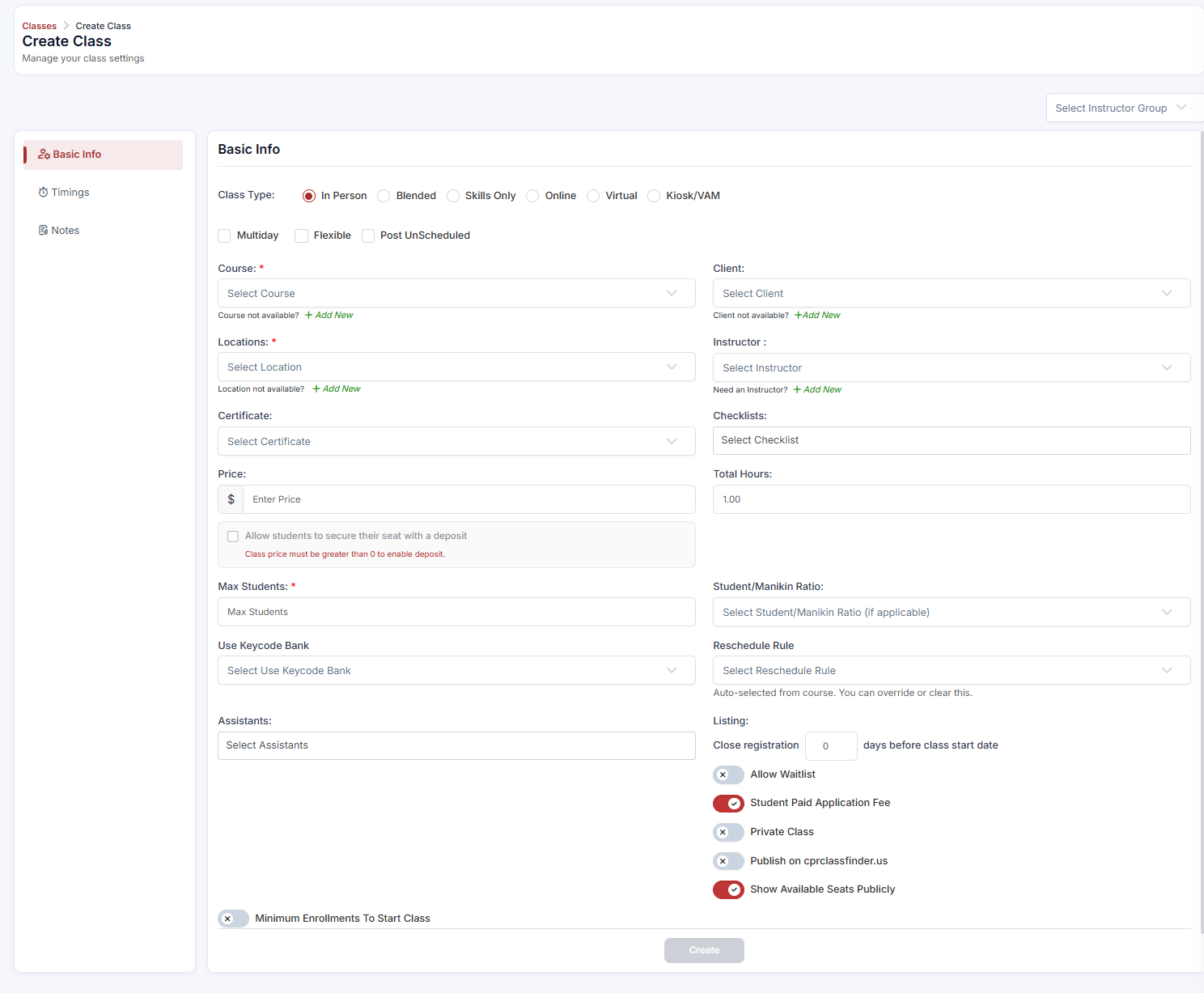
- Go to Classes > +.
- Select the appropriate course, location (their facility or yours), instructor, and set the date and time to match the client's request.
- Set Max Students to match the group size.
- In Listing Settings, toggle Private Class to ON.
- Assign the Client record.
- Click Save.
- Go to Classes > ⋮ > Share Registration to get the private class link. Send this to the corporate HR contact.
Step 3 — Enroll Participants
- Bulk Import — ask the client for a list of employee names and emails in Excel format. Import via Enrollments > + > Import Students.
- Self-registration via link — share the private class link with the HR contact to distribute. Employees self-register and pay (or set price to $0 if billing the company directly on an invoice).
Step 4 — Invoice the Company
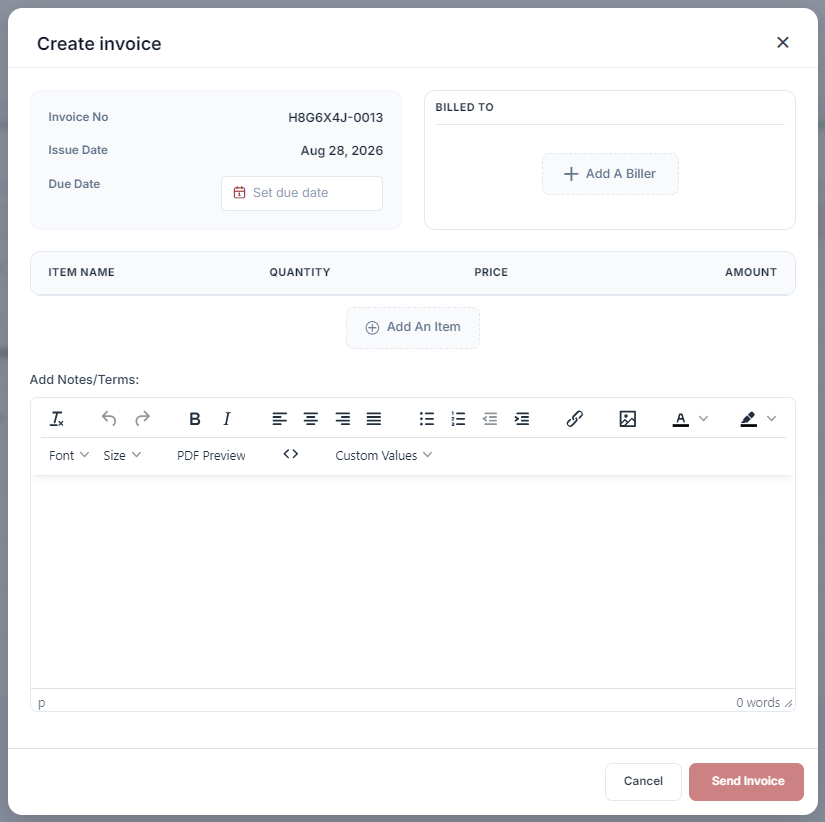
- Go to Payments > Invoices > + Create.
- Bill the corporate contact for the full group session.
- Include: course name, number of participants, date, instructor fee, and any equipment charges as separate line items.
- Set payment terms and click Save.
✔ Use the Jobs Board for staffing If you need to find an instructor for a private group class in a region where you do not have a regular instructor, post the opportunity on the Jobs Board. Go to Jobs > + New Job, select the class, and set Distribution to External to attract available certified instructors in that area. |
Was this article helpful?
Related articles
- Importing Student Lists in BulkCorporate clients often need to enroll 10, 50, or 200 employees at once for scheduled CPR training. Rather than adding each student manually, CPR Enroll+ lets you import an entire client roster from an Excel spreadsheet in seconds. This guide covers the complete bulk import process from spreadsheet Getting Started
- Managing Corporate Training PortalsCPR Enroll+ handles both consumer (individual student) and B2B (business-to-business) training engagements. When you work with corporate clients — hospitals, schools, fire departments, or businesses — you need to keep their training organized separately from your general public classes. This guide cGetting Started
- How to Add ClientsAdding clients to your CPR Enroll account is a fundamental step in managing your organization's interactions and relationships effectively. Follow these detailed instructions to seamlessly add clients to your account: Access the People Section: Begin by navigating to the "People" section in the lefGetting Started
- Connecting With Other OrganizationsConnections link your organization to another so you can share work — job networking, paperwork submission, store purchasing and, where granted, class creation. A connection can be started by either side, and there are three different ways to make one. Before You Begin - Connections is in the left nGetting Started