Managing Corporate Training Portals
 CPR Enroll+ handles both consumer (individual student) and B2B (business-to-business) training engagements. When you work with corporate clients — hospitals, schools, fire departments, or businesses — you need to keep their training organized separately from your general public classes. This guide covers the tools in CPR Enroll+ that make B2B management efficient.
Setting Up a Corporate Client
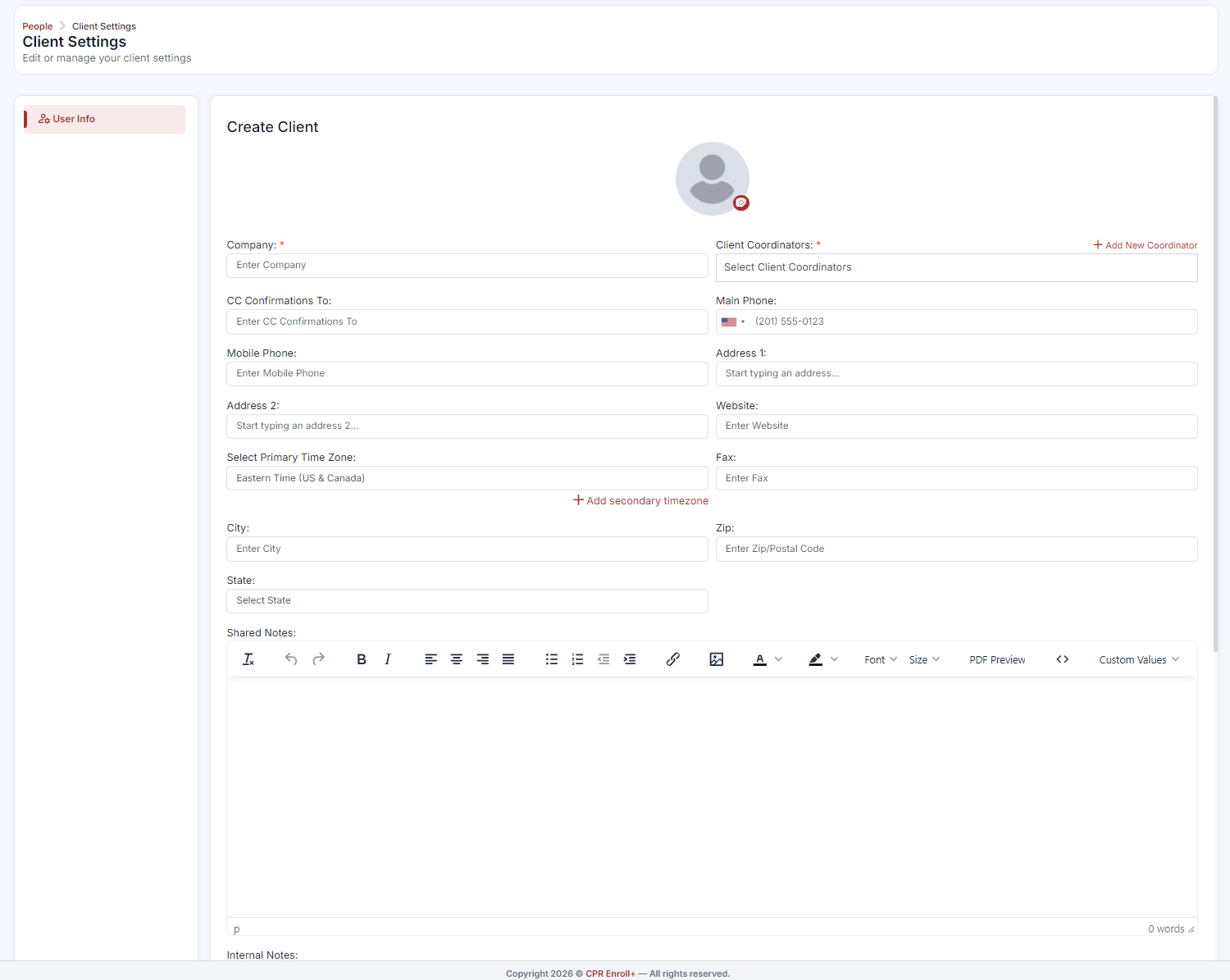
- Create a Client record: when creating or editing a class or enrollment, go to People at the left Menu. Click the Clients tab and click + Add New to create a new corporate account. Enter the company name, contact person (Client Coordinator), phone, and email.
- This client record is now available to tag on classes, enrollments, and invoices.
Creating a Private Class for a Corporate Client
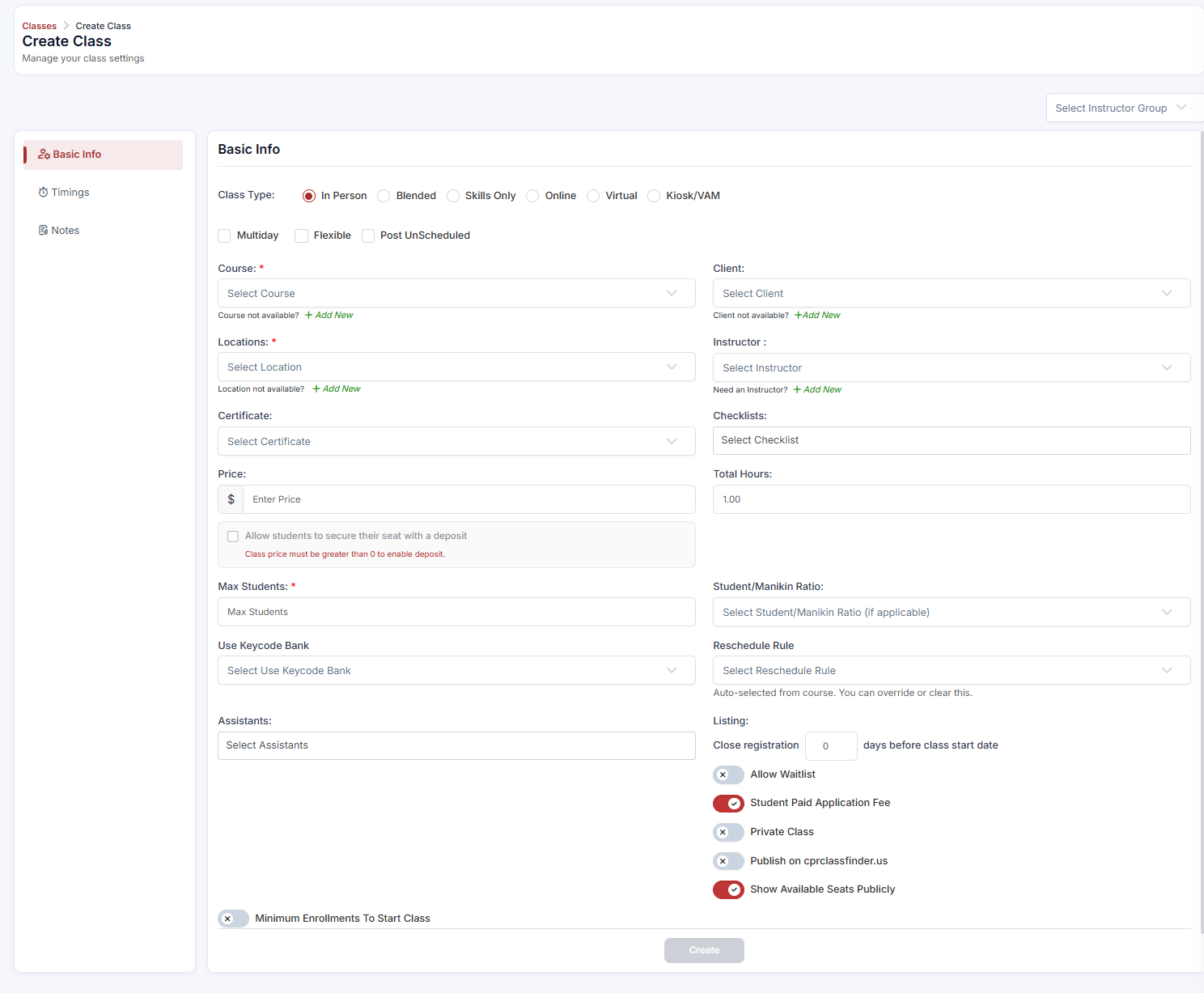
- Go to Classes > + to create a new class.
- Fill in all class details (course, location, instructor, date/time, max students).
- Assign the Client from the Client dropdown field. (Note: all classes with a client selected will default to a Private Class)
- Click Save.
- Get the private class link via Classes > ⋮ > Share Registration and send it to the HR coordinator or corporate contact to distribute to employees.
Tracking Corporate Enrollments
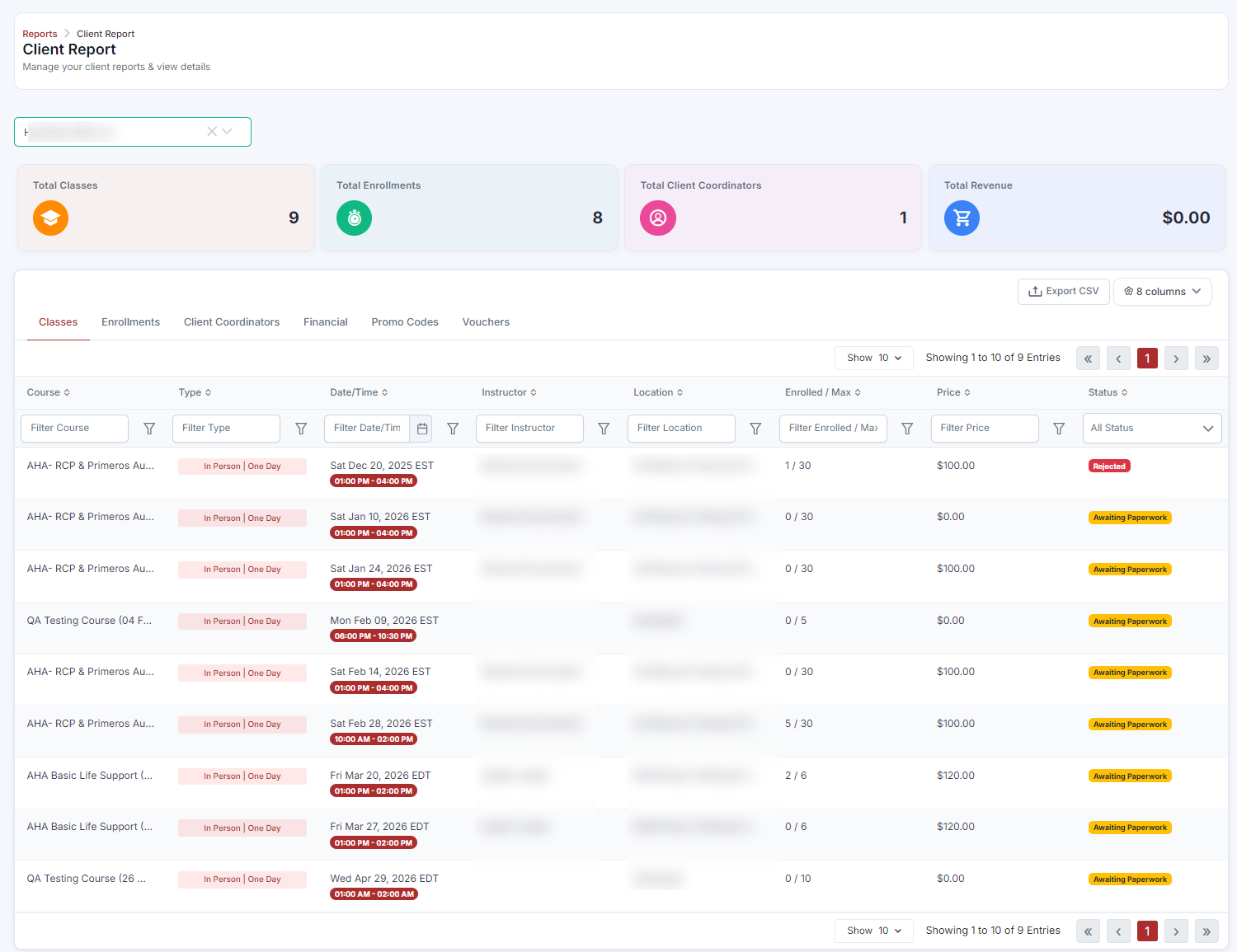
- Go to Enrollments > List view.
- Filter by Client to see all enrollments associated with that company across all classes and dates.
- Track payment status for each employee.
- Use Bulk Actions > Mark as Paid after receiving the corporate payment to update all records simultaneously.
Invoicing Corporate Clients
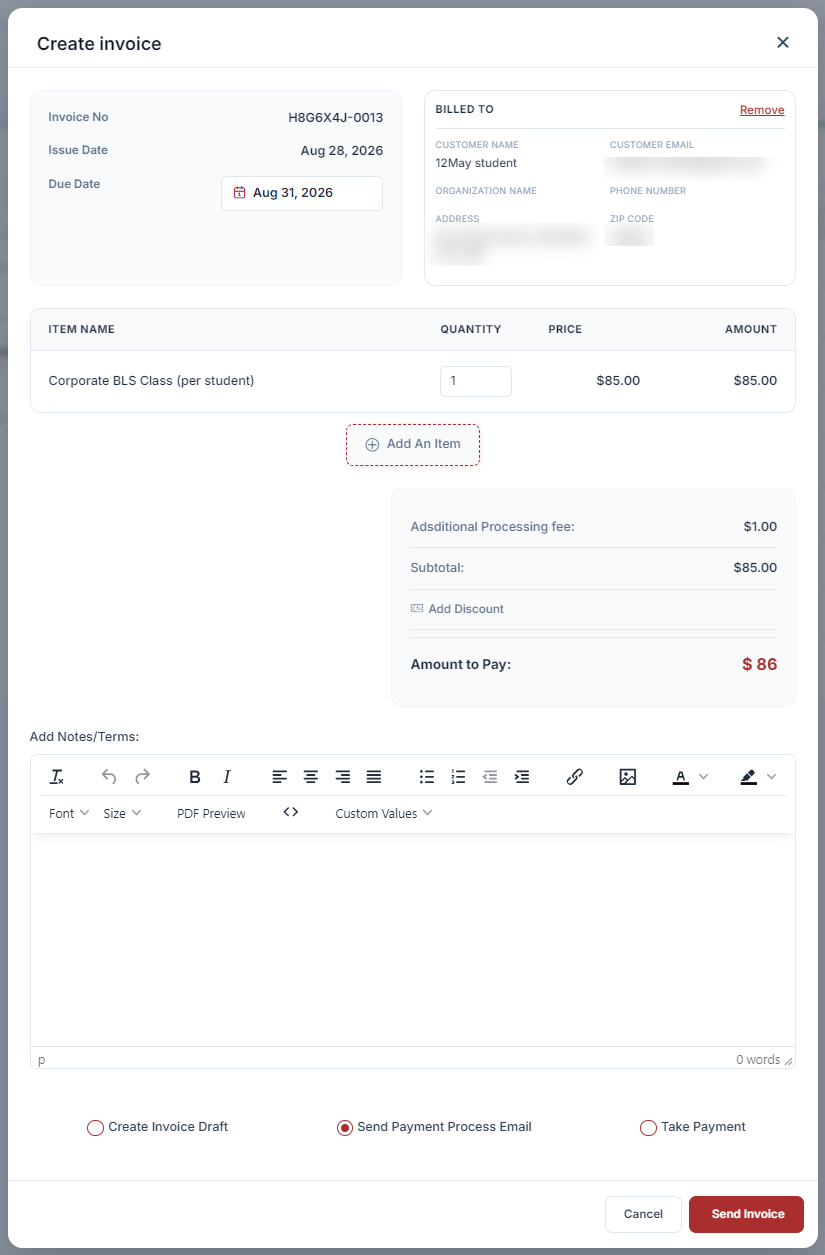
- Go to Payments > Invoices > + Create.
- Set Billed To to the corporate client.
- Add line items for training sessions: course name, number of seats, and per-seat price.
- Add Terms (Net 30, Net 60, etc.) and any applicable taxes.
- Save and send the invoice to the client's billing contact.
Repeat Client Management
- Create a recurring class schedule for clients with quarterly or annual renewal needs (see Managing Recurring Schedules).
- Import updated employee rosters each period as staff changes.
- Create a coupon specifically for this client's employees with a negotiated price — set it to apply to specific courses only.
Was this article helpful?
Related articles
- Importing Student Lists in BulkCorporate clients often need to enroll 10, 50, or 200 employees at once for scheduled CPR training. Rather than adding each student manually, CPR Enroll+ lets you import an entire client roster from an Excel spreadsheet in seconds. This guide covers the complete bulk import process from spreadsheet Getting Started
- Requesting a Private Group ClassA private group class is a dedicated training session for a company, organization, or group — scheduled at their preferred date and location, rather than one of your regular public sessions. This guide explains how training organizations can set up a workflow for receiving and fulfilling private groGetting Started
- How to Add ClientsAdding clients to your CPR Enroll account is a fundamental step in managing your organization's interactions and relationships effectively. Follow these detailed instructions to seamlessly add clients to your account: Access the People Section: Begin by navigating to the "People" section in the lefGetting Started
- Connecting With Other OrganizationsConnections link your organization to another so you can share work — job networking, paperwork submission, store purchasing and, where granted, class creation. A connection can be started by either side, and there are three different ways to make one. Before You Begin - Connections is in the left nGetting Started