Importing Student Lists in Bulk
Corporate clients often need to enroll 10, 50, or 200 employees at once for scheduled CPR training. Rather than adding each student manually, CPR Enroll+ lets you import an entire client roster from an Excel spreadsheet in seconds. This guide covers the complete bulk import process from spreadsheet preparation to verification.
ℹ When to use bulk import Use this feature when a corporate client sends you a roster of employees to enroll, or when a healthcare facility, school, or large organization needs to register a group for training. |
Step 1 — Prepare Your Spreadsheet (Two Options)
a) Download the Import Template and add one student per row -OR-
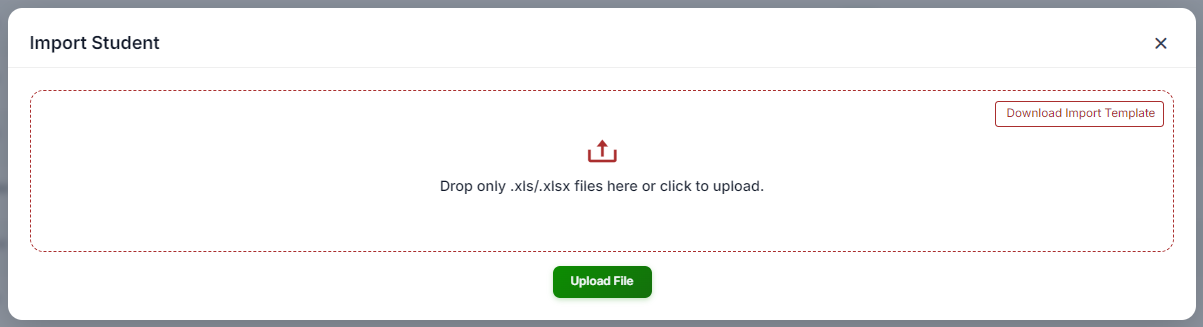
b) Create a new Excel file (.xls or .xlsx) with the following columns and add one student per row:
Column Name | Required? | Notes |
First Name | Required |
|
Last Name | Required |
|
Required | Must be unique — duplicates may cause conflicts | |
UserName | Optional | If the student has a username in CPR Enroll |
Address1 | Optional | Google Maps validated or plain text |
Address2 | Optional | Google Maps validated or plain text |
| City | Optional | Google Maps validated or plain text |
State | Optional | Google Maps validated or plain text |
Zip | Optional | Google Maps validated or plain text |
Country | Optional | Google Maps validated or plain text\ |
Phone | Optional | Include country code for international numbers |
✔ Spreadsheet formatting tips Use a clean header row with exact column names. Avoid merged cells, blank rows, special characters in names, or extra formatting. Save as .xlsx (Excel format) rather than .csv for best compatibility. |
Step 2 — Import Into CPR Enroll+
- From the sidebar, go to Classes.
- Select the Class you want to enroll all imported students into.
- Click the Edit button to open the record and select Import Students.
- Click Upload File and select your .xls or .xlsx spreadsheet.
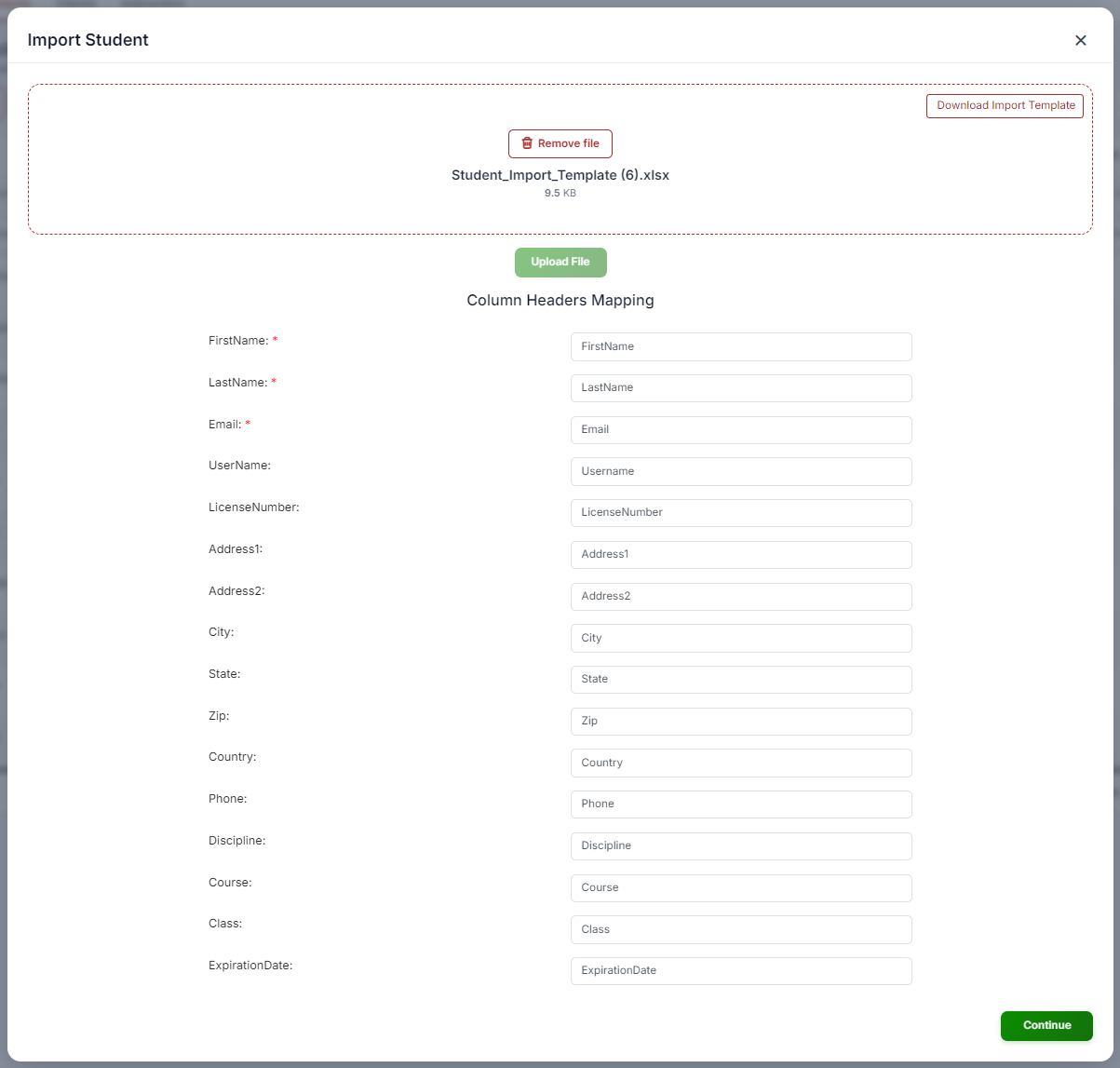
- Map the spreadsheet columns to the corresponding CPR Enroll+ fields if prompted.
- Click Import. CPR Enroll+ creates a student record and enrollment for each row.
Step 3 — Verify the Import
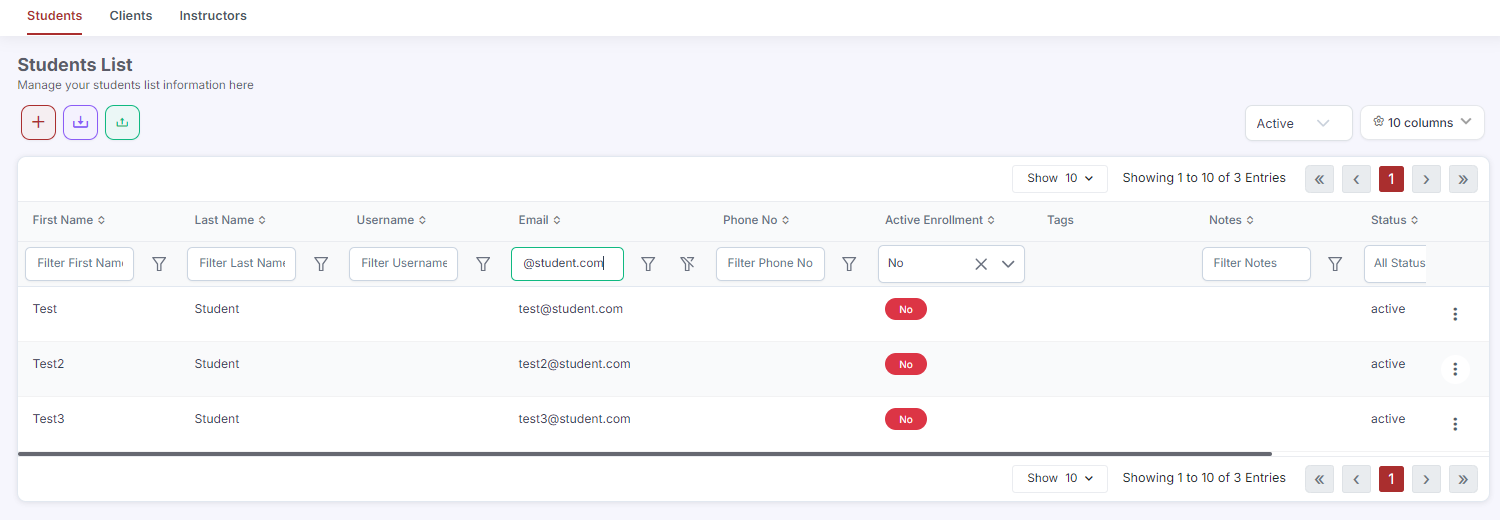
- After import, go to Enrollments > List view and filter by the class you imported into.
- Verify the student count matches your spreadsheet.
- Check for import errors — rows that failed (e.g., due to a missing required field or duplicate email) will be flagged.
- Add any failed rows manually using Enrollments > + > Quick Add.
Tagging and Organizing Corporate Students
- Apply a corporate client Tag to all imported students (set it during import or in bulk after import) so you can filter by company at any time.
- Use the Client field in the enrollment record to associate students with their corporate account for billing purposes.
- Generate a corporate Invoice in Payments > Invoices after enrollment, billing for the full group at once.
Was this article helpful?
Related articles
- Managing Corporate Training PortalsCPR Enroll+ handles both consumer (individual student) and B2B (business-to-business) training engagements. When you work with corporate clients — hospitals, schools, fire departments, or businesses — you need to keep their training organized separately from your general public classes. This guide cGetting Started
- Requesting a Private Group ClassA private group class is a dedicated training session for a company, organization, or group — scheduled at their preferred date and location, rather than one of your regular public sessions. This guide explains how training organizations can set up a workflow for receiving and fulfilling private groGetting Started
- How to Add ClientsAdding clients to your CPR Enroll account is a fundamental step in managing your organization's interactions and relationships effectively. Follow these detailed instructions to seamlessly add clients to your account: Access the People Section: Begin by navigating to the "People" section in the lefGetting Started
- Connecting With Other OrganizationsConnections link your organization to another so you can share work — job networking, paperwork submission, store purchasing and, where granted, class creation. A connection can be started by either side, and there are three different ways to make one. Before You Begin - Connections is in the left nGetting Started